1. Introducció
This manual provides comprehensive instructions for the setup, operation, and maintenance of your ProtoArc KM310 Wireless Mechanical Keyboard and Mouse combo. This device offers versatile connectivity options, including 2.4G wireless and dual Bluetooth, designed for multi-device use across various operating systems.

Image 1.1: ProtoArc KM310 Wireless Mechanical Keyboard and Mouse Combo.
2. Contingut del paquet
Verifiqueu que tots els elements siguin presents al paquet:
- ProtoArc KM310 Wireless Mechanical Keyboard
- ProtoArc Wireless Mouse
- Cable de càrrega USB-C
- 2.4G USB Receiver (stored in the mouse)
- Manual d'usuari (aquest document)

Image 2.1: ProtoArc KM310 package contents including keyboard, mouse, USB-C cable, and user manual.
3. Producte acabatview
3.1 Keyboard Layout and Features
The KM310 keyboard features a full-size 108-key layout with low-profile mechanical red switches for a smooth and quiet typing experience. It includes a numeric keypad and dedicated media keys.
3.2 Mouse Components
The ergonomic mouse includes standard left/right click buttons, a scroll wheel, a DPI switch, and forward/backward side buttons. The 2.4G USB receiver is stored in a compartment on the underside of the mouse.

Imatge 3.1: Desplegada view illustrating the internal components and weight distribution of the ProtoArc wireless mouse.
4. Instruccions de configuració
4.1 Càrrega dels dispositius
Both the keyboard and mouse are equipped with rechargeable batteries. Use the provided USB-C cable to charge them. A full charge typically takes 2-3 hours and provides up to 150 days of standby time.
- Connect the USB-C end of the cable to the charging port on the keyboard/mouse.
- Connecteu l'extrem USB-A a una font d'alimentació (per exemple, un port USB de l'ordinador o un adaptador de paret USB).
- El llum indicador de càrrega mostrarà l'estat de la càrrega i s'apagarà quan estigui completament carregat.

Image 4.1: The keyboard and mouse being charged via USB-C cables.
4.2 Connexió mitjançant un receptor USB de 2.4G
This method provides a stable wireless connection for your keyboard and mouse.
- Locate the 2.4G USB receiver in the compartment on the underside of the mouse.
- Connecteu el receptor USB a un port USB disponible de l'ordinador.
- Engegueu el teclat i el ratolí utilitzant els seus respectius interruptors d'alimentació.
- Els dispositius s'haurien de connectar automàticament a l'ordinador.
4.3 Connexió mitjançant Bluetooth
The KM310 supports dual Bluetooth connections, allowing you to pair with up to two Bluetooth-enabled devices.
- Enceneu el teclat i el ratolí.
- Al teclat, premeu i manteniu premuda la tecla BT1 or BT2 key for 3-5 seconds until the indicator light flashes, indicating pairing mode.
- On the mouse, press the channel switch button on the underside to select BT1 or BT2, then press and hold the button for 3-5 seconds until the indicator light flashes.
- On your device (computer, tablet, smartphone), go to Bluetooth settings and search for "ProtoArc KM310 Keyboard" and "ProtoArc KM310 Mouse".
- Select the devices to pair. Once connected, the indicator light will stop flashing.
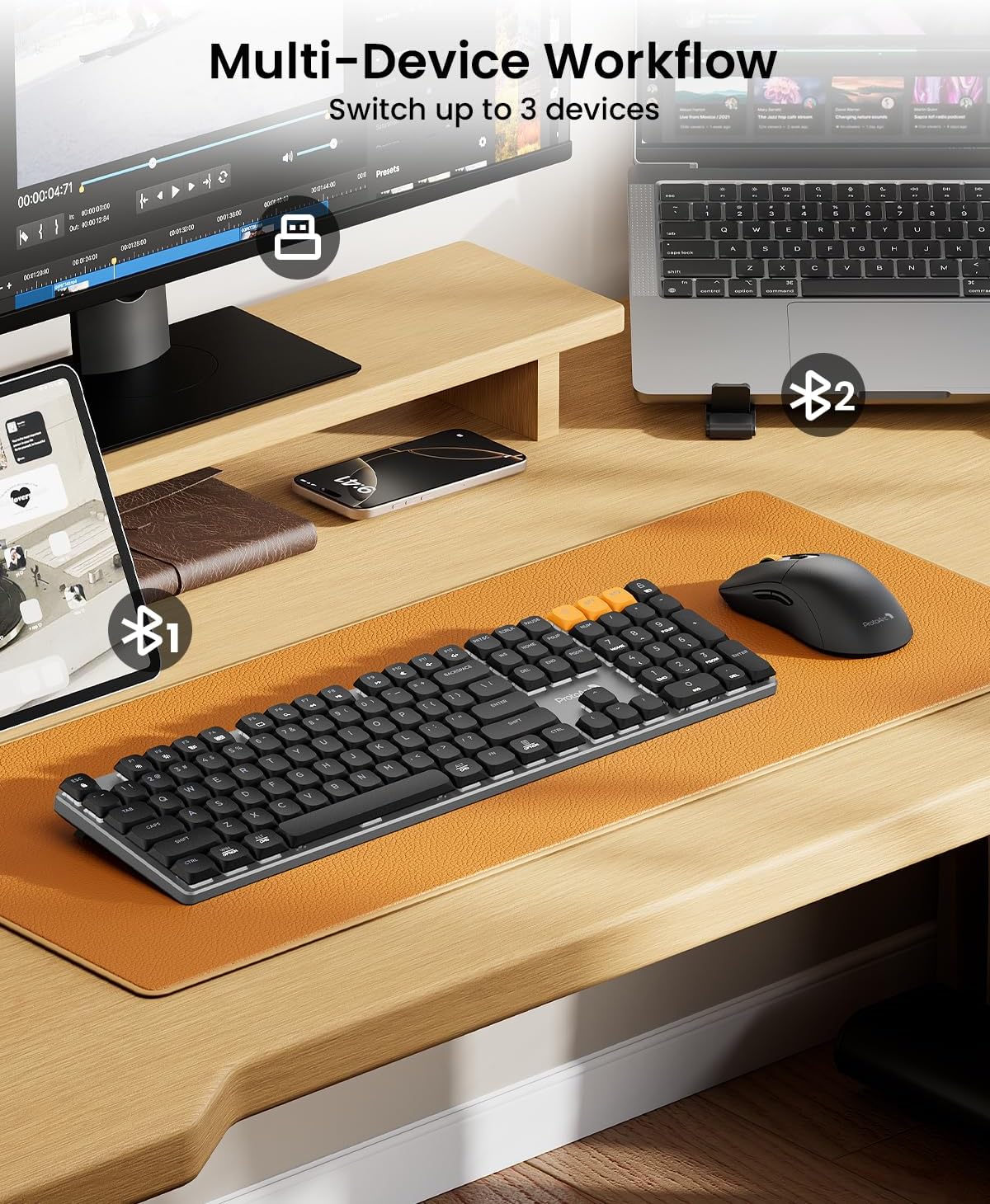
Image 4.2: The KM310 keyboard and mouse connected to a desktop PC via 2.4G, a laptop via Bluetooth 1, and a tablet via Bluetooth 2.
5. Instruccions de funcionament
5.1 Canvi entre dispositius
Per canviar entre dispositius connectats:
- Teclat: Premeu el botó 2.4G, BT1, o BT2 key to instantly switch to the corresponding paired device.
- Ratolí: Press the channel switch button on the underside of the mouse to cycle between 2.4G, BT1, i BT2.
5.2 Funcions del teclat
- Low-Profile Interruptors vermells: Designed for a smooth, linear, and quiet typing experience.
- Potes inclinables ajustables: Extend the tilt legs on the underside of the keyboard to adjust the typing angle for ergonomic comfort (6° and 9° tilt options).
- Media Keys: Use the function keys (F1-F12) in combination with the Fn key for media control (e.g., volume, play/pause).
- Compatibilitat del sistema operatiu: The keyboard is compatible with Windows and macOS. Specific key legends may vary slightly for different operating systems.

Image 5.1: Detail of the low-profile mechanical red switches on the ProtoArc keyboard, designed for fluid and responsive typing with low sound.

Image 5.2: The keyboard features adjustable tilt legs, offering 3°, 6°, and 9° angles for personalized comfort.
5.3 Funcions del ratolí
- Ajust de DPI: Premeu el botó DPI button (located behind the scroll wheel) to cycle through 3 DPI levels (800/1200/1600). This adjusts cursor sensitivity.
- Disseny ergonòmic: The mouse is contoured for a natural grip, reducing hand fatigue during extended use.
- Clics silenciosos: The mouse features quiet click buttons, minimizing noise in shared environments.
- Botons Endavant/Enrere: Feu servir els botons laterals per a una navegació ràpida web navegadors i file exploradors.

Image 5.3: The mouse offers 3 adjustable DPI settings (800, 1200, 1600) and features a silent click design.

Image 5.4: The ProtoArc mouse features an ultra-lightweight design (63g) compared to traditional mice (approx. 100g), reducing hand fatigue.
6. Manteniment
6.1 Neteja
- Disconnect the keyboard and mouse from power and your devices before cleaning.
- Utilitzeu un drap suau i sense pelusa lleugerament dampened with water or a mild cleaning solution to wipe surfaces.
- For keyboard keys, use compressed air to remove dust and debris from between the keycaps.
- Eviteu utilitzar productes químics agressius, netejadors abrasius o ruixar líquids directament sobre els dispositius.
6.2 Emmagatzematge
When not in use for extended periods, store the keyboard and mouse in a cool, dry place away from direct sunlight and extreme temperatures. Ensure they are fully charged before long-term storage to preserve battery health.
7. Solució De Problemes
| Problema | Solució |
|---|---|
| Keyboard/Mouse not connecting via 2.4G |
|
| Keyboard/Mouse not connecting via Bluetooth |
|
| Connexió amb retard o intermitent |
|
| Keys or mouse buttons unresponsive |
|
| Mouse cursor erratic or not moving |
|
8. Especificacions
| Característica | Detall |
|---|---|
| Model | KM310 |
| Connectivitat | 2.4G Wireless, Bluetooth (BT1, BT2) |
| Tipus de teclat | Mecànic, Low-Profile Interruptors vermells |
| Disposició del teclat | Full-size 108-key |
| Nivells de DPI del ratolí | 800 / 1200 / 1600 |
| Seguiment del ratolí | Òptic |
| Tipus de bateria | Recarregable (USB-C) |
| Temps de càrrega | Aprox. 2-3 hores |
| Temps d'espera | Fins a 150 dies |
| Compatibilitat | Windows 7/8/10, Mac OS X 10.12+, Android 4.3+ |
| Dimensions del teclat | 43 cm x 16.9 cm x 2.6 cm (16.9 polzades x 6.7 polzades x 1.0 polzades) |
| Pes del teclat | 1.06 kg (2.34 lliures) |
| Dimensions del ratolí | 12.5 cm x 6.4 cm x 3.9 cm (4.9 polzades x 2.5 polzades x 1.5 polzades) |
| Pes del ratolí | 63 g (0.14 lliures) |

Image 8.1: Dimensions of the ProtoArc KM310 keyboard and mouse.
9. Garantia i Suport
ProtoArc products are designed for reliability and performance. For information regarding warranty coverage, technical support, or service inquiries, please refer to the warranty card included in your package or visit the official ProtoArc weblloc. Conserveu el rebut de compra per a reclamacions de garantia.


