Introducció
This manual provides comprehensive instructions for the setup, operation, and maintenance of your SABLUTE Wireless Trackball Mouse. Please read this manual thoroughly before using the product to ensure optimal performance and longevity.
Producte acabatview
The SABLUTE Wireless Trackball Mouse is an ergonomic, rechargeable device designed for comfort and efficiency across multiple platforms. It features adjustable angles, multi-device connectivity, and customizable DPI settings.
Característiques principals:
- Disseny ergonòmic: Adjustable 0° and 18° angles to reduce muscle strain and wrist fatigue, especially for long-term use.
- Precise Thumb Trackball: Control the cursor by turning the trackball, minimizing arm movement and saving desk space.
- Multi-Device Wireless Connection: Connects to up to three devices simultaneously via Bluetooth (BT1, BT2) and a 2.4GHz USB receiver, with one-click switching.
- Rechargeable with Backlight: Built-in rechargeable battery offers long battery life. Features a tail atmosphere light with multiple breathing light modes, which can be turned on or off.
- Adjustable DPI & Silent Click: 5 DPI levels (800/1200/1600/2400/4800) for precise tracking. Reduces click noise by 90% for a quiet working environment.
- Durable and Skin-Friendly: UV-coated surface for a delicate and comfortable feel.

Figure 1: The SABLUTE Wireless Trackball Mouse, showcasing its ergonomic design and integrated USB receiver.
Contingut del paquet
- 1 x Trackball Mouse
- 1 x Receptor USB
- 1 x cable de càrrega (USB-C)
- 1 x Manual d'usuari
Guia de configuració
1. Càrrega del ratolí
Before first use, it is recommended to fully charge the mouse. Connect the provided USB-C charging cable to the mouse's charging port and to a USB power source. A full charge typically takes 3-4 hours and provides months of standby time.
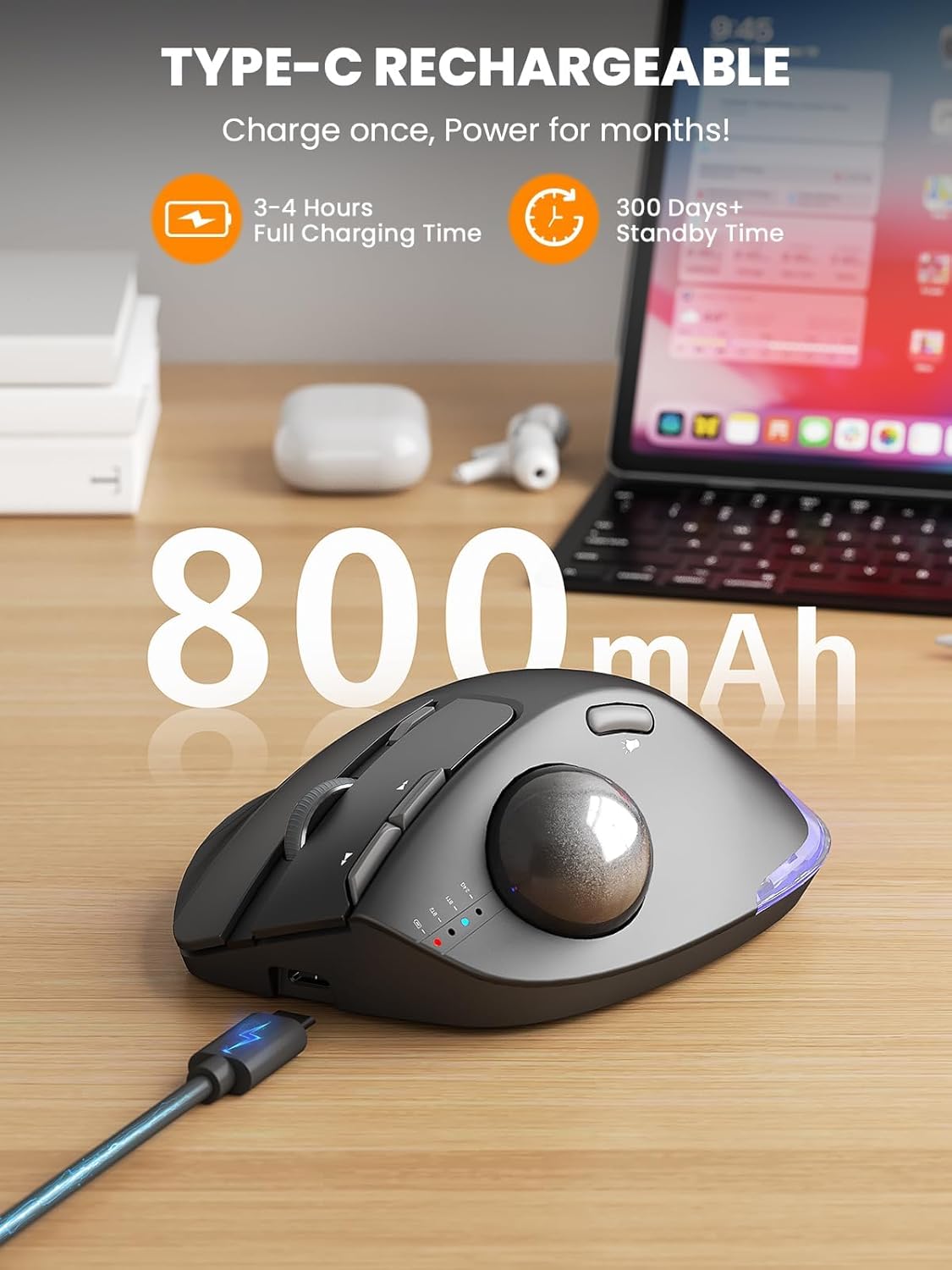
Figure 2: The mouse connected via its USB-C charging cable. The mouse has an 800mAh battery.
2. Adjusting the Ergonomic Angle
The mouse features an adjustable base that allows you to set the angle to either 0° (flat) or 18° for enhanced comfort. The 18° angle is designed to align with the natural wrist position, reducing strain during prolonged use.

Figure 3: Illustration of the mouse's adjustable angles (0° and 18°) for ergonomic comfort.
3. Connexió del ratolí al dispositiu
The SABLUTE mouse supports connection to up to three devices: two via Bluetooth (BT1, BT2) and one via the 2.4GHz USB receiver.
- Using the 2.4GHz USB Receiver:
- Locate the USB receiver stored in the compartment on the underside of the mouse.
- Connecteu el receptor USB a un port USB disponible de l'ordinador.
- Turn on the mouse using the ON/OFF switch located on the underside.
- Press the "Switch Mode" button on the underside until the 2.4G indicator light is active. The mouse should connect automatically (plug and play).
- Using Bluetooth (BT1 / BT2):
- Engegueu el ratolí amb l'interruptor ON/OFF que es troba a la part inferior.
- Press the "Switch Mode" button on the underside to select either BT1 or BT2. The corresponding indicator light will flash, indicating pairing mode.
- On your device (PC, Mac, Laptop, iPad, Android), go to Bluetooth settings and search for "SABLUTE Mouse" (or similar).
- Select the mouse to pair. Once paired, the indicator light will stop flashing and remain solid.
- To switch between connected devices, simply press the "Switch Mode" button on the underside of the mouse.

Figura 4: Mésview of multi-device connection capabilities and the location of connection mode buttons on the mouse's underside.
Instruccions de funcionament
1. Ajust de DPI
The mouse offers 5 adjustable DPI levels (800/1200/1600/2400/4800) to suit your cursor sensitivity preference. Press the DPI button (located near the scroll wheel) to cycle through the settings. Higher DPI provides faster cursor movement, while lower DPI offers more precise control.

Figure 5: Visual representation of the 5-speed adjustable DPI settings (800-4800 DPI).
2. Backlight and Lighting Modes
The mouse features a tail atmosphere light with multiple breathing light modes. You can turn the light on or off, and cycle through different modes using the dedicated lighting button (located on the side of the mouse, near the trackball).
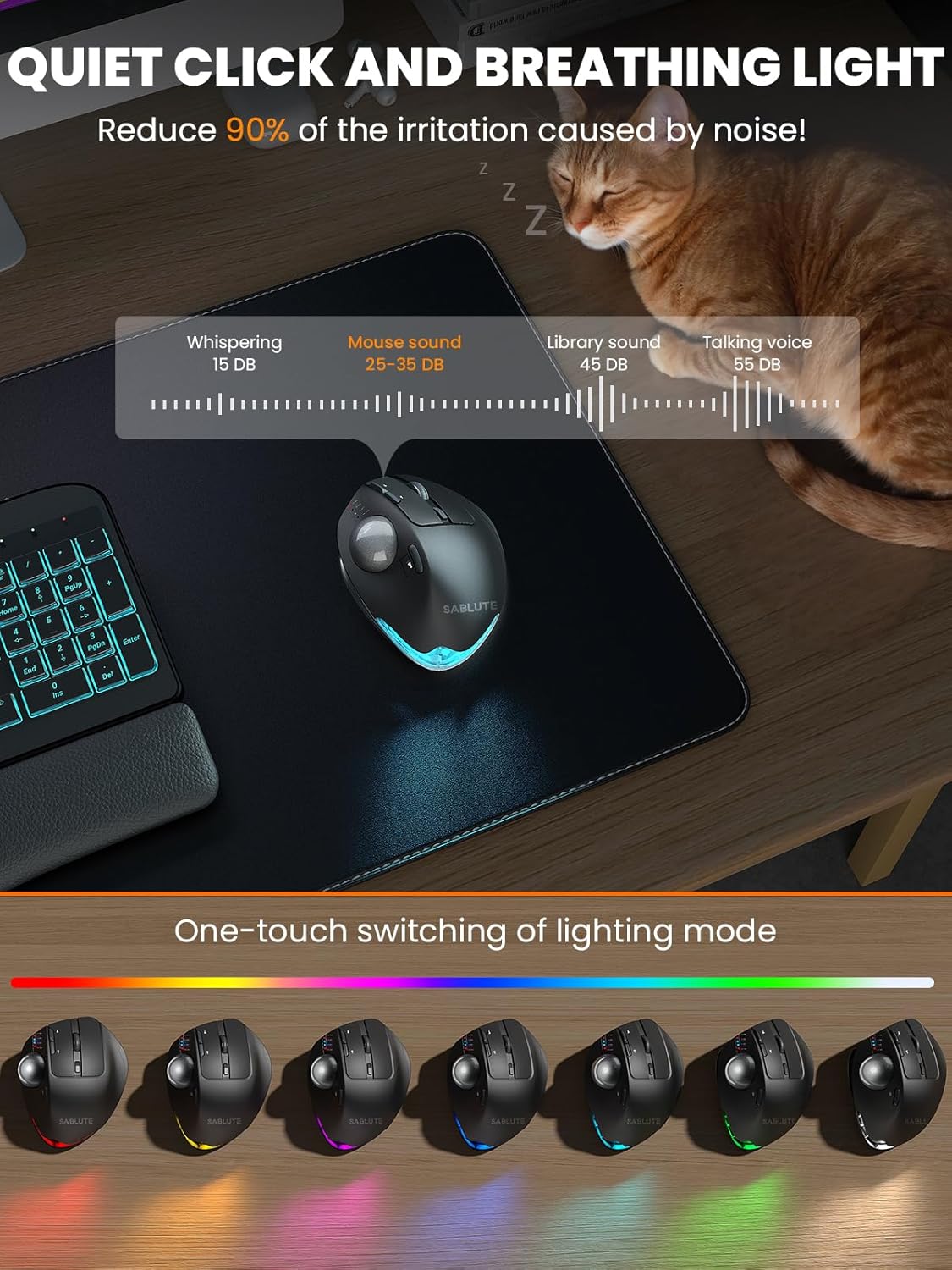
Figure 6: The mouse demonstrating its quiet click feature and various breathing light modes.
3. Ús del trackball
The trackball allows for precise cursor control without moving the entire mouse. Use your thumb to roll the trackball in any direction to navigate the screen. This design is particularly beneficial for reducing wrist and arm fatigue and for use in limited desk spaces.
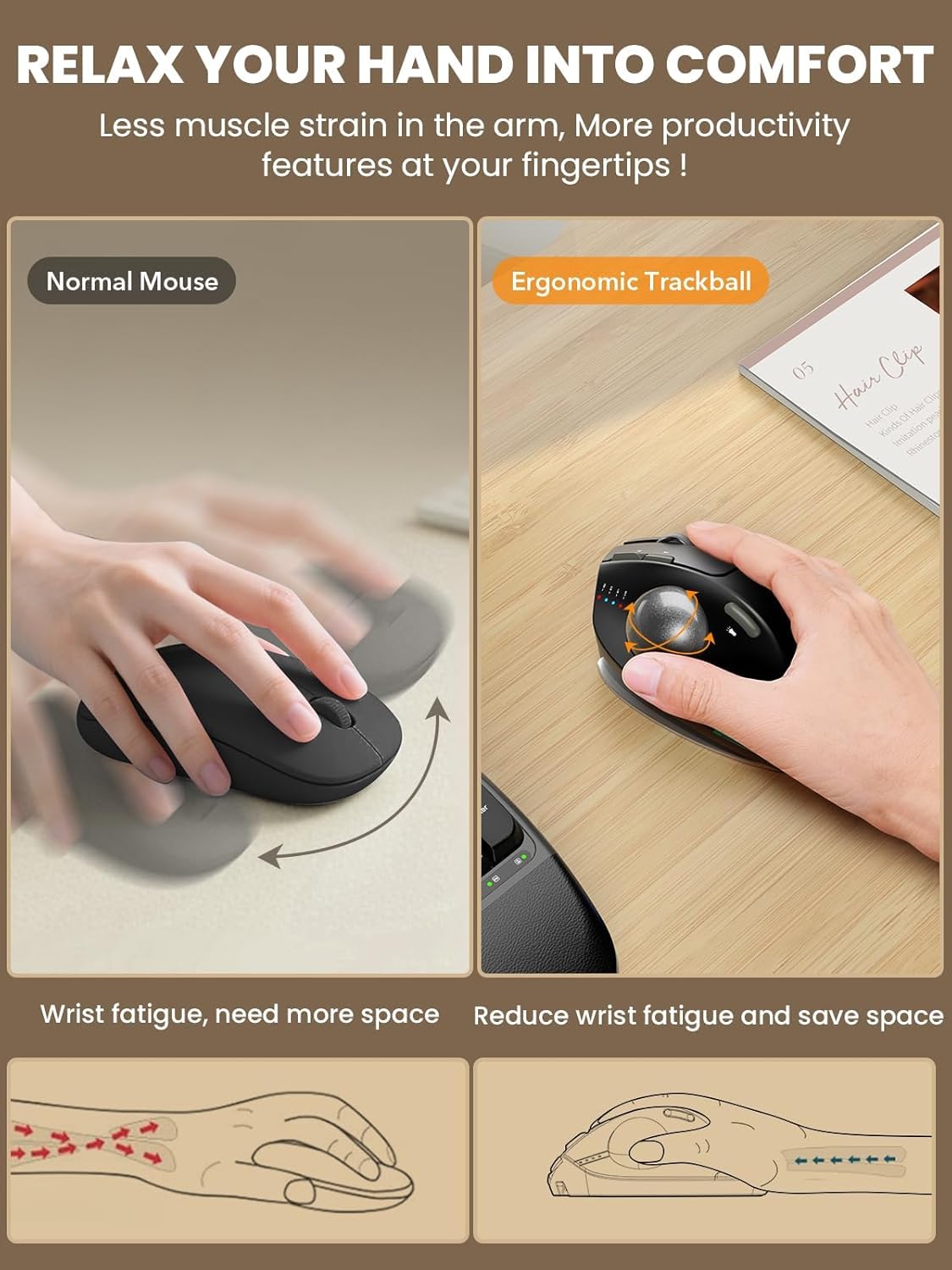
Figure 7: Illustrates how the ergonomic trackball design reduces muscle strain compared to a normal mouse.
Manteniment
Neteja del trackball
Regular cleaning of the trackball ensures smooth and precise operation. Follow these steps:
- Step 1: Remove the Trackball. Push the trackball out from the back of the mouse.
- Step 2: Clean Contact Points. Wipe the contact points between the trackball and the groove with a clean paper or cotton cloth.
- Step 3: Reinstall the Trackball. Carefully place the trackball back into its socket.
Nota: It is recommended to use wooden or plastic materials to gently push out the ball. Avoid using any sharp objects or metal implements to prevent damaging the ball.
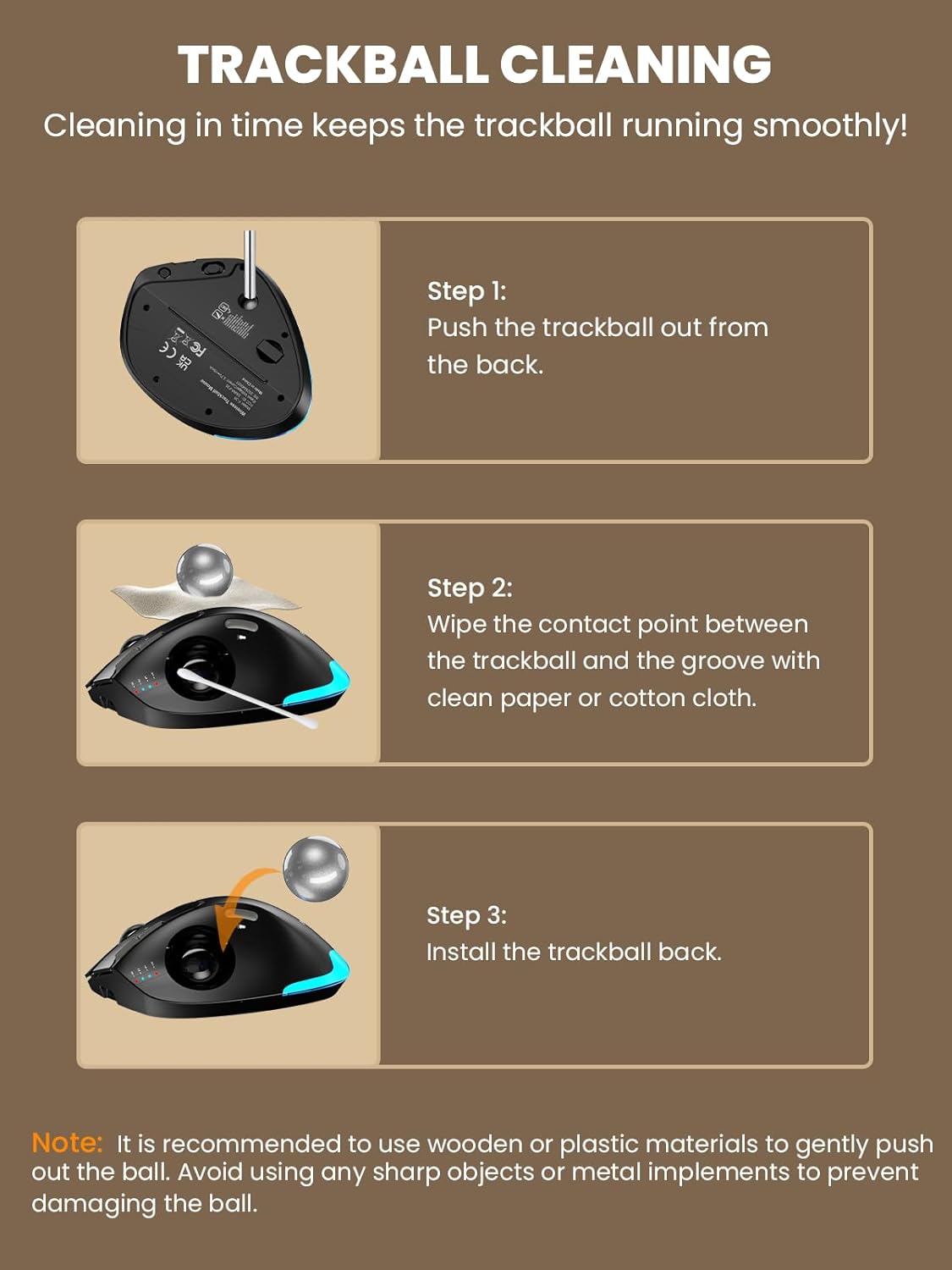
Figure 8: Step-by-step guide for cleaning the trackball to maintain smooth performance.
Resolució de problemes
- El ratolí no respon:
- Assegureu-vos que el ratolí estigui encès.
- Comproveu el nivell de la bateria i carregueu-la si cal.
- Verify the correct connection mode (2.4G, BT1, or BT2) is selected on the mouse and your device.
- For 2.4G connection, ensure the USB receiver is securely plugged in.
- For Bluetooth connection, ensure Bluetooth is enabled on your device and the mouse is paired. Try re-pairing if issues persist.
- Cursor movement is erratic or sluggish:
- Clean the trackball and its socket as described in the Maintenance section. Accumulation of dust or debris can affect tracking.
- Adjust the DPI setting to a lower level for more stable cursor control.
- La retroiluminació no funciona:
- Assegureu-vos que el ratolí estigui encès.
- Press the lighting button to cycle through modes or turn the light on.
- Check battery level; low battery might disable lighting features.
- Difficulty adjusting the angle:
- Ensure the magnetic base is properly aligned and gently apply pressure to snap it into the desired 0° or 18° position.
Especificacions
| Característica | Detall |
|---|---|
| Dimensions del producte | 5.36 x 3.94 x 0.1 polzades |
| Pes de l'article | 0.634 unces |
| Tecnologia de connectivitat | Bluetooth, USB (2.4GHz) |
| Tecnologia de detecció de moviment | Trackball |
| Nivells de DPI | 800/1200/1600/2400/4800 |
| Característiques especials | Ergonomic Design, LED Lights, Portable, Rechargeable, Wireless |
| Color | Negre |
| Fabricant | SABLUTE |
| Data de primera disponibilitat | 30 de juny de 2025 |
Garantia i Suport
SABLUTE is committed to providing high-quality products and customer satisfaction. For any inquiries or support needs, please contact SABLUTE Inc. directly.
- Fabricant: SABLUTE Inc.
- Telèfon d'atenció al client: 1-213-296-1273 (EUA)
- Horari de funcionament: Monday - Friday, 9:00 AM - 1:00 PM & 2:00 PM - 6:00 PM (local time)
- Garantia: Please refer to the product packaging or contact customer support for specific warranty details.
Figure 9: SABLUTE customer support information, including contact number and operating hours.


