Producte acabatview
The KanDao Meeting Ultra Standard is a 360° 4K All-in-One Video Conference Camera designed to provide an immersive and efficient meeting experience. It features AI tracking, an 8-microphone array for clear audio, and a built-in system compatible with major video conferencing platforms.

Figure 1: KanDao Meeting Ultra Standard device. This image shows the main unit of the conference camera, highlighting its sleek black design and the prominent 4K HDR branding.
Guia de configuració
1. Desembalatge i contingut del paquet
Carefully unpack all components from the box. Verify that all items are present:
- Video Conference Camera Body
- Control remot
- Tapa de la lent
- Adaptador d'alimentació
- Cable USB-C a USB-C
- Cable USB-C a USB-A
- Bossa d'emmagatzematge
- Other accessories as specified in the packing list.
2. Connexions físiques
Place the KanDao Meeting Ultra Standard in the center of your meeting table for optimal 360-degree coverage.
- Connexió d'alimentació: Connect the power adapter to the device and plug it into a power outlet. The device will power on automatically.
- Connexió de xarxa: For optimal performance and updates, connect an Ethernet cable to the LAN port on the device.
- Display Connection (Standalone Mode): Connect an HDMI cable from one of the HDMI OUT ports on the device to your display screen (monitor, projector, or TV). The device features two HDMI OUT ports for multi-screen display.
- Computer Connection (USB Mode): To use the device as a webcam and speakerphone with your computer, connect the provided USB-C to USB-C or USB-C to USB-A cable from the device to your computer.
- External Input (Optional): If you wish to share content from another computer or device directly through the Meeting Ultra Standard, connect an HDMI cable to the HDMI IN port.

Figure 2: Connection options for the KanDao Meeting Ultra Standard. This image illustrates the device connected to a laptop via USB for 'Plug & Play' mode and to a large display for 'Built-in Android OS' mode, demonstrating its versatility.
Instruccions de funcionament
1. Power On and Initial Boot
Once connected to power, the device will automatically boot up. Follow the on-screen prompts for initial setup, including network configuration (Wi-Fi or Ethernet) and language selection.
2. Modes de funcionament
The KanDao Meeting Ultra Standard supports two primary operating modes:
- Built-in Android OS (Standalone Mode): The device operates independently, allowing direct installation and use of video conferencing software (e.g., Zoom, Microsoft Teams, Google Meet) without requiring an external computer.
- USB Mode (Plug & Play): Connect the device to your computer via USB. The Meeting Ultra Standard will function as an external webcam, microphone, and speaker, compatible with any video conferencing application on your computer.
3. Funcions de vídeo
The device offers advanced video capabilities to enhance your meeting experience:
- 360° Full Coverage: Dual ultra-wide-angle lenses capture a complete 360-degree view of the meeting space, ensuring all participants are visible.
- Seguiment d'IA: The Meeting AI 4.0 Algorithm uses facial recognition and voice localization to automatically track active speakers, keeping them in focus even as they move around the room.
- Dual 4K HDR Capture: Delivers high-quality video at 4K 30FPS HDR, ensuring clear visuals even in challenging lighting conditions (e.g., backlit environments).
- Reducció de soroll d'imatge: A built-in algorithm reduces visual noise, providing clear images even in low-light settings.
- Conferència intel·ligent Views: Choose from various display modes to suit your meeting needs:
- Global View: Shows the entire room.
- Galeria View: Displays participants in a grid format.
- Altaveu View: Automatically zooms in on the active speaker.
- Stage View: Focuses on a presenter while showing the audience.
- Personalitzable ViewAngles: Manually adjust zoom and focus on specific areas or participants during a meeting.
- Ignore Zone: Configure specific areas to be ignored by AI tracking for privacy or to exclude irrelevant sections of the room.

Figure 3: The 360-degree full coverage capability of the KanDao Meeting Ultra Standard, showing how it captures every angle of a meeting room and displays participants in a grid.
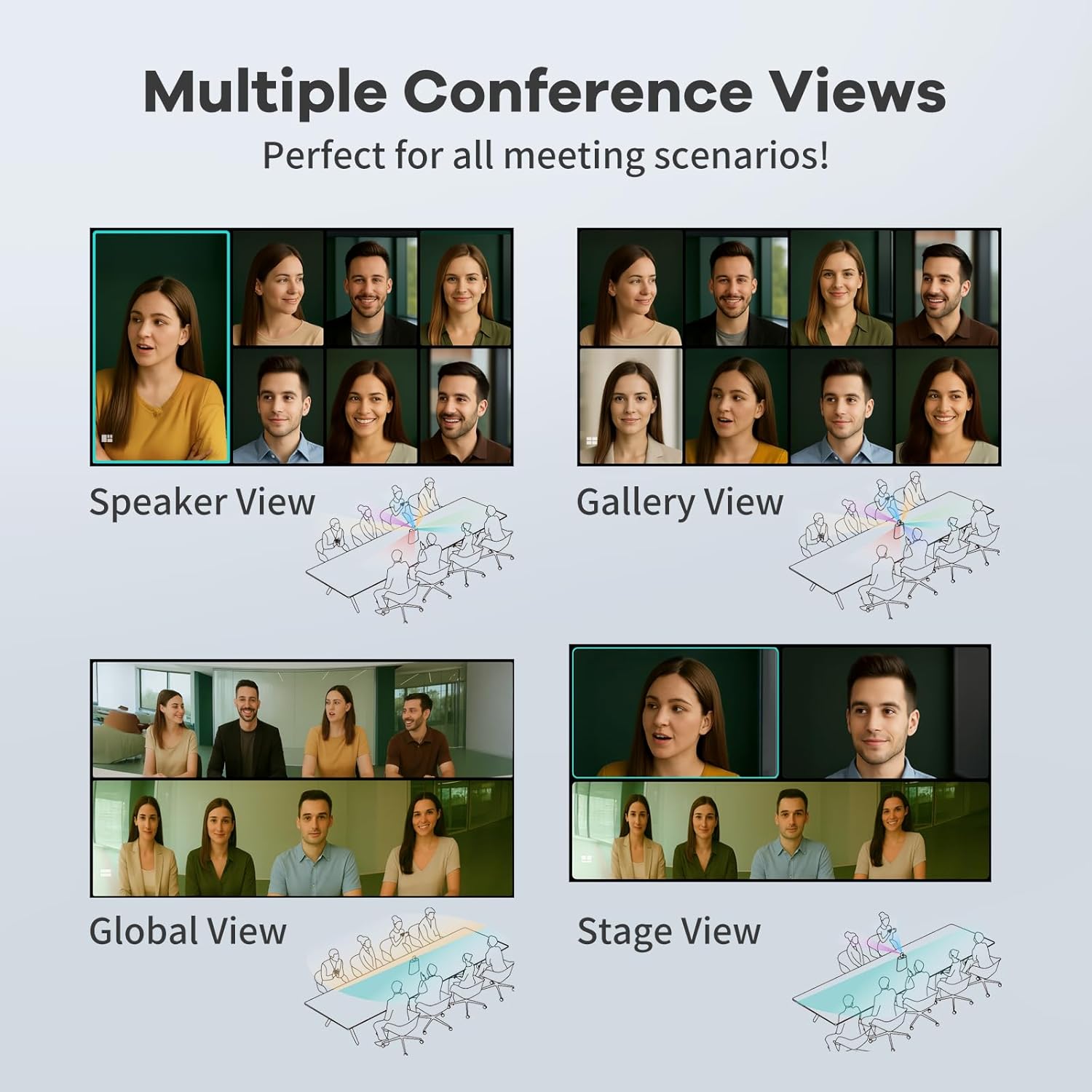
Figure 4: Illustration of the four smart modes: Speaker View, Galeria View, Global View, i Stage View, demonstrating how the camera adapts to different meeting scenarios.
4. Funcions d'àudio
Experience crystal-clear audio with the following features:
- 8-Mic Array: Eight omnidirectional microphones pick up sound within an 18 ft (5.5 m) radius, ensuring clear audio for all participants.
- Environmental Noise Cancellation: Advanced noise cancellation technology eliminates distracting background noises such as keyboard clicks, HVAC hum, and external chatter, focusing solely on dialogue.
- 10W Hi-Fi Speakers: Integrated high-fidelity speakers provide clear sound output for effective communication.
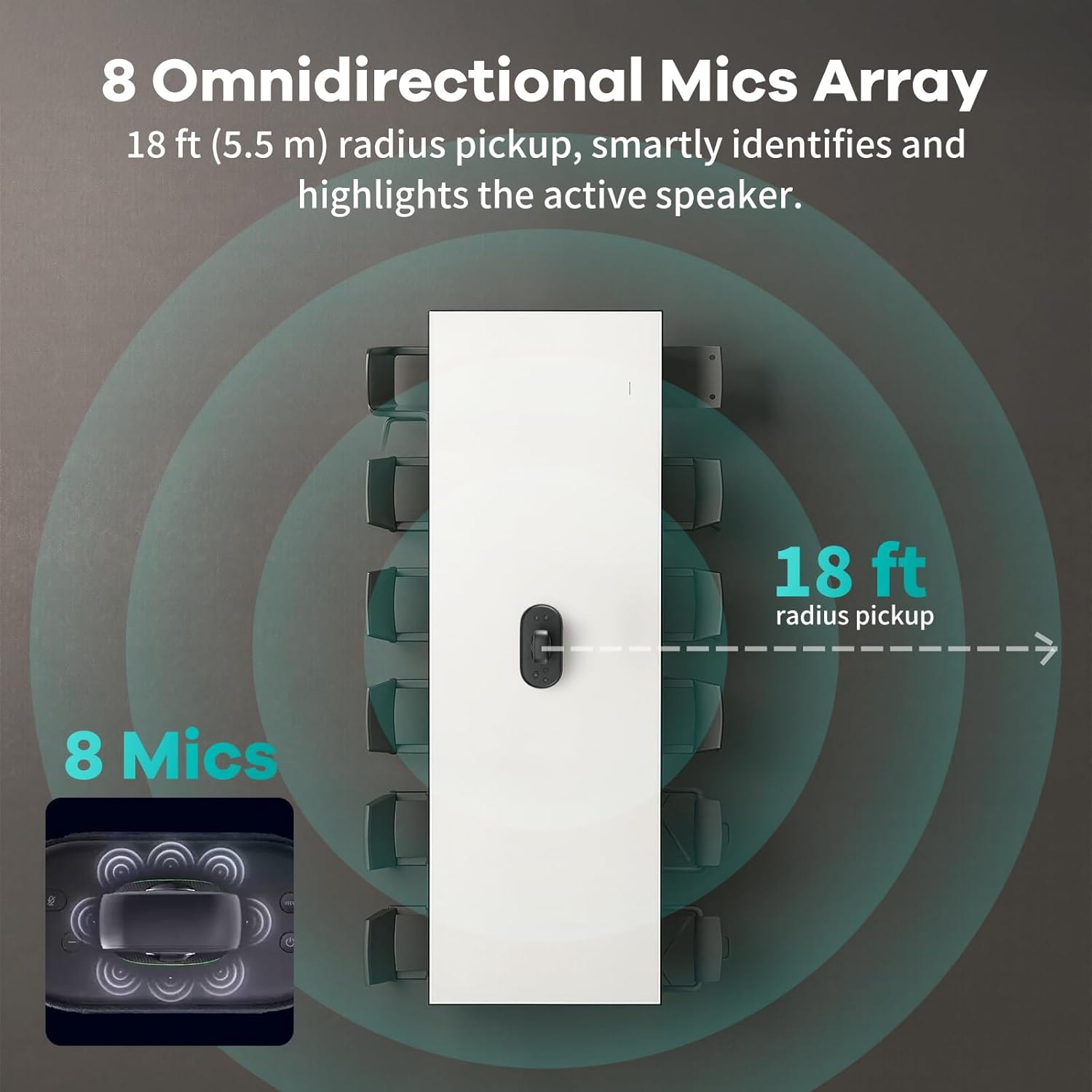
Figure 5: Diagram showing the 8 omnidirectional microphone array and its 18 ft (5.5 m) radius sound pickup capability.

Figure 6: A visual representation of environmental noise cancellation, illustrating how the device filters out background distractions for clearer audio.
5. Wireless Screen Sharing
The device supports AirPlay and Miracast protocols, allowing users to wirelessly share screens from iOS, macOS, Android, and Windows devices.
6. Control remot
Use the included remote control to manage various functions, including changing views, adjusting volume, and controlling content during meetings.
7. Recording Meetings
Easily record meetings by inserting an SD card into the designated slot on the device.
8. Funcions de seguretat de dades
The KanDao Meeting Ultra Standard incorporates enterprise-grade data security measures:
- IP & Location Security: Does not store IP address and location data.
- One-Step Logout: Supports quick and complete logout to prevent data residue.
- No Open API: Prevents unauthorized access to the device's functionalities.
- Bluetooth Toggle: Bluetooth can be turned off for enhanced security.

Figure 7: Visual representation of the data security features, including IP & Location Security, One-Step Logout, No Open API, and Bluetooth Toggle.
Manteniment
To ensure the longevity and optimal performance of your KanDao Meeting Ultra Standard, follow these maintenance guidelines:
- Neteja: Use a soft, dry cloth to wipe the exterior of the device. For the lenses, use a specialized lens cleaning cloth and solution. Avoid abrasive cleaners or solvents.
- Coberta de la lent: Always use the provided lens cover when the device is not in use to protect the lenses from dust and scratches.
- Emmagatzematge: Store the device in a cool, dry place away from direct sunlight and extreme temperatures. Use the provided storage bag for protection during transport.
- Actualitzacions de programari: Regularly check for and install software updates to ensure the device has the latest features and performance improvements. Updates are typically handled automatically in standalone mode.
Resolució de problemes
This section addresses common issues you might encounter with your KanDao Meeting Ultra Standard.
| Problema | Causa possible | Solució |
|---|---|---|
| No video output on display. | Loose HDMI cable, incorrect input selected on display, device not powered on. | Check HDMI cable connections. Ensure the correct HDMI input is selected on your display. Verify the device is powered on. |
| No audio from device speakers. | Volume muted on device or software, incorrect audio output selected. | Increase volume using the remote control or on-screen interface. Check audio settings in your conferencing software to ensure KanDao Meeting Ultra Standard is selected as the output device. |
| AI tracking not working correctly. | Obstructions in the room, ignore zone configured, outdated firmware. | Ensure clear line of sight for the camera. Check 'Ignore Zone' settings in camera settings. Update device firmware. |
| Device not recognized by computer in USB mode. | Faulty USB cable, incorrect USB port, driver issues. | Try a different USB cable or USB port on your computer. Restart both the device and your computer. Ensure necessary drivers are installed (usually plug-and-play). |
Especificacions
| Característica | Detall |
|---|---|
| Nom de marca | KanDao |
| Número de model | Meeting Ultra Standard 2025 |
| Pes de l'article | 4.9 lliures |
| Dimensions del paquet | 16.5 x 11.8 x 10.5 polzades |
| Color | Negre |
| Tecnologia del sensor fotogràfic | CMOS |
| Resolució de captura de vídeo | 1920x1080@30fps, 3840x2160@30fps (4K) |
| Distància focal màxima | 9.42 mil·límetres |
| Apertura màxima | f/2 |
| Tipus de memòria flash | SD |
| Format de captura de vídeo | MP4 |
| Tecnologia de connectivitat | Wi-Fi |
| Característiques especials | 360 Degree Capture, 4K HDR, AI Smart Face Detection, Auto Speaker Focus, Smart Zooming, Remote Video Conferencing Solution |
Garantia i Suport
KanDao offers comprehensive support for its products:
- Garantia: The KanDao Meeting Ultra Standard comes with a 12-month/1-year warranty.
- Suport tècnic: For any technical inquiries or assistance, please contact KanDao's professional global customer service team. Purchasing from the official KanDao store ensures swift support.
- Optimització del firmware: Regular firmware updates are provided to optimize performance and add new features.
Vídeo oficial del producte
Video 1: KanDao Meeting Ultra Standard - 360 AI Conference Device. This video provides a comprehensive overview of the KanDao Meeting Ultra Standard, demonstrating its 360-degree AI conference capabilities, including video quality, audio features, and various operating modes.


