Introducció
Thank you for choosing the Rapoo 9390M Wireless Multi-Mode Keyboard and Mouse Combo. This ultra-slim set offers versatile connectivity options, including 2.4 GHz wireless and Bluetooth 4.0/5.0, allowing seamless switching between multiple devices. Designed for efficiency and comfort, this combo features a full-size QWERTZ keyboard with multimedia keys and an ambidextrous optical mouse.
This manual provides essential information for setting up, operating, and maintaining your new Rapoo 9390M combo. Please read it carefully before use.
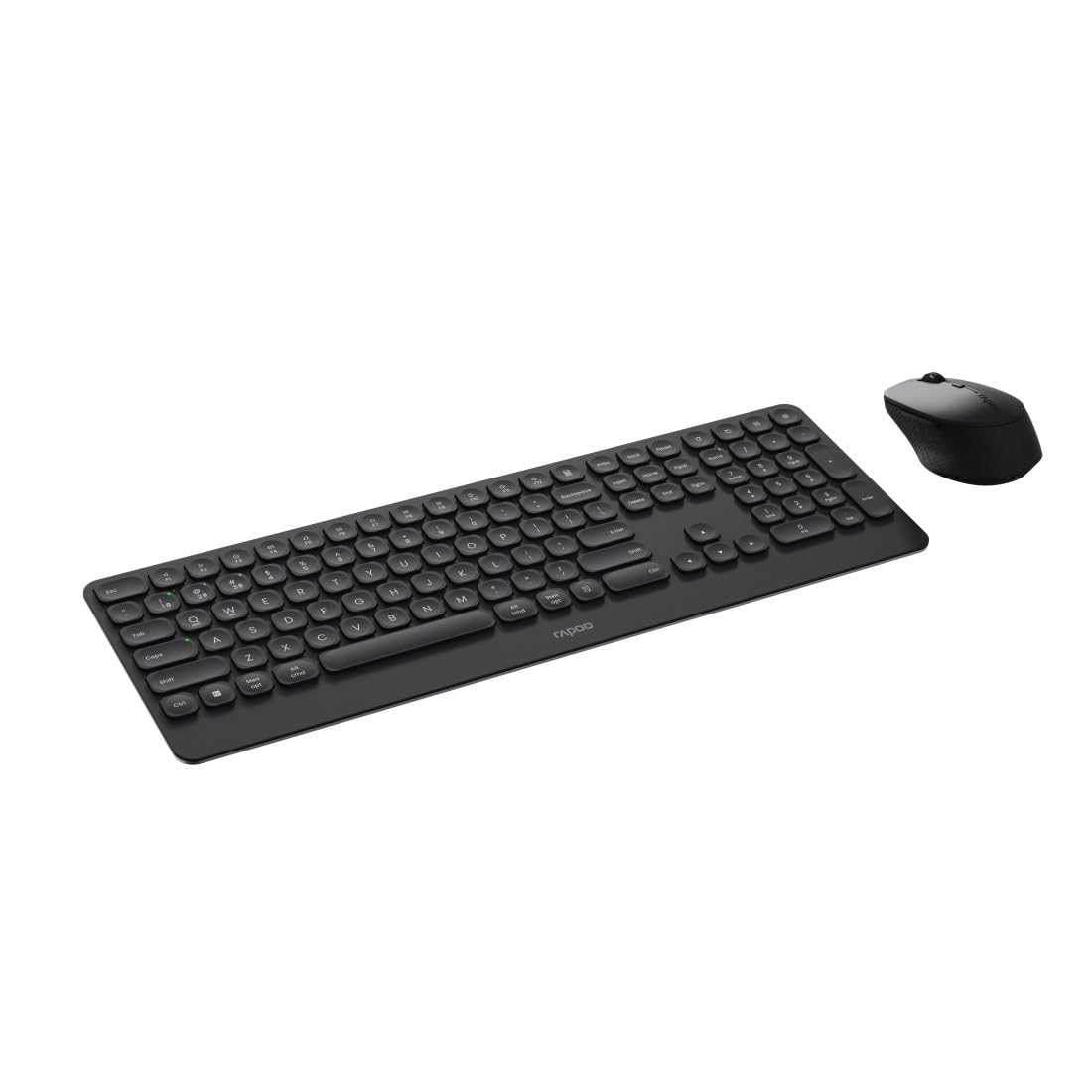
Image: The Rapoo 9390M wireless keyboard and mouse combo, showcasing its sleek design and full QWERTZ layout.
Configuració
1. Instal·lació de la bateria
The Rapoo 9390M combo requires batteries for operation. Ensure correct polarity when inserting.
- Teclat: Requires 2 x AAA alkaline batteries.
- Ratolí: Requires 1 x AA alkaline battery.
Batteries are included in the package.

Imatge: Side profile of the Rapoo 9390M keyboard and mouse, illustrating their ultra-slim design. Battery compartments are typically located on the underside of each device.
2. Connecting the Devices
The Rapoo 9390M supports multi-mode connectivity: 2.4 GHz wireless via USB receiver and Bluetooth 4.0/5.0.
2.1. Connexió sense fil de 2.4 GHz
- Insert the USB receiver into an available USB Type-A port on your computer or device.
- Engegueu el teclat i el ratolí utilitzant els seus respectius interruptors d'alimentació.
- Els dispositius s'haurien de connectar automàticament a l'ordinador.
2.2. Connexió Bluetooth
The keyboard can pair with up to 3 Bluetooth devices, and the mouse with up to 2.
Keyboard Bluetooth Pairing:
- Enceneu el teclat.
- Mantén premut Fn + 1, Fn + 2, o Fn + 3 for 3 seconds to select a Bluetooth channel. The indicator light will flash slowly.
- Open Bluetooth settings on your device (PC, laptop, tablet, TV).
- Cerca "Rapoo BT3.0 Keyboard" or "Rapoo BT5.0 Keyboard" and select to pair.
- Un cop emparellat, l'indicador lluminós deixarà de parpellejar.
Mouse Bluetooth Pairing:
- Enceneu el ratolí.
- Press the Bluetooth pairing button on the underside of the mouse. The indicator light will flash slowly.
- Obriu la configuració de Bluetooth al vostre dispositiu.
- Cerca "Rapoo BT3.0 Mouse" or "Rapoo BT5.0 Mouse" and select to pair.
- Un cop emparellat, l'indicador lluminós deixarà de parpellejar.
Instruccions de funcionament
1. Canviar entre dispositius connectats
The Rapoo 9390M allows you to switch between multiple connected devices (up to 4 for keyboard, 3 for mouse, including 2.4 GHz).
- Teclat: Premeu Fn + 1, Fn + 2, Fn + 3 (for Bluetooth devices) or Fn + 4 (for 2.4 GHz USB receiver) to switch between paired devices.
- Ratolí: Press the mode switch button on the underside of the mouse to cycle between Bluetooth 1, Bluetooth 2, and 2.4 GHz modes.
2. Funcions del teclat
The keyboard features a full QWERTZ layout with 110 keys, including a numeric keypad and dedicated function keys.
- Tecles multimèdia: Use the function keys (F1-F12) in combination with the Fn key to access multimedia controls (e.g., volume, play/pause, browser).
- Browser Buttons: Dedicated keys for browser functions may be present.

Imatge: De dalt a baix view of the Rapoo 9390M keyboard and mouse, highlighting the QWERTZ key layout and mouse button configuration.
3. Funcions del ratolí
The optical mouse features 5 buttons, including a scroll wheel, and adjustable DPI.
- Ajust de DPI: The mouse supports a DPI range of up to 2400. A dedicated DPI button (often located near the scroll wheel) allows you to cycle through different sensitivity levels.
- Disseny ambidextre: The mouse is designed for comfortable use by both right-handed and left-handed users.
Manteniment
1. Neteja
Per garantir un rendiment i una longevitat òptims, mantingueu el teclat i el ratolí nets.
- Utilitzeu un drap suau i sense pelusa lleugerament dampamb aigua o una solució de neteja suau.
- Avoid harsh chemicals, abrasive cleaners, or excessive moisture.
- Per al teclat, feu servir aire comprimit per eliminar la pols i les restes que hi ha entre les tecles.
2. Substitució de la bateria
When the battery indicator light flashes or performance degrades, it's time to replace the batteries.
- Open the battery compartment on the underside of the keyboard (2x AAA) and mouse (1x AA).
- Remove the old batteries and dispose of them responsibly according to local regulations.
- Insert new alkaline batteries, ensuring correct polarity.
- Tanqueu el compartiment de la bateria de manera segura.
Resolució de problemes
Problemes de connexió
- No connection (2.4 GHz): Ensure the USB receiver is securely plugged into a working USB port. Try a different USB port. Ensure the keyboard and mouse are powered on.
- No connection (Bluetooth): Ensure Bluetooth is enabled on your device. Re-initiate the pairing process as described in the Setup section. Ensure the keyboard/mouse is in Bluetooth mode and not 2.4 GHz mode.
- Connexió intermitent: Move the devices closer to the receiver/device. Avoid placing the devices near other wireless interference sources (e.g., Wi-Fi routers, other wireless peripherals).
Input Not Registering / Lag
- Check batteries: Low batteries can cause performance issues. Replace them if necessary.
- Canvi de modes: Ensure the keyboard and mouse are set to the correct connection mode (2.4 GHz or Bluetooth) for the device you are using.
- Reinicieu els dispositius: Turn off and on the keyboard, mouse, and your computer/device.
Especificacions
| Característica | Descripció |
|---|---|
| Model | 9390M |
| Connectivitat | 2.4 GHz RF (USB Type-A receiver), Bluetooth 4.0, Bluetooth 5.0 |
| Disposició del teclat | QWERTZ (alemany) |
| Tecles del teclat | 110 keys, Scissor mechanism, Laser engraved keycaps |
| Característiques del teclat | Multimedia keys, Browser buttons, Ultra-slim design, Aluminum base |
| Sensor del ratolí | Òptic |
| DPI del ratolí | Fins a 2400 DPI |
| Botons del ratolí | 5 buttons (including scroll wheel) |
| Disseny del ratolí | Ambidextrous, High-quality plastic |
| Interval d'operació | Fins a 10 metres |
| Compatibilitat amb SO | Windows XP/Vista/7/8/10/11 |
| Font d'alimentació | Battery powered (Alkaline) |
| Piles incloses | Yes (2x AAA for keyboard, 1x AA for mouse) |
| Dimensions del teclat (amplada x profunditat x alçada) | 42.6 x 14.3 x 2 cm |
| Pes del teclat | 409 g |
| Dimensions del ratolí (amplada x profunditat x alçada) | 6.6 x 10.4 x 3.7 cm |
| Pes del ratolí | 60 g |
Garantia i Suport
For warranty information and technical support, please refer to the warranty card included in your product packaging or visit the official Rapoo weblloc web. Conserveu el comprovant de compra per a reclamacions de garantia.


