Introducció
This manual provides comprehensive instructions for the setup, operation, maintenance, and troubleshooting of your Siaviala S8 14-inch Portable Monitor. Please read this manual carefully before use and retain it for future reference to ensure optimal performance and longevity of your device.
Configuració
1. Contingut del paquet
Abans de començar, comproveu que tots els elements siguin presents al paquet:
- Extensor de pantalla per a portàtils Siaviala S8
- Cable USB-C a USB-C
- Cable USB-A a USB-C
- Cable HDMI a tipus C
- Portable Monitor Bag
- Guia d'usuari

2. Instal·lació física
The Siaviala S8 portable monitor is designed for easy attachment to laptops ranging from 13 to 17.3 inches.
- Place the screen extender facing up, then open the screen panels.
- Stretch the screen extender to fit both sides of your laptop. Ensure it is compatible with 13-17.3 inch laptops.
- Open the integrated bracket and adjust the angle for stability.
- Adjust the screen panels to your preferred viewing angle, up to 180 degrees rotation.

3. Connexió del dispositiu
The Siaviala S8 offers versatile connectivity options:
3.1. USB-C Connection (Full-Featured)
If your laptop has a full-featured USB-C port (supporting video output and power delivery), connect the monitor using a single USB-C to USB-C cable. This provides both video signal and power.
3.2. USB-A + HDMI Connection
If your laptop does not have a full-featured USB-C port, use an HDMI to Type-C cable for video signal and a USB-A to USB-C cable for power. Connect the HDMI end to your laptop's HDMI port and the Type-C end to the monitor's Type-C port (marked 'USB C with DP'). Connect the USB-A end to your laptop's USB-A port and the USB-C end to the monitor's Type-C port (marked 'Type-C1' or 'Type-C2').

The monitor is compatible with Mac, Windows, Android, Linux, Switch, and Chrome OS devices.
Instruccions de funcionament
1. Modes de visualització
The Siaviala S8 supports multiple display modes to enhance productivity:
- Mode estès: Expands your desktop across both screens, allowing you to work with multiple applications simultaneously.
- Mode mirall: Duplicates your primary screen's content onto the portable monitor, ideal for presentations.
- Mode de segona pantalla: Uses only the portable monitor as the display.

2. Power Delivery (PD) Reverse Charging
When the monitor's Type-C interface is connected to an external PD power source, it can provide up to 100W of reverse charging to your connected laptop or device, ensuring your primary device remains powered during use.
Manteniment
1. Neteja
Per netejar la pantalla, netegeu-la suaument amb un drap suau i sense borrissol. Per a marques difícils, netegeu-la lleugerament.ampen the cloth with water or a non-abrasive screen cleaner specifically designed for electronic displays. Avoid using harsh chemicals, alcohol-based cleaners, or abrasive materials, as these can damage the screen surface.
2. Emmagatzematge i manipulació
When not in use, store the monitor in its protective bag to prevent scratches and damage from dust. Avoid placing heavy objects on the monitor or exposing it to extreme temperatures or humidity. Handle with care to prevent drops or impacts, which could damage internal components or the screen.
Resolució de problemes
1. No Display / Monitor Not Turning On
- Ensure all cables are securely connected. Check both ends of the USB-C or HDMI/USB-A cables.
- Verify that your laptop's USB-C port is full-featured if using a single USB-C cable. If not, use the HDMI + USB-A connection.
- Try connecting the monitor to an external power source if your laptop cannot provide sufficient power, especially when using the HDMI + USB-A setup.
- Test with different cables if available to rule out faulty cables.
2. Image Quality Issues (Flickering, Distorted Image)
- Check cable connections. Loose connections can cause signal issues.
- Assegureu-vos que els controladors gràfics del vostre portàtil estiguin actualitzats.
- Adjust the display resolution and refresh rate settings on your laptop to match the monitor's specifications (1920x1080 at 60Hz).
3. Sense so
- Verify that the audio output is set to the portable monitor in your operating system's sound settings.
- Adjust the volume on both your laptop and the monitor.
- Note that the monitor's integrated speakers are for basic audio output; for higher quality sound, external speakers or headphones are recommended.
Especificacions
Especificacions tècniques
| Característica | Detall |
|---|---|
| Marca | Siaviala |
| Model | S8 |
| Mida de la pantalla | 14 polzades |
| Resolució | Full HD 1080p (1920 x 1080) |
| Tipus de panell | IPS |
| Freqüència d'actualització | 60 Hz |
| Temps de resposta | 2 mil·lisegons |
| Brillantor | 300 cd/m² |
| Relació de contrast | 1000:1 |
| Relació d'aspecte | 16:9 |
| Connectivitat | HDMI, USB tipus C |
| Dimensions (L x A x A) | 33.2 x 20.7 x 1.56 cm |
| Pes | 1.8 kg |
| Característiques especials | Ultra-thin, Lightweight, Portable, Anti-glare screen |
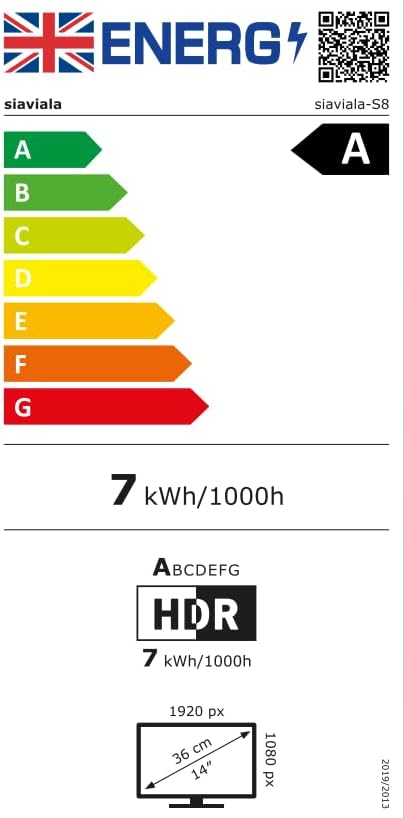
Informació energètica
For detailed energy consumption information, please refer to the official energy labels and product information sheet:


Garantia i Suport
1. Informació de la garantia
The Siaviala S8 Portable Monitor comes with a one-year manufacturer's guarantee from the date of purchase, covering defects in materials and workmanship under normal use.
2. Atenció al client
For any issues or inquiries regarding your Siaviala S8 Portable Monitor, please contact Siaviala customer support. Our dedicated support team is available to provide a solution within 24 hours.
Contact details: Please refer to your purchase documentation or Siaviala's official weblloc web per obtenir la informació de contacte més actualitzada.


