1. Introducció
This manual provides comprehensive instructions for the installation, operation, maintenance, and troubleshooting of your Cudy P2 AX3000 Wi-Fi 6 5G Cellular Router. The Cudy P2 is designed to deliver high-speed internet connectivity using both 5G cellular networks and advanced Wi-Fi 6 technology, ensuring a robust and reliable network experience for your home or office.

Image 1.1: The Cudy P2 AX3000 Wi-Fi 6 5G Cellular Router, a white cylindrical device with status indicator lights on the front.
The Cudy P2 features a SIM card slot for 5G/4G cellular internet access, dual-band AX3000 Wi-Fi 6 for high-capacity wireless connections, and multiple Gigabit Ethernet ports for wired devices. It also supports Cudy Mesh technology for extended Wi-Fi coverage and various VPN protocols for secure remote access.
2. Configuració
2.1 Contingut del paquet
Verifiqueu que tots els elements siguin presents al paquet del producte:
- Cudy P2 AX3000 Wi-Fi 6 5G Cellular Router
- Adaptador d'alimentació
- Cable Ethernet
- Guia d'instal·lació ràpida
2.2 Maquinari acabatview
Familiarize yourself with the ports and indicators on your Cudy P2 router.

Imatge 2.1: posterior view of the Cudy P2 router showing two SMA connectors for external antennas, a WPS button, two Gigabit Ethernet ports (one WAN/LAN, one LAN), and a Nano SIM card slot.
- Port d'alimentació: Es connecta a l'adaptador de corrent inclòs.
- Port WAN/LAN: Functions as either a WAN port for wired internet or a LAN port for connecting wired devices.
- Port LAN: Connects to wired devices such as computers or switches.
- Ranura per a targeta Nano SIM: Insert your Nano SIM card here for 5G/4G cellular internet access.
- Botó WPS: Used for quick, secure connection to Wi-Fi devices.
- SMA Connectors: Two connectors for optional external 5G/4G antennas (not included).
- Botó de restabliment: Press and hold for 5-10 seconds to restore factory default settings.
2.3 Instal·lació de la targeta SIM
- Assegureu-vos que l'encaminador estigui apagat.
- Locate the Nano SIM card slot on the bottom of the router.
- Insert your Nano SIM card into the slot with the metal contacts facing down and the notched corner aligned correctly. Push until it clicks into place.
- Per treure-la, empenyeu suaument la targeta SIM cap a dins fins que surti.
2.4 Initial Power-Up and Connection
- Connecteu l'adaptador de corrent al port d'alimentació del router i endolleu-lo a una presa de corrent.
- Wait for the router to power on. The LED indicators on the front panel will illuminate.
- Observe the 5G/4G signal strength indicator. A solid light indicates a stable cellular connection.
- Connect to the router's Wi-Fi network using the default SSID and password printed on the label at the bottom of the device. Alternatively, connect a computer to one of the LAN ports using an Ethernet cable.
2.5 App-Based Setup
For convenient setup and management, download the Cudy App from your mobile device's app store. The app provides a guided process for initial configuration, including setting up your Wi-Fi network and managing router settings.
3. Funcionament del router
3.1 Configuració de la xarxa
Accedir al router web interfície obrint a web navegador i entrant 192.168.10.1 (or the default IP address specified in the Quick Installation Guide) in the address bar. Log in with the default username and password (usually admin per a tots dos).
- Configuració de Wi-Fi: Navigate to the Wireless section to change your Wi-Fi network name (SSID) and password. The Cudy P2 supports dual-band Wi-Fi 6 (2.4 GHz and 5 GHz) for optimal performance.
- Xarxa de convidats: Create a separate Wi-Fi network for guests to enhance security.
- Configuració LAN: Configure the router's IP address, subnet mask, and DHCP server settings.

Image 3.1: Illustration highlighting the Cudy P2's Wi-Fi 6 capabilities, including AX3000 speeds (2402 Mbps on 5 GHz, 574 Mbps on 2.4 GHz) and support for up to 50 connected devices.
3.2 5G/4G Cellular Connectivity
The Cudy P2 supports both 5G SA (Standalone) and NSA (Non-Standalone) modes, providing flexible and high-speed cellular internet access. The router automatically detects and connects to the available cellular network.

Image 3.2: Diagram illustrating the Cudy P2's advanced 5G SA/NSA seamless dual connectivity, showing 5G download speeds up to 2.6 Gbps.
- Configuració de l'APN: In most cases, the router will automatically configure the Access Point Name (APN) for your SIM card. If not, you may need to manually enter the APN provided by your mobile carrier in the cellular settings.
- Antenes externes: For improved 5G/4G signal reception, you can connect optional external antennas to the SMA connectors on the back of the router.
3.3 Cudy Mesh Network
The Cudy P2 supports Cudy Mesh technology, allowing you to create a seamless whole-home Wi-Fi network by adding other Cudy Mesh-compatible devices. This extends Wi-Fi coverage and eliminates dead zones.
- Refer to the Cudy App or web interface for instructions on adding new mesh nodes and managing your mesh network.
3.4 Funcions avançades
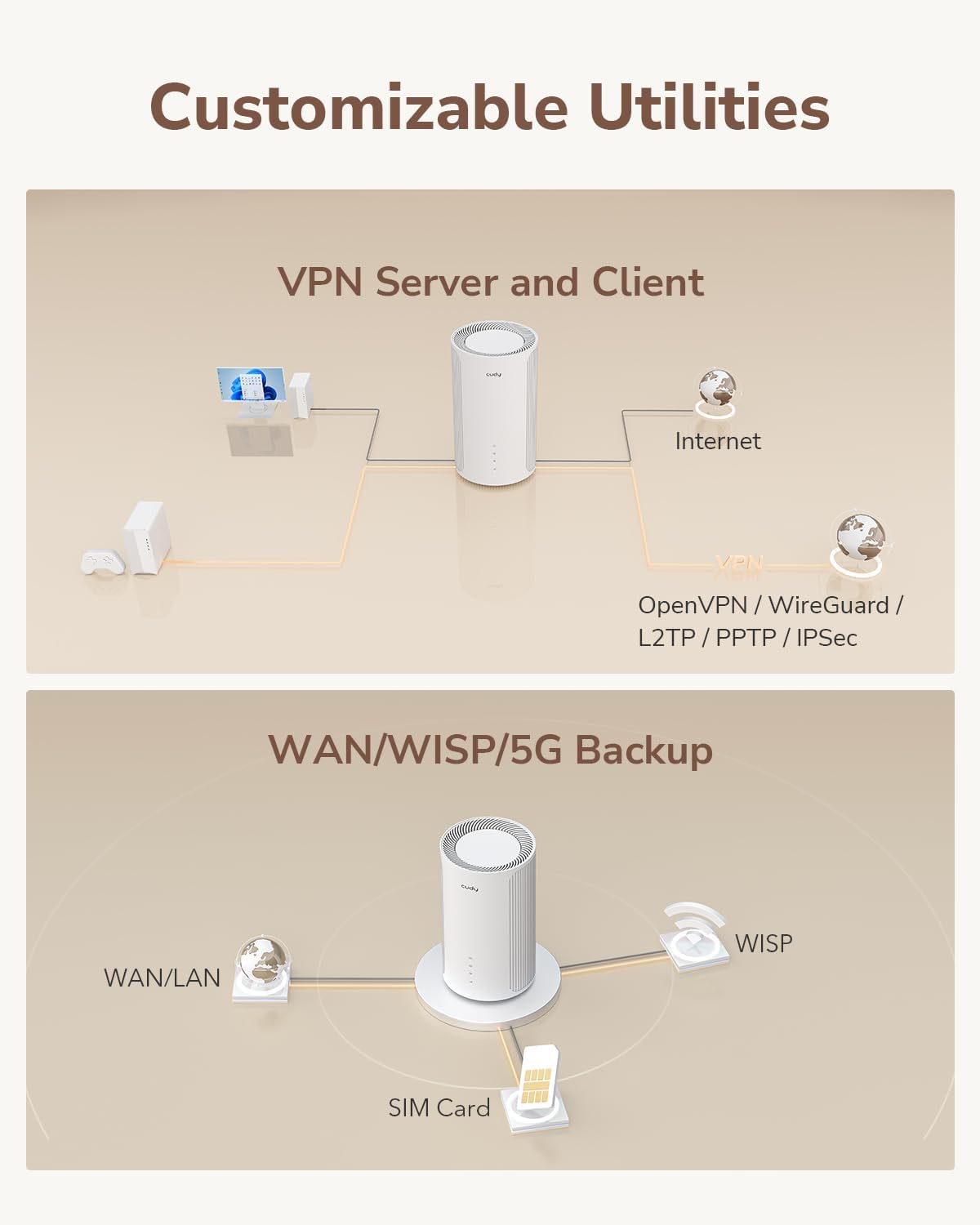
Image 3.3: Visual representation of the Cudy P2's customizable utilities, including VPN Server and Client (OpenVPN, WireGuard, L2TP, PPTP, IPsec) and WAN/WISP/5G Backup options.
- Servidor i client VPN: The router includes built-in support for various VPN protocols (PPTP, L2TP, OpenVPN, WireGuard, IPsec, Zerotier). This allows you to create secure connections for remote access to your home network or to connect to a VPN service.
- WAN/WISP/5G Backup: Configure the router to use different internet sources as a backup. For example, if your wired WAN connection fails, the router can automatically switch to the 5G cellular connection.
- Qualitat de servei (QoS): Prioritize network traffic for specific applications or devices to ensure optimal performance for critical tasks like online gaming or video conferencing.
- Mode de punt d'accés: The router can be configured to function as a Wi-Fi access point, extending an existing wired network wirelessly.
- Accés remot: Manage your router settings remotely using the Cudy App or through the web interface with appropriate configuration.
4. Manteniment
4.1 actualitzacions de microprogramari
Regularly check for and install firmware updates to ensure optimal performance, security, and access to new features. Firmware updates can typically be performed via the Cudy App or the router's web interfície.
- Navigate to the System Tools or Firmware section in the router's interface.
- Follow the on-screen instructions to check for and apply updates. Do not power off the router during the update process.
4.2 Instruccions de neteja
To maintain proper airflow and prevent overheating, periodically clean the router's exterior and ventilation slots. Use a soft, dry cloth. Avoid using liquid cleaners or abrasive materials.
4.3 Restabliment dels valors predeterminats de fàbrica
If you encounter persistent issues or forget your login credentials, you can reset the router to its factory default settings. This will erase all custom configurations.
- With the router powered on, locate the Reset button (often a small pinhole) on the device.
- Use a paperclip or a similar pointed object to press and hold the Reset button for approximately 5-10 seconds until the LED indicators flash.
- Release the button and wait for the router to restart. It will then be restored to its original factory settings.
5. Solució De Problemes
5.1 Sense connexió a Internet
- Comproveu la targeta SIM: Ensure the Nano SIM card is correctly inserted and active with your mobile carrier.
- Intensitat del senyal: Verify the 5G/4G signal strength indicator on the router. If the signal is weak, try repositioning the router or consider using external antennas.
- Configuració de l'APN: Confirm that the APN settings are correct for your mobile carrier in the router's web interfície.
- Connexió per cable: If using a wired WAN connection, ensure the Ethernet cable is securely connected and your ISP service is active.
- Reinicieu: Power cycle the router by unplugging it for 30 seconds and then plugging it back in.
5.2 Velocitats Wi-Fi lentes
- Interferència: Move the router away from potential sources of interference such as microwaves, cordless phones, or other electronic devices.
- Distància i obstacles: Reduce the distance between your devices and the router, and minimize physical obstacles like thick walls.
- Selecció de canals: In the router's Wi-Fi settings, try changing the Wi-Fi channel to a less congested one.
- Capacitat del dispositiu: While the Cudy P2 supports many devices, excessive simultaneous high-bandwidth activities can impact performance.
5.3 SIM Card Not Detected
- Reinsert SIM: Power off the router, remove the SIM card, and reinsert it carefully, ensuring proper alignment.
- Estat de la targeta SIM: Verifiqueu que la targeta SIM estigui activa i funcional provant-la en un altre dispositiu compatible.
6. Especificacions
| Característica | Descripció |
|---|---|
| Marca | Cudy |
| Nom del model | P2 |
| Color | Blanc |
| Tecnologia de connectivitat | 5G, Ethernet, Wi-Fi |
| Estàndard sense fils | 802.11ax (Wi-Fi 6) |
| Classe de banda de freqüència | Doble banda (2.4 GHz i 5 GHz) |
| Velocitat Wi-Fi | AX3000 (2402 Mbps a 5 GHz, 574 Mbps a 2.4 GHz) |
| Velocitat de descàrrega 5G | Fins a 2.6 Gbps |
| Ports Ethernet | 3 Gigabit Ports (1 WAN/LAN, 2 LAN) |
| Ranura per a targeta SIM | 1 Nano SIM Slot |
| Característiques especials | Remote Access, Access Point Mode, QoS, VPN Server/Client (PPTP/L2TP/OpenVPN/WireGuard/IPsec/Zerotier), Cudy Mesh |
| Dispositius compatibles | Surveillance Camera, Personal Computer, Smartphone, Tablet, Smart TV |
| Sistema operatiu | RouterOS |
| Components inclosos | Power Adapter, Ethernet Cable, Quick Installation Guide |
7. Garantia i Suport
7.1 Informació de la garantia
The Cudy P2 AX3000 Wi-Fi 6 5G Cellular Router comes with a Garantia del fabricant de 2 anysAquesta garantia cobreix els defectes de materials i de fabricació en condicions d'ús normal. Si us plau, conserveu el comprovant de compra per a reclamacions de garantia.
7.2 Atenció al client
For technical assistance, troubleshooting beyond this manual, or warranty inquiries, please contact Cudy customer support. You can typically find support contact information on the official Cudy website or within the Cudy App.
- Visit the official Cudy weblloc web amb preguntes freqüents, manuals actualitzats i recursos de suport.
- Utilize the Cudy App for direct access to support features and diagnostics.


