1. Introducció
This manual provides essential information for setting up, operating, and maintaining your NIMO 17.3 Gaming Laptop. Please read this manual thoroughly to ensure proper usage and to maximize the performance and longevity of your device. Keep this manual for future reference.

Imatge 1.1: Frontal view of the NIMO 17.3 Gaming Laptop. The laptop features a large display, a full-sized keyboard, and a sleek design.
2. Contingut del paquet
Verifiqueu que tots els elements siguin presents al paquet:
- 1 x NIMO 17.3 Gaming Laptop (Model Nimo N175)
- 1 x Carregador ràpid tipus C 100 W PD
- 1 x Manual d'usuari (aquest document)
- Windows 11 Home Operating System (pre-installed)
3. Producte acabatview
3.1. External Components and Ports
Familiarize yourself with the various ports and components of your NIMO laptop:
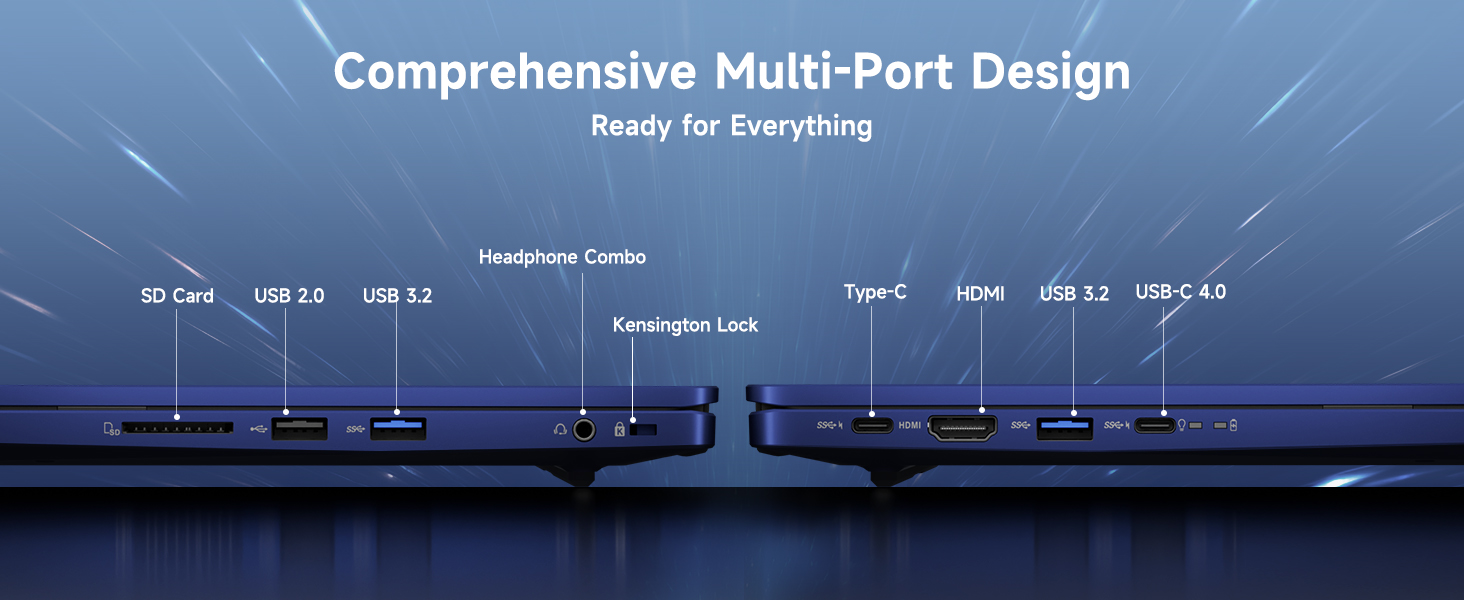
Imatge 3.1: acabatview of the comprehensive multi-port design on the NIMO laptop. Ports include SD Card reader, USB 2.0, USB 3.2, Headphone Combo jack, Kensington Lock slot, Type-C, HDMI, and USB-C 4.0.
- Costat esquerre: SD Card Reader, USB 2.0 Port, USB 3.2 Port, Headphone Combo Jack, Kensington Lock Slot.
- costat dret: Type-C Port, HDMI Port, USB 3.2 Port, USB-C 4.0 Port.
- Top (Display): Integrat Webcam with Privacy Switch.
- Teclat: Backlit Keyboard, Fingerprint Reader (integrated into power button or touchpad area).
4. Configuració
4.1. Engegada inicial
- Connect the 100W Type-C PD Fast Charger to the laptop's USB-C port and a power outlet.
- Obriu la tapa de l'ordinador portàtil.
- Premeu el botó d'encesa per encendre l'ordinador portàtil.
- Seguiu les instruccions que apareixen a la pantalla per completar la configuració inicial del Windows 11, incloent-hi l'idioma, la regió, la connexió de xarxa i la creació del compte d'usuari.
4.2. Connexió de perifèrics
Use the available USB ports (USB 2.0, USB 3.2, USB-C 4.0) to connect external devices such as a mouse, keyboard, or external storage drives. The HDMI port allows connection to an external monitor or TV.
4.3. Connexió a la xarxa
During initial setup, you will be prompted to connect to a Wi-Fi network. You can also manage network settings via Windows Settings > Network & Internet.
5. Instruccions de funcionament
5.1. Gestió d'energia
- Encès/apagat: Premeu el botó d'engegada per engegar. Per apagar, feu clic al botó Inici i, a continuació, a Engegada > Apaga.
- Mode de repòs: Tanqueu la tapa o feu clic al botó Inici i, a continuació, a Engegada > Suspensió.
- Reinicia: Feu clic al botó Inici i, a continuació, a Energia > Reinicia.
5.2. Ús del teclat i del touchpad
The laptop features a full-sized keyboard with a numeric keypad and a precision touchpad. The keyboard is backlit for use in low-light conditions. Adjust backlight settings via function keys (refer to your specific model's key layout).
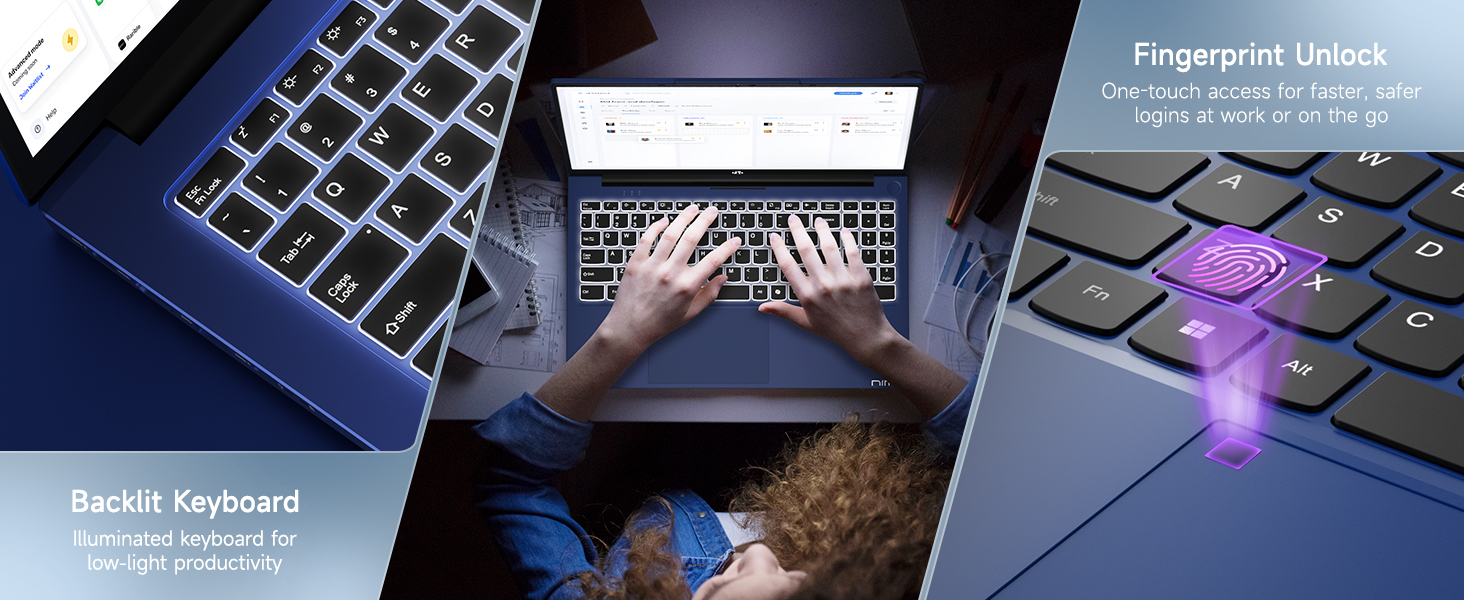
Image 5.1: The backlit keyboard illuminates for visibility in dim environments, and the fingerprint sensor provides quick, secure access.
5.3. Desbloqueig de l'empremta digital
For enhanced security and quick access, configure the fingerprint reader:
- Aneu a Configuració de Windows > Comptes > Opcions d'inici de sessió.
- Under 'Windows Hello Fingerprint', click 'Set up' and follow the on-screen instructions to register your fingerprint.
5.4. Webcam Privacy Switch
La integrada webcam includes a physical privacy switch to ensure your privacy. Slide the switch to cover or uncover the camera lens as needed.
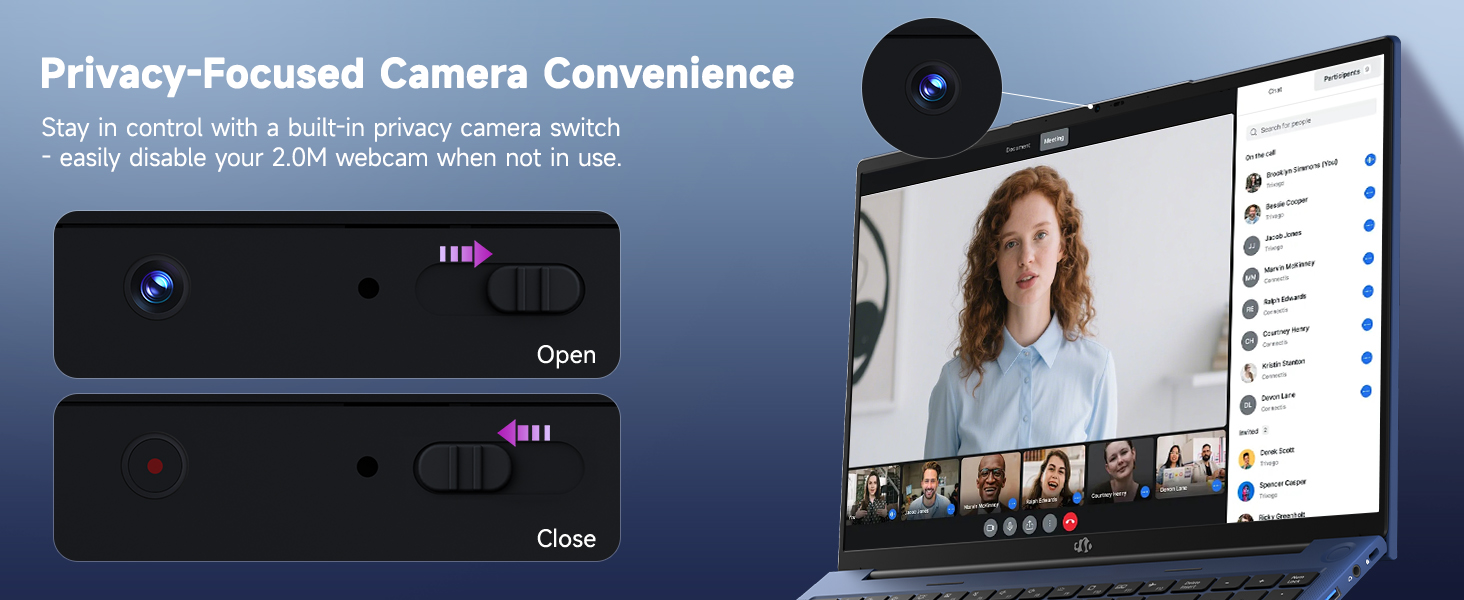
Imatge 5.2: El/La webcam features a physical privacy switch, allowing users to disable the camera when not in use for enhanced security.
5.5. USB-C 4.0 Functionality
The USB-C 4.0 port offers versatile connectivity:
- Transferència de dades: Supports high-speed data transfer with compatible devices.
- Pantalla externa: Connects to external monitors using a compatible USB-C to display adapter (not included).
- Subministrament d'energia (PD): Used for charging the laptop with the provided 100W PD charger.
- eGPU Support: Compatible with external GPU (eGPU) docks for enhanced graphics performance (eGPU dock not included).
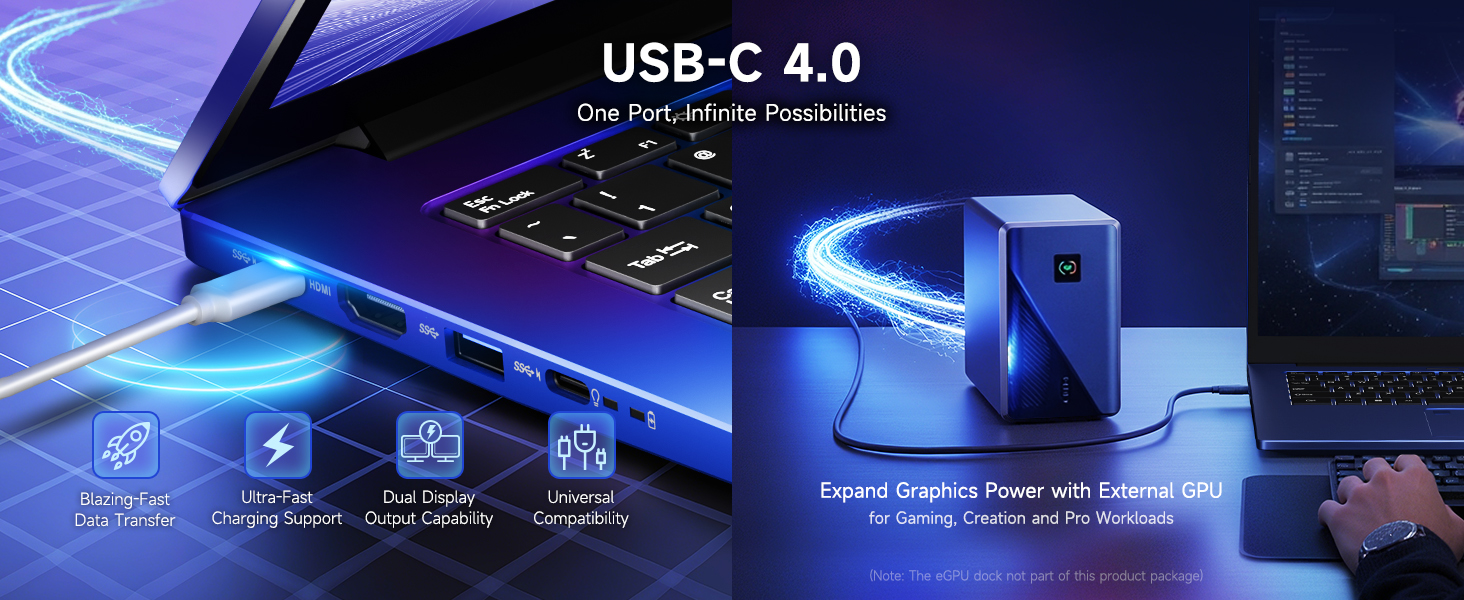
Image 5.3: The USB-C 4.0 port provides blazing-fast data transfer, external display output, charging support, and compatibility with external GPU docks.
6. Manteniment
6.1. Neteja
- Feu servir un drap suau i sense borrissol per netejar la pantalla i les superfícies exteriors.
- Per a marques difícils, lleugerament dampNetegeu el drap amb aigua o una solució netejadora de pantalles.
- Eviteu productes químics agressius, abrasius o dissolvents.
- Use compressed air to clear dust from keyboard keys and vents.
6.2. Cura de la bateria
Per allargar la durada de la bateria:
- Eviteu descarregar completament la bateria amb freqüència.
- Guardeu el portàtil en un lloc fresc i sec quan no el feu servir durant períodes prolongats.
- Use the provided 100W PD charger for optimal charging.
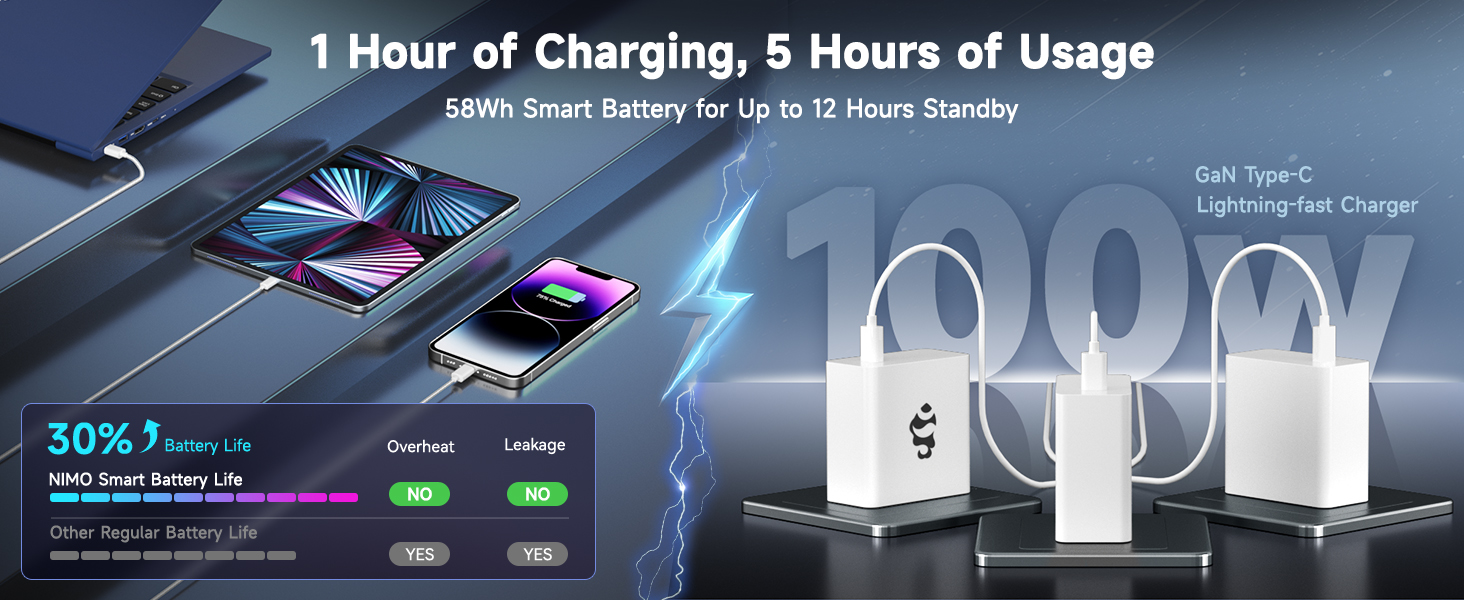
Image 6.1: The 100W GaN charger provides efficient power delivery, contributing to the laptop's smart battery optimization for extended usage.
6.3. Actualitzacions de programari
Comproveu i instal·leu regularment si hi ha actualitzacions de Windows i de controladors per garantir un rendiment i una seguretat òptims. Aneu a Configuració de Windows > Actualització de Windows.
7. Solució De Problemes
Aquesta secció tracta problemes comuns que podeu trobar.
- El portàtil no s'encén: Ensure the charger is properly connected and the power outlet is functional. Try holding the power button for 15-20 seconds to perform a hard reset.
- La pantalla està en blanc o parpelleja: Restart the laptop. If connected to an external display, try disconnecting it. Check display settings in Windows.
- Problemes de connexió Wi-Fi: Ensure Wi-Fi is enabled in Windows settings. Restart your router and the laptop. Update network drivers if necessary.
- Rendiment lent: Close unnecessary applications. Check for background processes in Task Manager. Ensure sufficient free space on the SSD. Run a system scan for malware.
- El lector d'empremtes dactilars no funciona: Assegura't que el dit estigui net i sec. Torna a registrar la teva empremta digital a la configuració de Windows si el problema persisteix.
For issues not covered here, please refer to the Warranty and Support section for contact information.
8. Especificacions
| Característica | Detall |
|---|---|
| Nom del model | Nimo N175 |
| Mostra | Pantalla IPS Full HD de 17.3 polzades (1920 x 1080) |
| Processador | AMD Ryzen 9 8945HS (5.2 GHz Max Boost, 8 Cores) |
| Gràfics | AMD Radeon 780M |
| RAM | 16 GB de DDR5 (4800 MHz) |
| Emmagatzematge | SSD de 1 TB |
| Sistema operatiu | Windows 11 Home |
| Connectivitat sense fil | 802.11a/b/g/n/ac |
| Ports | 1x USB 2.0, 3x USB 3.0 (or 3.2), 1x USB-C 4.0, 1x HDMI, 1x SD Card Reader, 1x Headphone Combo, 1x Kensington Lock |
| Durada de la bateria | Approximately 6 hours (up to 12 hours standby) |
| Carregador | 100W Type-C PD Fast Charger |
| Dimensions (LxWxH) | 14.07 x 8.98 x 0.76 polzades |
| Pes | 3.8 lliures |
| Característiques especials | Backlit Keyboard, Fingerprint Reader, HD Audio, Numeric Keypad, Webcam Privacy Switch |
9. Informació sobre garantia i assistència
NIMO is committed to providing reliable products and customer service.
9.1. Garantia
Your NIMO laptop comes with a 2 any de garantia from the date of purchase, covering manufacturing defects and hardware malfunctions under normal use conditions.
9.2. Política de devolució
A Política de devolució gratuïta de 90 dies is provided, allowing returns for any reason within 90 days of purchase.
9.3. Atenció al client
For technical assistance, warranty claims, or any product-related inquiries, please contact our U.S.-based support team:
- Correu electrònic: service@nimopc.com
- En línia: Visita el NIMO oficial weblloc web per a recursos de suport i opcions de contacte.

Image 9.1: NIMO offers 2-year support, 90-day free returns, and dedicated customer service to ensure user satisfaction.


