1. Introducció
This manual provides essential information for the setup, operation, and maintenance of your Blackview Tab 20WIFI 10-inch Android 15 Tablet. Please read this manual thoroughly to ensure proper use and to maximize the performance of your device.
El Negreview Tab 20WIFI is a versatile 10-inch Android 15 tablet featuring a 1280x800 IPS touchscreen, a quad-core processor, 4GB RAM (expandable to 12GB virtual RAM), 64GB internal storage expandable up to 1TB, 5G WiFi, Bluetooth 5.0, dual cameras, and a 6600mAh battery. It is designed for various applications, from entertainment to productivity.
2. Què hi ha a la caixa
En obrir el paquet, comproveu que hi hagi tots els elements:
- Negreview Tab 20WIFI Tablet
- Cable USB-Type C
- Adaptador d'alimentació
3. Dispositiu acabatview
Familiarize yourself with the physical components of your Blackview Tab 20WIFI tablet.

Imatge: Anvers i revers view del Negreview Tab 20WIFI tablet, showcasinla pantalla i el mòdul de la càmera posterior.
3.1. Components físics
- Visualització: 10.1-inch HD+ IPS Touchscreen (1280x800 resolution).
- Botó d'encesa: Situat al lateral, s'utilitza per encendre/apagar o activar/reposar el dispositiu.
- Botons de volum: Situat al lateral, serveix per ajustar el volum de l'àudio.
- Port USB tipus C: Per a càrrega i transferència de dades.
- Auriculars Jack: Standard 3.5mm audio output.
- Càmera frontal: Càmera de 5MP per a videotrucades i selfies.
- Càmera posterior: 8MP camera for photos and videos.
- Ponent: Sortida d'àudio.
- Ranura per a targeta MicroSD: Per a emmagatzematge ampliable fins a 1 TB.
4. Configuració
4.1. Càrrega de la tauleta
- Connecteu el cable USB tipus C al port de càrrega de la tauleta.
- Connecteu l'altre extrem del cable a l'adaptador d'alimentació.
- Connecteu l'adaptador de corrent a una presa de corrent.
- Allow the tablet to charge fully before initial use. The battery indicator on the screen will show charging status.
4.2. Encès / apagat
- Per encendre: Press and hold the Power button until the Blackview apareix el logotip.
- Per apagar: Mantingueu premut el botó d'engegada fins que apareguin les opcions d'engegada a la pantalla i, a continuació, seleccioneu "Apagar".
- Per reiniciar: Mantingueu premut el botó d'engegada fins que apareguin les opcions d'engegada i, a continuació, seleccioneu "Reiniciar".
4.3. Configuració inicial
The first time you power on your tablet, you will be guided through the initial setup process:
- Selecció d'idioma: Trieu el vostre idioma preferit.
- Connexió Wi-Fi: Seleccioneu la vostra xarxa Wi-Fi i introduïu la contrasenya per connectar-vos a Internet.
- Compte de Google: Sign in with your Google account or create a new one. This is necessary to download apps from the Google Play Store and access Google services.
- Data i hora: Set the correct date and time or allow the network to set it automatically.
- Seguretat: Set up a screen lock (PIN, pattern, password, or Face Unlock).
- Seguiu les instruccions que quedin a la pantalla per completar la configuració.
5. Instruccions de funcionament
5.1. Navegació bàsica
- Pantalla d'inici: El centre neuràlgic de les teves aplicacions i widgets.
- Calaix d'aplicacions: Llisca cap amunt des de la part inferior de la pantalla per accedir a totes les aplicacions instal·lades.
- Panell de notificacions: Feu lliscar el dit cap avall des de la part superior de la pantalla fins a view notificacions i configuracions ràpides.
- Aplicacions recents: Tap the square navigation button (or swipe up and hold from the bottom) to see recently used applications.
5.2. Visualització i elements visuals
The tablet features a 10.1-inch HD+ IPS display with a 1280x800 resolution, offering clear visuals. It supports 10-point multi-touch and a 120Hz sampling rate for responsive interactions. Brightness can be adjusted in Settings > Display.

Image: The Blackview tablet screen showing the Android interface with various applications like Facebook, TikTok, YouTube, and Netflix.
5.3. Gestió de l'emmagatzematge
Your tablet comes with 64GB of internal storage. You can expand this by inserting a MicroSD (TF) card up to 1TB into the dedicated slot.

Image: Visual representation of the tablet's storage capabilities, including 12GB RAM (virtual), 64GB ROM, and support for up to 1TB expandable storage via a MicroSD card.
5.4. Ús de la càmera
The tablet is equipped with an 8MP rear camera and a 5MP front camera. Open the Camera app to capture photos and videos. Tap the screen to focus and press the shutter button to take a picture.
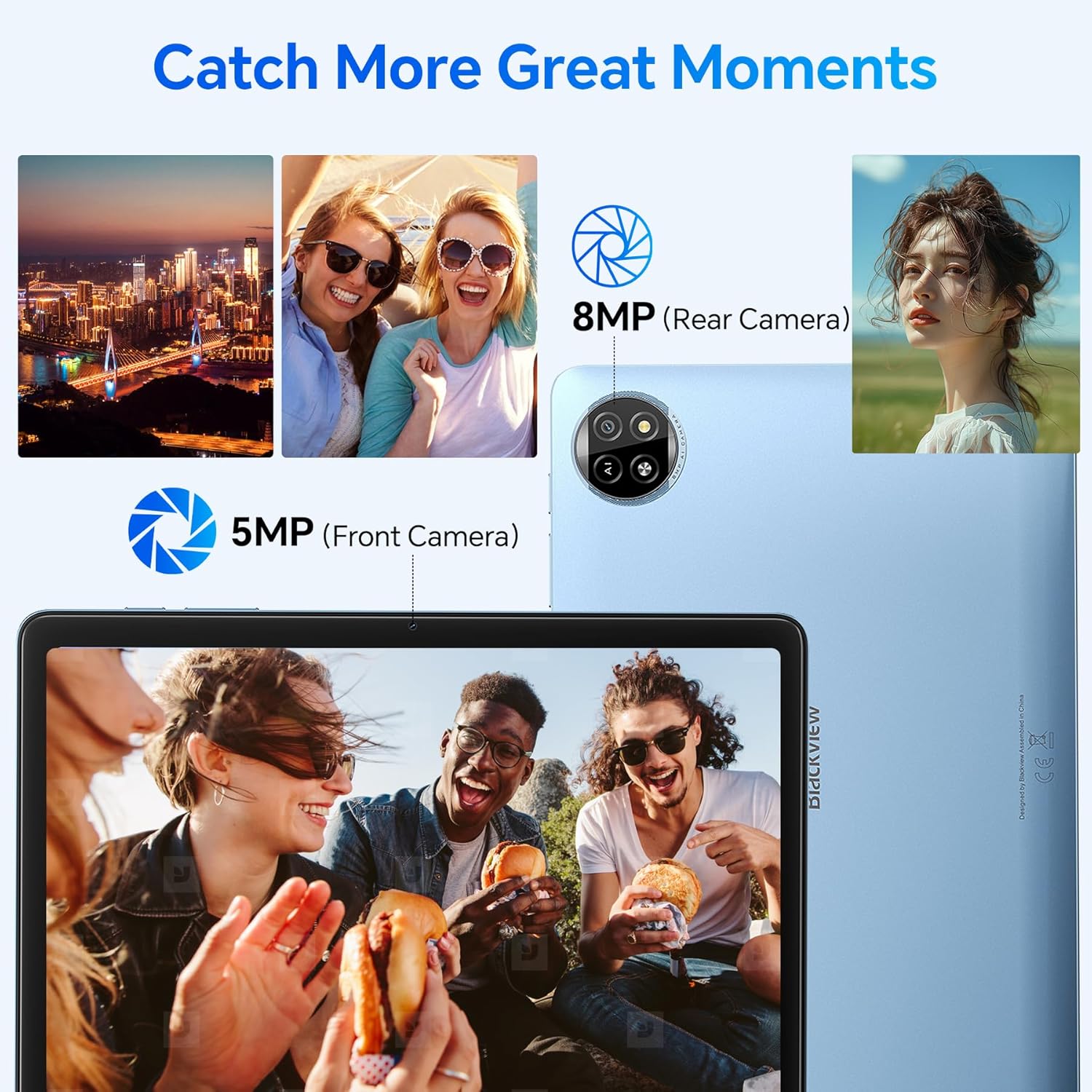
Imatge: Examples of photos taken with the tablet's 8MP rear camera and 5MP front camera, highlighting their use for capturing moments.
5.5. Desbloqueig facial
For convenient and secure access, you can set up Face Unlock. Go to Settings > Security > Face Unlock and follow the on-screen instructions to register your face. Once set up, you can unlock your tablet by simply looking at the front camera.

Image: A user demonstrating the Face Unlock feature on the Blackview tablet, with facial recognition lines visible.
5.6. Connectivitat
The tablet supports 5G Wi-Fi for fast internet access and Bluetooth 5.0 for connecting wireless accessories like headphones or keyboards.
- Wi-Fi: Ves a Configuració > Xarxa i internet > Wi-Fi per connectar-te a les xarxes disponibles.
- Bluetooth: Go to Settings > Connected devices > Bluetooth to pair with Bluetooth devices.
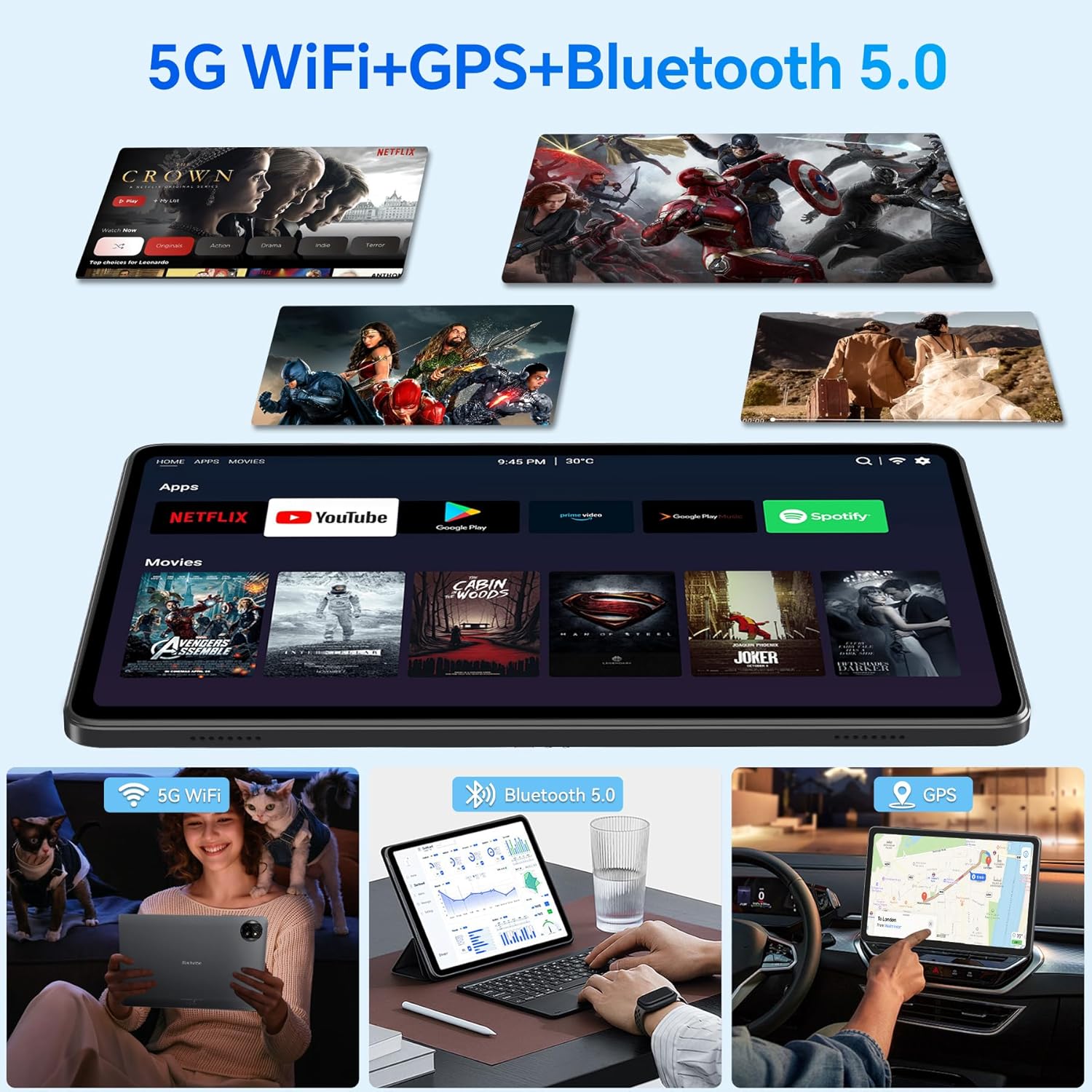
Image: Demonstrations of the tablet's connectivity features, including 5G WiFi for streaming, Bluetooth 5.0 for connecting peripherals, and GPS for navigation.
5.7. Ús multifuncional
El Negreview Tab 20WIFI supports various modes of use to enhance your experience:
- Pantalla dividida: Use two apps simultaneously for multitasking.
- Jocs: Enjoy mobile games with the tablet's performance.
- Música i vídeo: Stream or play local media files.
- Navegació: Utilize GPS and mapping applications.
- Oficina portàtil: Use productivity apps for work or study.

Image: A collage illustrating the tablet's versatility, showing it used for split-screen multitasking, gaming, listening to music, GPS navigation, watching YouTube, and as a portable office device.
6. Manteniment
6.1. Cura de la bateria
Per allargar la durada de la bateria:
- Eviteu exposar la tauleta a temperatures extremes.
- No permeteu que la bateria es descarregui completament amb freqüència.
- Feu servir el carregador i el cable proporcionats per a una càrrega òptima.
- The 6600mAh battery supports 10W fast charging, achieving 6-8 hours of video playback from 2 hours of charging.

Image: A graphic depicting the tablet's 6600mAh high-capacity battery and its convenient Type-C charging port.
6.2. Neteja
- Feu servir un drap suau i sense borrissol per netejar la pantalla i la carcassa.
- Eviteu utilitzar productes químics o materials abrasius.
6.3. Actualitzacions de programari
Regularly check for and install system updates to ensure optimal performance and security. Go to Settings > System > System update.
7. Solució De Problemes
Si teniu problemes amb la tauleta, consulteu les solucions habituals següents:
| Problema | Possible solució |
|---|---|
| La tauleta no s'encén | Ensure the tablet is charged. Connect it to the charger for at least 30 minutes, then try powering on again. If unresponsive, perform a forced restart by holding the power button for 10-15 seconds. |
| Problemes de connexió Wi-Fi | Restart your Wi-Fi router. Go to Settings > Network & internet > Wi-Fi, forget the network, and reconnect. Ensure you are within range of the Wi-Fi signal. |
| Rendiment lent o congelació | Close unnecessary background apps. Clear cache for frequently used apps (Settings > Apps > [App Name] > Storage & cache > Clear cache). Restart the tablet. Ensure sufficient storage space is available. |
| Les aplicacions es bloquegen | Update the app from the Google Play Store. Clear the app's cache and data (Settings > Apps > [App Name] > Storage & cache). Reinstall the app if the issue persists. |
| Face Unlock not working | Ensure your face is well-lit and positioned correctly in front of the camera. Clean the front camera lens. Re-register your face in Settings > Security > Face Unlock. |
If problems persist, consider performing a factory reset (Settings > System > Reset options > Erase all data (factory reset)). Avís: Això esborrarà totes les dades de la tauleta. Fes una còpia de seguretat de les dades importants abans de continuar.
8. Especificacions
Key technical specifications for the Blackview Tab 20WIFI tablet:
- Model: T310
- Sistema operatiu: Android 15
- Visualització: 10.1-inch IPS, 1280 x 800 pixels
- Processador: 1.8 GHz Quad-Core (Unisoc)
- RAM: 4GB (up to 12GB virtual RAM)
- Emmagatzematge intern: 64 GB
- Emmagatzematge ampliable: Up to 1TB via MicroSD (TF) card
- Càmera posterior: 8MP
- Càmera frontal: 5MP
- Bateria: 6600 mAh
- Connectivitat: Wi-Fi 5G, Bluetooth 5.0
- Dimensions (LxWxH): 9.51 x 0.37 x 6.3 polzades
- Pes de l'article: 2.57 lliures
9. Garantia i Suport
Negreview provides comprehensive support for its products.
9.1. Informació de la garantia
Negreview products undergo strict quality control from design to production. For Blackview tablets, users are entitled to a 24-month free repair warranty from the date of purchase. This warranty covers manufacturing defects and ensures high-quality standards.

Image: An icon representing Blackview's two-year warranty support, featuring a headset and a shield.
9.2. Suport tècnic
In addition to the warranty, Blackview ofertes lifetime technician support to assist with any operational or technical queries you may have. For support, please visit the official Blackview weblloc o poseu-vos en contacte amb el seu servei d'atenció al client.