1. Introducció
This manual provides essential information for setting up, operating, maintaining, and troubleshooting your VIBOX IX-512 Gaming PC. Please read this manual thoroughly before using your new computer to ensure optimal performance and longevity.

Figure 1: VIBOX IX-512 Gaming PC Tower. This image shows the sleek black tower with vibrant RGB lighting visible through the side panel and front mesh.
2. Informació de seguretat
- Ensure the PC is placed on a stable, flat surface.
- No bloquejar les obertures de ventilació.
- Keep away from water and excessive humidity.
- Use only the power supply provided or approved by VIBOX.
- Desconnecteu l'alimentació abans de netejar-la o reparar-la.
3. Configuració inicial
3.1 Desembalatge
Carefully remove the PC and all accessories from the packaging. Retain the original packaging for future transport or servicing.
3.2 Connexió de perifèrics
Connect your monitor, keyboard, mouse, and other peripherals to the appropriate ports on the rear and top of the PC.

Figure 2: Top Panel Connectivity. This diagram illustrates the various ports available on the top panel of the PC, including USB 3.0, USB 2.0, headphone jack, RGB lighting control button, and the power button.
3.2.1 Connexió del monitor
Connect your monitor to the graphics card's HDMI or DisplayPort output. Ensure the cable is securely fastened.
3.2.2 dispositius USB
Connect your keyboard, mouse, and other USB devices to the available USB 2.0 or USB 3.0 ports.
3.3 Connexió d'alimentació
Connect the power cable to the PC's power supply unit and then to a grounded electrical outlet.
4. Instruccions de funcionament
4.1 Engegada/apagada
Press the power button located on the top panel to turn on the PC. To shut down, use the Windows 11 shutdown procedure (Start Menu > Power > Shut down).
4.2 Configuració inicial de Windows 11
Upon first boot, follow the on-screen instructions to complete the Windows 11 Home setup, including language, region, network connection, and user account creation.

Figure 3: Windows 11 Home. Your VIBOX PC comes pre-installed with Windows 11 Home, optimized for gaming and productivity.
4.3 Connectivitat de xarxa
4.3.1 Connexió Wi-Fi
Your PC includes a 300 Mbps Wi-Fi adapter. To connect, click the Wi-Fi icon in the taskbar, select your network, enter the password, and click Connect.
4.3.2 Connexió Ethernet
For a wired connection, plug an Ethernet cable into the LAN port on the rear of the PC and connect the other end to your router or modem.
4.4 Control d'il·luminació RGB
Use the RGB change button on the top panel to cycle through various lighting effects and colors for the internal fans and components.
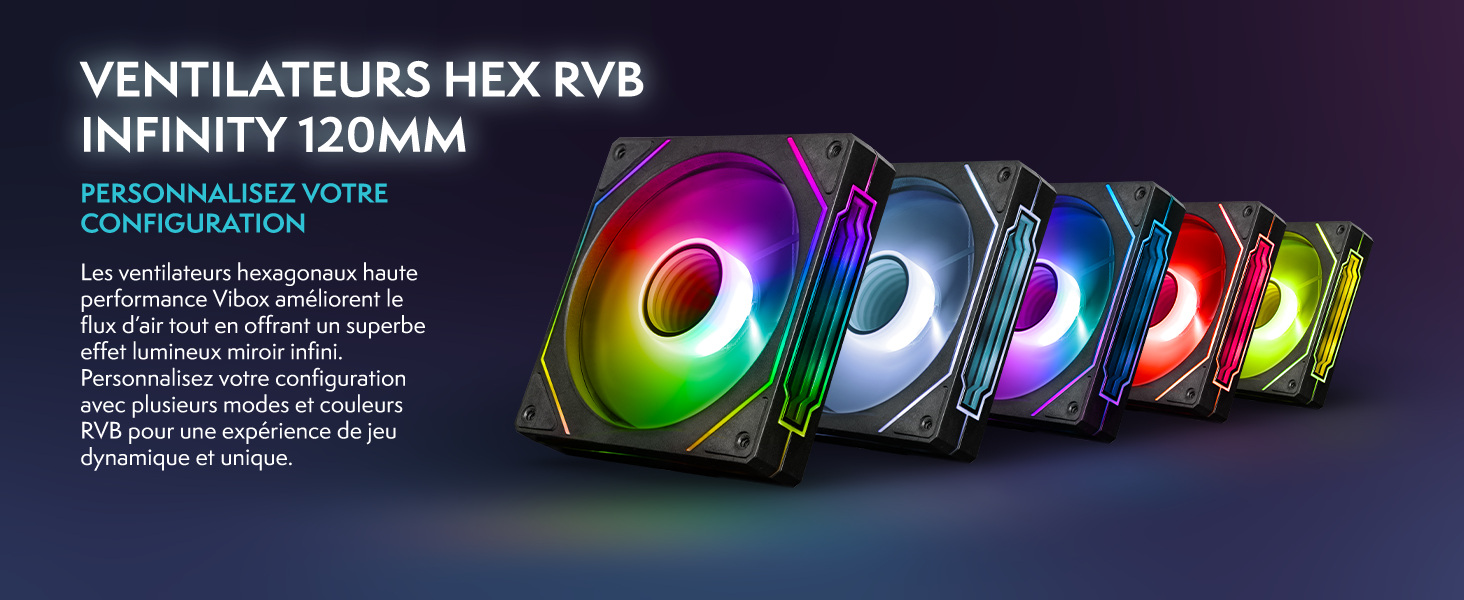
Figure 4: Customizable RGB Fans. The hexagonal fans provide vibrant lighting effects that can be personalized to your preference.
5. Manteniment
5.1 Neteja
Regularly clean the exterior of the PC with a soft, dry cloth. Use compressed air to clear dust from ventilation grilles and internal components. Desconnecteu sempre l'alimentació abans de netejar.

Figure 5: Mesh Design and Access. The VTX-3 case features a mesh front for optimal airflow and a magnetic, hinged tempered glass side panel for easy access to internal components for cleaning and maintenance.
5.2 Actualitzacions de programari
Keep your Windows operating system, drivers (especially for AMD Radeon graphics), and other software up to date to ensure optimal performance and security. Windows Update can be accessed via Settings > Windows Update.
5.3 Component acabatview
Your VIBOX IX-512 PC is equipped with high-performance components:
- Processador: AMD Ryzen 7 9800X3D
- Targeta gràfica: AMD Radeon RX 9070 XT
- RAM: 32 GB DDR5
- Emmagatzematge: SSD NVMe de 1 TB
- Refrigeració: Refrigerador líquid AIO de 120 mm
- Fans: 6 Hex 120mm Fans

Figure 6: Internal Components. This visual guide highlights the main components inside your VIBOX IX-512 PC, including the CPU, GPU, RAM, SSD, cooling system, and pre-installed software.
6. Solució De Problemes
| Problema | Causa possible | Solució |
|---|---|---|
| El PC no s'encén. | Power cable loose, power supply switch off, faulty outlet. | Check all power connections. Ensure power supply switch is ON. Try a different power outlet. |
| No es mostra cap imatge al monitor. | Monitor cable loose, monitor off, incorrect input selected on monitor. | Ensure monitor cable is securely connected to both PC and monitor. Turn on monitor. Select correct input source on monitor. |
| Rendiment lent. | Too many applications running, outdated drivers, insufficient storage. | Close unnecessary applications. Update drivers. Free up disk space. |
| Problemes de connexió Wi-Fi. | Incorrect password, router issues, Wi-Fi adapter driver issues. | Verify Wi-Fi password. Restart router. Update Wi-Fi adapter drivers. |
7. Especificacions tècniques
| Característica | Especificació |
|---|---|
| Model | VIBOX IX-512 |
| Processador | AMD Ryzen 7 9800X3D (8 Cores, up to 5.0 GHz) |
| Targeta gràfica | AMD Radeon RX 9070 XT (16 GB GDDR6) |
| RAM | 32 GB de DDR5 a 5600 MHz |
| Emmagatzematge | SSD NVMe de 1 TB |
| Sistema operatiu | Windows 11 Home |
| Connectivitat | Wi-Fi (300 Mbps), Ethernet |
| Ports | 1x HDMI, 3x USB 2.0, 3x USB 3.0 |
| Dimensions (L x A x A) | 40 x 21 x 45 cm |
| Refrigeració | 120mm AIO Liquid Cooling, 6x 120mm Hex RGB Fans |
8. Garantia i Suport
8.1 Garantia del fabricant
Your VIBOX IX-512 PC comes with a manufacturer's warranty of 2 anys per a peces i lifetime for laborSi us plau, conserveu el comprovant de compra per a reclamacions de garantia.
8.2 Atenció al client
For technical assistance, troubleshooting beyond this manual, or warranty inquiries, please contact VIBOX customer support. Refer to the VIBOX official weblloc web o la documentació de la compra per obtenir les dades de contacte.
També podeu visitar el VIBOX Store on Amazon per a més informació i recursos.