Introducció
This manual provides essential information for setting up, operating, maintaining, and troubleshooting your Microsoft Surface Laptop 5. The Surface Laptop 5 is designed for powerful performance and stunning visuals, featuring a 15-inch touchscreen display, an Intel Core i7 12th Gen processor, 8GB of LPDDR5X memory, and a 512GB Solid State Drive (SSD). It operates on Windows 11, offering a smooth and secure user experience. Its integrated Intel Iris Xe Graphics, touch screen display, and backlit keyboard enhance both entertainment and productivity.
Contingut del paquet
- Microsoft Surface Laptop 5
- Unitat d'alimentació
- Guia d'inici ràpid (si escau)
- Safety and Warranty Documents (if applicable)
Configuració
1. Engegada inicial
Before first use, ensure your Surface Laptop 5 is fully charged. Connect the power supply unit to the charging port on the side of the laptop and then to a power outlet. Once charged, press the power button located on the keyboard deck to turn on the device.
2. Connexió de perifèrics
Your Surface Laptop 5 includes various ports for connecting external devices:
- Port USB 3.0: For connecting standard USB devices like mice, keyboards, or external hard drives.
- Port USB-C: A versatile port for charging, data transfer, and connecting to external displays with compatible adapters.
For wireless connections, the laptop supports IEEE 802.1 Wi-Fi and Bluetooth 5.2. To connect Bluetooth devices, navigate to Configuració > Bluetooth i dispositius al Windows 11.
3. Windows 11 Setup
Upon the first boot, you will be guided through the Windows 11 setup process. This includes selecting your region and language, connecting to a Wi-Fi network, accepting the license agreement, and setting up your Microsoft account or creating a local user account. Follow the on-screen instructions to complete the setup.
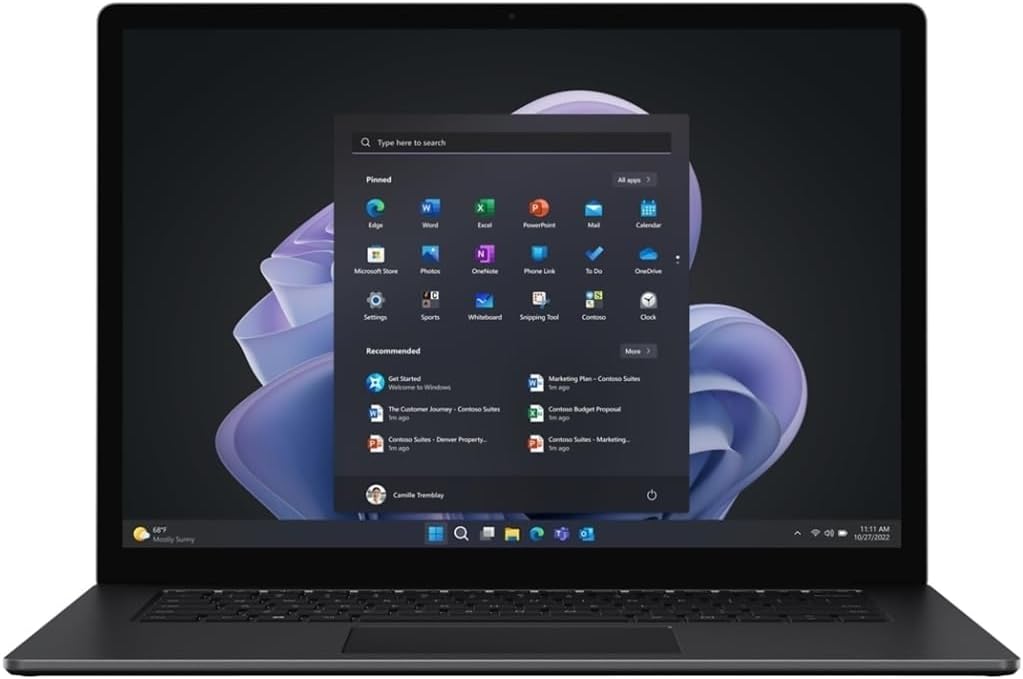
Image: The Microsoft Surface Laptop 5 with its 15-inch display showing the Windows 11 Start Menu, featuring pinned applications and recommended items. This illustrates the user interface during initial setup and daily operation.
Funcionament del vostre Surface Laptop 5
1. Ús de la pantalla tàctil
The 15-inch display is a multi-touch screen. You can interact with Windows 11 using gestures:
- Toca: Seleccioneu un element o obriu una aplicació.
- Mantén premut: Right-click or access context menus.
- Pessiga per fer zoom: Apropar o allunyar les imatges i web pàgines.
- Llisca: Navigate through content or open system panels (e.g., notifications).
2. Teclat i touchpad
The Surface Laptop 5 features a backlit standard keyboard and a precision touchpad. The keyboard backlight can be adjusted through function keys or Windows settings. The touchpad supports multi-finger gestures for navigation, scrolling, and switching applications.
3. Webcàmera i micròfon
A 2MP webcam and integrated microphone are built into the laptop, suitable for video calls and online meetings. Ensure privacy settings in Windows 11 allow applications to access the camera and microphone when needed.

Imatge: Un angle view of the Microsoft Surface Laptop 5, showcasing its sleek design and the Windows 11 Start Menu on its 15-inch display. This perspective highlights the laptop's form factor and screen clarity during operation.
Manteniment
1. Neteja
To clean your Surface Laptop 5, use a soft, lint-free cloth slightly dampened with water or an approved screen cleaner. Avoid harsh chemicals, abrasive materials, or spraying liquids directly onto the device. For the screen, use a microfiber cloth to gently wipe away smudges.
2. Cura de la bateria
To maximize battery life, avoid extreme temperatures. Store the laptop in a cool, dry place. For long-term storage, it is recommended to keep the battery charged to around 50%. Regularly discharging and recharging the battery within normal operating parameters helps maintain its health.
3. Actualitzacions de programari
Keep your Windows 11 operating system and drivers updated. Regular updates provide security enhancements, bug fixes, and performance improvements. You can check for updates by going to Configuració > Actualització de Windows.
Resolució de problemes
- El dispositiu no s'encén: Ensure the power adapter is securely connected and the battery is charged. Try holding the power button for 10-15 seconds to perform a hard reset.
- Problemes de pantalla (no hi ha pantalla, parpelleig): Connect an external monitor to check if the issue is with the laptop's display or the graphics output. Update graphics drivers.
- Problemes de connectivitat Wi-Fi o Bluetooth: Check if Wi-Fi/Bluetooth is enabled in Windows settings. Restart the laptop and your router. Update network drivers.
- Rendiment lent: Close unnecessary applications. Check Task Manager for processes consuming high CPU or RAM. Ensure sufficient free space on the SSD. Run a disk cleanup.
- La pantalla tàctil no respon: Restart the device. Check for Windows updates. If the issue persists, you may need to recalibrate the touchscreen or check device drivers in Device Manager.
Especificacions
| Característica | Detall |
|---|---|
| Mostra | 15-inch (2496 x 1664) LCD Touchscreen |
| Processador | Intel Core i7-1255U (Deca-Core, 1.7GHz, 12MB Cache) |
| RAM | 8GB LPDDR5X System Memory |
| Emmagatzematge | Disc dur d'estat sòlid (SSD) de 512 GB |
| Gràfics | Gràfics Intel Iris Xe integrats |
| Sistema operatiu | Windows 11 Home |
| Ports | 1 x USB 3.0, 1 x USB-C |
| Connectivitat sense fil | IEEE 802.1 Wi-Fi, Bluetooth 5.2 |
| Weblleva | 2MP Weblleva |
| Teclat | Teclat estàndard retroil·luminat |
| Dimensions (LxWxH) | 9.6 x 0.6 x 0.6 polzades |
| Pes de l'article | 2.8 lliures |
| Color | Negre mat |
Suport i garantia
For technical assistance, driver downloads, and further support, please visit the official Microsoft Support website. You can find detailed information about your device, software, and troubleshooting guides there.
Information regarding the warranty for your Microsoft Surface Laptop 5 can typically be found in the documentation included with your purchase or on the official Microsoft weblloc web. Si us plau, conserveu el comprovant de compra per a reclamacions de garantia.
Microsoft Support: support.microsoft.com


