1. Introducció
This manual provides detailed instructions for the setup, operation, maintenance, and troubleshooting of your GMKtec G10 Mini PC. Please read this manual thoroughly before using the device to ensure proper functionality and longevity.
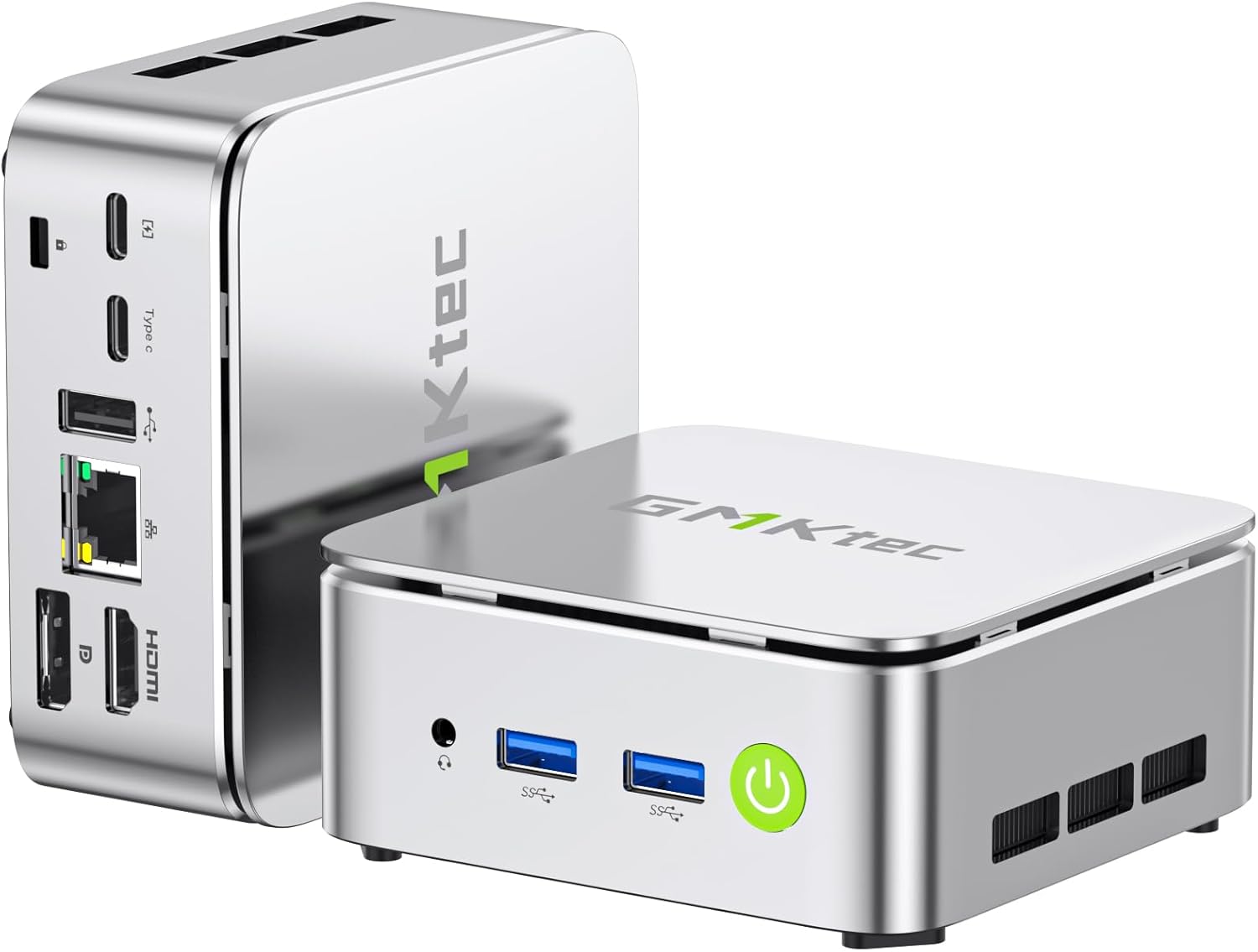
Figure 1: GMKtec G10 Mini PC, showcasinel seu disseny compacte i els seus diversos ports.
2. Què hi ha a la caixa
Verifiqueu que tots els elements que s'enumeren a continuació s'inclouen al vostre paquet:
- GMKtec Nucbox G10 Mini PC Ryzen 5 3500U Mini PC Computer
- Cable HDMI
- Font d'alimentació tipus C
- Muntatge VESA
- Manual d'usuari (aquest document)
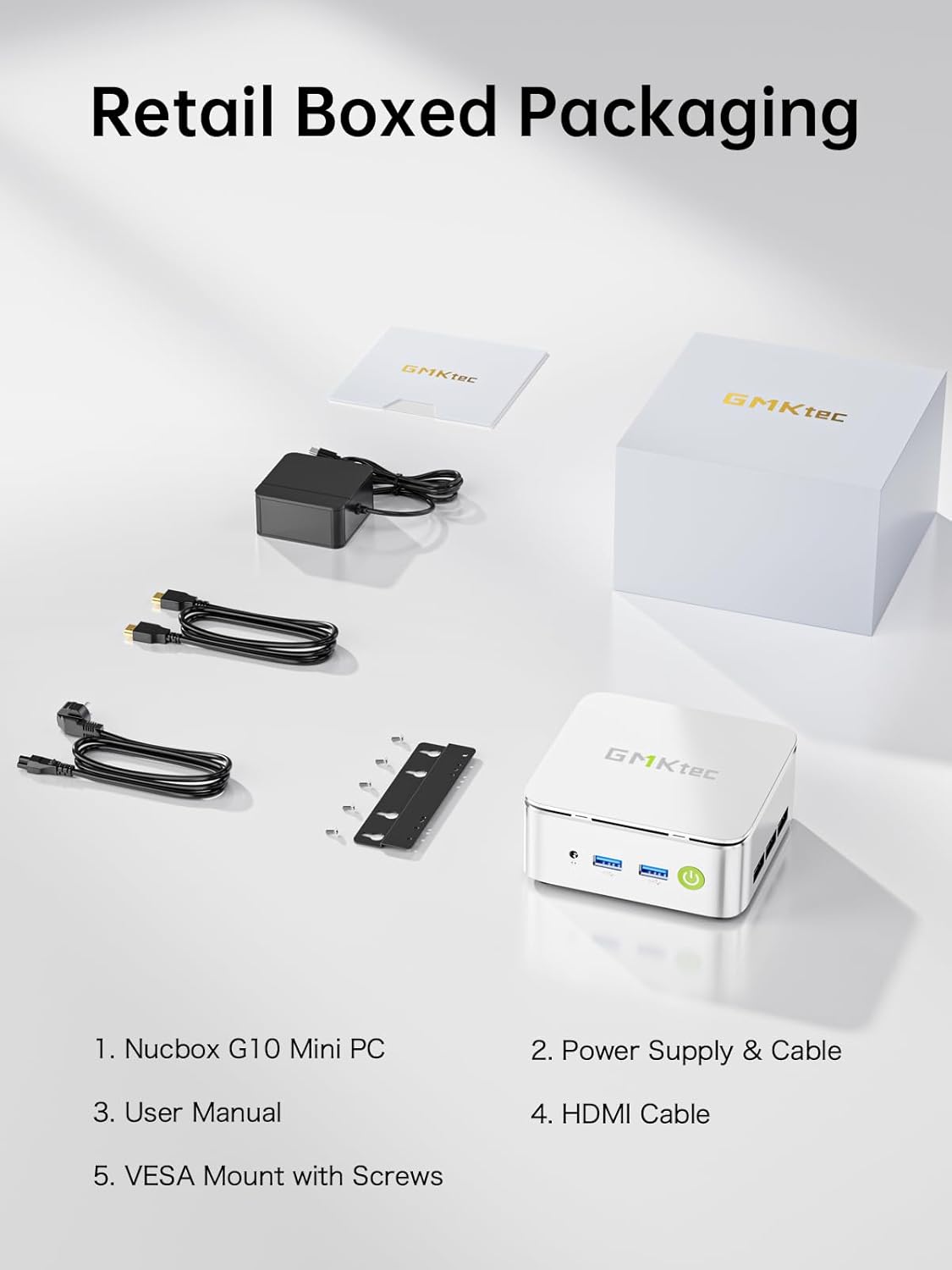
Figure 2: Package contents including the Mini PC, power supply, HDMI cable, VESA mount, and user manual.
3. Especificacions del producte
The GMKtec G10 Mini PC is equipped with the following technical specifications:
| Característica | Especificació |
|---|---|
| Processador | AMD Ryzen 5 3500U (4C/8T, up to 3.7GHz) |
| Gràfics | AMD Radeon Vega 8 Graphics (up to 1200MHz) |
| RAM | 16GB Dual-channel DDR4 (2x8GB), expandable up to 32GB |
| Emmagatzematge | 1TB M.2 PCIe 3.0 SSD, expandable up to 2x8TB SSDs with dual M.2 2280 PCIe 3.0 slots |
| Sortida de visualització | Triple 4K@60Hz via HDMI 2.1 TMDS, DisplayPort 1.4, and USB-C |
| Treball en xarxa | 2.5GbE RJ45 LAN port, WiFi 5, Bluetooth 5.2 |
| Ports | 2x USB 3.2 Gen1, 1x USB 2.0, 1x USB-C (Full-Function: PD/DP/Data), 1x DisplayPort, 1x HDMI, 1x 3.5mm audio jack |
| Sistema operatiu | Windows 11 Pro (preinstalled) |
| Dimensions (LxWxH) | 3.86 x 1.65 x 4.06 polzades |
| Pes | 2.35 lliures |
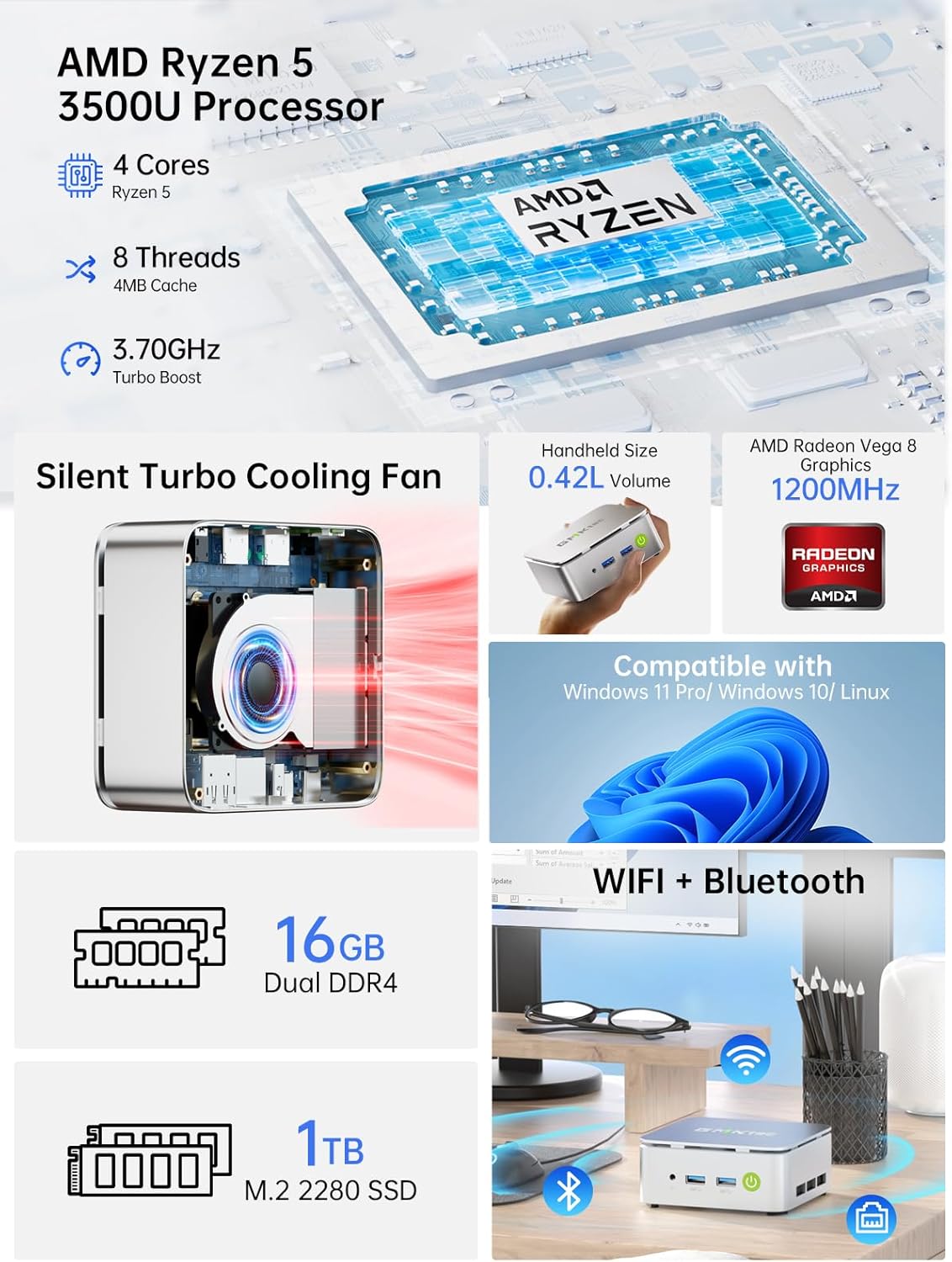
Figura 3: Mésview of the GMKtec G10's core components and features.

Figure 4: Memory and storage expansion capabilities of the G10 Mini PC.
4. Guia de configuració
4.1 Connexió de perifèrics
Before powering on your Mini PC, connect all necessary peripherals:
- Visualització: Connect your monitor(s) using the HDMI, DisplayPort, or USB-C port. The G10 supports up to three 4K@60Hz displays simultaneously.
- Teclat i ratolí: Connect your USB keyboard and mouse to the available USB 3.2 Gen1 or USB 2.0 ports. Wireless peripherals can be connected via Bluetooth 5.2.
- Xarxa: For a wired connection, connect an Ethernet cable to the 2.5GbE RJ45 LAN port. For wireless, ensure your WiFi network is available.
- Àudio: Connecteu altaveus o auriculars al connector d'àudio de 3.5 mm si cal.

Figura 5: Detallada view of the G10 Mini PC's rich interface ports.
4.2 Encès
- Connect the Type-C power supply to the USB-C (PD Only) port on the Mini PC and then to a power outlet.
- Press the power button located on the front of the Mini PC. The power indicator light will illuminate.
- The system will boot into Windows 11 Pro. Follow the on-screen instructions for initial setup if it's your first time using the device.
4.3 Instal·lació del suport VESA (opcional)
The GMKtec G10 Mini PC can be mounted to the back of a compatible monitor using the included VESA mount:
- Attach the VESA mount bracket to the back of your monitor using the provided screws. Ensure the mount is securely fastened to the VESA holes on your monitor.
- Slide the Mini PC onto the VESA mount bracket until it clicks into place.
- Ensure all cables are connected securely after mounting.
5. Instruccions de funcionament
5.1 Funcionament bàsic
- Encès/apagat: Press the power button once to turn on. To turn off, use the Windows shutdown option or press and hold the power button for 5 seconds.
- Reinicia: Use the restart option within the Windows operating system.
- Mode de repòs: Press the power button briefly while the PC is on to enter sleep mode. Press it again to wake the PC.
5.2 Configuració de la pantalla
To configure multiple displays or adjust resolution:
- Right-click on the desktop and select "Display settings" (Windows 11).
- From here, you can detect, arrange, and set the resolution for your connected monitors.

Figura 6: Example of a triple screen HD display setup with the G10 Mini PC.
5.3 Connectivitat de xarxa
- Cablejat (Ethernet): Once the Ethernet cable is connected, the system should automatically establish a network connection.
- Sense fil (WiFi): Click the network icon in the system tray, select your desired WiFi network, enter the password, and connect.
- Bluetooth: To pair Bluetooth devices, go to "Settings" > "Bluetooth & devices" and follow the on-screen instructions.

Figure 7: Wireless connectivity options: WiFi 5 and Bluetooth 5.2.
6. Manteniment
6.1 Neteja
- Regularly clean the exterior of the Mini PC with a soft, dry cloth.
- No utilitzeu netejadors líquids ni aerosols directament sobre el dispositiu.
- Ensure ventilation openings are clear of dust and debris to maintain optimal airflow.
6.2 Actualitzacions de programari
Keep your operating system and drivers updated to ensure optimal performance and security. Windows Update will typically handle OS updates automatically.
6.3 Expansió d'emmagatzematge
The GMKtec G10 Mini PC supports storage expansion. You can add or upgrade M.2 2280 PCIe 3.0 SSDs. Refer to the internal structure diagram for component location.

Figure 8: Internal structure of the G10 Mini PC, highlighting key components.
6.4 Sistema de refrigeració
The G10 Mini PC features an efficient cooling system designed for quiet operation. While the fan noise is minimal during normal use, it may increase under heavy load. Ensure proper ventilation around the device.

Figure 9: Noise level comparison for the G10 Mini PC's silent cooling system.
7. Solució De Problemes
| Problema | Causa possible | Solució |
|---|---|---|
| No power/PC won't turn on | Power cable not connected; faulty power adapter; power outlet issue. | Ensure power cable is securely connected to the PC and outlet. Try a different power outlet. Contact support if issue persists. |
| No es mostra al monitor | Monitor not connected; incorrect input source selected on monitor; faulty cable. | Check display cable connections. Ensure monitor is set to the correct input (HDMI, DP, USB-C). Try a different cable or monitor. |
| No internet connection (wired) | Ethernet cable loose; router/modem issue; network driver issue. | Check Ethernet cable connection. Restart router/modem. Check network adapter status in Device Manager. |
| No internet connection (wireless) | WiFi disabled; incorrect password; router too far; WiFi driver issue. | Ensure WiFi is enabled. Re-enter WiFi password. Move closer to router. Update WiFi drivers. |
| System slow or unresponsive | Too many applications running; insufficient RAM/storage; overheating. | Close unnecessary applications. Check disk space. Ensure proper ventilation. Consider RAM/SSD upgrade if frequently slow. |
8. Garantia i Suport
GMKtec provides a full 1 any de garantia from the purchase date, covering all hardware faults due to workmanship. For technical assistance or warranty claims, please contact our professional after-sales team.
- Suport per correu electrònic: support@gmktec.com
- Assistència en línia: Visita el GMKtec Store on Amazon and navigate to the "Ask a Product Question" section.
- Suport tècnic de tota la vida: GMKtec offers lifetime technical support for its products.


