1. Introducció
Thank you for choosing the BIGASUO BGP34 Android 5G WiFi Projector. This manual provides essential information for setting up, operating, maintaining, and troubleshooting your projector. Please read it thoroughly before use to ensure optimal performance and longevity of your device. Keep this manual for future reference.
2. Instruccions de seguretat importants
- No bloquegeu les obertures de ventilació. Assegureu-vos que hi hagi un flux d'aire adequat al voltant del projector per evitar el sobreescalfament.
- Avoid direct exposure to the projector lens light. The bright light can cause eye strain or damage.
- Do not place the projector in unstable locations. Ensure it is on a flat, stable surface to prevent falls.
- Mantingueu el projector allunyat de l'aigua o de qualsevol líquid. No el feu funcionar en zones d'ombra.amp ambients.
- Feu servir només l'adaptador de corrent que s'inclou amb el projector.
- Desendolleu el projector durant tempestes o quan no l'utilitzeu durant períodes prolongats.
- No intenteu reparar el projector vosaltres mateixos. Encarregueu totes les tasques de manteniment a personal qualificat.
3. Contingut del paquet
Verifiqueu que tots els elements siguin presents al vostre paquet:
- BIGASUO BGP34 Projector
- Adaptador d'alimentació
- Control remot (piles AAA no incloses)
- Cable HDMI
- Manual d'usuari
- Tripod (may vary by package)
4. Producte acabatview
The BIGASUO BGP34 is a portable Android 5G WiFi projector designed for home entertainment. It supports 1080P native resolution and 4K input, offering a clear and vibrant viewexperiència.
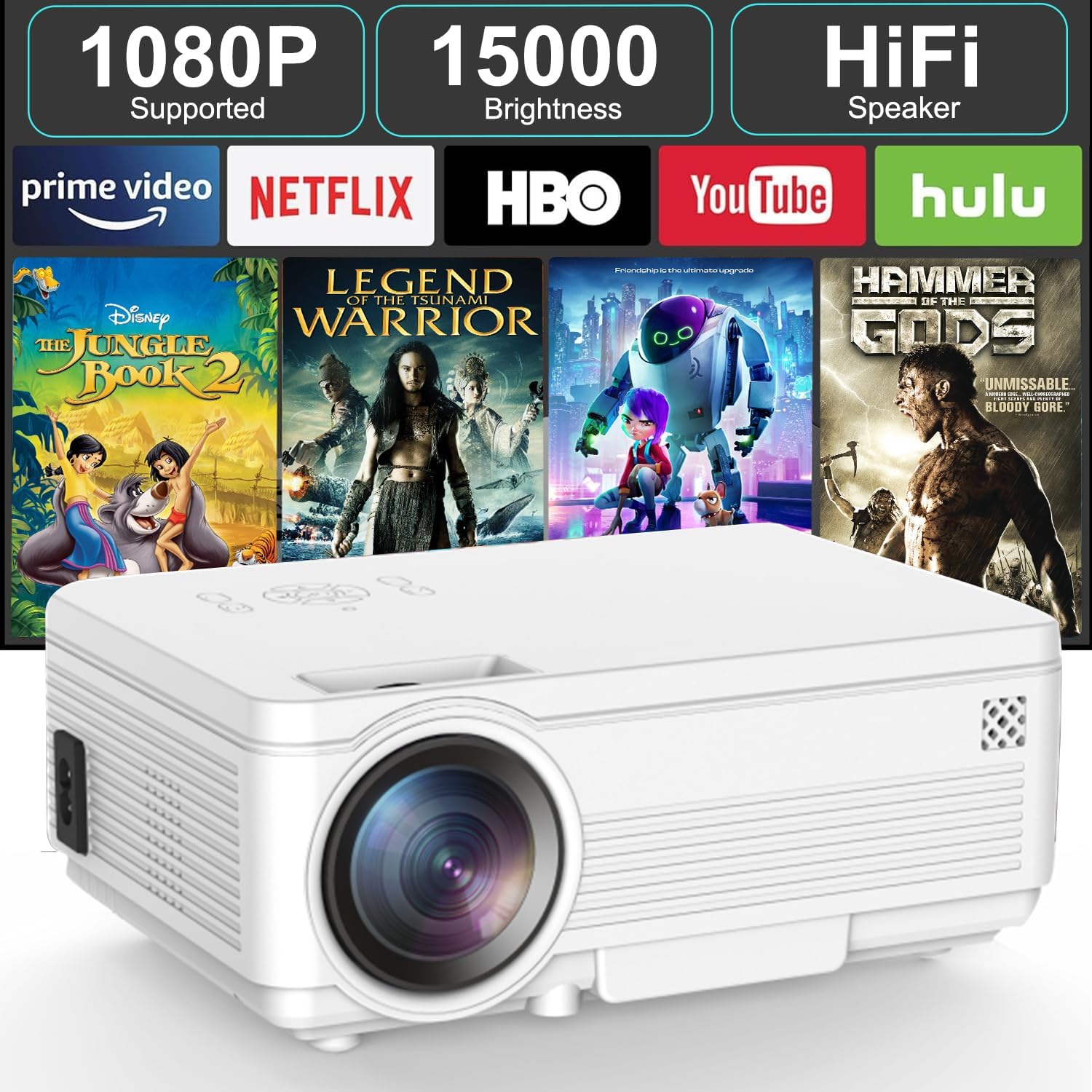
Imatge: Frontal view of the BIGASUO BGP34 projector, showcasing its lens and ventilation. The image also highlights key features like 1080P support, 15000 brightness, HiFi speaker, and compatibility with streaming services such as Prime Video, Netflix, HBO, YouTube, and Hulu.
Ports i controls
Familiarize yourself with the various ports and controls on your projector for seamless connectivity.

Imatge: Una imatge detallada view of the projector's side panel, illustrating various input ports including AUX, AV, TF card slot, HDMI, and USB. Below the projector, icons depict compatible devices such as speakers, PS4, tablets, laptops, smartphones, USB flash drives, Roku Stick, TV Box, and TV Stick, demonstrating its versatile connectivity options.
- Port HDMI: Connects to laptops, gaming consoles, TV sticks, etc.
- Port USB: Es connecta a unitats flash USB per a la reproducció de contingut multimèdia.
- AUX/Audio Out: Es connecta a altaveus externs o auriculars.
- Port AV: Es connecta a dispositius més antics mitjançant un cable AV.
- Ranura per a targetes TF: For playing media directly from a TF (MicroSD) card.
- Entrada d'alimentació: Es connecta a l'adaptador de corrent.
- Anell de focus: Ajusta la claredat de la imatge.
- Correcció Keystone: Adjusts image shape (manual or auto, depending on model features).
5. Configuració
5.1 Col·locació i mida de la pantalla
Position the projector on a stable surface. The projection distance affects the screen size. Ensure the projector is perpendicular to the projection surface for the best image quality.

Image: The BIGASUO BGP34 projector displayed in three common mounting configurations: on a desktop, mounted on a tripod, and hanging from a ceiling. This illustrates the versatility of the projector for various setup environments.
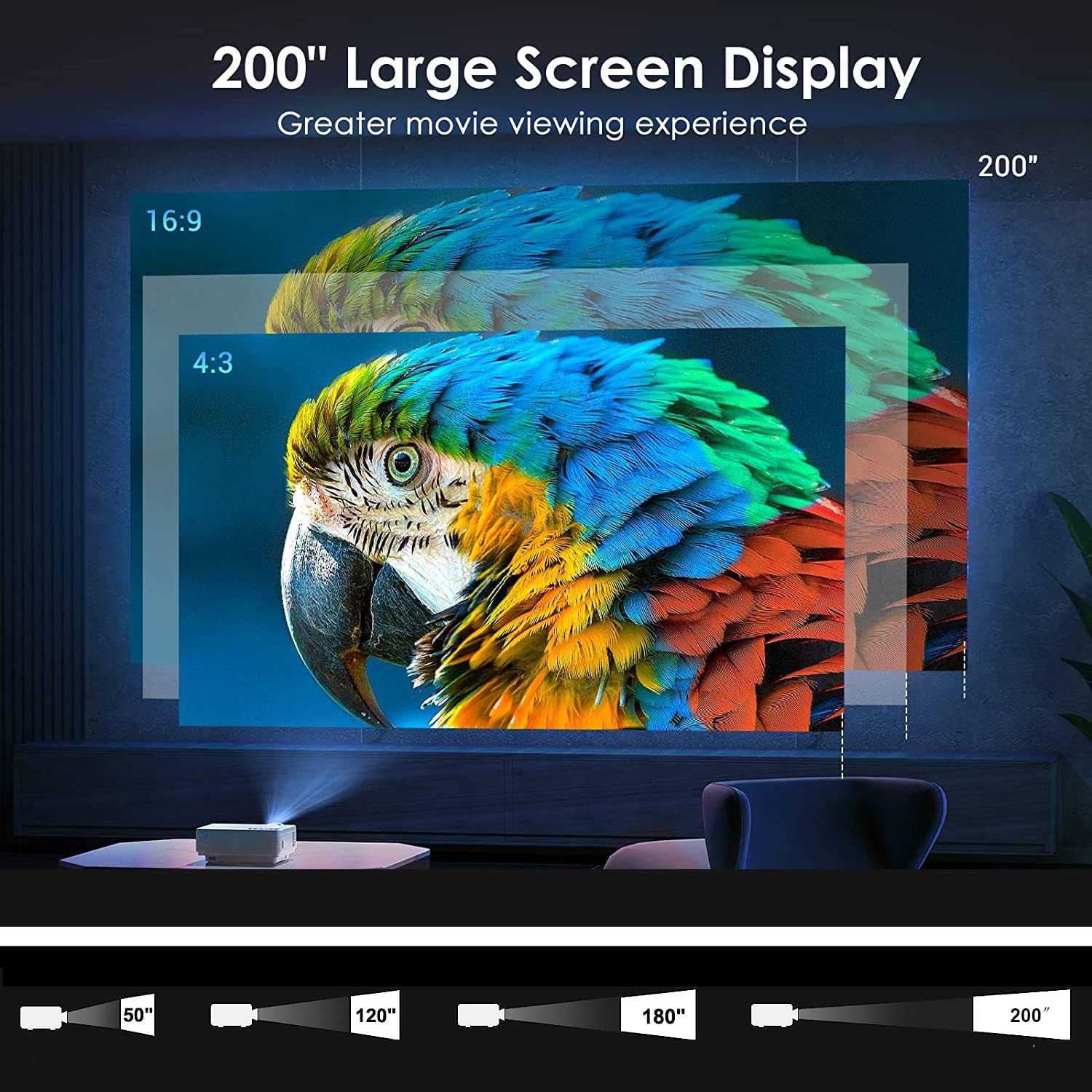
Image: A visual representation of the projector's capability to display a large screen up to 200 inches. It shows different projection sizes (50", 120", 180", 200") at varying distances, along with aspect ratio comparisons (16:9 and 4:3), demonstrating the immersive viewexperiència.
- Per a un òptim viewing, project onto a white wall or a dedicated projector screen.
- Adjust the distance to achieve your desired screen size, up to 200 inches.
- The projector supports desktop, tripod, and ceiling mounting options.
5.2 Connexió d'alimentació
- Connecteu l'adaptador de corrent al port d'entrada d'alimentació del projector.
- Connecteu l'adaptador d'alimentació a una presa de corrent adequada.
- Premeu el botó d'engegada del projector o del comandament a distància per encendre'l.
5.3 Ajust de l'enfocament i la distorsió trapezoidal
- Focus: Rotate the focus ring near the lens until the projected image is clear and sharp.
- Correcció Keystone: If the image appears trapezoidal, use the keystone correction feature (manual knob or digital adjustment via settings) to square the image.
6. Instruccions de funcionament
6.1 Connexió de dispositius externs
- HDMI: Connect an HDMI cable from your device (laptop, TV stick, game console) to the projector's HDMI port. Select the HDMI input source from the projector's menu.
- USB: Insert a USB flash drive into the USB port. The projector's media player will typically detect the drive, allowing you to browse and play media files.
- DE: Use an AV cable to connect older devices. Select the AV input source.
- Targeta TF: Insert a TF (MicroSD) card into the designated slot for direct media playback.
6.2 Wireless Connectivity (5G WiFi, Bluetooth)
- Connexió WiFi: Navigate to the projector's settings menu, select 'Network' or 'WiFi', and connect to your desired 2.4G or 5G WiFi network. This enables access to online apps and screen mirroring.
- Connexió Bluetooth: Go to the Bluetooth settings on the projector. Enable Bluetooth and pair with your Bluetooth speaker, headphones, or soundbar for enhanced audio.
6.3 Screen Mirroring (Android/iOS)
The projector supports screen mirroring from Android and iOS devices via WiFi.
- Per a Android: Ensure your Android device and projector are on the same WiFi network. On the projector, select the 'Android Cast' or 'Screen Mirroring' option. On your Android device, enable 'Wireless Display', 'Smart View', or 'Cast' and select the projector from the list.
- Per a iOS: Ensure your iOS device and projector are on the same WiFi network. On the projector, select the 'iOS Cast' or 'AirPlay' option. On your iOS device, open Control Center, tap 'Screen Mirroring', and select the projector.
- Note: Due to copyright restrictions, some streaming services (e.g., Prime Video, Netflix) may not support screen mirroring directly. For these, connect a TV stick (not included) or use an HDMI cable.
6.4 Ús d'aplicacions integrades
The BIGASUO BGP34 comes with built-in Android applications like YouTube. Connect to WiFi to access these apps directly.
- Navigate the Android interface using the remote control.
- Seleccioneu l'aplicació desitjada de la pantalla d'inici.
- Assegureu-vos una connexió a Internet estable per a una transmissió fluida.

Image: A collage demonstrating various application scenarios for the BIGASUO BGP34 projector, including outdoor parties, home theater setups, gaming sessions, and watching sports matches. This highlights the projector's versatility for different entertainment needs.
7. Manteniment
Un manteniment adequat garanteix la longevitat i el rendiment òptim del vostre projector.
- Neteja de lents: Use a soft, lint-free cloth specifically designed for optical lenses. Gently wipe the lens to remove dust or smudges. Avoid abrasive materials or harsh chemicals.
- Neteja de ventilació: Regularly check and clean the air vents to prevent dust buildup, which can lead to overheating. Use a soft brush or compressed air.
- Emmagatzematge: When not in use, store the projector in a cool, dry, and dust-free environment. If possible, use the original packaging or a protective case.
- Apagar: Always power off the projector correctly and allow it to cool down before unplugging or moving.
8. Solució De Problemes
Consulteu la taula següent per veure els problemes habituals i les seves solucions.
| Problema | Causa possible | Solució |
|---|---|---|
| No es mostra cap imatge | Power cable loose; incorrect input source; device not connected. | Check power connection; select correct input source (HDMI, USB, etc.); ensure external device is properly connected and powered on. |
| Imatge borrosa | Focus not adjusted; keystone not corrected. | Adjust the focus ring; correct keystone distortion. |
| Sense so | Volume too low; external speaker not connected/paired; incorrect audio output. | Increase volume; connect/pair Bluetooth speaker; check audio output settings on projector and source device. |
| El comandament a distància no funciona | Batteries dead/incorrectly inserted; sensor blocked. | Replace batteries; ensure correct polarity; clear any obstructions between remote and projector sensor. |
| Connexió WiFi inestable | Weak signal; too far from router; network interference. | Move projector closer to router; ensure no large obstructions; try connecting to a 5G network if available and supported. |
9. Especificacions tècniques
| Característica | Especificació |
|---|---|
| Marca | BIGASUO |
| Model | BGP34 |
| Resolució nativa | 1920 x 1080 píxels |
| Resolució suportada | Fins a 4K |
| Tipus de visualització | LED |
| Relació de contrast de la imatge | 6000:1 |
| Relació d'aspecte | 16:9 |
| Tecnologia de connectivitat | Bluetooth 5.0, 5G WiFi |
| Interfície del maquinari | HDMI, USB |
| Característiques especials | Bluetooth 5.0, Android OS, Auto Keystone |
| Ús recomanat | Home Theater |
| Dimensions del producte | 10 x 25 x 10 cm |
| Pes de l'article | 2.5 kg |
| Voltage | 220 Volts |
| Wattage | 50 watts |
| Freqüència d'actualització | 60 Hz |
10. Garantia i Suport
Your BIGASUO BGP34 Projector is covered by a manufacturer's warranty. Please refer to the warranty card included in your package for specific terms and conditions, including the warranty period and coverage details.
For technical support, troubleshooting assistance, or warranty claims, please contact BIGASUO customer service. Contact information can typically be found on the product packaging, the official BIGASUO website, or your purchase invoice.


