1. Introducció
Thank you for choosing the SABLUTE KM25Pro Wireless Keyboard and Mouse Combo. This manual provides detailed instructions for setting up, operating, and maintaining your new device. Please read this manual thoroughly before use to ensure optimal performance and longevity.
Contingut del paquet
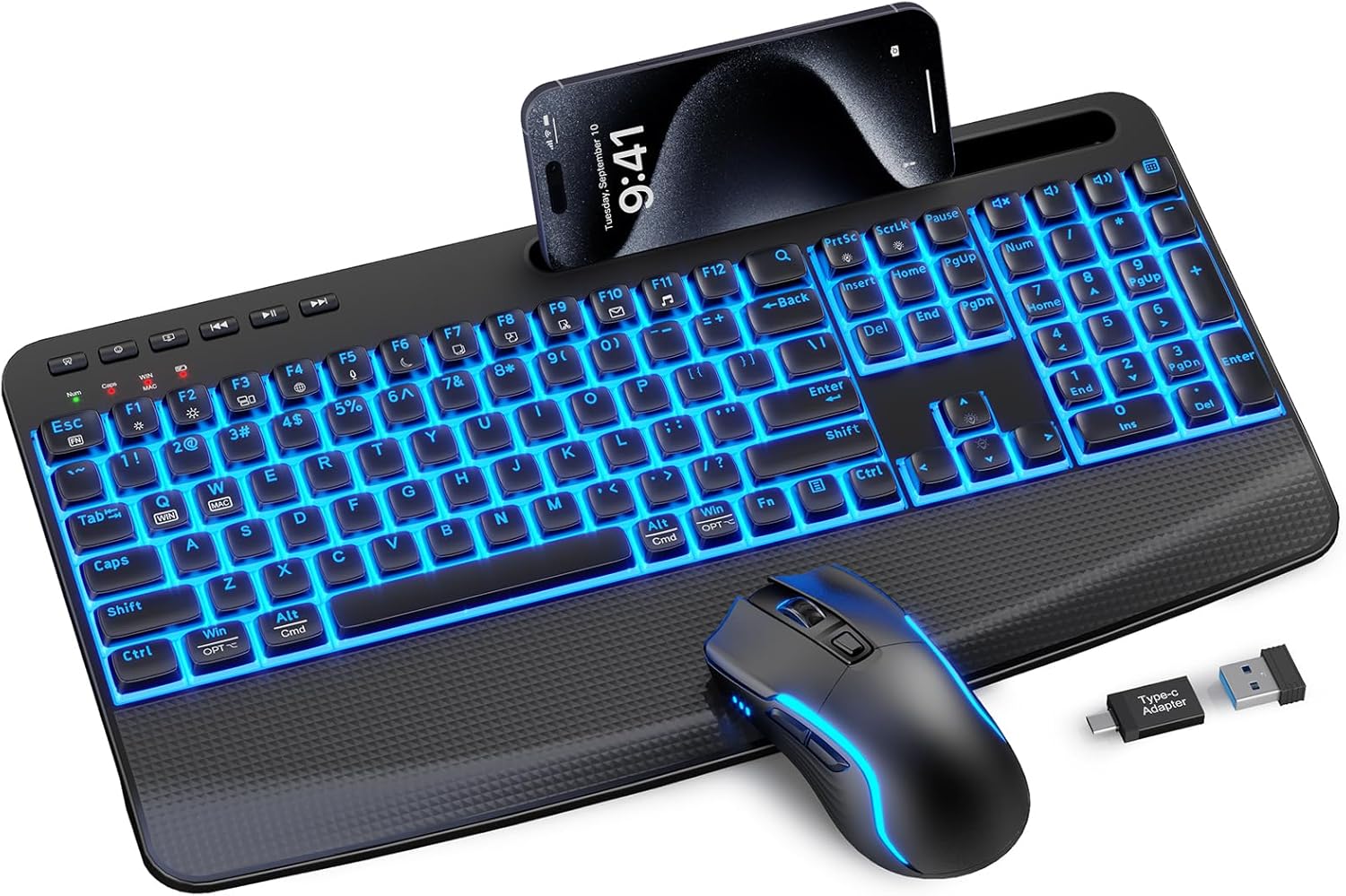
- SABLUTE KM25Pro Wireless Keyboard
- SABLUTE Wireless Mouse
- 2.4GHz USB Receiver (Dongle)
- Cable de càrrega USB-C
- Adaptador USB-A a USB-C
2. Instruccions de configuració
Càrrega inicial
Before first use, it is recommended to fully charge both the keyboard and mouse.
- Connect the USB-C charging cable to the charging port on the keyboard and mouse.
- Plug the other end into a USB power source (e.g., computer USB port, wall adapter).
- The keyboard has a 4000mAh battery, providing up to two weeks of use on a single charge. The mouse has a 750mAh battery, offering extended usage. Full charging typically takes 8 hours.

Connexió dels dispositius
- Locate the 2.4GHz USB receiver. It is often stored in a compartment on the mouse.
- Plug the USB receiver into an available USB port on your computer. If your computer only has USB-C ports, use the provided USB-A to USB-C adapter.
- Engegueu el teclat i el ratolí utilitzant els seus respectius interruptors d'alimentació.
- The devices should automatically connect to your computer. No additional drivers are typically required for Windows or macOS.
Canvi de sistema operatiu
The keyboard supports both Windows and Mac operating systems. To switch between modes:
- Per Windows Mode: Premeu Fn + Q.
- Per Mac Mode: Premeu Fn + W.
3. Instruccions de funcionament
Característiques del teclat
Control de la llum de fons
The keyboard features 7-color backlighting with adjustable brightness.
- To turn the backlight on/off: Press Fn + PrtSc.
- To switch backlight color: Press Fn + ScrlLk.
- To adjust brightness (3 levels): Press Fn + Fletxa amunt (increase) or Fn + Fletxa avall (disminució).
Note: The key legends have limited transparency. Under certain angles, the backlight may appear slightly dim or characters may look blurred. This design protects legends from wear and ensures durability.
Experiència de mecanografia
The keyboard is designed for a soft and silent typing experience, utilizing scissor-switch keys that produce noise levels as low as 38dB.


Ergonomic Design and Phone Holder
The keyboard features an oversized palm rest and dual adjustable tilt legs (6° and 10°) to enhance comfort and reduce wrist strain. A built-in stand accommodates smartphones and iPad Mini devices (note: not for phone cases over 0.59 inches thick).

Multimedia and Hotkeys
The keyboard includes dedicated multimedia keys and function hotkeys for quick access to common tasks:
- Media Controls: Play/Pause, Previous Track, Next Track.
- Volume Controls: Mute, Volume Down, Volume Up.
- Quick Access: Search, Email, Web Browser, Calculator, Sleep.
Funcions del ratolí
Ajust de DPI
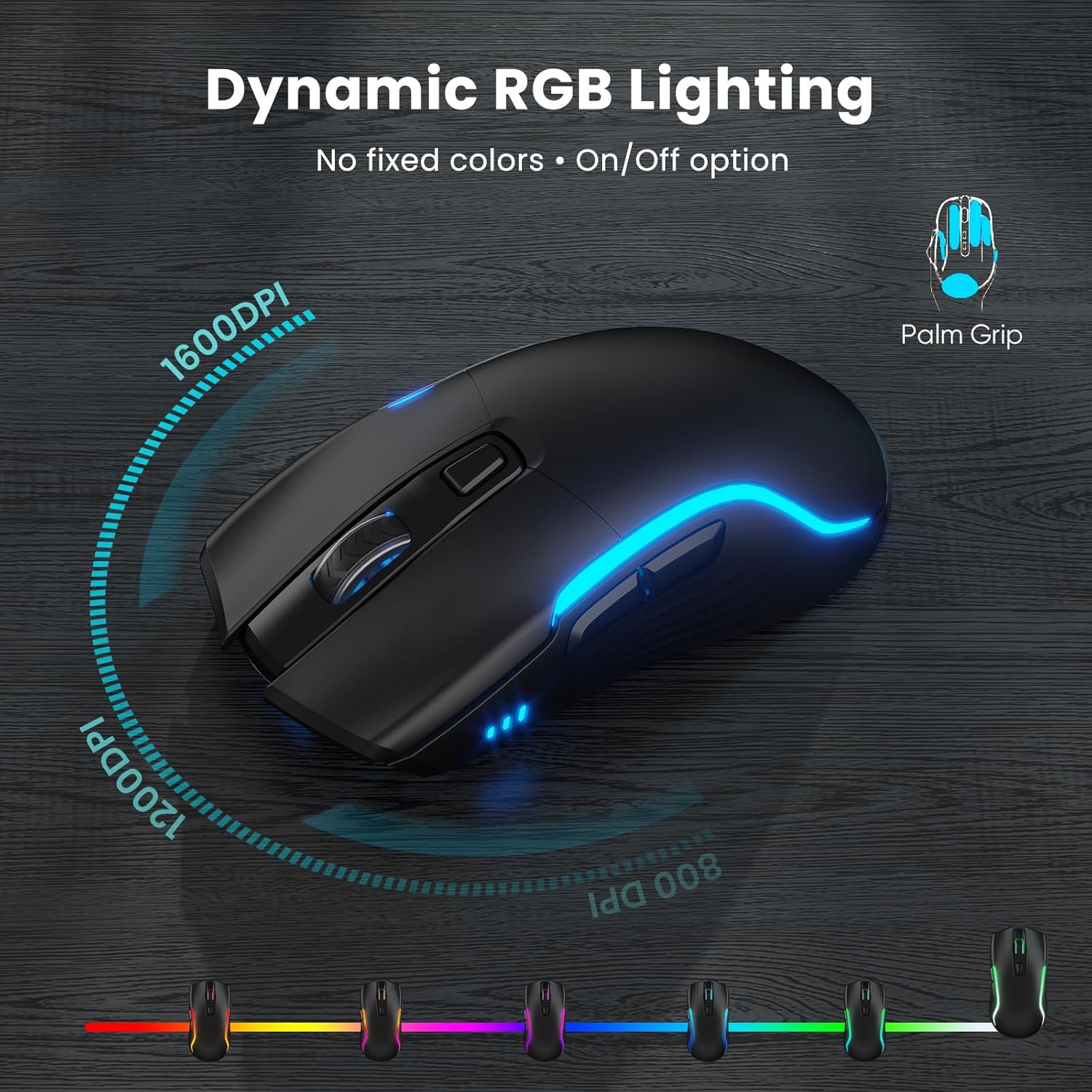
The mouse offers adjustable DPI settings for precise cursor control. Press the DPI button on top of the mouse to cycle through 800, 1200, and 1600 DPI.
Il·luminació RGB
The mouse features dynamic RGB lighting with an auto-cycling glow. A switch on the bottom allows you to turn the lighting on or off to conserve battery.
4. Manteniment
Neteja
- To clean the keyboard and mouse, power them off first.
- Utilitzeu un suau, damp drap per netejar les superfícies. Eviteu utilitzar productes químics agressius o materials abrasius.
- Per a la pols i les restes entre les tecles, feu servir aire comprimit.
Cura de la bateria
- To prolong battery life, turn off the keyboard and mouse when not in use.
- The devices feature an auto-sleep function to conserve power during periods of inactivity.
- Recharge the devices when the battery indicator shows low power.
5. Solució De Problemes
Problemes de connexió
- El dispositiu no respon: Assegureu-vos que tant el teclat com el ratolí estiguin encesos i completament carregats.
- Sense conexió: Try unplugging and re-inserting the USB receiver into a different USB port.
- Interferència: Move the devices closer to the USB receiver or away from other wireless devices that might cause interference.
Backlight Problems
- La retroiluminació no funciona: Ensure the keyboard is charged. Press Fn + PrtSc to toggle the backlight.
- Incorrect color/brightness: Ús Fn + ScrlLk to change color and Fn + Fletxa amunt/avall per ajustar la brillantor.
Typing/Mouse Lag
- Delayed input: Check battery levels and ensure the USB receiver is not obstructed.
- Cursor del ratolí erràtic: Clean the mouse sensor. Adjust DPI settings if sensitivity is too high or low.
6. Especificacions
| Número de model | KM25Pro |
| Dimensions del producte | 16.85 x 8.46 x 1.38 polzades |
| Pes de l'article | 2.2 lliures |
| Bateria del teclat | Liti metàl·lic de 4000 mAh (inclosa) |
| Bateria del ratolí | Liti metàl·lic de 750 mAh (inclosa) |
| Tecnologia de connectivitat | Sense fil de 2.4 GHz (receptor USB) |
| Característiques especials | Backlit, Ergonomic, Phone Holder, Rechargeable, Wrist Rest |
| Dispositius compatibles | Gaming Console, Laptop, Personal Computer, Projector, Tablet |
| Keystroke Durability | 10 milions de pulsacions de tecles |
7. Garantia i Suport
The SABLUTE KM25Pro Wireless Keyboard and Mouse Combo comes with a 30-day return policy and a 1-year replacement warranty.
For technical support or warranty claims, please contact SABLUTE customer service through the retailer where the product was purchased or visit the official SABLUTE weblloc per obtenir informació de contacte.
8. Vídeos de productes
Full Product Demo, Quiet Scissor-Switch Keyboard Mouse Combo
This video provides a comprehensive demonstration of the SABLUTE KM25Pro Wireless Keyboard and Mouse Combo, highlighting its quiet scissor-switch keys and overall functionality.
Acabatview - Silent Keyboard with Scissor-Switch & Mouse
Un acabatview presentació de vídeoasing the silent operation and key features of the SABLUTE KM25Pro keyboard and mouse, emphasizing the scissor-switch technology.


