Introducció
This manual provides comprehensive instructions for the KEFEYA 14" 1080P FHD IPS Laptop Screen Extender. Please read this guide thoroughly before use to ensure proper installation and operation. This device is designed to expand your visual workspace, offering a portable and efficient multi-monitor solution.
Característiques principals:
- 14-inch IPS FHD 1920x1080 Display: Delivers clear visuals with a 178° viewing angle, 300 nit brightness, and 60Hz refresh rate.
- Àmplia compatibilitat: Works with 13"-17.3" laptops (MacOS, Windows, Linux, Chrome, Dex, M1/M2/M3 chips), smartphones with full-function USB-C, gaming consoles (Switch, Xbox, PS4/PS5), mini hosts, and tablets.
- Plug & Play: Simple one-cable connection via full-featured USB-C, or dual-cable connection via HDMI + USB-A, or HDMI + normal USB-C. No drivers required.
- Múltiples modes de visualització: Supports Mirror, Extend, Portrait, and Remote modes for versatile use.
- Disseny portàtil: Weighs approximately 2.51 lbs with a foldable design for easy transport.
- Protective Holders & Stand: Features 5 clips for secure attachment and a back panel kickstand that rotates 90° for adjustable viewangles d'ajust.
Què hi ha a la caixa
Verifiqueu que tots els articles siguin presents i en bon estat en desempaquetar-los.
- 14" FHD Laptop Screen Extender (x1)
- Full-Featured USB-C to USB-C Cable (x1)
- HDMI to MINI HDMI Cable (x1)
- USB-A to USB-C Charging Cable (x1)
- Manual d'usuari (x1)
- Gift Color Box (x1)
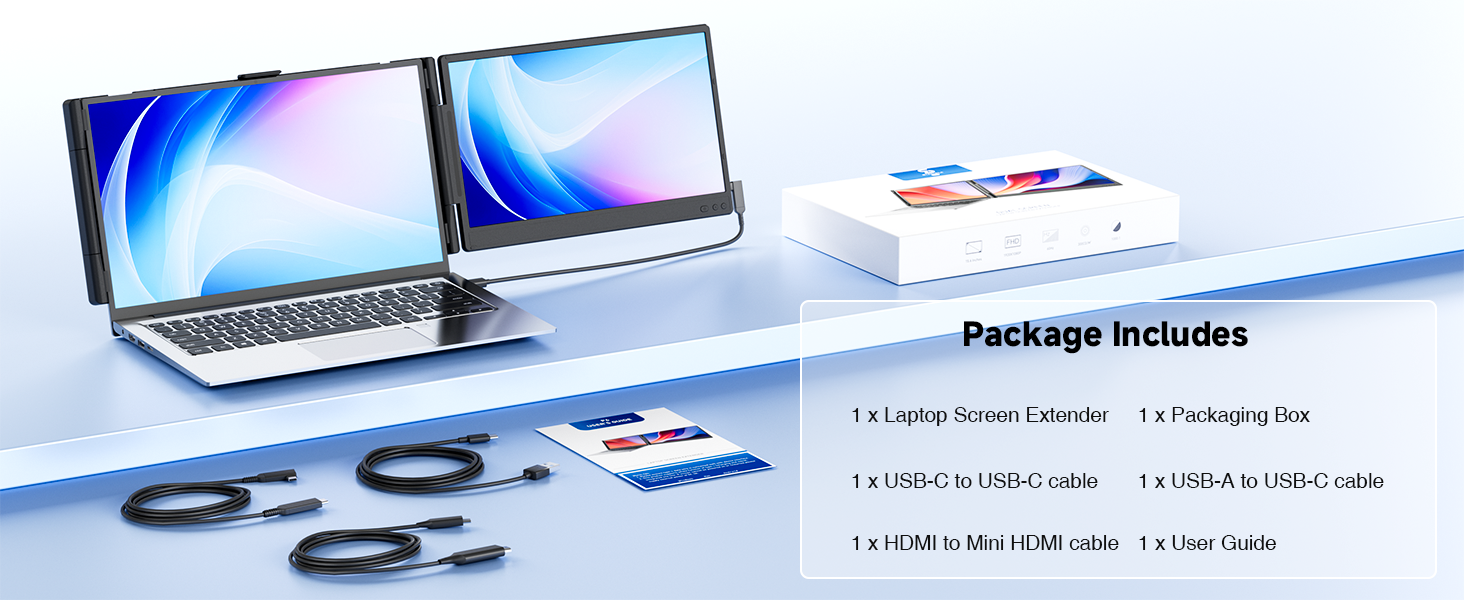
Image: Package contents of the KEFEYA 14" FHD Laptop Screen Extender.
Vídeo: Un overview of the KEFEYA 14" 1080P Laptop Screen Extender, demonstrating its features and components. This video is provided by KEFEYA Direct.
Guia de configuració
Follow these steps to set up your KEFEYA Laptop Screen Extender.
- Unfold the Extender: Carefully unfold the screen extender from its compact, folded position.
- Attach to Laptop: Position the extender on top of your laptop screen. The 5 clips (one on top, two on each side) will securely hold the extender in place. Ensure the extender is centered and stable.
- Ajusteu el suport: Extend the integrated kickstand on the back of the extender. This provides additional support and allows for angle adjustment. The kickstand can rotate 90 degrees.
- Connecteu-vos al vostre dispositiu: The extender supports multiple connection methods. Choose the one compatible with your laptop or device:
- Full-Featured USB-C: If your device has a full-featured USB-C port (supporting video output and power delivery), use the provided Full-Featured USB-C to USB-C cable for a single-cable connection.
- HDMI + USB-A: If your device has an HDMI port and a standard USB-A port, use the HDMI to MINI HDMI cable for video and the USB-A to USB-C charging cable for power.
- HDMI + Normal USB-C: If your device has an HDMI port and a normal USB-C port (for power only), use the HDMI to MINI HDMI cable for video and the USB-C to USB-C charging cable for power.
- Encès: Once connected, the extender should power on automatically. If not, press the power button located on the side of the unit.
- Configura la configuració de la pantalla: Your operating system should detect the new display. You may need to adjust display settings (e.g., Extend, Mirror) in your laptop's display settings.
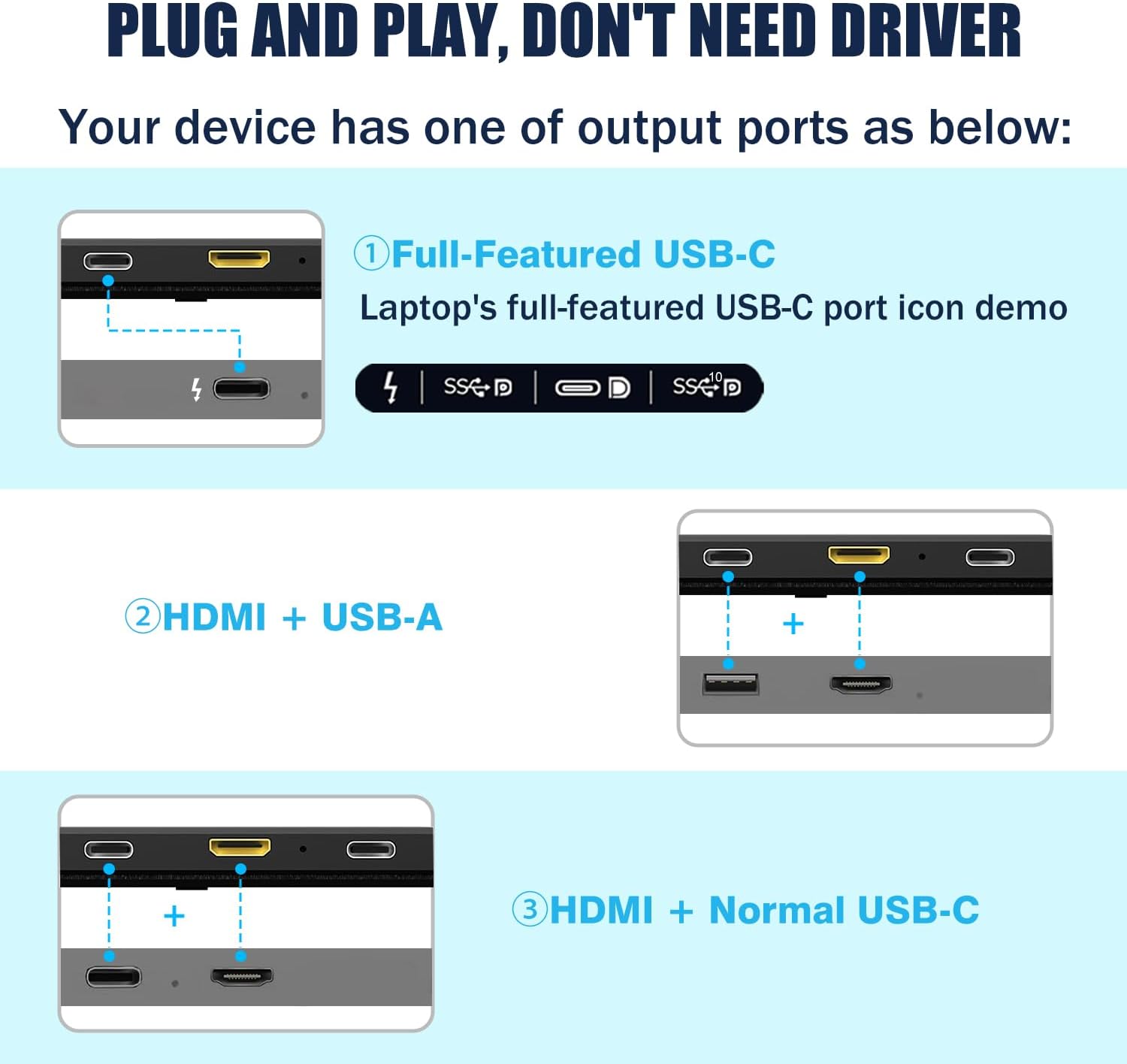
Image: Detail of the protective clips and holders on the KEFEYA screen extender.
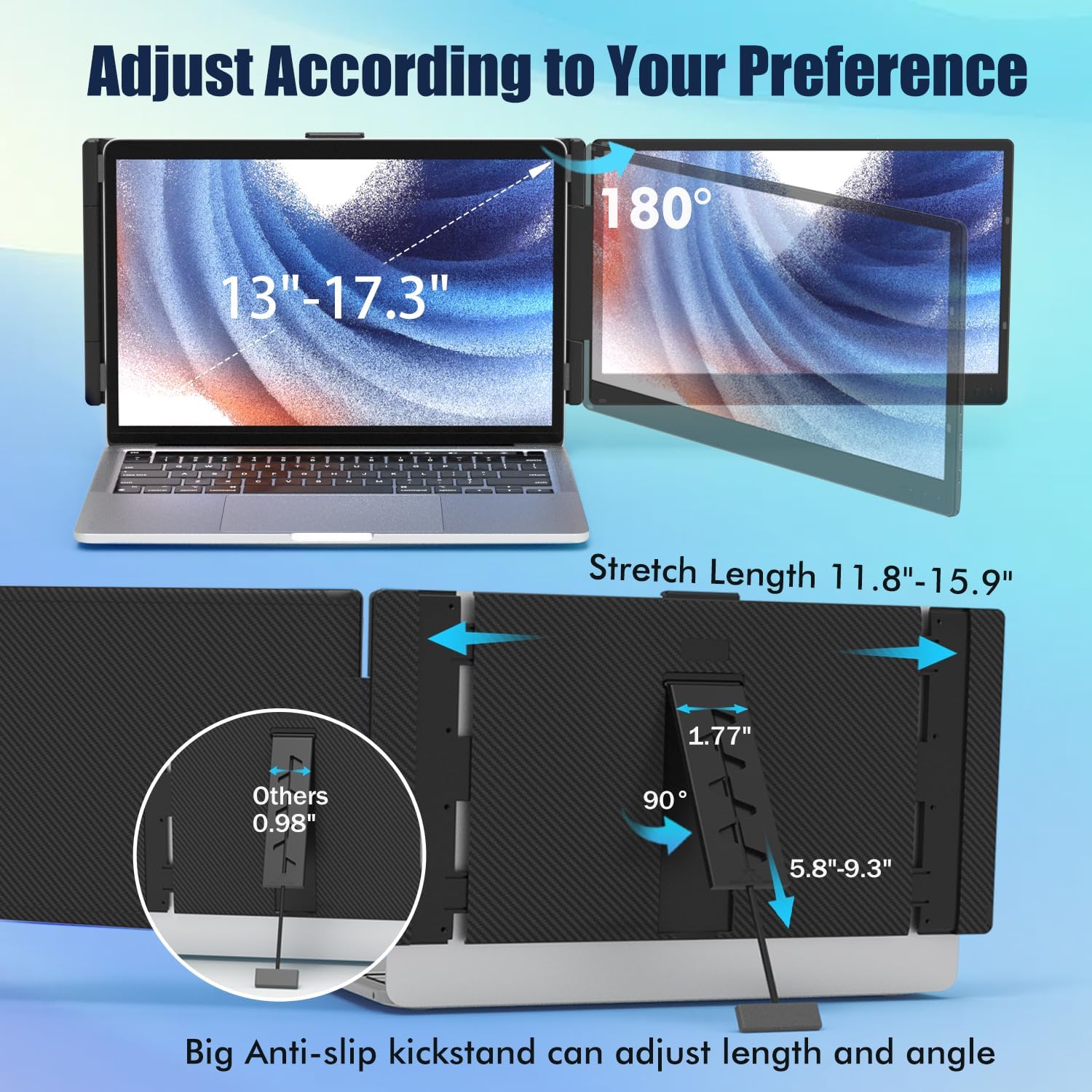
Image: The tough stretchable rotatable stand of the KEFEYA screen extender.

Image: Plug and Play connection methods for the KEFEYA screen extender.
Video: A demonstration of connecting the KEFEYA screen extender to a laptop using a full-function USB-C cable and configuring display settings. This video is provided by KEFEYA Direct.
Instruccions de funcionament
The KEFEYA screen extender offers various display modes and adjustable settings for an optimized user experience.
Modes de visualització
You can switch between different display modes through your laptop's system display settings:
- Mode d'ampliació: Expands your desktop across both screens, allowing you to multitask with different applications open simultaneously.
- Mode mirall: Duplicates your laptop's display onto the extender, ideal for presentations or sharing content.
- Mode de retrat: Allows the extender to be used in a vertical orientation, suitable for viewincloent documents o codi llargs.
- Mode remot: Specific to certain applications or setups, allowing for remote control or specialized display functions.
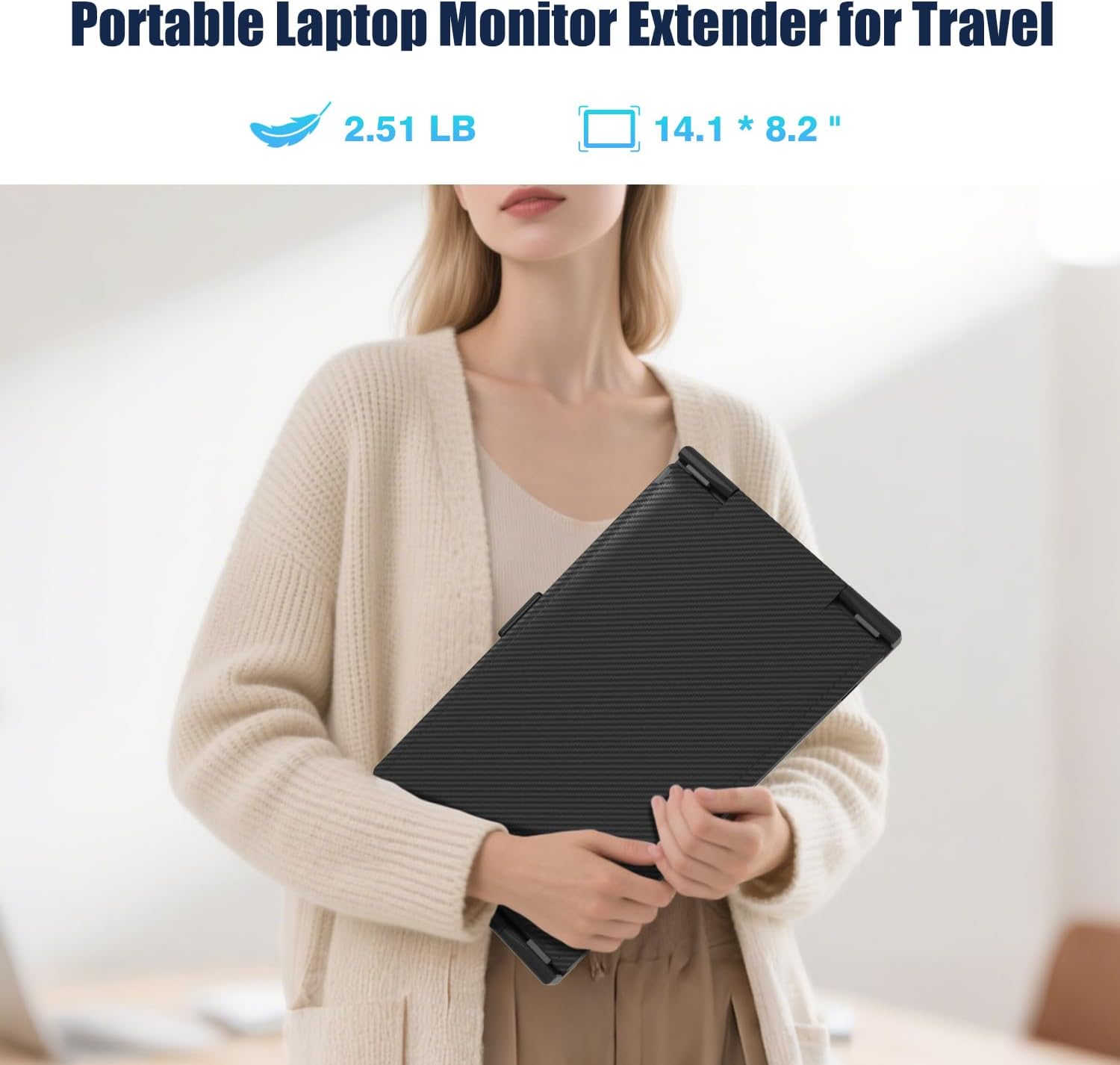
Image: Various display modes supported by the KEFEYA screen extender.
Video: A demonstration of the KEFEYA 14" Laptop Screen Extender in Extended Mode with a 17.3" laptop. This video is provided by KEFEYA Direct.
Ajust de la configuració
The extender features three buttons on the side for easy adjustment of parameters such as brightness, volume, and low blue light settings. These controls allow you to customize the display to your preference for optimal comfort and performance.
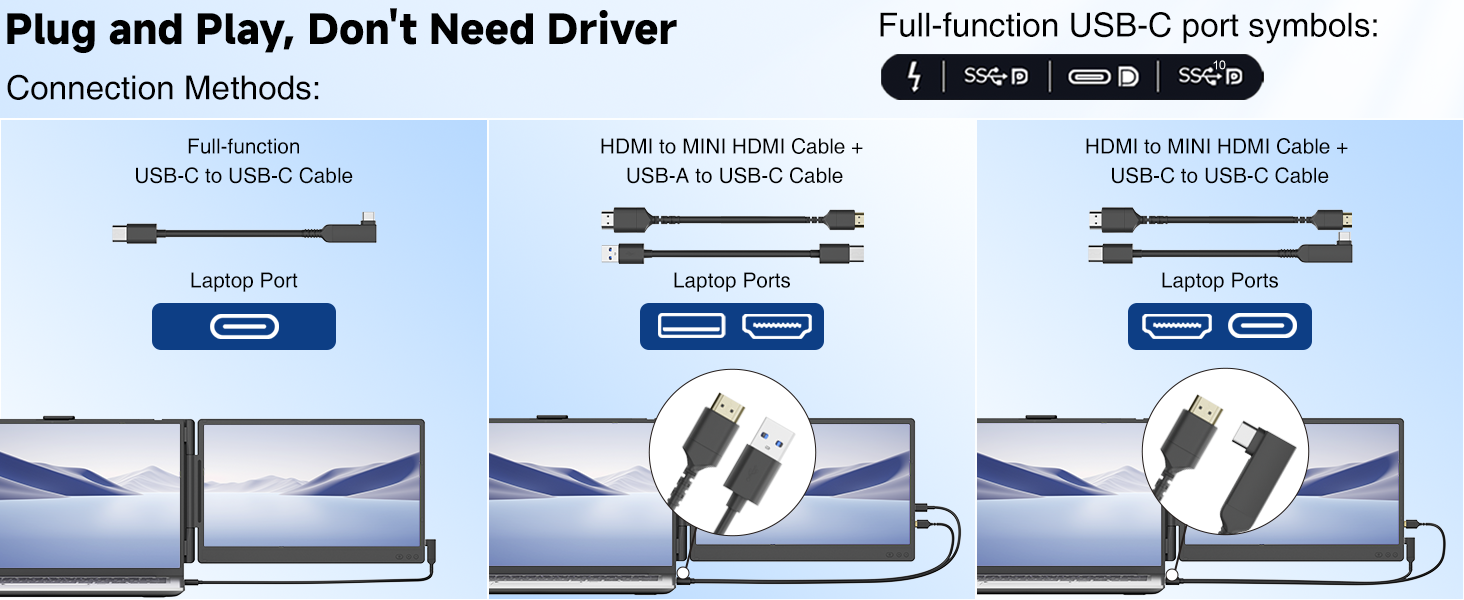
Image: Customized buttons for easier parameter adjustment.
Compatibilitat
The KEFEYA Laptop Screen Extender is designed for broad compatibility:
- Laptop Sizes: Compatible with laptops ranging from 13 inches to 17.3 inches.
- Sistemes operatius: Supports MacOS (including M1/M2/M3 chips), Windows, Linux, Chrome OS, and Dex.
- Dispositius: Connects with smartphones (with full-function USB-C), tablets, gaming consoles (Nintendo Switch, Xbox, PlayStation 4/5), and mini hosts.
Important: Ensure your device supports an extended monitor and has either an HDMI or a full-function USB-C port for video output. If unsure about compatibility, please contact customer support.

Image: Wide compatibility of the KEFEYA screen extender with various devices and operating systems.
Especificacions
| Característica | Especificació |
|---|---|
| Dimensions del producte | 1.29 x 24 x 12.87 polzades |
| Pes de l'article | 2.59 lliures |
| Mida de la pantalla | 14 polzades |
| Resolució | 1920 x 1080 píxels (FHD 1080p) |
| Relació d'aspecte | 16:9 |
| Brillantor de la imatge | 300 candeles per metre quadrat |
| Descripció de la superfície de la pantalla | brillant |
| Ports USB totals | 2 |
| Número de model de l'article | 14" Laptop Screen Extender P6 |
Manteniment
To ensure the longevity and optimal performance of your KEFEYA Laptop Screen Extender, follow these maintenance guidelines:
- Neteja: Utilitzeu un drap suau i sense pelusa lleugerament dampened with water or a screen-safe cleaning solution to clean the display surface. Avoid harsh chemicals, abrasive materials, or excessive moisture.
- Emmagatzematge: When not in use, fold the extender and store it in a protective sleeve or its original packaging to prevent scratches and damage.
- Manipulació: Avoid applying excessive pressure to the screen or the clips. Do not squeeze or pierce the screen.
- Temperatura: Operate and store the device within recommended temperature ranges to prevent damage to internal components.
- Cura del cable: Handle connection cables gently. Avoid bending them sharply or pulling them forcefully from the ports.
Resolució de problemes
If you encounter issues with your KEFEYA Laptop Screen Extender, refer to the following common solutions:
- Sense pantalla/senyal:
- Ensure all cables are securely connected to both the extender and your device.
- Verify that your laptop's display settings are configured to 'Extend' or 'Duplicate' the display.
- Check if your laptop's USB-C port is full-featured (supports video output). If not, use the HDMI + USB-A/USB-C connection method.
- Try connecting the extender to a different port or another compatible device to rule out a port or device issue.
- Pantalla parpellejant:
- Ensure the power supply is stable. If using a USB-A or normal USB-C for power, ensure it's connected to a sufficient power source.
- Comproveu si hi ha connexions de cable soltes.
- Actualitza els controladors gràfics del teu portàtil.
- Incorrect Resolution/Scaling:
- Adjust the display resolution and scaling settings in your operating system's display preferences.
- Botons que no responen:
- Ensure the extender is powered on and properly connected.
- A soft reset (disconnecting and reconnecting power) may resolve minor software glitches.
Si aquests passos no resolen el problema, consulteu la secció Garantia i assistència per obtenir més ajuda.
Garantia i Suport
For warranty information or technical support, please use the following methods:
- Contact KEFEYA Direct: Click on "KEFEYA Direct" (usually found under the "Add to Cart" button on the product page) and then select "Ask a question."
- Amazon Orders: Go to your Amazon "Account & Lists," navigate to "Orders," and then select "Contact seller" for your KEFEYA Laptop Screen Extender purchase.
Please have your product model number (14" Laptop Screen Extender P6) and purchase details ready when contacting support.


