1. Introducció
This manual provides detailed instructions for the installation, operation, and maintenance of your Fortdows 10-inch Bluetooth 5.4 Car Radio. This unit is specifically designed for Jeep Compass models manufactured between 2017 and 2020. Please read this manual thoroughly before installation and use to ensure proper functionality and safety.
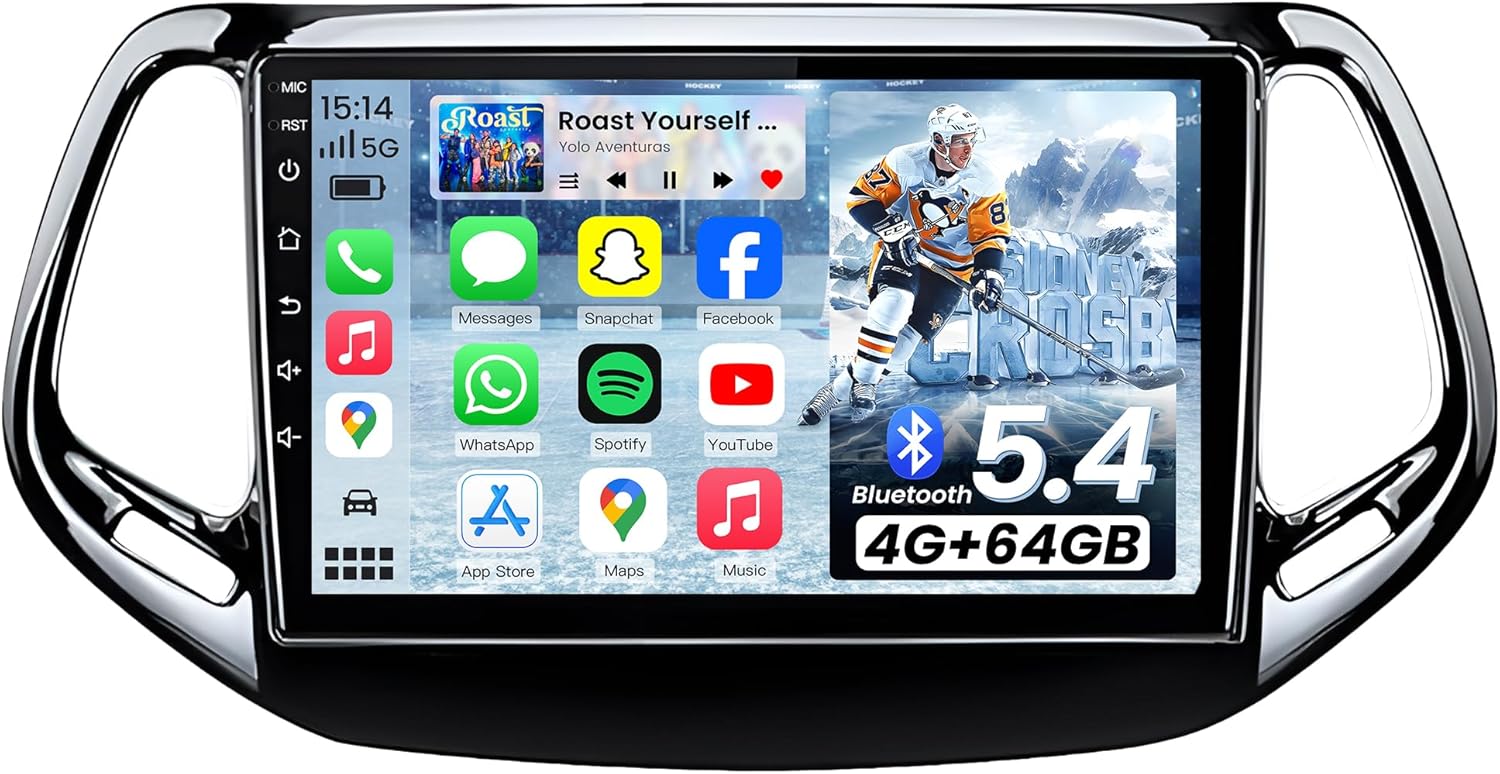
Image 1.1: Fortdows 10-inch Car Radio unit.
2. Contingut del paquet
Verifiqueu que tots els elements que s'enumeren a continuació s'inclouen al vostre paquet:
- Fortdows 10-inch Car Radio Unit
- Backup Camera (1)
- Radio Extension Cable (1)
- Palanca (1)
- GPS Antenna (1)
- Reversing Cable (1)
- Canbus (1)
- Cable USB (2)
- Cable RCA (1)
- Cable d'alimentació (1)
- External Microphone (1)

Image 2.1: Visual representation of the package contents, including the main unit and all accessory cables.
3. Configuració i instal·lació
This car radio is designed for direct fitment in Jeep Compass models from 2017 to 2020. Professional installation is recommended to ensure correct wiring and functionality. Ensure the vehicle's power is disconnected before beginning installation.
3.1. Comprovació prèvia a la instal·lació
- Verify vehicle compatibility (Jeep Compass 2017-2020).
- Assegureu-vos que hi hagi tots els components enumerats a la secció 2.
3.2. Passos d'instal·lació
- Carefully remove the factory radio unit from your vehicle's dashboard.
- Connect the provided power cable, RCA cable, and USB cables to the new Fortdows unit.
- Instal·leu l'antena GPS en un lloc amb llum clara view del cel.
- Connect the backup camera and its reversing cable.
- Integrate the Canbus module as per your vehicle's wiring diagram to ensure steering wheel control functionality.
- Mount the new Fortdows unit into the dashboard opening.
- Torneu a connectar l'alimentació del vehicle i proveu-ne totes les funcions.
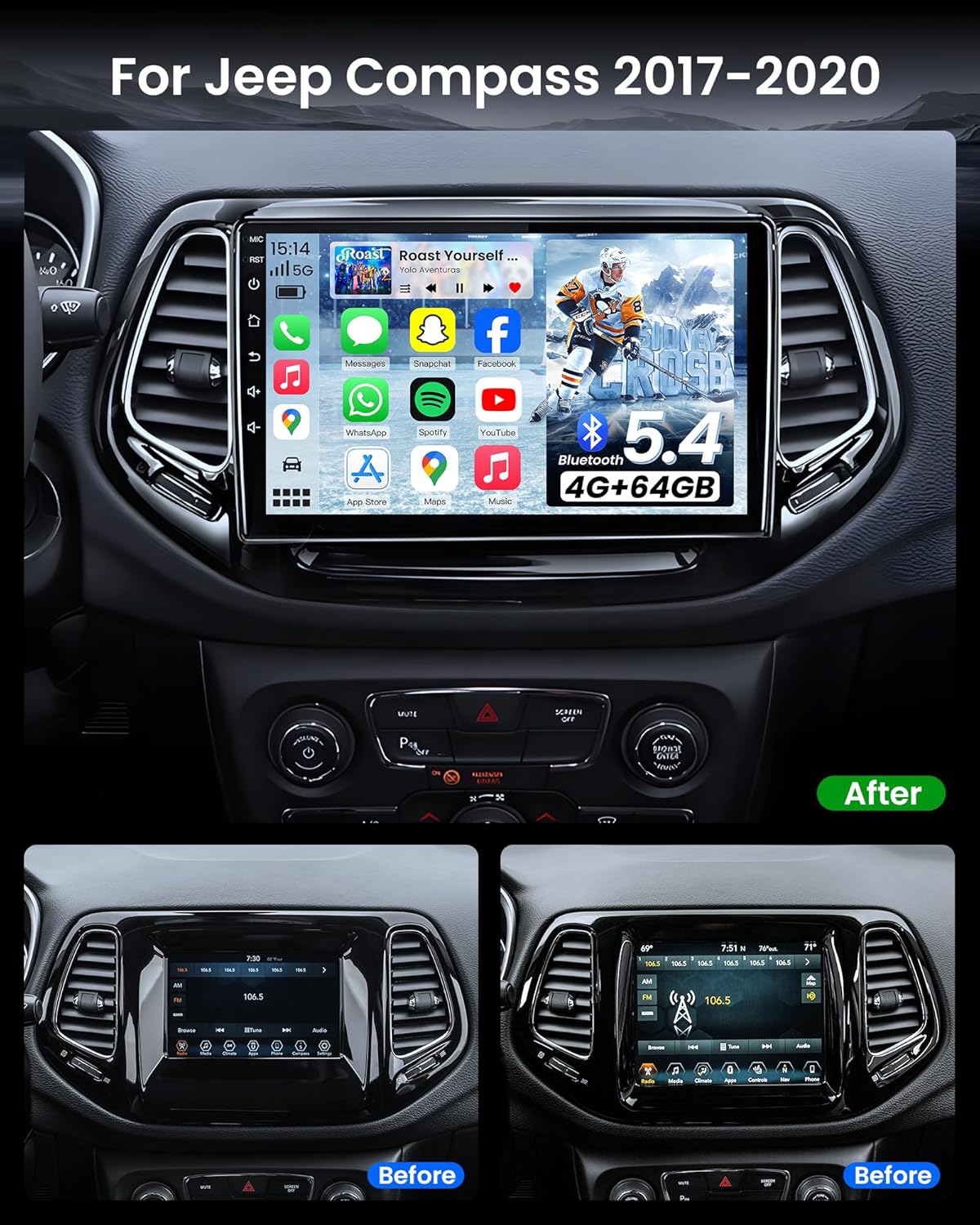
Image 3.1: Comparison showing the factory radio (Before) and the Fortdows 10-inch unit installed (After) in a Jeep Compass dashboard.
4. Característiques clau
4.1. 10-inch HD Capacitive Touchscreen
The unit features a 10-inch 1280*800HD capacitive touchscreen, providing clear visuals and responsive interaction. This display offers enhanced clarity and color saturation compared to standard 1280*720P screens.

Image 4.1: Visual comparison highlighting the superior clarity and color saturation of the 1280*800P IPS touchscreen.
4.2. Connectivitat Bluetooth 5.4
Equipped with Bluetooth 5.4, the system offers improved range and faster data transfer speeds compared to older Bluetooth versions. This enables seamless hands-free calling and audio streaming with both Android and iOS devices. An external microphone is included for clear audio during conversations.

Image 4.2: Illustration of Bluetooth 5.4 connecting the car radio to a smartphone for music and call functions.
4.3. CarPlay sense fil i Android Auto
The unit supports wireless CarPlay and wired Android Auto. Wireless CarPlay allows access to navigation, music, and calls without a USB cable. Android Auto functions are accessible via a USB connection. This integration allows for seamless use of mobile applications like Maps, Spotify, and iTunes.

Image 4.3: Depiction of the CarPlay and Android Auto interfaces, showing various app icons for navigation, music, and communication.
4.4. FM/RDS Radio & 32-Band EQ
The integrated FM/RDS tuner allows for radio station access with station information display. The 32-band digital stereo equalizer provides extensive audio customization options, allowing users to tailor sound output for each speaker and optimize the overall audio experience.

Image 4.4: Screenshot of the 32-band equalizer interface, demonstrating the range of sound adjustment options.
4.5. GPS Navigation & Backup Camera Integration
The built-in GPS navigation system offers real-time directions and traffic updates. This feature is complemented by the included 1080P backup camera, which provides a clear view for safe parking and reversing maneuvers.

Image 4.5: GPS navigation interface displaying a map with a highlighted route and destination.

Image 4.6: Display of the 1080P rear view camera feed on the car radio screen, showing a clear view darrere del vehicle.
4.6. Control del volant (SWC)
The unit supports existing steering wheel controls, allowing drivers to manage stereo functions (e.g., volume, track changes) without diverting attention from the road.
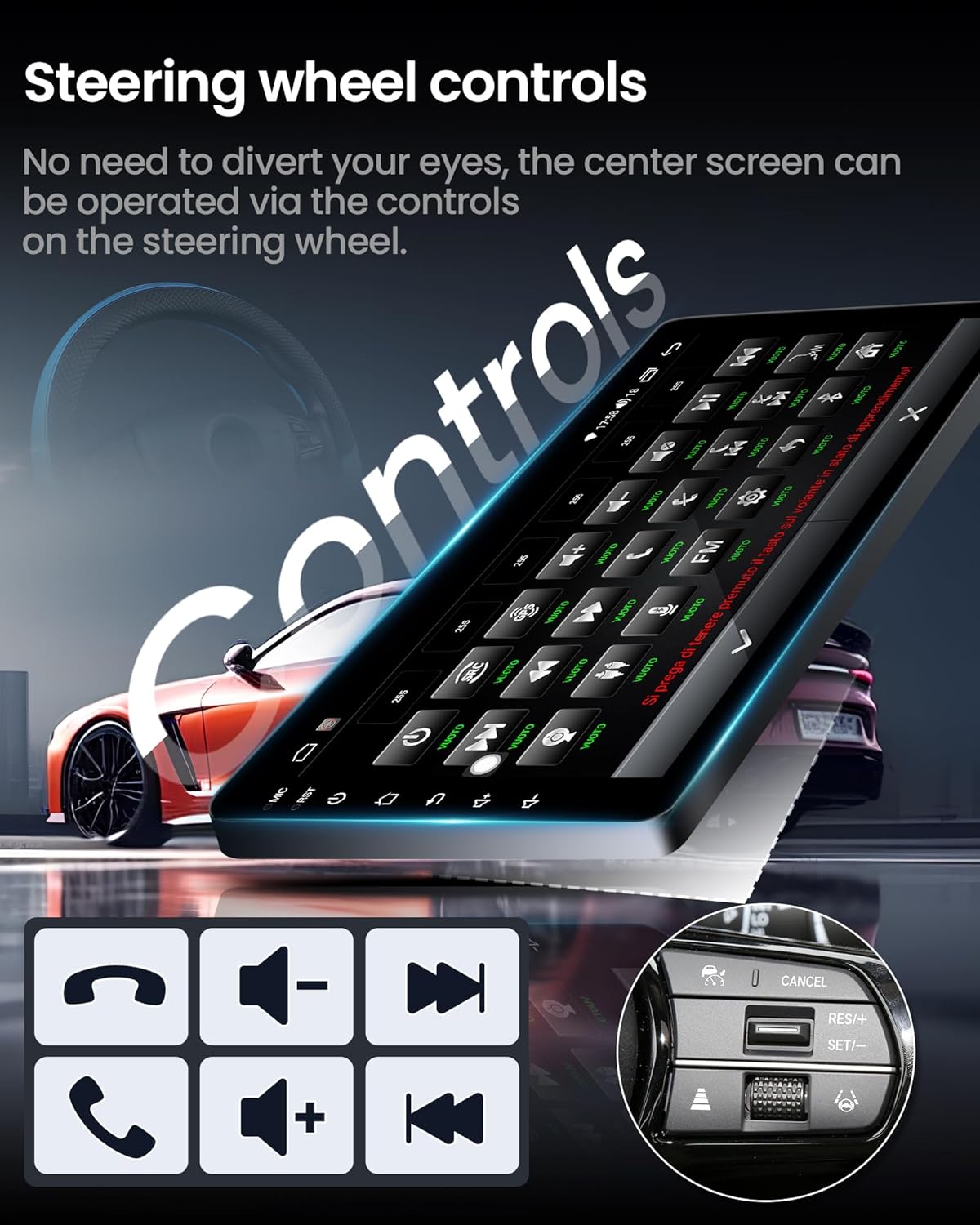
Image 4.7: Diagram illustrating how steering wheel controls integrate with the car radio for various functions.
4.7. 5G Wi-Fi Functionality
Integrated 5G Wi-Fi improves network performance and user experience, addressing potential network latency issues for online streaming and updates.

Image 4.8: Graphic demonstrating the improved network speed and performance provided by 5G Wi-Fi.
4.8. Funció de pantalla dividida
The split-screen feature allows two applications to run simultaneously on the display, such as navigation and music playback.

Imatge 4.9: Ex.ampde la funció de pantalla dividida, que mostra un mapa de navegació a un costat i un reproductor de música a l'altre.
5. Instruccions de funcionament
5.1. Connexió Bluetooth
To connect your phone via Bluetooth:
- On your phone, navigate to Bluetooth settings and ensure Bluetooth is enabled.
- A la ràdio del cotxe, obriu l'aplicació Bluetooth.
- Cerca available devices on your phone and select the car radio's Bluetooth name (e.g., 'BCB-Android').
- Confirma la sol·licitud d'emparellament en tots dos dispositius.
Video 5.1: Demonstration of connecting a smartphone to the car radio via Bluetooth for CarPlay functionality.
5.2. CarPlay / Android Auto Usage
Once connected (wirelessly for CarPlay, via USB for Android Auto), the respective interface will appear on the car radio screen. You can then access compatible apps for navigation, music, and communication.
5.3. EQ Sound Adjustment
To adjust the audio equalizer settings:
- Access the EQ settings from the main menu.
- Adjust individual frequency bands to customize the sound profile.
- Use the sound field adjustment to optimize audio for specific seating positions (e.g., Left Driving, Right Driving, Central Mode).
5.4. Navegació GPS
To use GPS navigation:
- Open the navigation application from the main screen.
- Enter your destination using the search function.
- Follow the on-screen directions and voice prompts.
6. Solució De Problemes
Aquesta secció tracta problemes comuns i les seves solucions.
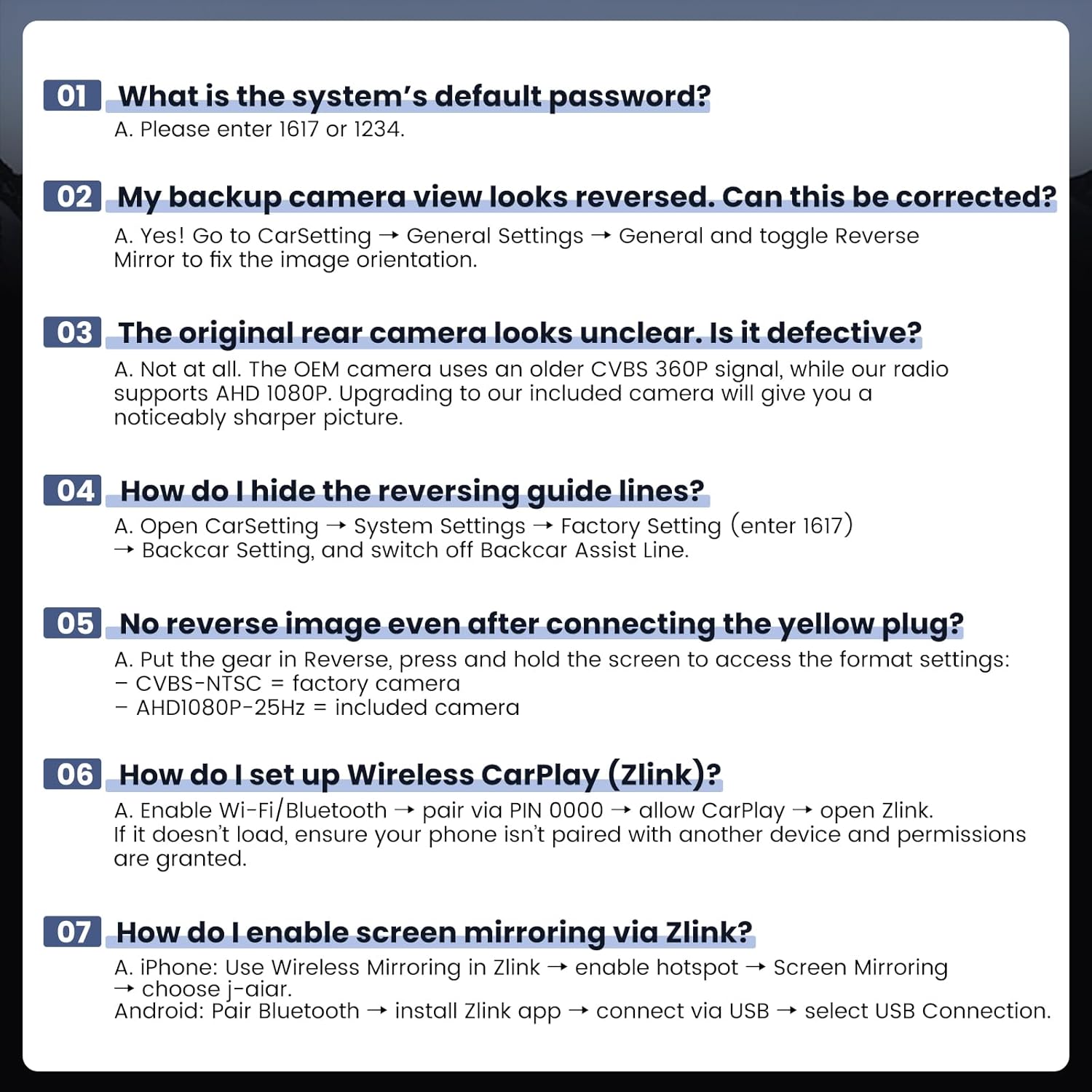
Image 6.1: Frequently Asked Questions and solutions for common operational issues.
6.1. System Default Password
The system's default password is 1617 or 1234.
6.2. Reversed Backup Camera View
If your backup camera view appears reversed, go to CarSetting → Configuració general → General i alternar Reverse Mirror to correct the image orientation.
6.3. Unclear Original Camera Image
The OEM camera may use an older CVBS 360P signal. This radio supports AHD 1080P. Upgrading to the included camera will provide a sharper picture.
6.4. Hiding Reversing Guide Lines
To hide reversing guide lines: Open CarSetting → Configuració del sistema → Configuració de fàbrica (enter 1617) → Backcar Setting, and switch off Backcar Assist Line.
6.5. No Reverse Image After Connecting Yellow Plug
Put the gear in Reverse, press and hold the screen to access the format settings. For the stock rear camera, choose "CVBS-NTSC". For the supplied camera, select "AHD1080P-25Hz". Select the proper setting for your camera and click "OK" to confirm and save.
Video 6.2: Instructions on how to adjust the backup camera settings if no image appears after connecting the yellow plug, including selecting the correct video standard.
6.6. Setting up Wireless CarPlay (Zlink)
Enable Wi-Fi/Bluetooth, then pair via PIN 0000 to allow CarPlay. Open Zlink. If it doesn't load, ensure your phone isn't paired with another device and permissions are granted.
6.7. Enabling Screen Mirroring via Zlink
- iPhone: Use Wireless Mirroring in Zlink → enable hotspot → Screen Mirroring → choose j-aiar.
- Android: Pair Bluetooth → install Zlink app → connect via USB → select USB Connection.
6.8. Online OTA System Upgrade
After tapping the "Check for Updates" button, the system compares the current firmware version with the version on the server. If the server version is the same or older than the current version, the system will notify that the device is already up to date and no upgrade is needed.
7. Especificacions
| Característica | Detall |
|---|---|
| Pes de l'article | 4.37 lliures |
| Dimensions del paquet | 16.63 x 9.69 x 4.33 polzades |
| Mida de la pantalla | 10 centímetres (aproximadament 10 polzades) |
| Comandament de veu | Pantalla tàctil |
| Tipus de servei del vehicle | Cotxe |
| Característica especial | 1280*800P HD Touchscreen, Android 13 System, FM Radio, Bluetooth 5.4, Mirror Link, Online & Offline Maps, GPS Navigation, 5G WiFi, Rear View Camera Input, Steering Wheel Control, Wireless CarPlay, Android Auto |
| Tecnologia de connectivitat | Bluetooth, USB, Wi-Fi |
| Tipus de mapa | Carretera |
| Tipus de muntatge | Muntatge al quadre de comandament |
| Sistema operatiu | Android, iOS (via CarPlay/Android Auto) |
| Capacitat d'emmagatzematge de memòria | 64 GB |
8. Garantia i Suport
Fortdows is committed to providing comprehensive after-sales service for your product.
8.1. Service Offerings
- 7*24 Support: Assistance is available around the clock for any inquiries or issues.
- Garantia de devolució de 30 dies: Si no esteu satisfets amb la vostra compra, podeu retornar-la en un termini de 30 dies per obtenir un reemborsament complet.
- 2-Year After-Sales Support Package: Provides extended support and peace of mind for two years following your purchase.
- 1 any de garantia: Cobreix defectes de fabricació.
- Política de devolució de 7 dies: For returns on defects.

Imatge 8.1: acabatview of warranty and service terms.
8.2. Informació de contacte
For any questions or concerns, please contact our customer support team:
- Correu electrònic: fortdows.cam@gmail.com
- Weblloc: www.fancygod.com


