Acabatview
The CITLLA Wireless Keyboard is designed for comfortable and durable typing across multiple operating systems. It features a sleek aluminum housing, low-profile keys, and a leather palm rest for enhanced ergonomics. With multi-device pairing capabilities and adjustable backlighting, it adapts to various work and study environments.
- Comfortable & Durable Typing: The CITLLA wireless bluetooth keyboard features a sleek aluminum housing, a low-profile layout, and spherical scissor-switch keys that deliver smooth, precise keystrokes. Designed for comfort and durability, it’s perfect for long hours of work or study.
- With Leather Palm Rest: This ergonomic wireless keyboard includes a soft leather palm rest and adjustable tilt legs to reduce wrist strain—perfect for all-day productivity.
- Multi-Device Bluetooth Keyboard: Seamlessly switch between 3 devices via Bluetooth or 2.4G receiver. This wireless ergonomic keyboard works with Windows, Mac, iOS, Android, and more—perfect for multitasking.
- Backlit Wireless Keyboard: Work comfortably in dim environments with this wireless keyboard's soft white backlighting. Adjust brightness levels using FN + arrow keys for the perfect lighting every time.
- Rechargeable Full Size Wireless Keyboard: This full size wireless keyboard charges via USB-C and lasts up to 60 days (backlight off). Use while charging—no more interruptions during long work or study sessions.
Què hi ha a la caixa
- Teclat
- Leather Palm Rest
- Cable USB
- Manual d'usuari
Configuració
Carregant el teclat
The keyboard is equipped with a rechargeable battery and charges via a USB-C port located on the top edge. Connect the provided USB-A to USB-C cable to the keyboard and a power source. A red indicator light will illuminate during charging and turn green when fully charged. A full charge can last up to 60 days with backlighting off.
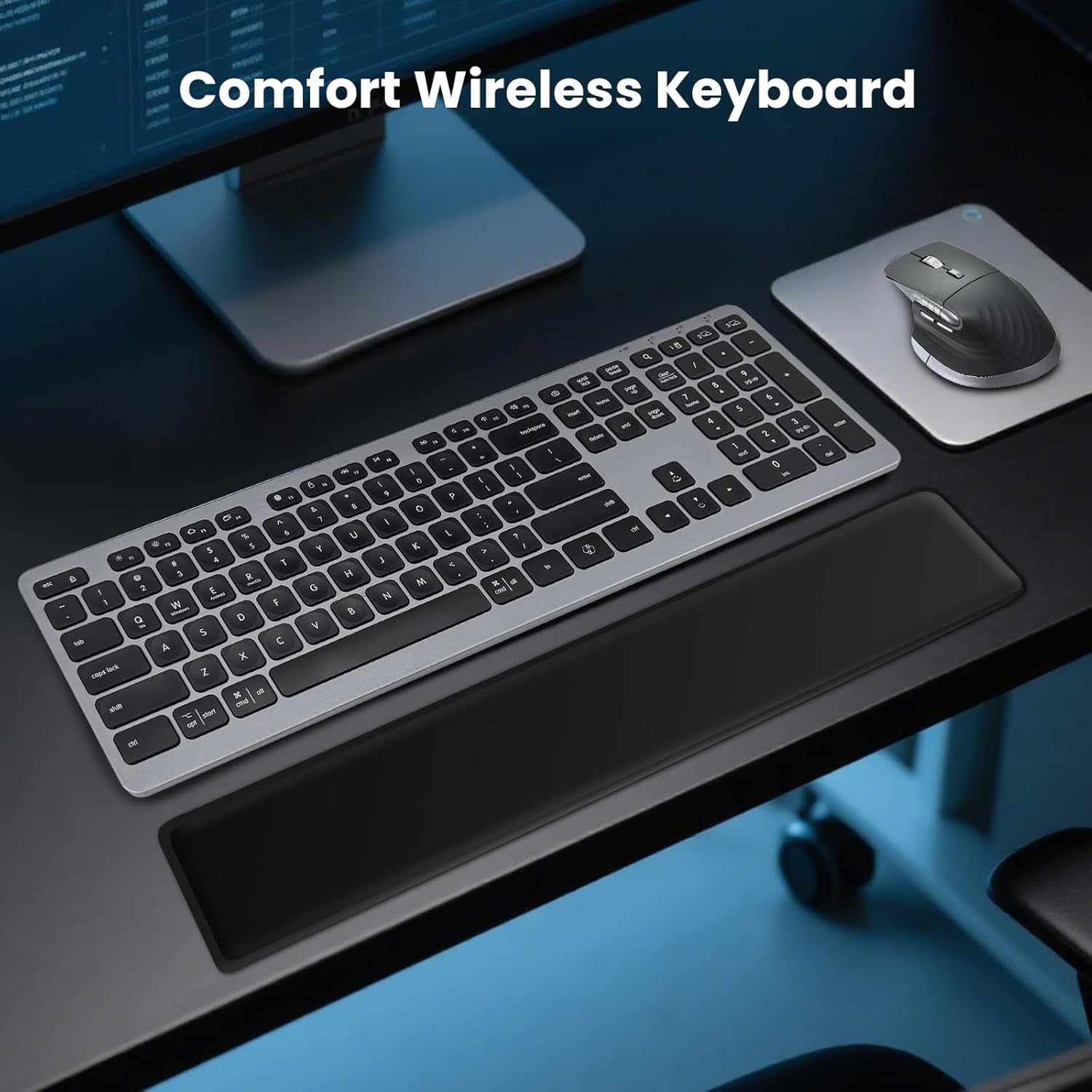
Image: USB-C charging port on the keyboard.
Video: Demonstrates the charging process and multi-device switching for a similar keyboard.
Connectivitat i emparellament
The keyboard supports multi-device pairing via Bluetooth and a 2.4G USB-A receiver, allowing seamless switching between up to three devices.
- 2.4G USB-A Receiver: Locate the USB-A receiver, usually stored in a compartment on the underside of the keyboard. Plug the receiver into an available USB port on your computer. The keyboard should connect automatically.
- Emparellament Bluetooth:
- Enceneu el teclat amb l'interruptor d'alimentació.
- Press and hold one of the Bluetooth channel keys (e.g., 'BT1', 'BT2', 'BT3' usually indicated by icons or numbers on the keys) for 3-5 seconds until the corresponding indicator light starts blinking rapidly. This indicates pairing mode.
- Al dispositiu (ordinador, tauleta, telèfon intel·ligent), aneu a la configuració de Bluetooth i cerqueu dispositius nous.
- Select "CITLLA Wireless Keyboard" (or similar name) from the list of available devices.
- Follow any on-screen prompts to complete the pairing process. The indicator light on the keyboard will stop blinking and remain solid once connected.
- Canvi entre dispositius: Once paired, simply press the corresponding channel key (e.g., 'BT1', 'BT2', 'BT3', or the 2.4G key) to switch between your connected devices.

Image: Multi-device wireless keyboard connected to various devices.
Video: Demonstrates connecting a Bluetooth keyboard to a tablet and phone, highlighting multi-device functionality.
Video: Shows the K9100 Wireless Bluetooth Keyboard, demonstrating its multi-device capabilities.
Instruccions de funcionament
Control de retroiluminació
The keyboard features soft white backlighting for use in dim environments. To adjust the brightness levels, press the FN tecla simultàniament amb la Fletxa amunt or Fletxa cap avall claus.

Image: Function keys for backlighting adjustment.
Disseny ergonòmic
The keyboard is designed with user comfort in mind, featuring a soft leather palm rest and adjustable tilt legs. The tilt legs can be set to different angles (6°, 10°, 15°) to reduce wrist strain during long typing sessions.
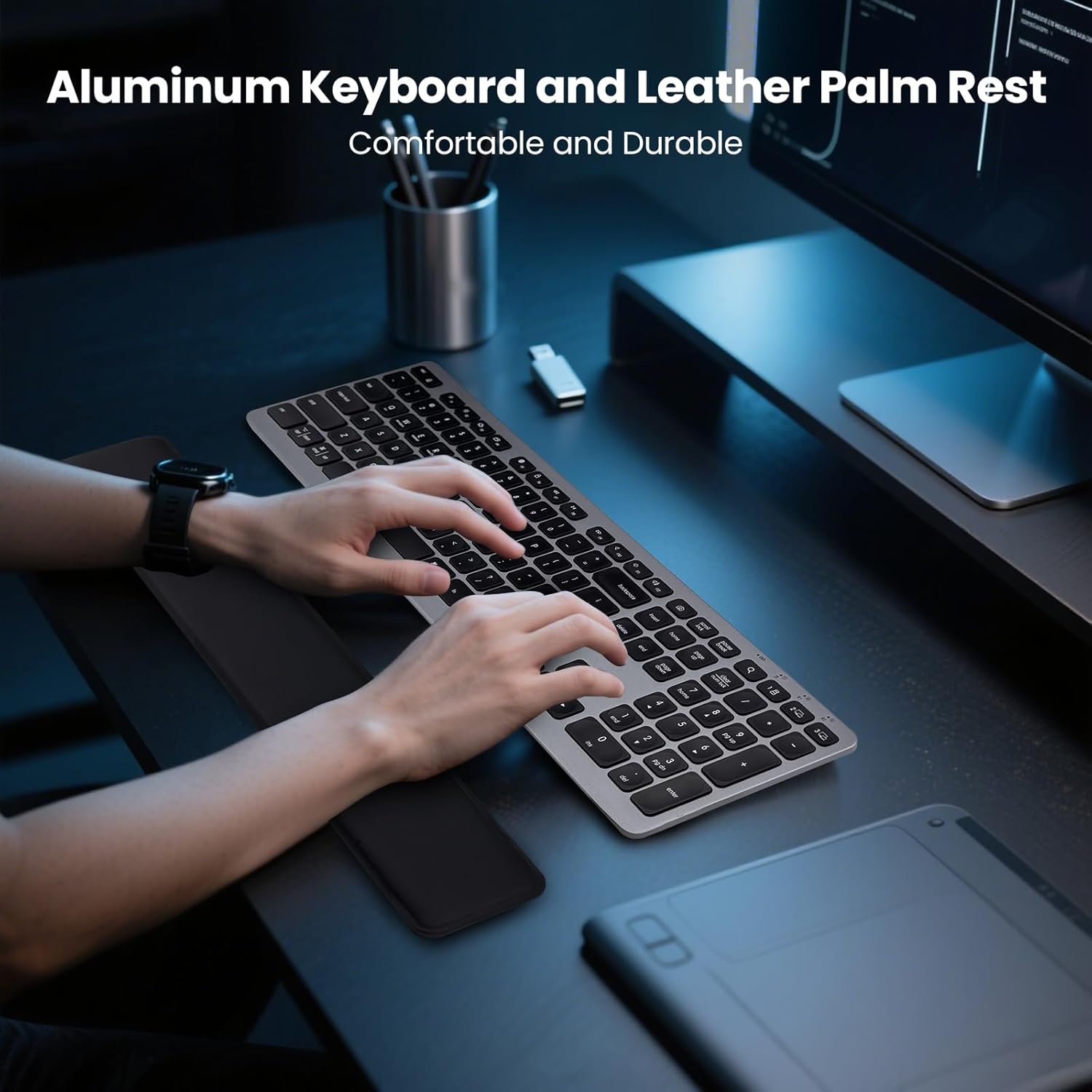
Image: Keyboard with leather palm rest for comfortable typing.

Image: Adjustable tilt angles to reduce wrist fatigue.
Tecles multimèdia i de funció
The keyboard includes 12 multimedia function keys (F1-F12) that can be accessed by pressing the FN key in combination with the desired function key. These keys provide quick access to features like media playback, volume control, and more. You can also switch system layouts (Windows, Mac, iOS, Android) using FN + Q/W/E/R claus.
Imatge: Més deview of multimedia and function keys.
Mode d'estalvi d'energia
To conserve battery life, the keyboard features a smart power-saving mode. It will automatically enter auto-sleep mode after 15 minutes of inactivity. To wake up the keyboard, simply press any key.
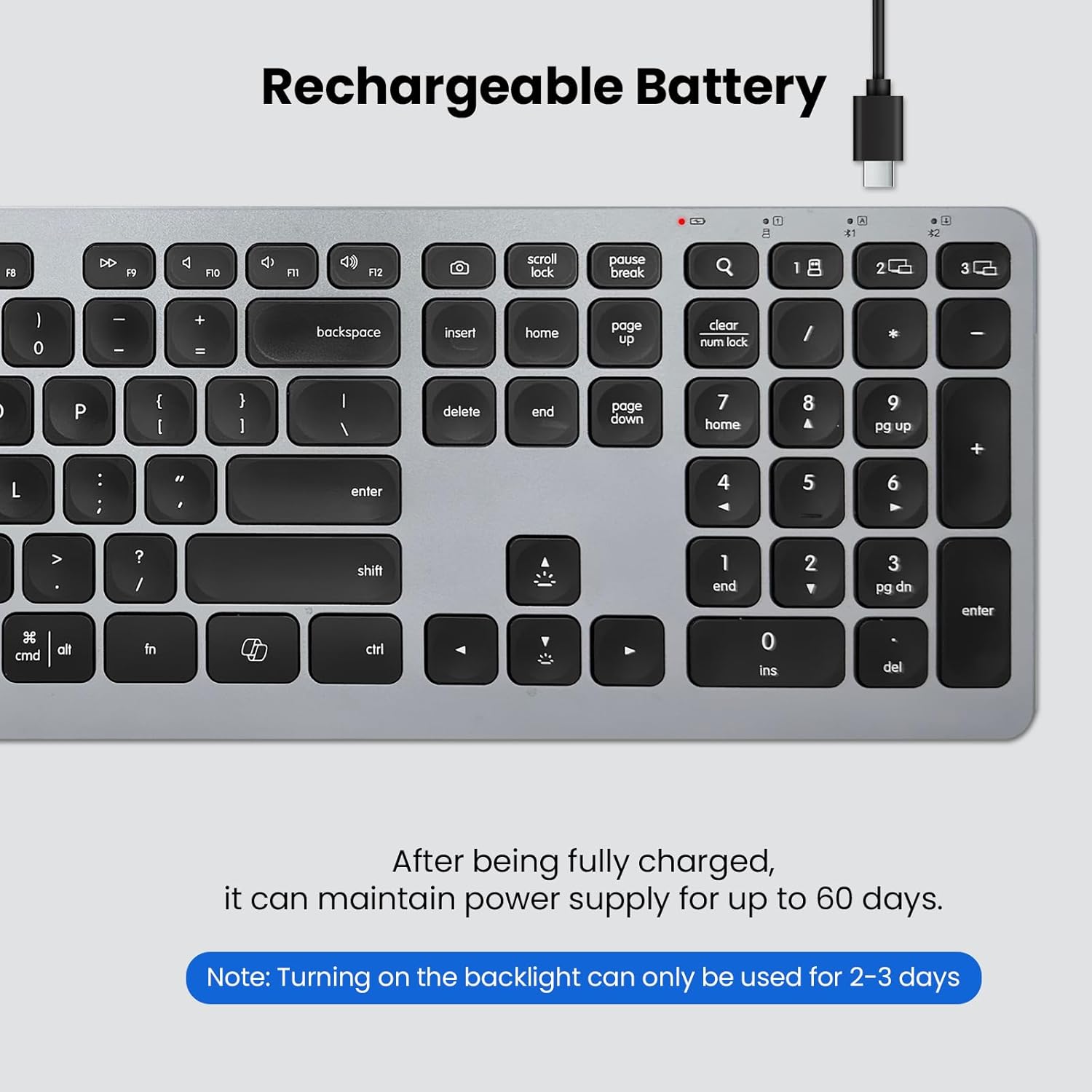
Image: Smart power saving with auto-sleep feature.
Especificacions
| Característica | Detall |
|---|---|
| Dimensions del producte | 17.02 x 4.96 x 0.77 polzades |
| Pes de l'article | 1.94 lliures |
| Fabricant | CITLLA |
| Bateries | 1 bateries no estàndard necessàries. (inclòs) |
| Marca | CITLLA |
| Dispositius compatibles | Ordinador portàtil, PC, telèfon intel·ligent, tauleta |
| Tecnologia de connectivitat | Bluetooth, USB-A |
| Descripció del teclat | Multi Funcional |
| Usos recomanats per al producte | Business, Everyday Use, Multimedia, Student |
| Característica especial | Aluminum housing, Backlit, Detachable Palm Rest, Rechargeable, Silent |
| Suport de color de retroil·luminació del teclat | Color únic |
| Estil | Disseny dels EUA |
| Material | Alumini, plàstic |
Manteniment
To ensure the longevity and optimal performance of your CITLLA Wireless Keyboard, follow these maintenance guidelines:
- Neteja: Utilitzeu un drap suau i sense pelusa lleugerament dampNetegeu la superfície del teclat amb aigua o una solució de neteja suau. Eviteu productes químics agressius o materials abrasius.
- Eliminació de pols: Use compressed air to remove dust and debris from between the keys regularly.
- Emmagatzematge: Quan no l'utilitzeu durant períodes prolongats, guardeu el teclat en un lloc fresc i sec, allunyat de la llum solar directa i de temperatures extremes.
Resolució de problemes
If you encounter issues with your keyboard, try the following steps:
- Problemes de connectivitat:
- Assegureu-vos que el teclat estigui encès i completament carregat.
- For 2.4G connection, verify the USB-A receiver is securely plugged into your device.
- For Bluetooth connection, ensure Bluetooth is enabled on your device and the keyboard is in pairing mode (blinking indicator light). Try unpairing and re-pairing the device.
- Try connecting the keyboard to a different device to rule out device-specific issues.
- Les tecles no responen:
- Comproveu el nivell de la bateria i carregueu el teclat si cal.
- Assegureu-vos que el teclat estigui connectat correctament al dispositiu.
- Reinicieu el dispositiu i el teclat.
- La retroiluminació no funciona:
- Ensure the backlighting feature is enabled (FN + Up Arrow).
- Check the battery level; backlighting may be disabled at very low battery levels to conserve power.
Garantia i Suport
For warranty information, technical support, or further assistance, please refer to the official CITLLA website or contact their customer service directly. Details can typically be found in the included User Manual or on the product packaging.


