Introducció
This manual provides essential instructions for setting up, operating, maintaining, and troubleshooting your BLU G35 smartphone. Please read this guide thoroughly to ensure optimal performance and longevity of your device.

Imatge: Anvers i revers view of the BLU G35 smartphone in grey.
1. Configuració
1.1 Desembalatge i contingut del paquet
Verify that all items are present in the package. The standard BLU G35 package includes:
- Telèfon intel·ligent BLU G35
- Estoig resistent
- Carregador
- Cable USB-Type C
- Guia ràpida
- Adhesiu
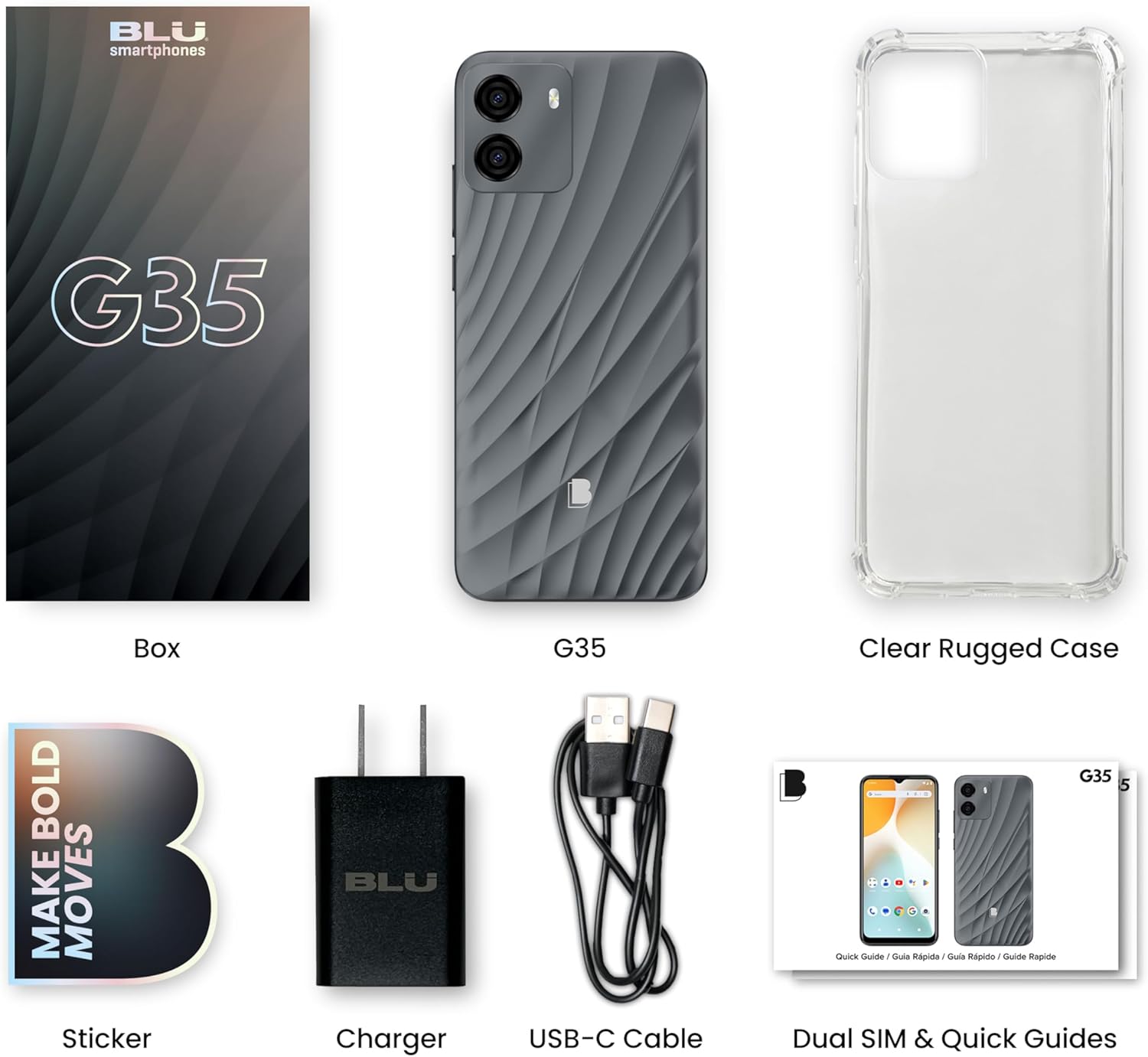
Image: All components included in the BLU G35 retail package.
1.2 Instal·lació de la targeta SIM
The BLU G35 supports GSM networks. To install your SIM card(s):
- Localitza la safata de la targeta SIM al lateral del dispositiu.
- Insert the SIM ejector tool (not included, typically comes with SIM cards or can be a paperclip) into the small hole next to the tray to open it.
- Place your Nano-SIM card(s) into the tray with the gold contacts facing down. The G35 supports dual SIM functionality.
- Torneu a inserir la safata al telèfon amb cura.
Nota: This device is unlocked and compatible with GSM carriers such as T-Mobile, Metro PCS, AT&T, Cricket, and Mint Mobile. It is not compatible with CDMA networks like Verizon. Please confirm network compatibility with your carrier.
1.3 Engegada i configuració inicials
- Press and hold the Power button (located on the right side of the phone) until the BLU logo appears.
- Segueix les instruccions que apareixen a la pantalla per seleccionar l'idioma, connectar-te a la Wi-Fi i configurar el teu compte de Google.
- You will be guided through setting up security features, including A.I. Face ID.
2. Instruccions de funcionament
2.1 Basic Device Functions
- Encès/apagat: Premeu i manteniu premut el botó d'engegada. Seleccioneu "Apagar" o "Reiniciar" al menú.
- Control de volum: Use the Volume Up and Volume Down buttons on the right side of the device.
- Bloqueig/desbloqueig de pantalla: Premeu breument el botó d'engegada per bloquejar o desbloquejar la pantalla.
2.2 Pantalla i navegació
The BLU G35 features a 6.5-inch HD+ Infinity Display (720 x 1600 resolution, 269ppi). Navigation is primarily touch-based.
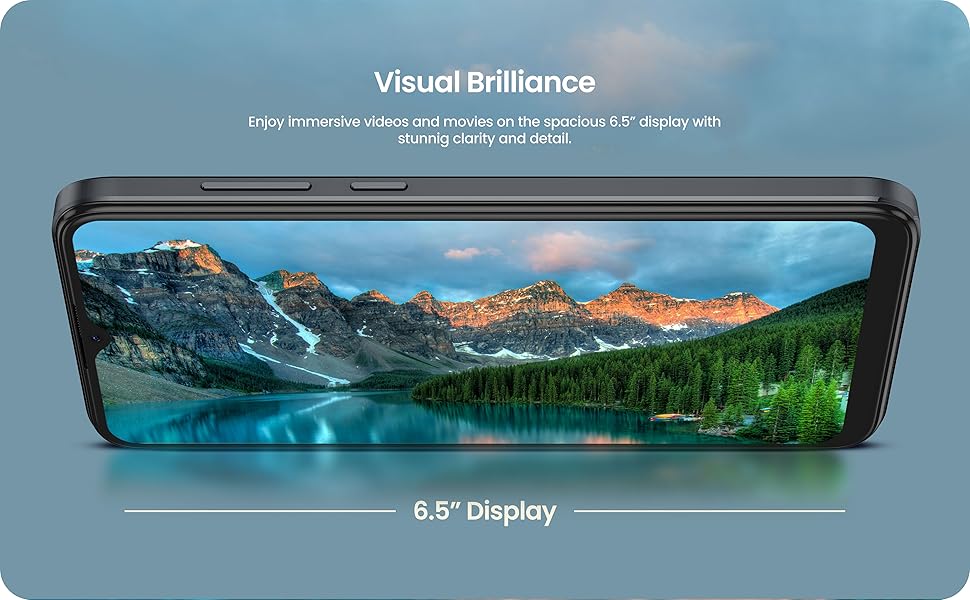
Image: The BLU G35 display showcasing a vibrant image, highlighting its 6.5-inch screen size.
- Pantalla d'inici: Llisca cap a l'esquerra o la dreta per accedir als diferents panells de la pantalla d'inici.
- Calaix d'aplicacions: Llisca cap amunt des de la part inferior de la pantalla per accedir a totes les aplicacions instal·lades.
- Notificacions i configuració ràpida: Feu lliscar el dit cap avall des de la part superior de la pantalla fins a view notificacions i configuracions ràpides.
2.3 Ús de la càmera
The G35 is equipped with a dual rear camera (8MP main sensor) and a 5MP front-facing selfie camera.
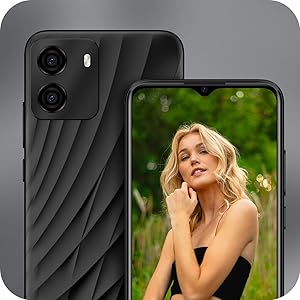
Image: Close-up of the BLU G35's rear camera module and a view of the front display.
- Obre l'aplicació Càmera des de la pantalla d'inici o des del calaix d'aplicacions.
- Toqueu el botó de l'obturador per fer una foto.
- Canvia entre la càmera frontal i la posterior amb la icona de commutació de la càmera.
- Explore different modes like Portrait, Video, and Panorama if available in the camera app.
2.4 Security Features: A.I. Face ID
The BLU G35 includes A.I. Face ID for convenient and secure unlocking.
- Vés a Configuració > Seguretat > Desbloqueig facial.
- Seguiu les instruccions a la pantalla per registrar la vostra cara.
- Ensure good lighting and hold the phone at eye level during registration.
2.5 Rendiment i multitasca
Powered by an efficient octa-core processor and 3GB RAM, the G35 is designed for smooth performance across various tasks.
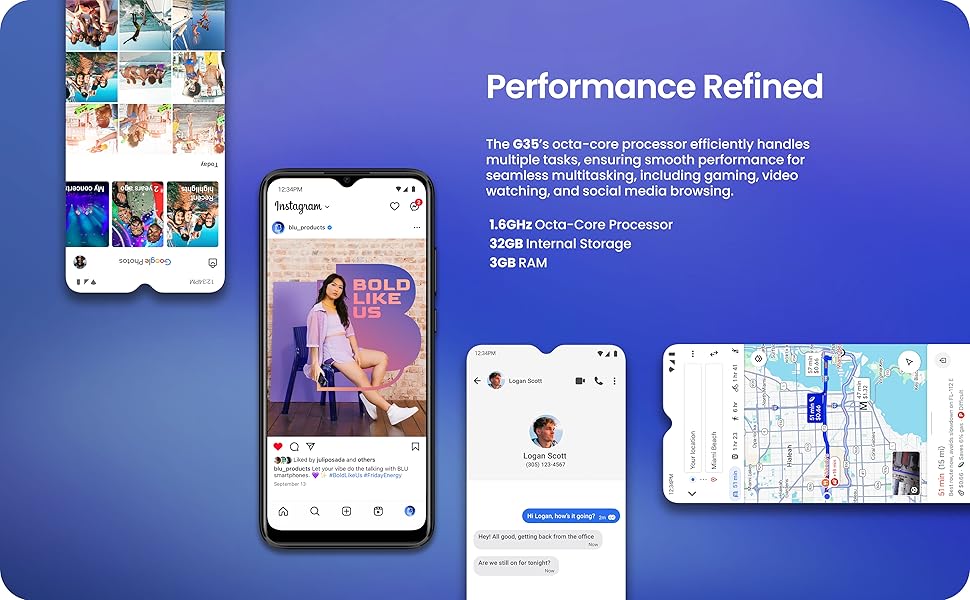
Image: The BLU G35 screen showing various applications, demonstrating its multitasking capabilities.
- Canvi d'aplicacions: Llisca cap amunt des de la part inferior de la pantalla i mantén premut per view recent applications. Tap an app to switch, or swipe it away to close.
- Optimització del rendiment: Close unused applications running in the background to free up RAM.
3. Manteniment
3.1 Cura de la bateria
The BLU G35 is equipped with a 5000mAh battery. To maximize battery life:
- Eviteu temperatures extremes.
- Use the provided charger and USB Type-C cable.
- No deixeu el telèfon carregant-se durant períodes prolongats després que hagi arribat al 100%.
- Ajusta la brillantor de la pantalla i desactiva les funcions innecessàries (per exemple, Bluetooth, GPS) quan no les utilitzis.
3.2 Neteja del vostre dispositiu
Feu servir un drap suau i sense borrissol per netejar la pantalla i la carcassa del telèfon. Eviteu materials abrasius o productes químics agressius.
3.3 Actualitzacions de programari
Comproveu i instal·leu regularment si hi ha actualitzacions de programari per assegurar-vos que el dispositiu tingui les darreres funcions, pegats de seguretat i millores de rendiment. Aneu a Configuració > Sistema > Actualització del sistema.

Image: The Android 14 operating system logo, indicating the phone's software version.
4. Solució De Problemes
4.1 Problemes comuns i solucions
- El dispositiu no s'encén: Assegureu-vos que la bateria estigui carregada. Connecteu el carregador i espereu uns minuts abans d'intentar engegar-lo.
- Problemes de connectivitat de xarxa:
- Comproveu si la targeta SIM està inserida correctament.
- Verify that mobile data is enabled in Quick Settings.
- Reinicieu el dispositiu.
- Confirm with your carrier that your plan is active and the device is compatible.
- Les aplicacions es bloquegen o es bloquegen:
- Tanca i torna a obrir l'aplicació.
- Clear the app's cache (Settings > Apps > [App Name] > Storage & cache > Clear cache).
- Reinicieu el telèfon.
- Autonomia curta de la bateria:
- Redueix la brillantor de la pantalla.
- Desactiva el Wi-Fi, el Bluetooth i el GPS quan no els utilitzis.
- Tanca les aplicacions en segon pla.
- Comprova l'ús de la bateria a Configuració per identificar les aplicacions que consumeixen molta bateria.
4.2 Restabliment de fàbrica
Si teniu problemes persistents, un restabliment de fàbrica els pot resoldre. Avís: Això esborrarà totes les dades del telèfon. Fes una còpia de seguretat de les dades importants abans de continuar.
- Vés a Configuració > Sistema > Opcions de restabliment.
- Seleccioneu Esborra totes les dades (restabliment de fàbrica).
- Confirmeu la vostra decisió i introduïu el vostre PIN/contrasenya si se us demana.
5. Especificacions
| Característica | Detall |
|---|---|
| Nom del model | G35 |
| Número de model de l'article | G1110UU |
| Mostra | 6.5" HD+ Infinity Display (720 x 1600 resolution, 269ppi) |
| Sistema operatiu | Android 14 |
| Processador | Octa-core (1.6GHz ARM Cortex-A55) |
| RAM | 3 GB |
| Emmagatzematge intern | 32 GB |
| Càmera posterior | Dual 8MP Camera with LED Flash |
| Càmera frontal | Càmera selfie de 5 MP |
| Capacitat de la bateria | 5000 mAh |
| Connectivitat | 4G LTE, Wi-Fi, Bluetooth, USB Type-C |
| Compatibilitat amb operadors sense fil | Unlocked GSM (T-Mobile, AT&T, Metro PCS, Cricket, Mint Mobile) |
| Seguretat | A.I. Face ID |
| Dimensions | 7.52 x 3.7 x 2.01 polzades (paquet) |
| Pes | 12.6 unces |
| Components inclosos | Phone Case, Charger, USB Type-C Cable |
6. Garantia i Suport
6.1 Informació de la garantia
The BLU G35 comes with a US Warranty. Specific terms and conditions of the warranty are typically provided with your purchase documentation or can be found on the official BLU Products weblloc web. Si us plau, conserveu el comprovant de compra per a reclamacions de garantia.
6.2 Atenció al client
For technical assistance, troubleshooting beyond this manual, or warranty inquiries, please contact BLU Products customer support. Visit the official BLU weblloc web amb informació de contacte i recursos de suport.
Podeu visitar el BLU Store on Amazon per obtenir més informació sobre el producte.


