Introducció
Welcome to the GravaStar Mercury K1 75% Wireless Mechanical Gaming Keyboard user manual. This guide provides essential information for setting up, operating, maintaining, and troubleshooting your new keyboard. The Mercury K1 combines a futuristic design with high-performance features, including an aluminum alloy frame, hot-swappable linear switches, and customizable RGB backlighting.
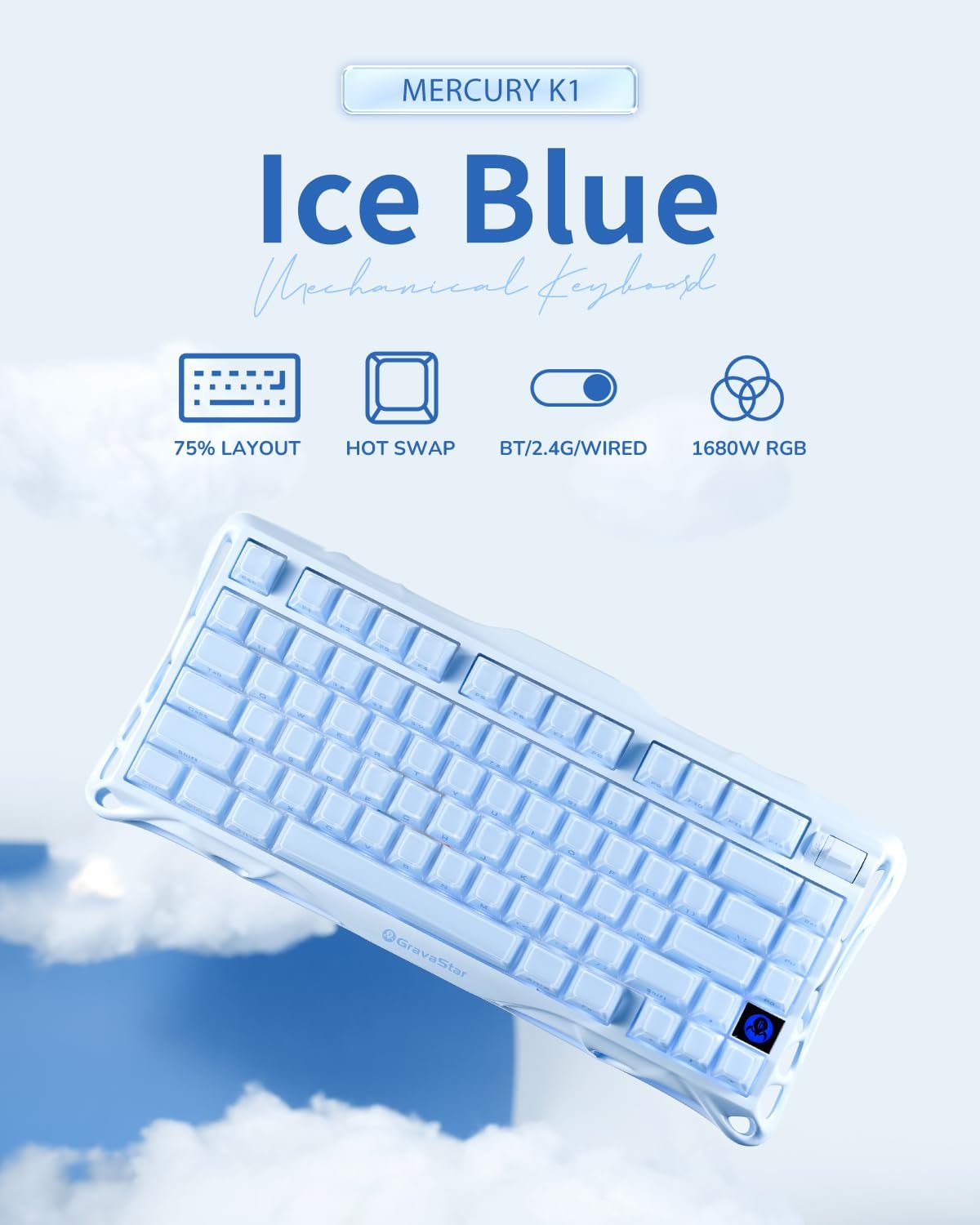
Image: The GravaStar Mercury K1 keyboard showcasing its 75% layout, hot-swap capability, triple connectivity modes (Bluetooth, 2.4GHz, wired), and 16.8 million color RGB lighting.
Què hi ha a la caixa
- 1 x GravaStar Mercury K1 Keyboard
- 1 x Type-A 2.4GHz Receiver
- 1 x Cable de tipus A a tipus C
- 1 x Extractor de tecles i interruptors
- 1 x raspall de neteja
- 4 x Extra Switches (Kailh Platycodon, Kailh Crackle Ice Box, KTT Silent Blue, KTT Baby White)
Video: An unboxing video of the GravaStar Mercury K1 75% Blue Gaming Keyboard, showing the contents of the package.
Configuració
Càrrega inicial
Before first use, fully charge your Mercury K1 keyboard using the provided USB-C cable. Connect the USB-C end to the keyboard and the USB-A end to a power source (e.g., computer USB port, wall adapter). The battery indicator will show charging status.
Modes de connectivitat
The Mercury K1 supports three connection types: Wired (USB-C), 2.4GHz Wireless, and Bluetooth 5.0. Use the switch located on the back of the keyboard to select your desired mode.

Imatge: Una imatge detallada view of the keyboard's rear, highlighting the switches for 2.4GHz wireless, Bluetooth 5.0, and wired USB-C connections, along with Windows/Mac compatibility switch.
- Connexió per cable: Connect the USB-C cable from the keyboard to your computer. The keyboard will automatically switch to wired mode.
- Connexió sense fil de 2.4 GHz:
- Locate the 2.4GHz receiver stored in the magnetic compartment on the underside of the keyboard.
- Plug the receiver into an available USB-A port on your computer.
- Switch the keyboard to 2.4GHz mode using the selector switch. The keyboard should connect automatically.
- Connexió Bluetooth 5.0:
- Switch the keyboard to Bluetooth mode using the selector switch.
- On your device (PC, laptop, tablet, gaming console), go to Bluetooth settings and search for new devices.
- Select "GravaStar K1" from the list of available devices to pair.
Compatibilitat de sistemes operatius
Use the dedicated switch on the back of the keyboard to toggle between Windows and Mac operating system layouts for optimal key functionality.
Instruccions de funcionament
Funcions bàsiques
- Mecanografia: The 75% layout provides a compact yet functional typing experience.
- Control de volum: Use the dedicated control knob for quick volume adjustments.
Control d'il·luminació RGB
The Mercury K1 features dual RGB ecosystems with 16.8 million colors and 13 dynamic effects. Use the following key combinations to customize your lighting:
- Fn + /!: Cycle through backlight modes.
- Fn + Tabulador: Cycle through side light modes.
- Fn + Fletxa esquerra/dreta: Ajusta la velocitat de la il·luminació.
- Fn + Fletxa amunt/avall: Adjust lighting brightness.
- Fn + Shift: Toggle side light mode.
- Fn + >: Cycle brightness levels.
- Fn + /?: Cycle switch colors.
- Fn + <.: Cycle speed settings.
Video: Demonstrates the various RGB lighting effects and typing sounds of the GravaStar K1 75% Blue Gaming Keyboard in a dark environment.
Interruptors d'intercanvi en calent
The Mercury K1 features a hot-swappable socket, allowing you to change switches without soldering. Use the provided keycap and switch puller tool to replace switches.

Imatge: Una explosió view diagram illustrating the internal components of a Kailh linear switch, including outer housing, inner housing, stem, extended spring, housing, high-transmittance light guide, and base.
- Traieu suaument la tapa de les tecles amb l'extractor.
- Use the switch puller to carefully grip and pull out the switch.
- Alineeu els pins del nou interruptor amb els forats de la placa de circuit imprès i premeu fermament fins que encaixi al seu lloc.
- Substitueix la tapa de les tecles.
Manteniment
Neteja
Una neteja regular ajuda a mantenir el rendiment i l'aspecte del teclat.
- Use the provided cleaning brush to remove dust and debris from between the keycaps.
- For deeper cleaning, remove keycaps and gently wipe the keyboard surface with a soft, damp drap. Eviteu la humitat excessiva.
Cura de la bateria
Per allargar la durada de la bateria:
- Avoid fully discharging the 8000mAh battery frequently.
- Guardeu el teclat en un lloc fresc i sec quan no el feu servir durant períodes prolongats.
- If using wired mode predominantly, consider turning off wireless modes to conserve battery health.
Resolució de problemes
- El teclat no respon: Ensure the keyboard is charged and correctly connected (wired, 2.4GHz receiver, or Bluetooth paired). Try restarting the keyboard and your device.
- Les llums RGB no funcionen: Check lighting settings using Fn key combinations. Ensure the keyboard is not in a low-power mode that disables lighting.
- Problemes de connectivitat: For 2.4GHz, ensure the receiver is securely plugged in and within range. For Bluetooth, ensure the keyboard is in pairing mode and your device's Bluetooth is enabled. Try re-pairing.
- Claus que no es registren: If specific keys are not working, try hot-swapping the switch with one of the extra switches provided to determine if the switch is faulty.
Especificacions
| Característica | Detall |
|---|---|
| Dimensions del producte | 16.34 x 7.39 x 2.27 polzades (41.5 x 18.77 x 5.77 cm) |
| Pes de l'article | 3.52 lliures (1.6 kg) |
| Tecnologia de connectivitat | Bluetooth 5.0, sense fil de 2.4 GHz, USB-C amb cable |
| Disposició del teclat | 75% (79 tecles) |
| Interruptors | GravaStar × Kailh Linear Switches (Hot-Swappable) |
| Il·luminació de fons RGB | 16.8 Million Colors, 13 Dynamic Effects, Dual RGB Ecosystems |
| Capacitat de la bateria | 8000 mAh |
| Taps de claus | Dual-layer PBT |
| Compatibilitat | Windows, Mac, Gaming Consoles, Laptops, PCs, Tablets |
Garantia i Suport
For warranty information and customer support, please refer to the official GravaStar weblloc web o poseu-vos en contacte amb el vostre distribuïdor. Conserveu el comprovant de compra per a qualsevol reclamació de garantia.


