1. Introducció
This manual provides comprehensive instructions for setting up, operating, and maintaining your Wacom MovinkPad Pro 14 Android Mobile Drawing Tablet. Please read this manual thoroughly to ensure optimal performance and longevity of your device.
The Wacom MovinkPad Pro 14 is a portable, all-in-one digital art tablet designed for creative professionals. It features a 14-inch OLED display, runs on Android 15 OS, and is powered by a Snapdragon 8s Gen 3 processor. It includes the battery-free Slim Pro Pen 3 for precise input.
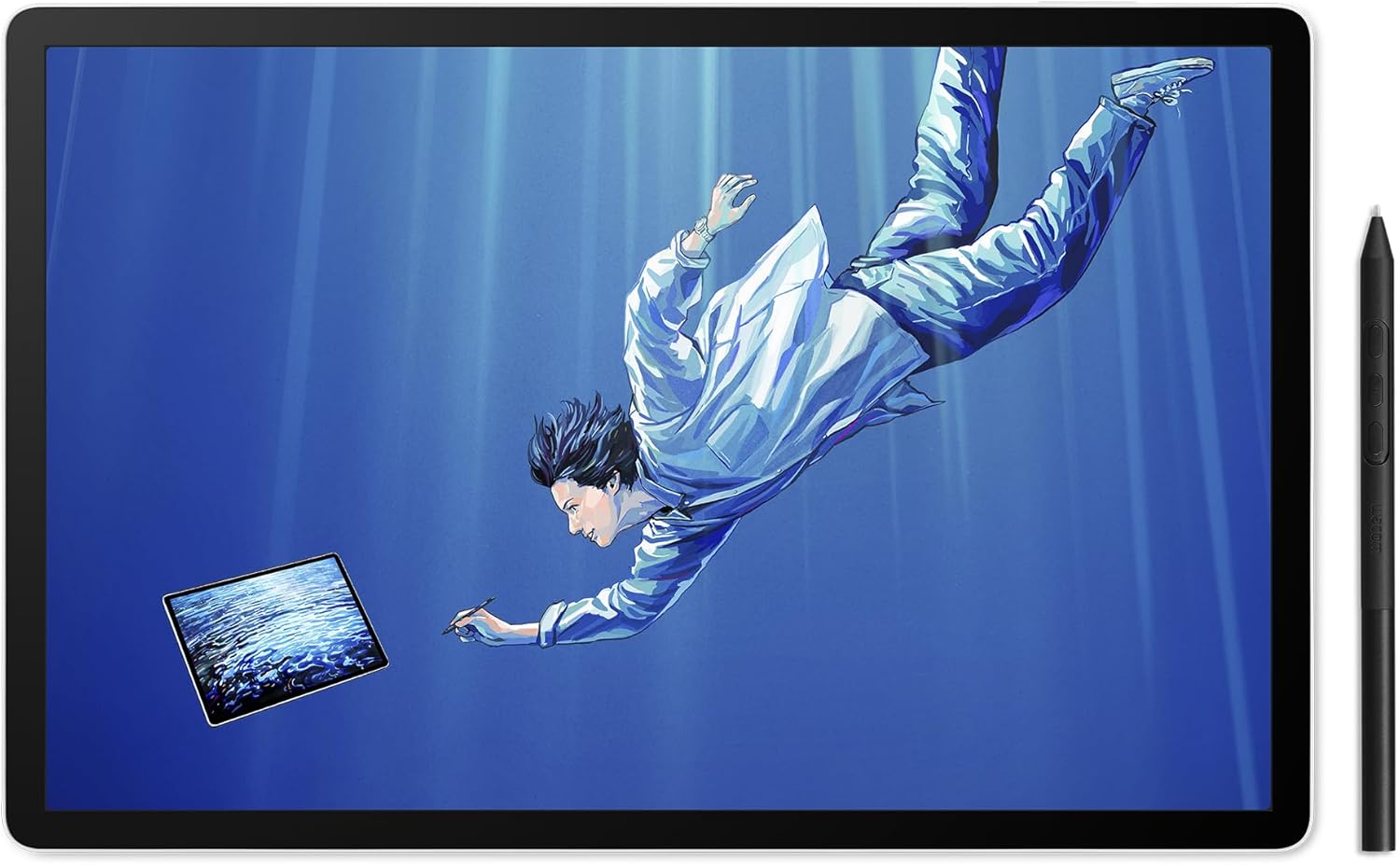
Image 1.1: Wacom MovinkPad Pro 14 Android Mobile Drawing Tablet with Slim Pro Pen 3.
2. Què hi ha a la caixa
Verifiqueu que tots els elements estiguin presents a l'embalatge:
- Wacom MovinkPad Pro 14
- USB-C to C-Cable
- Wacom Pro Pen 3 with Nib holder
- Replacement nibs (Carbon Shaft POM x1, POM x1, Felt x1)
- SD-card tool

Image 2.1: Contents of the Wacom MovinkPad Pro 14 packaging, including the tablet, pen, cable, and tools.
Video 2.1: An unboxing video demonstrating the contents of the MovinkPad Pro 14 package and initial setup steps.
3. Producte acabatview
3.1 Característiques clau
- Portable All-in-One Design: Thin, lightweight frame with Android 15 OS and pre-installed creative applications.
- Rendiment potent: Snapdragon 8s Gen 3 processor, 12GB RAM, 256GB storage with expandable microSD slot.
- Stunning 14" OLED Display: Crisp 3K (2880 × 1800px) resolution, wide color gamut (100% sRGB & DCI-P3), and Premium Texture etched glass for a pen-on-paper feel.
- Wacom Pro Pen 3: Battery-free pen with 8,192 pressure levels and interchangeable nibs.
3.2 Components del dispositiu
Familiarize yourself with the physical components of your MovinkPad Pro 14.

Image 3.1: Visual representation of the MovinkPad Pro 14's technical specifications and features.
The tablet includes power and volume buttons, and an SD card slot for expanded storage. The Slim Pro Pen 3 features customizable buttons and a built-in nib holder for convenience.

Image 3.2: The Premium Texture etched glass provides a natural, paper-like drawing experience.
4. Configuració
4.1 Encès inicial
- Press and hold the Power button located on the side of the tablet until the Wacom logo appears.
- Follow the on-screen prompts to complete the initial Android OS setup, including language selection, Wi-Fi connection, and Google account login.
4.2 Pen Setup
The Wacom Pro Pen 3 is battery-free and does not require charging. It is ready for use immediately after the tablet is powered on.
- Ensure the pen nib is properly inserted. Replacement nibs are stored in the pen's back end.
- The pen features customizable buttons. Refer to the 'Wacom Tips' app for configuration options.
4.3 Programari i aplicacions
The MovinkPad Pro 14 comes with pre-installed creative applications. The 'Wacom Tips' app is your starting point for guidance on functions, hardware settings, and accessing included software like Clip Studio Paint.
Vídeo 4.1: Presentació d'un vídeo introductoriasing the Wacom MovinkPad Pro 14's features and creative potential.
5. Instruccions de funcionament
5.1 Basic Pen Usage
- Dibuix i esbossos: Use the pen directly on the OLED display. The Premium Texture etched glass provides a natural drawing feel.
- Sensibilitat a la pressió: The pen supports 8,192 levels of pressure sensitivity, allowing for varied line thickness and opacity based on pressure applied.
- Botons de bolígraf: The buttons on the pen can be customized for various functions (e.g., right-click, erase, undo) within creative applications. Access pen settings via the Android system settings or the 'Wacom Tips' app.

Image 5.1: The Slim Pro Pen 3 offers precise control for digital artwork, responding to 8,192 levels of pressure.
5.2 Navegació del sistema operatiu Android
Navigate the Android 15 operating system using touch gestures or the Pro Pen 3. Standard Android gestures apply for home, back, recent apps, and notifications.

Image 5.2: The portable design allows for creative work on the go, such as during travel.
5.3 Connectivitat
- Wi-Fi: Connect to wireless networks for internet access and app downloads from the Google Play Store.
- Bluetooth: Pair with Bluetooth accessories such as keyboards, mice, or headphones.
- USB-C: Use the USB-C port for charging, data transfer, or connecting to compatible external displays or computers (features may vary and are subject to Wacom Lab beta testing for computer connectivity).
6. Manteniment
6.1 Neteja del dispositiu
- Feu servir un drap suau i sense borrissol per netejar la pantalla i el cos de la tauleta.
- Per a taques persistents, lleugerament dampNetegeu el drap amb aigua o una solució de neteja segura per a pantalles. Eviteu productes químics agressius.
- No ruixeu solucions de neteja directament sobre la pantalla.
6.2 Substitució de la ploma de la ploma
The pen nibs will wear down over time. Replace them when they become too short or feel rough.
- Unscrew the back end of the Wacom Pro Pen 3 to access the replacement nibs.
- Use the SD-card tool (or a small pair of tweezers) to gently pull out the old nib.
- Insert a new nib firmly until it clicks into place.
- Ensure the back end of the pen is screwed back on securely.
6.3 Cura de la bateria
The MovinkPad Pro 14 contains a Lithium Ion battery. To prolong battery life:
- Eviteu temperatures extremes.
- No permeteu que la bateria es descarregui completament amb freqüència.
- For long-term storage, charge the tablet to approximately 50-70%.
6.4 Actualitzacions de programari
Regularly check for and install system updates to ensure optimal performance, security, and access to new features. Updates can typically be found in the Android system settings under "System" or "About tablet."
7. Solució De Problemes
If you encounter issues with your MovinkPad Pro 14, refer to the following common solutions:
- La tauleta no s'encén: Ensure the tablet is charged. Connect it to a power source using the USB-C cable and try powering it on after a few minutes.
- El llapis no respon:
- Comproveu si la punta del bolígraf està correctament inserida.
- Reinicieu la tauleta.
- Ensure no magnetic interference is affecting the pen's operation.
- La pantalla no respon: Perform a force restart by holding the power button for approximately 10-15 seconds.
- Performance Issues (Lagging):
- Tanca les aplicacions de fons innecessàries.
- Esborra la memòria cau de les aplicacions utilitzades amb freqüència.
- Assegureu-vos que hi hagi prou espai d'emmagatzematge lliure.
- Comproveu i instal·leu les actualitzacions del sistema disponibles.
- Problemes de connectivitat Wi-Fi/Bluetooth:
- Toggle Wi-Fi/Bluetooth off and on in settings.
- Reinicieu el vostre encaminador (per a la Wi-Fi).
- Forget and re-pair Bluetooth devices.
For persistent issues, consult the 'Wacom Tips' app or visit the official Wacom support weblloc.
8. Especificacions
| Característica | Detall |
|---|---|
| Dimensions del producte | 12.7 x 8.3 x 0.04 polzades |
| Pes de l'article | 1.61 lliures |
| Marca | Wacom |
| Tecnologia de connectivitat | Bluetooth, USB-C to C-Cable, Wi-Fi |
| Sensibilitat a la pressió | 8192 nivells |
| Sistema operatiu | Android 15 |
| Característiques especials | 256GB storage plus expandable microSD slot, Battery Free Pen, OLED DISPLAY: Crisp 3K (2880 × 1800px), Snapdragon 8s Gen 3 processor, Wacom Premium Textured Glass (anti-reflection/anti-glare/anti-fingerprint) |
| Bateries | Necessita 1 bateria de ions de liti (inclosa) |
9. Garantia i Suport
For warranty information and technical support, please visit the official Wacom website or contact Wacom customer service. Keep your proof of purchase for warranty claims.
Assistència en línia: www.wacom.com/support


