1. Producte acabatview
The iDPRT SP460BT is a compact thermal label printer designed for efficient label printing. It supports both Bluetooth and USB connectivity, offering versatility for various operating systems and devices. This printer utilizes direct thermal technology, eliminating the need for ink or toner, making it a cost-effective solution for shipping labels, barcodes, and other label printing needs.
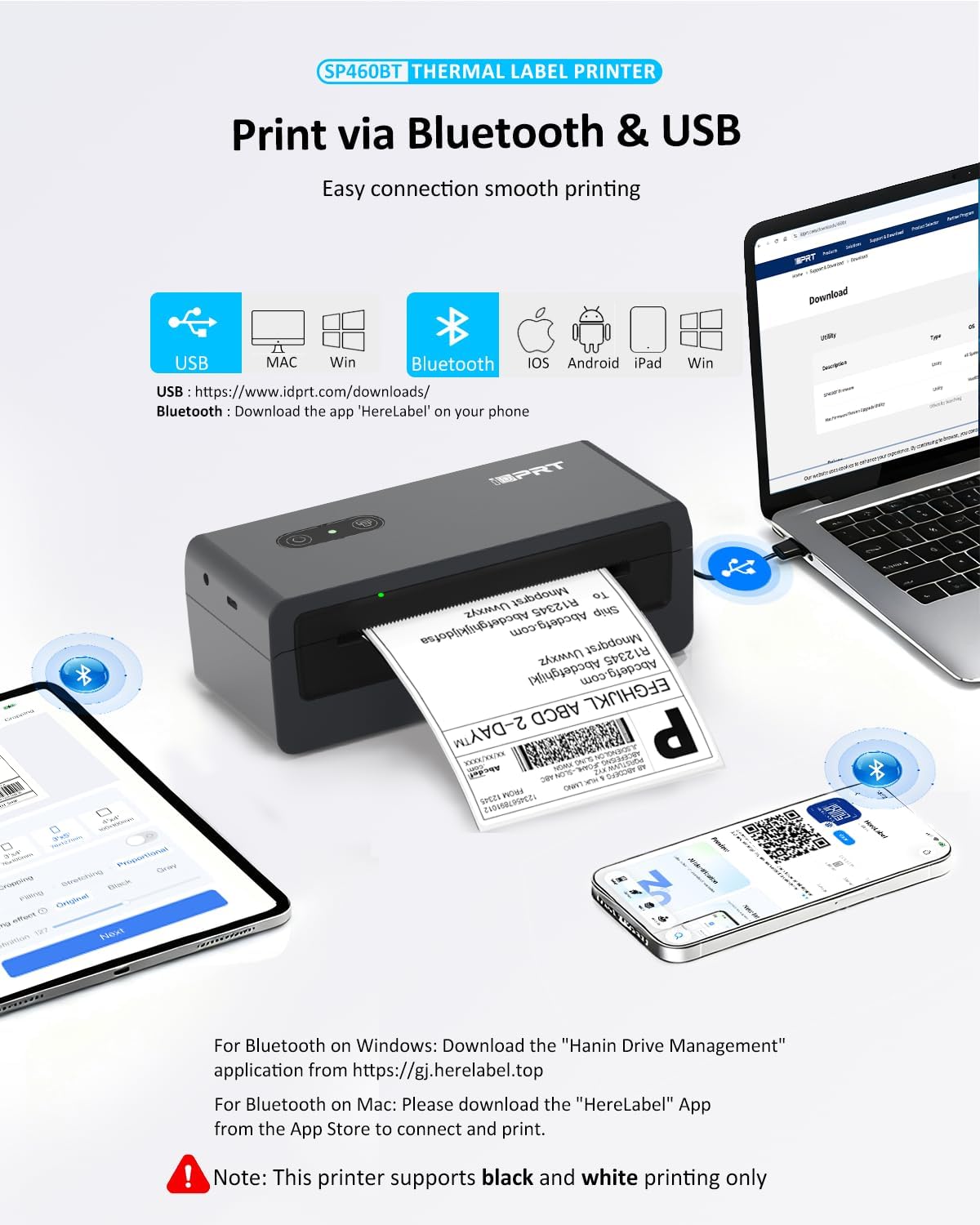
Figure 1: iDPRT SP460BT Thermal Label Printer. This image shows the printer from a front-side angle, highlighting its compact design.
2. Què hi ha a la caixa
En desembalar, comproveu que hi hagi tots els components:
- 1 x SP460BT label printer
- 50 sheets thermal labels (4'' x 6'')
- 1 x USB C cable for Mac
- 1 x cable d'alimentació
- 1 unitat flaix USB

Figure 2: Package contents including the printer, power cord, USB C cable, USB flash drive, and samples etiquetes.
3. Guia de configuració
3.1 Configuració física
- Col·loqueu la impressora sobre una superfície estable i plana.
- Connecteu l'adaptador de corrent a la impressora i connecteu-lo a una presa de corrent.
- Load thermal labels into the printer. Ensure the paper is face up and properly aligned. The printer supports label widths from 1.25" to 4.3".

Figure 3: Illustration of loading fanfold labels into the printer. The labels should be inserted face up.

Figure 4: Diagram showing the adjustable label guides for various label widths (1.25" to 4.33").
3.2 Driver and App Installation
The iDPRT SP460BT printer offers both USB and Bluetooth connectivity. Follow the instructions below based on your operating system and preferred connection method.
3.2.1 USB Connection (Windows & macOS)
- Visit the official iDPRT driver download page: https://www.idprt.com/Driver
- Cerca "SP460BT" and download the appropriate driver for your operating system (Windows or Mac).
- Install the downloaded driver by following the on-screen instructions.
- Connecteu la impressora a l'ordinador mitjançant el cable USB proporcionat.

Figure 5: Steps for downloading and installing the printer driver for USB connection on PC or laptop.
3.2.2 Bluetooth Connection (iOS & Android)
- Download the 'HereLabel' app from your device's app store or by scanning the QR code in the manual. You can also visit https://herelabel.top/download/.
- Activa el Bluetooth al teu dispositiu mòbil.
- Open the 'HereLabel' app and connect to the "SP460BT-XXXX" printer.

Figure 6: Step-by-step guide for connecting the printer via Bluetooth using the 'HereLabel' app on a mobile device.
3.2.3 Bluetooth Connection (macOS)
For wireless printing on macOS, the 'HereLabel' app is required.
- Plug in the label printer's power cable.
- Enable Bluetooth on your Mac and connect to "SP460BT-XXXX".
- Download the "HereLabel" app from the App Store.
- Open the "HereLabel" app, tap "Document Printing," and edit or print your PDF file.
Note: Direct printing via Bluetooth is not supported on macOS without the 'HereLabel' app.

Figure 7: Instructions for printing via Bluetooth on a Mac, emphasizing the use of the 'HereLabel' application.
3.2.4 Connexió Bluetooth (Windows)
For Bluetooth connectivity on Windows, the "Hanin Drive Management" software is required.
- Download "Hanin Drive Management" from https://herelabel.top/download/.
- Install the software and follow the instructions to connect your printer via Bluetooth.
4. Instruccions de funcionament
4.1 Càrrega d'etiquetes
The printer supports both fanfold and roll labels with widths ranging from 1.25" to 4.3".
- Open the printer cover by pressing the release button.
- Insert the thermal labels, ensuring the printable side is facing up.
- Ajusteu les guies d'etiquetes perquè s'adaptin perfectament a l'amplada de les etiquetes, evitant així la desalineació.
- Tanqueu la coberta de la impressora. La impressora detectarà i calibrarà automàticament la mida de l'etiqueta.
Video 1: Demonstrates the process of opening the printer, loading a roll of thermal labels, adjusting the guides, and closing the cover. It also shows the printer automatically feeding the label to the correct starting position.
4.2 Impressió d'etiquetes
Once connected and labels are loaded, you can proceed with printing:
- From Mobile App (HereLabel): Select your document or image within the app, choose the label size (e.g., 4"x6"), adjust settings if needed, and initiate printing.
- From Computer (USB/Bluetooth): Open your label file (e.g., PDF) in your preferred application. In the print dialog, select the iDPRT SP460BT as your printer. Ensure the paper size is set to 4"x6" (100x150mm) or the custom size matching your labels.
Note: The printer supports black and white printing only. Thermal printers are optimized for clear text, barcodes, and simple black-and-white graphics, not high-resolution photos or detailed JPG images.

Figure 8: Comparison of print settings interfaces for the HereLabel app, Windows, and Mac driver printing, highlighting label size selection.
5. Manteniment
Regular maintenance ensures optimal performance and extends the life of your thermal printer.
- Neteja del capçal d'impressió: Use an alcohol swab or a specialized thermal print head cleaning pen to gently wipe the print head. This should be done periodically to remove dust and adhesive residue.
- Neteja del rodet de la platina: Clean the rubber platen roller with an alcohol swab to remove any paper dust or adhesive buildup.
- Neteja exterior: Netegeu l'exterior de la impressora amb un drap suau i secamp tela. Eviteu utilitzar productes químics aggressivs.
- Emmagatzematge: Store the printer in a clean, dry environment away from direct sunlight and extreme temperatures.
6. Solució De Problemes
- No Print Output or Blank Labels:
- Ensure thermal labels are loaded correctly, with the printable side facing up.
- Verify that the label size setting in your printing software or app matches the physical labels (e.g., 4"x6" or 100x150mm).
- Check for any paper jams and clear them.
- Problemes de connectivitat:
- For USB: Ensure the USB cable is securely connected to both the printer and your computer. Reinstall drivers if necessary.
- For Bluetooth: Ensure Bluetooth is enabled on your device and the printer is paired. Restart the printer and your device. For Windows, ensure "Hanin Drive Management" is installed. For macOS, ensure the "HereLabel" app is used for wireless printing.
- Mala qualitat d'impressió:
- Netegeu el capçal d'impressió tal com es descriu a la secció Manteniment.
- Assegureu-vos d'utilitzar etiquetes tèrmiques d'alta qualitat.
- Adjust print density settings in your software if available.
7. Especificacions
| Característica | Detall |
|---|---|
| Nom del model | SP460BT (Item model number: JCSP460BT) |
| Tecnologia d'impressió | Tèrmica |
| Tecnologia de connectivitat | Bluetooth, USB |
| Mida màxima del suport | 4 x 6 polzades |
| Mides de suports admesos | 1.25" to 4.3" (40mm-110mm) width |
| Resolució màxima d'impressió en blanc i negre | 203 DPI |
| Velocitat màxima d'impressió en monocrom | 100mm/s (approx. 35 ppm) |
| Sortida de la impressora | Monocrom |
| Dispositius compatibles | Laptops, PC, Smartphones (Android, iOS, Windows, macOS, ChromeOS) |
| Dimensions del producte | 7.1" de profunditat x 3.1" d'amplada x 2.6" d'alçada (18 x 7.8 x 6.6 cm) |
| Pes de l'article | 15.5 unces |
| Característica especial | Inkless, Lightweight, Portable |
8. Garantia i Suport
iDPRT offers a 1 any de garantia for the SP460BT thermal label printer.
For any inquiries, technical assistance, or support, please contact iDPRT customer service. Support is available via email, phone, or remote assistance.

Figure 9: iDPRT provides comprehensive support through phone, live chat, video guides, remote assistance, and email.


