1. Introducció
Thank you for choosing the Lenovo Idea Tab Octa-Core Tablet. This manual provides essential information for setting up, operating, maintaining, and troubleshooting your device. Please read it carefully to ensure optimal performance and longevity of your tablet.
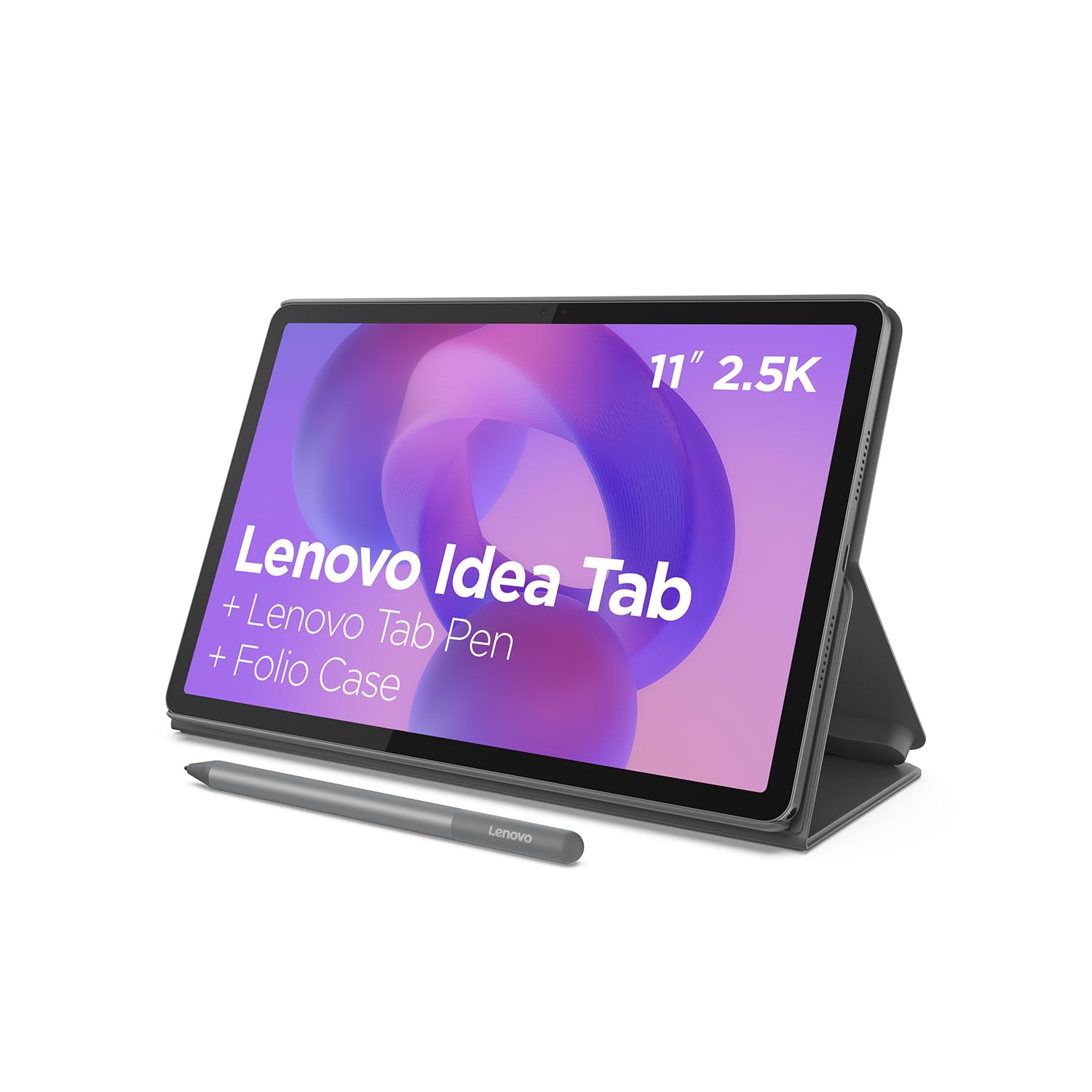
Image 1.1: Lenovo Idea Tab Octa-Core Tablet with stylus and case.
2. Què hi ha a la caixa
Verifiqueu que tots els elements estiguin presents a l'embalatge del producte:
- Lenovo Idea Tab Tablet
- Adaptador de corrent (20 W)
- Cable de càrrega USB-A a USB-C
- Protective Cover/Case
- Lenovo Tab Pen (Stylus)
- 2 puntes de bolígraf de recanvi
- MicroSD Tray Eject Pin
- Guia d'inici ràpid
- Guia de seguretat i garantia
- AAAA Battery (for pen)
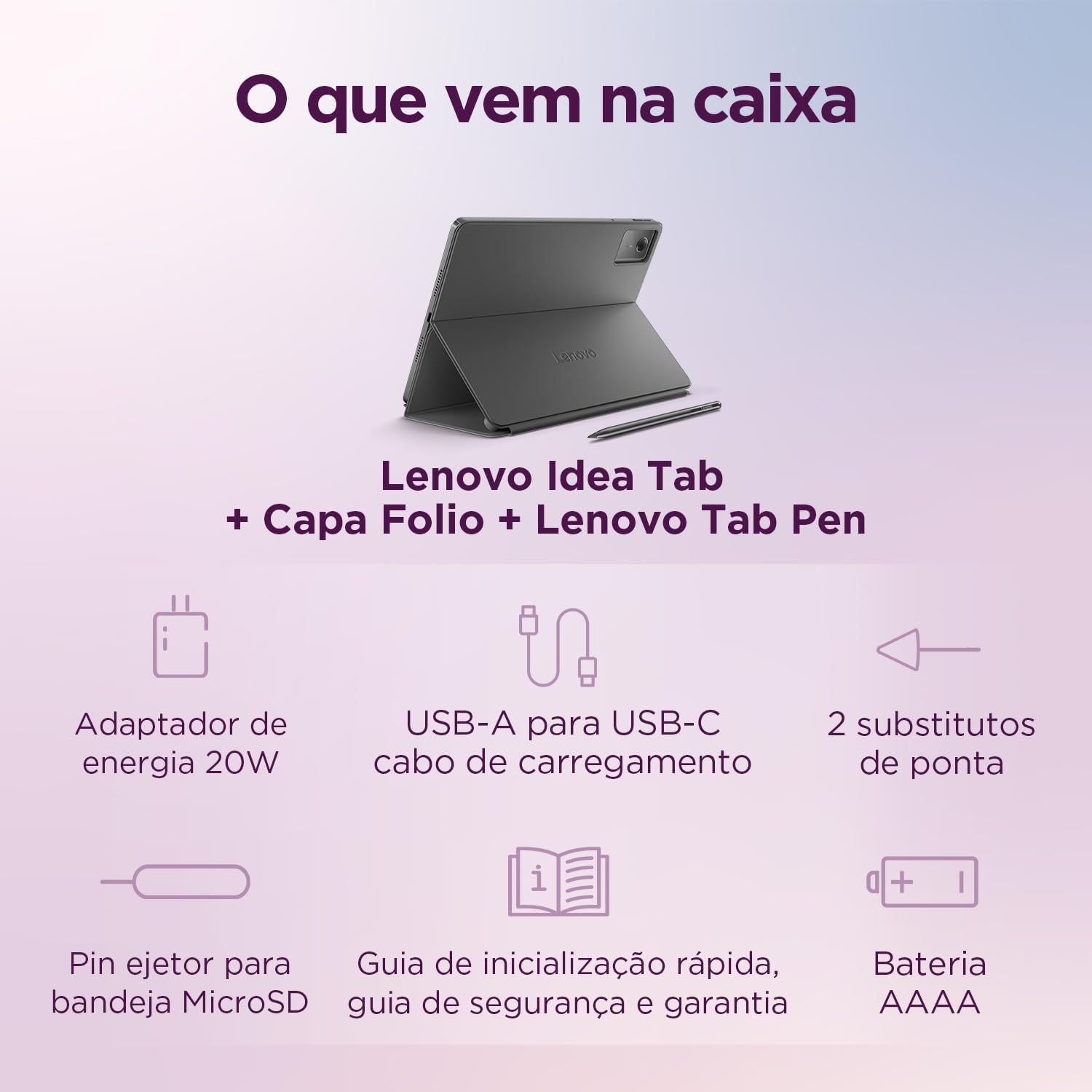
Image 2.1: Illustration of the items included in the product packaging.
3. Configuració
3.1 Càrrega inicial
Before first use, fully charge your tablet. Connect the USB-C cable to the tablet's charging port and the power adapter to a wall outlet. The charging indicator will illuminate.
3.2 Engegada/apagada
- Per encendre: Manteniu premut el botó d'engegada fins que aparegui el logotip de Lenovo.
- Per apagar: Mantingueu premut el botó d'engegada i, a continuació, seleccioneu "Apagar" de les opcions que apareixen a la pantalla.
- Per reiniciar: Mantingueu premut el botó d'engegada i, a continuació, seleccioneu "Reiniciar" de les opcions.
3.3 Assistent de configuració inicial
Upon first power-on, follow the on-screen instructions to configure your tablet:
- Seleccioneu el vostre idioma preferit.
- Connecteu-vos a una xarxa Wi-Fi.
- Inicia la sessió amb el teu compte de Google o crea'n un de nou.
- Review i acceptar els termes i condicions.
- Set up security features like PIN, pattern, or password.
3.4 Fixació de la funda protectora
Align the tablet with the case and gently press it into place. The case is designed to protect your device and can often function as a stand.

Image 3.1: Tablet positioned in its protective case, acting as a stand.
3.5 Ús del Lenovo Tab Pen
The Lenovo Tab Pen enhances interaction with your tablet. It may require an AAAA battery (included). Insert the battery according to the polarity markings. The pen can be used for writing, drawing, and precise navigation.

Image 3.2: Lenovo Idea Tab with the accompanying stylus.
4. Instruccions de funcionament
4.1 Navegació bàsica
Your tablet uses Android 15, offering intuitive touch gestures:
- Toca: Seleccioneu un element.
- Fes doble toc: Apropar/reduir el zoom web pàgines o imatges.
- Llisca: Scroll through lists or pages.
- Pessigar: Amplia / redueix.
- Premsa llarga: Accedir a menús contextuals o moure icones.
4.2 Connexió a Wi-Fi
Per connectar-se a una xarxa Wi-Fi:
- Vés a Configuració > Xarxa i Internet > Internet.
- Activa la Wi-Fi.
- Seleccioneu la xarxa desitjada de la llista.
- Introduïu la contrasenya si us demana i, a continuació, toqueu Connecta't.
4.3 Vinculació Bluetooth
Per sincronitzar amb un dispositiu Bluetooth:
- Vés a Configuració > Dispositius connectats > Preferències de connexió > Bluetooth.
- Activa el Bluetooth.
- Assegureu-vos que el dispositiu Bluetooth estigui en mode d'emparellament.
- Select the device from the 'Available devices' list and follow any on-screen prompts.
4.4 Ús de la càmera
Your tablet features a 5MP front camera and an 8MP rear camera. Open the Camera app to take photos or record videos. Tap the screen to focus and press the shutter button to capture.
4.5 Funcions de pantalla i àudio
Experience clear visuals and immersive sound:
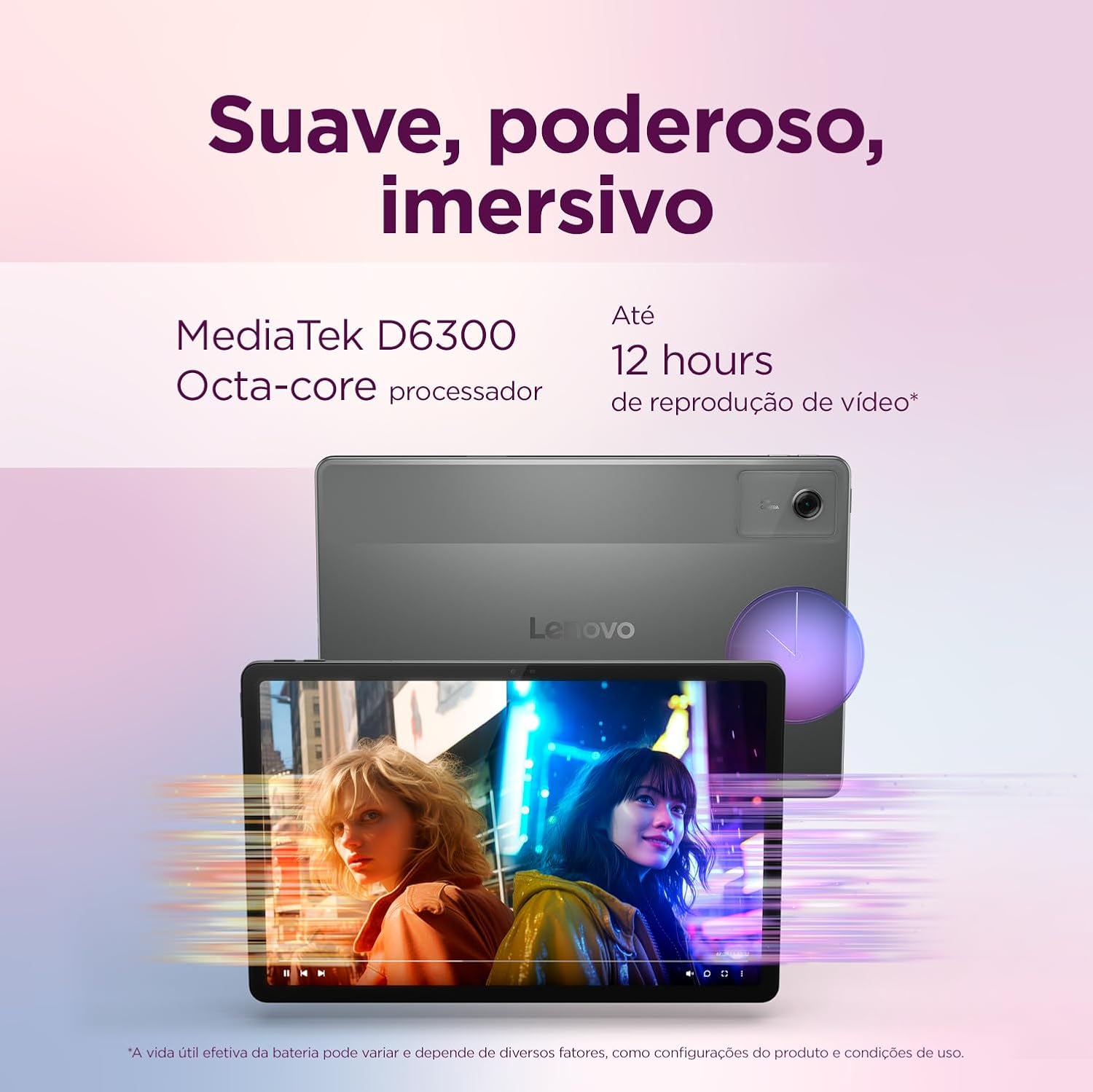
- Visualització: The 11-inch 2.5K (2560 x 1600) WVA display offers 500 nits of brightness and a 90Hz refresh rate for smooth visuals. Adjust brightness in Configuració > Mostra.
- Àudio: Equipped with four speakers and Dolby Atmos support for rich, clear audio.

Image 4.1: Visual representation of the tablet's display and audio capabilities.
4.6 Circle to Search with Google
Utilize the 'Circle to Search' feature for quick information retrieval. Simply circle an object, text, or image on your screen to initiate a Google search without leaving your current application.
Imatge 4.2: Ex.ample of using 'Circle to Search' on the tablet.
4.7 Unify Your Digital Life
The tablet supports features like Share Hub and Smart Clipboard to seamlessly integrate with your other devices, allowing for easy file sharing and content transfer.
5. Manteniment
5.1 Neteja del dispositiu
To clean your tablet:
- Utilitzeu un drap suau i sense pelusses.
- Per a marques difícils, esbandiu lleugeramentampNetegeu el drap amb aigua o un netejador de pantalles dissenyat específicament per a electrònica.
- Eviteu l'ús de productes químics agressius, materials abrasius o humitat excessiva.
5.2 Cura de la bateria
Per maximitzar la durada de la bateria:
- Eviteu temperatures extremes.
- No deixeu que la bateria es descarregui completament amb freqüència.
- Desendolleu el carregador un cop la bateria estigui plena.
5.3 Actualitzacions de programari
Comproveu i instal·leu regularment si hi ha actualitzacions de programari per assegurar-vos que la tauleta tingui les darreres funcions, pegats de seguretat i millores de rendiment. Aneu a Configuració > Sistema > Actualització del sistema.
6. Solució De Problemes
If you encounter issues with your tablet, try the following solutions:
| Problema | Solució |
|---|---|
| La tauleta no s'encén | Assegureu-vos que la bateria estigui carregada. Connecteu-la al carregador durant almenys 30 minuts i, a continuació, torneu-la a engegar. |
| Problemes de connexió Wi-Fi | Restart your Wi-Fi router and the tablet. Forget the network in settings and reconnect. |
| Rendiment lent | Close unused apps. Clear cache. Check for software updates. Consider a factory reset if the issue persists (back up data first). |
| La pantalla tàctil no respon | Restart the tablet. If unresponsive, force restart by holding the power button for 10-15 seconds. |
6.1 Restabliment de fàbrica
If troubleshooting steps do not resolve the issue, you may perform a factory reset. Avís: Això esborrarà totes les dades de la tauleta. Fes una còpia de seguretat de les dades importants abans de continuar. Vés a Configuració > Sistema > Restablir opcions > Esborra totes les dades (restabliment de fàbrica).
7. Especificacions
| Característica | Detall |
|---|---|
| Nom del model | Lenovo Idea Tab |
| Número de model | ZAFR0853BR |
| Processador | MediaTek Dimensity 6300 Octa Core |
| Sistema operatiu | Android 15 |
| RAM | 4 GB |
| Emmagatzematge | 128 GB |
| Mida de la pantalla | 11 polzades |
| Resolució de visualització | 2560 x 1600 (2.5K) |
| Freqüència d'actualització | 90 Hz |
| Brillantor | 500 Nit |
| Càmera posterior | 8 MP |
| Càmera frontal | 5 MP |
| Wi-Fi | Wi-Fi 5 (802.11ac) |
| Bluetooth | Bluetooth 5.2 |
| Dimensions (L x A x A) | 25.4 x 16.6 x 0.69 cm |
| Pes | 1.28 kg |
| Font d'alimentació | AC/DC |
| Dispositius compatibles | Cover, Pen, Stylus |
8. Informació de la garantia
Your Lenovo Idea Tab Tablet is covered by a limited warranty. Please refer to the 'Safety and Warranty Guide' included in your product packaging for detailed terms and conditions, warranty period, and claim procedures. Keep your proof of purchase for warranty service.
9. Suport
For further assistance, technical support, or to download the latest drivers and manuals, please visit the official Lenovo support weblloc:
Weblloc: support.lenovo.com
També podeu trobar informació de contacte del servei d'atenció al client de la vostra regió a la pàgina d'assistència. weblloc.


