1. Introducció
This manual provides essential information for the proper setup, operation, and maintenance of your EVICIV 15.6" 1080P Portable Monitor. Please read this manual thoroughly before using the product to ensure optimal performance and longevity. This monitor is designed to extend your visual workspace, offering a Full HD IPS display with versatile connectivity for various devices.
2. Contingut del paquet
Si us plau, verifiqueu que tots els elements que s'enumeren a continuació siguin presents al vostre paquet:
- EVICIV 15.6" 1080P Portable Monitor
- Protective Sleeve Case
- 2 cables USB-C a USB-C
- 1 x cable USB-A a USB-C
- 1 x cable Mini HDMI a HDMI
- 1 x PD30W Power Adapter
- 4 x M4 x 4mm VESA Screws
- Manual d'usuari (aquest document)
3. Producte acabatview
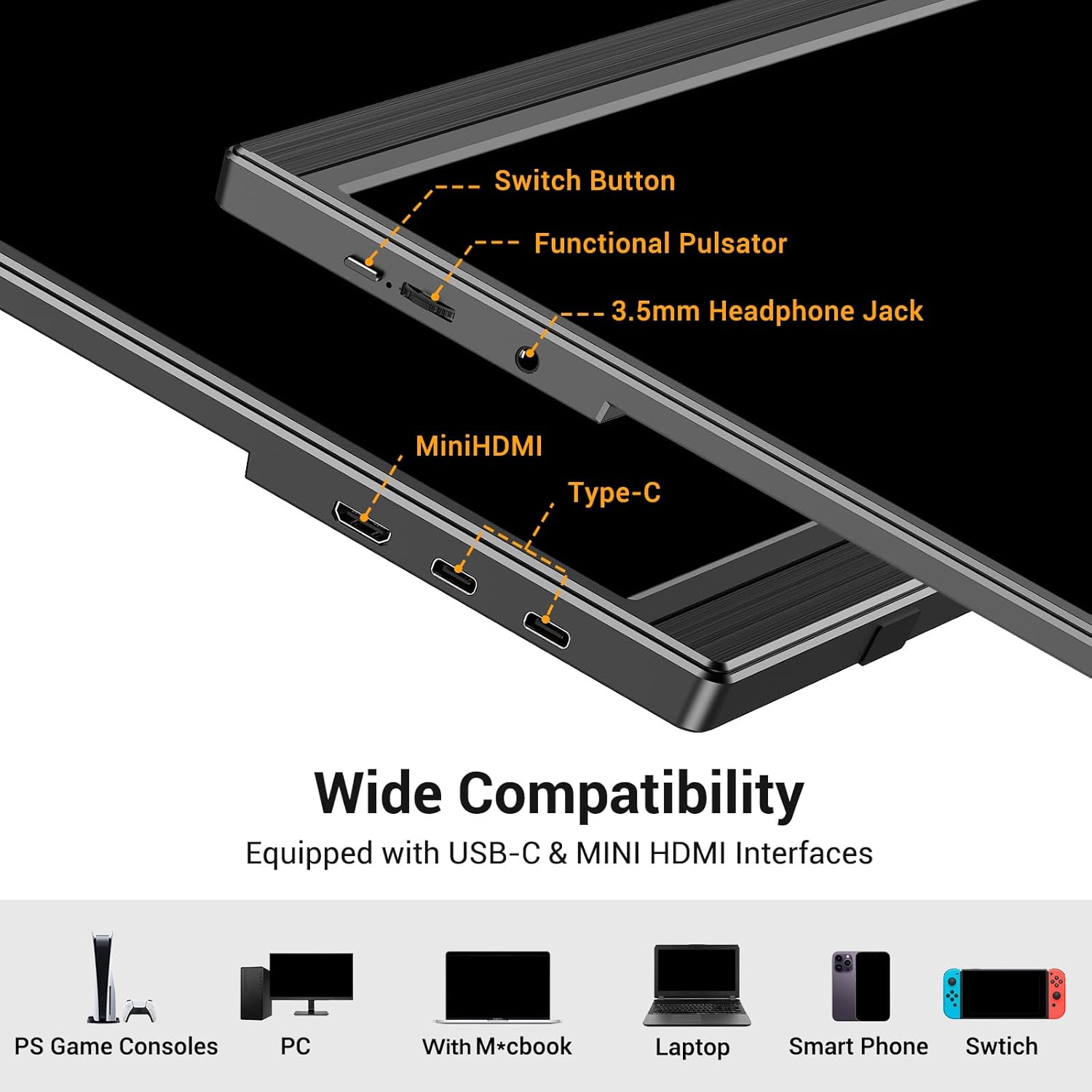
The EVICIV portable monitor features a sleek design with essential ports and controls for ease of use.

Aquesta imatge mostra el lateral profile of the EVICIV portable monitor, highlighting its connectivity options. From left to right, it shows a Switch Button, a Functional Pulsator (likely for OSD navigation), a 3.5mm Headphone Jack, a Mini HDMI port, and two Type-C (USB-C) ports. Below these ports, icons illustrate compatibility with PS Game Consoles, PC, MacBook, Laptop, Smart Phone, and Switch.
Característiques principals:
- Pantalla IPS Full HD de 15.6 polzades (1920 x 1080): Proporciona àmplia viewangles d'ajust i reproducció precisa del color.
- Connectivitat versàtil: Equipped with USB-C and Mini HDMI ports for broad device compatibility.
- Suport integrat: Built-in adjustable stand for ergonomic viewing.
- Compatible amb muntatge VESA: Supports 75x75mm VESA mounting for flexible installation.
- Altaveus integrats: For integrated audio output.
- Lightweight and Ultra-Slim: Designed for portability.
4. Configuració
4.1 Connecting to Devices via USB-C
For devices with a full-function USB-C port (supporting DisplayPort Alternate Mode and Power Delivery), a single USB-C cable can transmit both video signal and power to the monitor.
This image illustrates a laptop connected to the EVICIV portable monitor via a single USB-C cable. The diagram shows that this connection provides both simultaneous power supply and signal transmission. Text indicates that the connected device needs a Type C 3.1 interface or a Thunderbolt 3/4 full-function USB-C port for this functionality.
- Connect one end of the USB-C to USB-C cable to your device's full-function USB-C port.
- Connect the other end of the USB-C to USB-C cable to one of the monitor's USB-C ports.
- El monitor hauria de detectar el senyal i encendre's automàticament.
4.2 Connecting to Devices via Mini HDMI
For devices that do not support full-function USB-C, or if you prefer HDMI, you can use the Mini HDMI port for video signal and a separate USB-C cable for power.
The lower part of the image above shows a laptop connected to the EVICIV portable monitor using a Mini HDMI cable for video and a USB-C to USB-C cable for power. Text explains that if the device does not have a USB-C port, the display can be connected via an HDMI cable and a USB-C power cable. A 5V/3A power plug is provided in the package for this purpose.
- Connecteu un extrem del cable Mini HDMI a HDMI al port HDMI del dispositiu.
- Connect the other end of the Mini HDMI to HDMI cable to the monitor's Mini HDMI port.
- Connect one end of the USB-A to USB-C cable to the included PD30W power adapter (or another suitable power source).
- Connect the USB-C end of the cable to one of the monitor's USB-C ports for power.
- Ensure the power adapter is plugged into a wall outlet.
4.3 Ús del suport integrat
The monitor features a built-in adjustable stand for comfortable viewangles d'ajust.

This image compares the EVICIV monitor's adjustable stand with a non-adjustable one. The EVICIV monitor features an ergonomic stand allowing 0-90° tilt adjustment, which helps reduce strain on the cervical spine and eyes. In contrast, a non-adjustable stand increases this burden.
- Gently pull out the integrated stand from the back of the monitor.
- Ajusteu el suport al vostre gust viewing angle (0-90° tilt adjustment).
- Ensure the monitor is stable on a flat surface.
4.4 Muntatge VESA
For more permanent or flexible mounting solutions, the monitor is VESA compatible.

This image demonstrates the VESA mounting capability of the EVICIV portable monitor. It shows the back of the monitor with a VESA hole spacing of 75mm x 75mm and a hole depth of 3mm. The image illustrates both horizontal and vertical installation options using a VESA mount, noting that 2 screws (included) are required.
- Locate the VESA mounting holes on the back of the monitor (75x75mm spacing).
- Attach your VESA-compatible mount using the provided M4 x 4mm screws.
- Ensure the mount is securely fastened before releasing el monitor.
5. Funcionament
5.1 Encès/Apagat
To power on the monitor, press the 'Switch Button' located on the side. To power off, press and hold the 'Switch Button' for a few seconds.
5.2 Navegació pel menú OSD
The On-Screen Display (OSD) menu allows you to adjust various monitor settings. Use the 'Functional Pulsator' (joystick-like button) to navigate the menu.
- Press the Pulsator: Per obrir el menú OSD.
- Move Pulsator Up/Down: Per navegar per les opcions del menú.
- Move Pulsator Left/Right: To adjust values or enter sub-menus.
- Press Pulsator Again: To confirm a selection or exit a sub-menu.
5.3 Configuració de la pantalla
Within the OSD menu, you can customize display parameters:
- Brillantor/Contrast: Ajusta la luminància general i la relació de contrast.
- Configuració de color: Modifica la temperatura de color, el to i la saturació.
- Mode HDR: Enable or disable High Dynamic Range for enhanced visual experience (if supported by the source).
- Relació d'aspecte: Select between 16:9 or other available aspect ratios.
- Mode de cura dels ulls: Reduce blue light emission for comfortable viewdurant un ús prolongat.
5.4 Configuració d'àudio
The monitor includes built-in speakers. You can adjust the volume or mute the audio through the OSD menu. Alternatively, connect external headphones or speakers to the 3.5mm headphone jack.
6. Manteniment
Proper maintenance ensures the longevity and performance of your monitor.
- Neteja de la pantalla: Utilitzeu un drap suau i sense pelusa lleugerament dampNetegeu amb aigua o un netejador de pantalles no abrasiu. Eviteu productes químics agressius o materials abrasius.
- Neteja de la Casing: Netegeu el monitor casinamb un drap suau i sec.
- Emmagatzematge: When not in use, store the monitor in its protective sleeve in a cool, dry place away from direct sunlight and extreme temperatures.
- Manipulació: Eviteu deixar caure el monitor ni sotmetre'l a impactes forts. No col·loqueu objectes pesats a sobre.
7. Solució De Problemes
Si teniu problemes amb el monitor, consulteu els problemes i solucions més comuns següents:
| Problema | Possible solució |
|---|---|
| No display/"No Signal" message |
|
| El monitor no s'encén |
|
| La imatge està distorsionada o parpelleja |
|
| No hi ha so dels altaveus |
|
If the problem persists after trying these solutions, please contact EVICIV customer support.
8. Especificacions
| Característica | Detall |
|---|---|
| Marca | EVICIV |
| Número de model | 180385a4-07e3-4163-96db-21a5f0816169 |
| Mida de la pantalla | 15.6 polzades |
| Resolució | Full HD 1080p (1920 x 1080) |
| Tipus de panell | IPS |
| Relació d'aspecte | 16:9 |
| Freqüència d'actualització | 60 Hz |
| Temps de resposta | 3 mil·lisegons |
| Superfície de la pantalla | Mat |
| Dimensions del producte | 1.3 D x 36 W x 22.8 H centímetres |
| Pes de l'article | 650 g |
| Voltage | 5 volts (CA) |
| Consum d'energia | 7 watts |
| Característiques especials | Portable, Built-In Speakers, High Dynamic Range (HDR) |
| Color | Negre |
9. Garantia i Suport
EVICIV is committed to providing comprehensive customer care for your product.
- Període de garantia: This product comes with a 2-year support period from the date of purchase.
- Atenció al client: We offer 24-hour assistance for any inquiries or issues you may encounter.
- Resolution Timeframe: Our goal is to address and resolve any inquiries efficiently, targeting resolution within an 8-hour timeframe.
For support, please refer to the contact information provided with your purchase or visit the official EVICIV weblloc.


