1. Introducció
Thank you for choosing the WECOOL 3-Channel 4K Ultra HD Dash Cam. This manual provides detailed instructions for the installation, operation, and maintenance of your device. Please read it thoroughly before use to ensure proper functionality and to save for future reference.

Image: The WECOOL 3-Channel 4K Ultra HD Dash Cam system, showing the main unit, interior camera, rear camera, and a 64GB SD card, along with a smartphone displaying live footage.
1.1 Contingut del paquet
Verifiqueu que tots els elements que s'enumeren a continuació s'inclouen al vostre paquet:
- 1 x 4K Dash Cam (Main Unit)
- 1 càmera posterior de 1080P
- 1 cable d'alimentació de 11.5 peus amb carregador de cotxe
- 1 cable de càmera posterior de 11.5 peus
- 1 targeta MicroSD de 64 GB
- 1 x Suction Cup Bracket
- 1 x Suport adhesiu 3M
- 1 x Installation Assistant Kit (includes tools and cable clips)
- 1 x Manual d'usuari

Image: Contents of the WECOOL 3-Channel Dash Cam package, showing the main dash cam, rear camera, power cable, rear camera cable, 64GB SD card, suction cup mount, 3M adhesive mount, and installation tools.
1.2 Producte acabatview
Familiarize yourself with the main components and controls of your dash cam:

Imatge: Detallada view of the dash cam's buttons and ports, including the SD card slot, reset button, rearview camera interface, Type-C port, power button, navigation buttons, menu, and microphone.
- Ranura per a targeta SD: Insert the MicroSD card here.
- Botó de restabliment: S'utilitza per reiniciar el dispositiu si deixa de respondre.
- posteriorview Interfície de càmera: Connects the rear camera cable.
- Port de tipus C: Per a la connexió d'alimentació.
- Botó d'engegada / apagada: Manteniu premut per encendre/apagar.
- Botons amunt / avall: Navega per les opcions del menú.
- Botó de menú: Accedir a la configuració i les opcions.
- Botó D'acord/Confirmar: Confirmeu les seleccions.
- MIC: Micròfon integrat per gravar àudio.
- Angle de càmera ajustable: The interior camera can be adjusted.
2. Configuració i instal·lació
Follow these steps for proper installation of your WECOOL Dash Cam.
2.1 Inserció de la targeta MicroSD
- Assegureu-vos que la càmera del salpicader estigui apagada.
- Insert the provided 64GB MicroSD card into the SD card slot until it clicks into place.
- Per treure-la, premeu suaument la targeta fins que surti.
2.2 Mounting the Front Dash Cam
Choose between the suction cup bracket or the 3M adhesive mount.
- Netegeu a fons la zona desitjada del parabrisa.
- Attach the chosen mount to the dash cam.
- For the suction cup, press firmly against the windshield and flip the lever to secure.
- For the 3M adhesive mount, peel off the protective film and firmly press the mount onto the windshield for at least 30 seconds. Allow 24 hours for the adhesive to fully bond before attaching the dash cam.
- Adjust the front camera angle to ensure a clear view del camí per davant.

Image: Visual guide for easy installation, demonstrating the placement of the main dash cam on the windshield and the routing of the rear camera cable along the vehicle's interior.
2.3 Instal·lació de la càmera posterior
- Connect the 11.5ft rear camera cable to the main dash cam's rearview interfície de càmera.
- Route the cable neatly along the headliner, down the A-pillar, and along the door sills to the rear of the vehicle. Use the provided installation assistant kit and cable clips to secure the cable.
- Clean the desired area on your rear windshield.
- Peel off the adhesive film from the rear camera and firmly stick it to the rear windshield.
- Connect the rear camera cable to the rear camera.
Video: An official WECOOL video demonstrating the installation process of the 3-channel dash cam, including cable routing and camera placement.
2.4 Connexió d'alimentació
- Plug the 11.5ft power supply cable into the Type-C port on the dash cam.
- Insert the car charger end into your vehicle's 12V power outlet (cigarette lighter socket).
- The dash cam will automatically power on and begin recording when your vehicle starts.
3. Instruccions de funcionament
3.1 Enregistrament bàsic
The WECOOL Dash Cam features synchronized three-channel recording: a 4K Ultra HD front camera, a 1080P Full HD interior camera, and a 1080P Full HD rear camera. Once powered on, the device automatically begins continuous loop recording.

Image: Three simultaneous views from the dash cam: front (4K), interior (1080P), and rear (1080P), demonstrating comprehensive coverage.
3.2 G-Sensor Emergency Lock
The built-in G-sensor automatically detects sudden impacts or collisions. When triggered, it locks the current video footage to a protected folder on the MicroSD card, preventing it from being overwritten by loop recording. This ensures critical evidence is preserved.

Image: Illustration of the G-Sensor activating during a collision, automatically locking the video footage per evitar la sobreescritura.
3.3 Enregistrament en bucle
The loop recording feature ensures continuous recording. When the MicroSD card is full, the dash cam automatically overwrites the oldest unlocked video files. Tancat files (from G-sensor events) are protected and will not be overwritten.

Image: The dash cam displaying the loop recording function, indicating that older files are replaced by new ones, while also showing the included 64GB SD card and a laptop connected for data transfer.
WiFi de 3.4 i 5 GHz i control per aplicació
The dash cam features built-in 5GHz WiFi for faster data transfer and seamless app control. Download the dedicated app to your smartphone to:
- Preview vídeo en directe footage.
- Download recorded videos to your phone (up to 8MB/s transfer speed).
- Ajusteu la configuració de la càmera.
- Share travel highlights directly to social media.
Note: The effective WiFi range is approximately 3-5 meters.

Image: A smartphone screen showing the dash cam app interface, with options for settings, playback, downloading, and sharing videos, highlighting the 5GHz WiFi for faster transfers.
3.5 24/7 Parking Surveillance
When your vehicle is parked, the dash cam can continuously monitor its surroundings for theft or vandalism, providing 24/7 security. This feature requires a separately purchased Type-C hardwiring kit for continuous power supply.

Image: Visual representation of 24-hour parking monitoring, showing a car under surveillance and icons for anti-theft and continuous recording. A note indicates that a hardwiring kit is required.
3.6 Superior Night Vision with WDR Technology
Equipped with an F1.6 aperture, 6 high-performance glass lenses, and Wide Dynamic Range (WDR) technology, this dash cam optimizes recording in low-light conditions. WDR balances bright and dark areas, resulting in clear, high-contrast footagfins i tot a la nit.
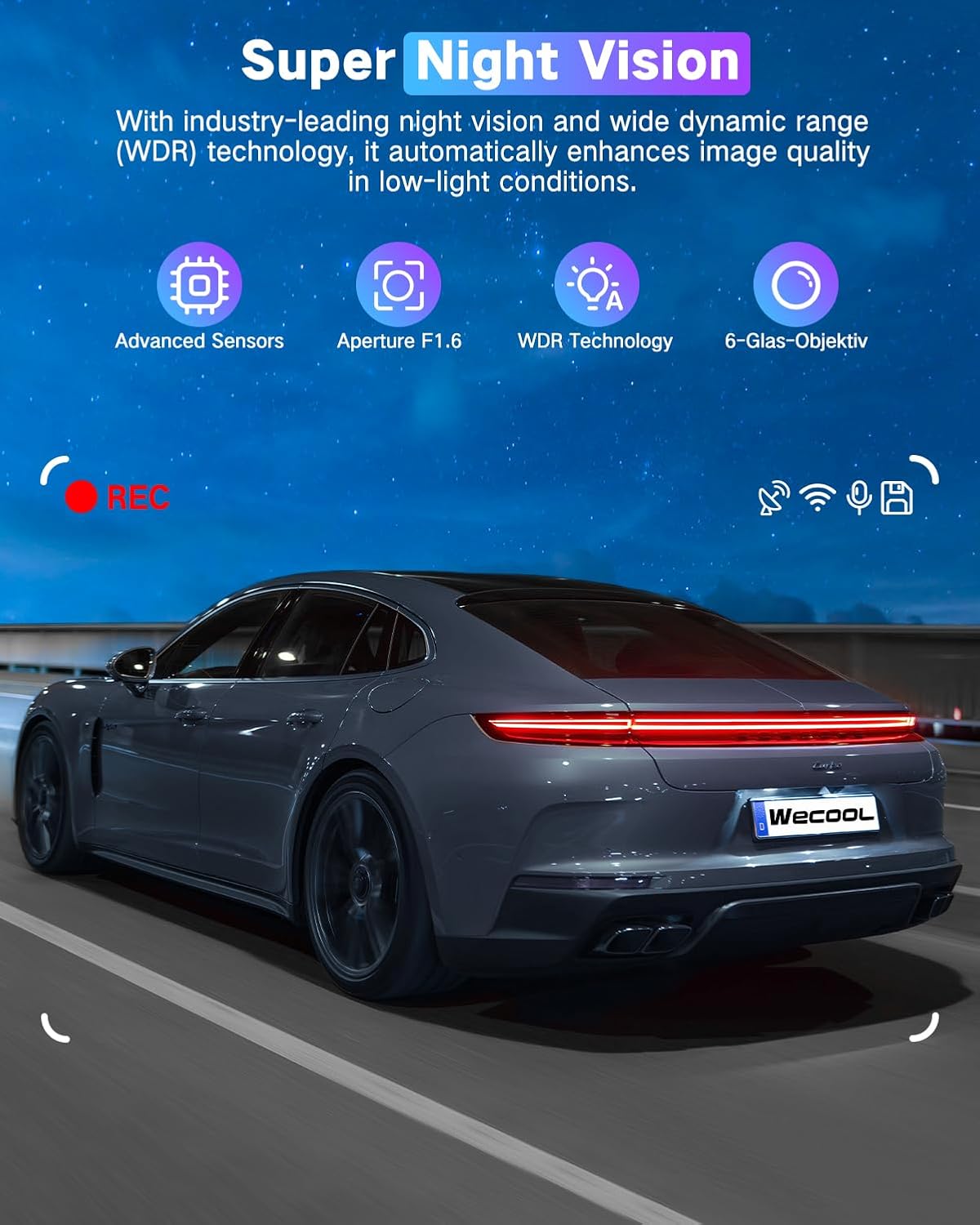
Image: A car driving at night, demonstrating the effectiveness of Super Night Vision with WDR Technology for clear footage en ambients amb poca llum.
3.7 470° Ultra-Wide Angle All-Round Protection
The dash cam provides extensive coverage with a 170° ultra-wide front lens, a 150° wide-angle rear lens, and a 150° interior wide-angle lens. This combined 470° field of view minimizes blind spots and captures comprehensive details around and within your vehicle.

Image: A diagram illustrating the 470° panoramic wide-angle coverage, combining the 170° front, 150° interior, and 150° rear camera views.
4. Manteniment
4.1 Gestió de targetes SD
- Format: It is recommended to format the MicroSD card regularly (e.g., once a month) to maintain optimal performance and prevent data corruption. This can usually be done through the dash cam's menu settings.
- Capacitat: The included 64GB card is sufficient for many users, but the dash cam supports cards up to 256GB for extended recording time.
4.2 Neteja
- Gently wipe the camera lenses with a soft, lint-free cloth to ensure clear video quality. Avoid abrasive materials or harsh chemicals.
- Netegeu el cos de la càmera del salpicader amb un drap sec o lleugerament humit.amp tela.
4.3 Tolerància de temperatura
The dash cam is designed to withstand extreme temperatures from -4°F (-20°C) to 158°F (70°C), ensuring reliable performance in various climates. Its high-strength aluminum alloy housing aids in heat dissipation.

Image: The dash cam operating reliably in both extreme heat (desert, 70°C) and extreme cold (snowy mountains, -15°C), demonstrating its robust temperature tolerance.
5. Solució De Problemes
If you encounter any issues with your dash cam, refer to the following common problems and solutions:
- La càmera del salpicader no s'encén:
- Ensure the power cable is securely connected to both the dash cam and the car's 12V power outlet.
- Check if the car charger is working by testing it with another device.
- Verify your vehicle's 12V power outlet is active (some vehicles require the ignition to be on).
- Problemes d'enregistrament (per exemple, no enregistra, malmès files):
- Formata la targeta MicroSD a través de la configuració de la càmera del salpicader.
- Ensure the MicroSD card is a high-speed Class 10 or U3 card.
- Prova una altra targeta MicroSD per descartar un mal funcionament de la targeta.
- Check if loop recording is enabled and set correctly.
- Problemes de connexió Wi-Fi:
- Ensure you are within the effective range (3-5 meters) of the dash cam.
- Reinicieu tant la càmera del salpicader com el telèfon intel·ligent.
- Reinstall the companion app on your smartphone.
- Poca qualitat de vídeo:
- Netegeu les lents de la càmera amb un drap suau.
- Assegureu-vos que s'hagi tret la pel·lícula protectora de les lents.
- Comproveu la configuració de la resolució de vídeo al menú de la càmera del salpicader.
- Adjust exposure settings if videos appear too dark or too bright.
- El monitor d'aparcament no funciona:
- Confirm that a Type-C hardwiring kit is installed and correctly connected to provide continuous power.
- Comproveu la configuració del mode d'aparcament al menú de la càmera del salpicader.
6. Especificacions
| Característica | Especificació |
|---|---|
| Nom del model | Wecool Dash cam BS001 |
| Resolució de captura de vídeo | Front: 4K, Interior: 1080P, Rear: 1080P |
| Camp de View | Front: 170 Degrees, Interior: 150 Degrees, Rear: 150 Degrees (Total 470°) |
| Tecnologia de connectivitat | USB, Wi-Fi (5GHz), Wireless |
| Característiques especials | 470° Ultra-Wide Angle, 5GHz WiFi, G-Sensor, Loop Recording, Night Vision with WDR, 24H Parking Monitor (requires hardwiring kit) |
| Tipus de muntatge | Windshield Mount (Suction Cup & 3M Adhesive) |
| Components inclosos | 4K Dash Cam, 1080P Rear Camera, Power Supply Cable with Car Charger, Rear Camera Cable, 64GB Card, Suction Cup Bracket, 3M Adhesive Mount, Installation Assistant Kit |
| Dimensions del producte | 3.94 x 2.76 x 1.38 polzades |
| Pes de l'article | 1.15 lliures |
| Color | Negre mat |
| Tolerància a la temperatura | -4 °C (20 °F) a 158 °C (70 °F) |
7. Garantia i Suport
For warranty information, technical support, or any inquiries regarding your WECOOL Dash Cam, please refer to the contact information provided in your product packaging or visit the official WECOOL weblloc. Conserveu el rebut de compra per a reclamacions de garantia.


