1. Introducció
This manual provides essential instructions for the setup, operation, and maintenance of your Mars Gaming MC-LCDX ATX Gaming Case. This case features a 9.16-inch IPS display with HDMI connectivity, continuous tempered glass panels, a lower full mesh panel for enhanced airflow, and support for up to 360mm water cooling systems. Please read this manual thoroughly before installation and use to ensure optimal performance and longevity of your product.
2. Informació de seguretat
- Desconnecteu sempre l'alimentació abans d'instal·lar o treure components.
- Manipuleu els panells de vidre temperat amb cura per evitar que es trenquin.
- Assegureu-vos de posar a terra correctament per evitar riscos elèctrics.
- Keep the case away from liquids and excessive humidity.
- Do not attempt to modify the case structure, as this may void the warranty and cause damage.
3. Contingut del paquet
Verifiqueu que tots els components siguin presents abans de començar la instal·lació.
- Mars Gaming MC-LCDX ATX Gaming Case
- Caixa d'accessoris (cargols, brides de cable, separadors)
- Manual d'usuari (aquest document)
- HDMI Cable (for IPS screen)
- Power Cable (for IPS screen, if separate)
4. Configuració i instal·lació
4.1 Preparació del cas
Place the case on a stable, flat surface. Carefully remove the tempered glass side panels by unscrewing the thumb screws at the rear of the case and sliding the panels off.

Imatge 1: Frontal view of the Mars Gaming MC-LCDX case, showcasing its internal layout with installed components and RGB fans. The integrated IPS screen is visible at the bottom front.
4.2 Instal·lació de la placa base
Install the appropriate standoffs for your ATX motherboard. Carefully place the motherboard into the case, aligning it with the standoffs and the I/O shield opening. Secure the motherboard with screws.
4.3 Instal·lació de la font d'alimentació
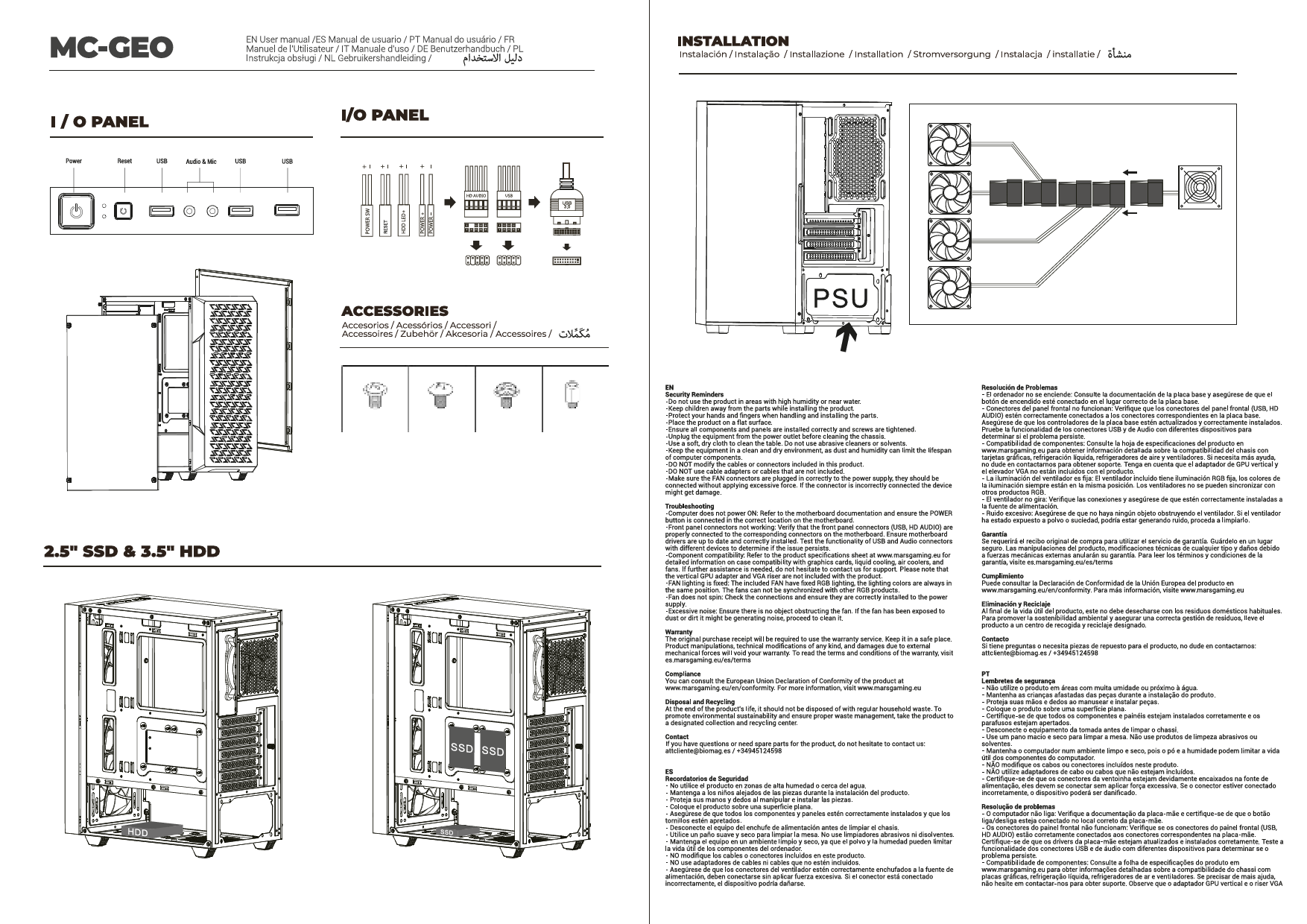
The MC-LCDX features a double chamber system. Install your ATX power supply in the designated lower compartment. Secure it with screws from the rear of the case.
4.4 Instal·lació de la unitat d'emmagatzematge
The case supports multiple 2.5" SSDs and 3.5" HDDs. Utilize the drive bays located behind the motherboard tray for installation. Refer to the internal layout diagram for specific locations.

Image 2: The Mars Gaming MC-LCDX case highlighting the 9.16-inch IPS display and its HDMI connection capability. A monitor is shown next to the case for scale.
4.5 Instal·lació de la targeta gràfica i la targeta d'expansió
Remove the necessary PCIe slot covers. Insert your graphics card or other expansion cards into the motherboard's PCIe slots and secure them with screws.

Imatge 3: Un primer pla view of the Mars Gaming MC-LCDX case, emphasizing its seamless tempered glass design on the front and side panels, providing a clear view de components interns.
4.6 Cooling System Installation (Fans/Water Cooling)
The MC-LCDX supports water cooling radiators up to 360mm. Install fans or radiators in the designated mounting points (top, side, bottom, rear). Ensure proper airflow direction.

Image 4: The Mars Gaming MC-LCDX case showcasing its compatibility with liquid cooling systems, specifically highlighting support for radiators up to 360mm.
4.7 Connecting the IPS Screen
Connect the included HDMI cable from your graphics card or motherboard to the HDMI input on the MC-LCDX's integrated IPS screen. Connect the screen's power cable to a suitable power source (e.g., SATA power from PSU or USB header, depending on screen design).
4.8 Gestió de cables
Aprofita els retalls de cables i els punts d'amarratge que hi ha darrere de la safata de la placa base per gestionar els cables. Això millora la circulació del flux i l'estètica.

Image 5: An exploded diagram of the Mars Gaming MC-LCDX case, illustrating various fan and radiator mounting options and component clearances, including CPU cooler height and GPU length.

Image 6: A rear internal view of the Mars Gaming MC-LCDX case, detailing the locations for 2.5" SSD and 3.5" HDD installations behind the motherboard tray, along with overall case dimensions.
4.9 Assemblea final
Once all components are installed and cables are managed, reattach the tempered glass side panels and secure them with the thumb screws.
5. Instruccions de funcionament
5.1 Encès
Connect the power cable to your power supply and an electrical outlet. Press the power button located on the front I/O panel to start your system.

Image 7: A close-up of the Mars Gaming MC-LCDX's front I/O panel, showing the power button, USB ports (including USB-C), and audio jacks for convenient peripheral connectivity.
5.2 Using the IPS Screen
The integrated 9.16-inch IPS screen will display content from the connected HDMI source. You may need to configure display settings within your operating system to extend or duplicate your main display to the IPS screen.

Image 8: The Mars Gaming MC-LCDX case illuminated with vibrant RGB lighting, demonstrating the aesthetic potential and visibility of internal components through the tempered glass panels.
5.3 Ports d'E/S frontals
The front I/O panel provides convenient access to USB ports (including USB-C), audio jacks, and the power/reset buttons. Connect your peripherals as needed.
6. Manteniment
6.1 Neteja del filtre de pols
The MC-LCDX includes dust filters to prevent dust accumulation. Regularly clean these filters (e.g., monthly) by removing them and gently brushing or washing them with water. Ensure they are completely dry before reinstallation.

Imatge 9: A view of the Mars Gaming MC-LCDX case from a slightly elevated angle, highlighting the full mesh bottom panel designed for optimal airflow and dust filtration.
6.2 Case Cleaning
Netegeu l'exterior de la carcassa amb un drap suau iamp cloth. For tempered glass panels, use a glass cleaner and a microfiber cloth to avoid streaks. Avoid abrasive cleaners.
6.3 Internal Component Check
Periodically inspect internal components for dust buildup. Use compressed air to gently clean fans, heatsinks, and other components. Ensure all connections remain secure.
7. Solució De Problemes
7.1 El sistema no s'encén
- Check if the power cable is securely connected to the power supply and the wall outlet.
- Assegureu-vos que l'interruptor de l'alimentació estigui a la posició "ON".
- Verify that the front panel power button cable is correctly connected to the motherboard.
- Confirm that all internal power connections (24-pin ATX, CPU, GPU) are secure.
7.2 IPS Screen Not Displaying
- Ensure the HDMI cable is securely connected from your graphics card/motherboard to the screen.
- Verify the screen's power cable is connected.
- Check your operating system's display settings to ensure the screen is detected and configured.
- Try a different HDMI port or cable if available.
7.3 Soroll excessiu
- Identify the source of the noise (e.g., fan, hard drive).
- Clean any dusty fans.
- Ensure all components are securely mounted to prevent vibrations.
8. Especificacions
| Característica | Detall |
|---|---|
| Model | MC-LCDX |
| Tipus de cas | ATX Gaming Case (Full Tower) |
| Dimensions (L x A x A) | 44.3 x 24.6 x 47.5 cm |
| Pes | 7.35 kg |
| Material | Vidre temperat |
| Suport de la placa base | ATX |
| IPS Screen Size | 9.16 polzades |
| IPS Screen Connection | HDMI |
| Suport de refrigeració per aigua | Up to 360mm radiators |
| Característiques especials | Dust Filter, Lower Full Mesh Panel, Double Chamber System |
| Badies d'unitats internes | 3 (Total, for 2.5" SSD / 3.5" HDD) |
9. Informació de la garantia
Mars Gaming products are covered by a limited warranty. Please refer to the official Mars Gaming weblloc web o al vostre punt de compra per conèixer els termes i condicions detallats de la garantia. Conserveu el comprovant de compra per a reclamacions de garantia.
10. Suport tècnic
For technical assistance, troubleshooting, or further inquiries, please visit the official Mars Gaming support website or contact their customer service department. Contact information can typically be found on the Mars Gaming weblloc.
Jocs oficials de Mars Weblloc: www.marsgaming.eu