1. Introducció
The OTTOCAST Play2Video Ultra is an advanced AI Box designed to enhance your in-car entertainment and connectivity. It converts your vehicle's existing wired CarPlay system into a wireless CarPlay and Android Auto experience, while also providing access to popular streaming applications directly on your car's display. This manual provides detailed instructions for setup, operation, and maintenance of your device.

Image: The OTTOCAST Play2Video Ultra device and its retail packaging.
2. Informació de seguretat
Si us plau, llegiu i seguiu aquestes pautes de seguretat per garantir un funcionament correcte i evitar danys al dispositiu o al vostre vehicle:
- No feu servir el dispositiu de manera que us distregui de la conducció. Prioritzeu sempre la seguretat viària.
- Assegureu-vos que el dispositiu estigui ben col·locat i que no us obstrueixi view o interferir amb els controls del vehicle.
- Eviteu exposar el dispositiu a temperatures extremes, a la llum solar directa durant períodes prolongats o a la humitat.
- No intenteu desmuntar ni modificar el dispositiu. Això anul·larà la garantia i pot causar danys.
- Feu servir només els cables i accessoris proporcionats.
3. Contingut del paquet
Verifiqueu que tots els elements siguin presents al vostre paquet:
- 1 x Play2Video Ultra Device
- 1 x USB-A Female to Type-C Male Adapter
- 1 x USB Y Cable
- 1 x Manual d'usuari

Image: All components included in the OTTOCAST Play2Video Ultra package.
4. Guia de configuració
Follow these steps to install and set up your OTTOCAST Play2Video Ultra:
- Connecteu el dispositiu: Locate your vehicle's wired CarPlay USB port. Plug the OTTOCAST Play2Video Ultra device into this port using the provided USB cable. If your car has a USB-C port, use the included USB-A to Type-C adapter. For some vehicles, the Y-cable may be required for stable power delivery.
- Engegada inicial: After connecting, the device will power on. The car's infotainment screen should display the OTTOCAST boot screen. This process typically takes 10-15 seconds.
- Connect to Wi-Fi/Hotspot: On your car's screen, navigate to the device's settings. Connect the Play2Video Ultra to a Wi-Fi network or your mobile hotspot for internet access. This is necessary for streaming services and FOTA updates.
- Emparellar amb el telèfon (CarPlay sense fil/Android Auto):
- For iPhone (Wireless CarPlay): On your iPhone, go to Settings > Bluetooth and pair with the OTTOCAST device. Follow any on-screen prompts on both your phone and car display to enable CarPlay.
- For Android (Wireless Android Auto): On your Android phone, ensure Bluetooth and Wi-Fi are enabled. Open the Android Auto app (if not already running) and follow the prompts to connect to the OTTOCAST device via Bluetooth.
- Access Streaming Apps: Once connected to the internet, you can access pre-installed streaming applications like Netflix, YouTube, and Prime Video directly from the device's interface on your car screen.

Image: Visual guide illustrating the three-step setup process: plug-in, Wi-Fi connection, and content playback.
5. Instruccions de funcionament
5.1 CarPlay sense fil i Android Auto
The Play2Video Ultra automatically converts your wired CarPlay into a wireless connection. Once paired, your phone will connect automatically when you start your vehicle. This allows for hands-free navigation, music playback, and calls.

Image: The 3-in-1 AI Box functionality showing Android 12, Wireless CarPlay, and Wireless Android Auto interfaces on a car display.
5.2 Streaming Entertainment
The device comes with pre-installed applications such as Netflix, YouTube, IPTV, and Amazon Video. Ensure the device is connected to a stable Wi-Fi network or mobile hotspot to stream content. You can also add up to 5 additional apps via the App Hub.
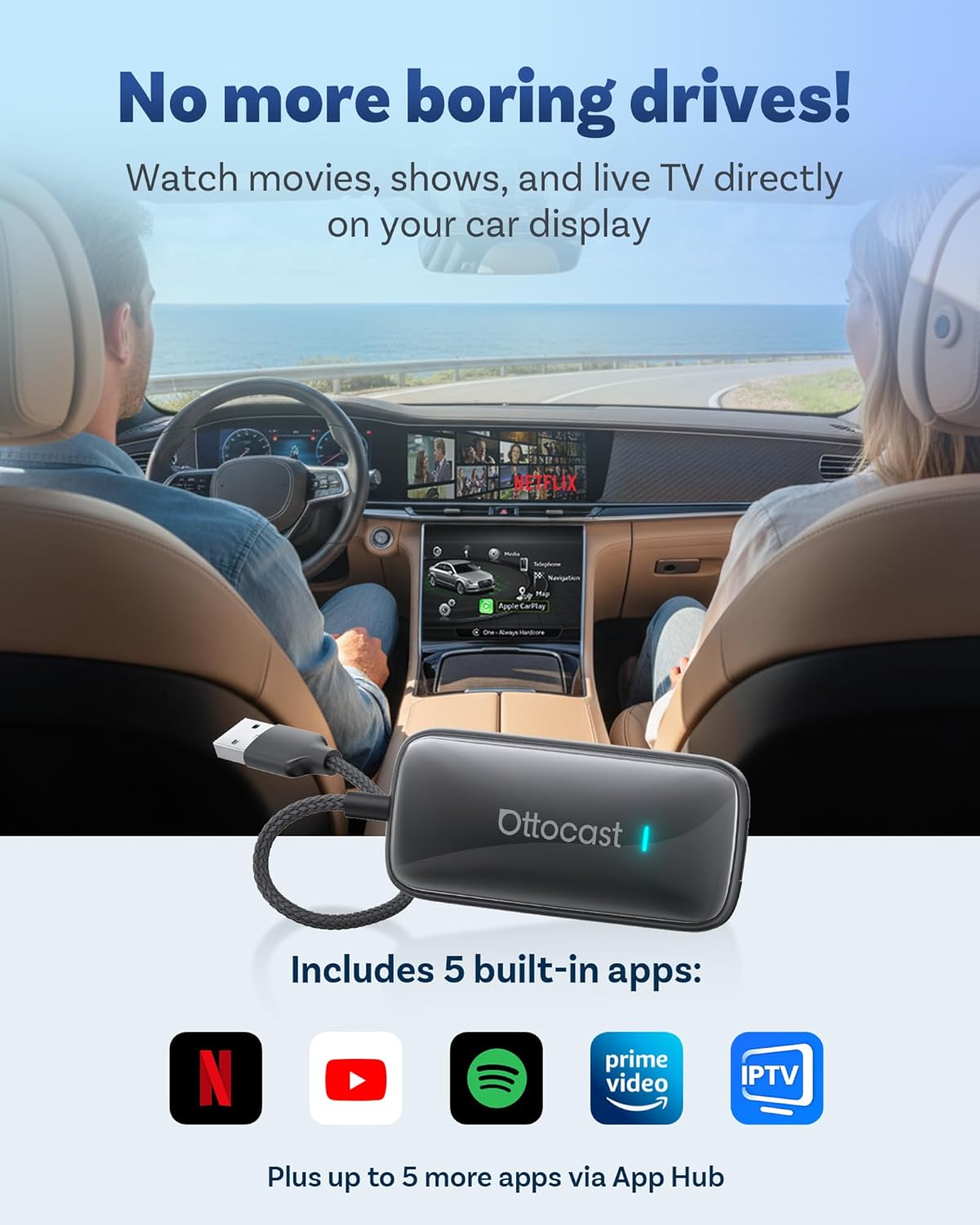
Image: A car interior with the infotainment screen displaying Netflix, demonstrating in-car entertainment.
5.3 Media Playback via USB Drive
The Play2Video Ultra supports offline media playback from a USB drive (up to 128GB). Insert a USB drive containing your media files into the device's USB port. You can then access and play these files through the device's interface, even without an internet connection.
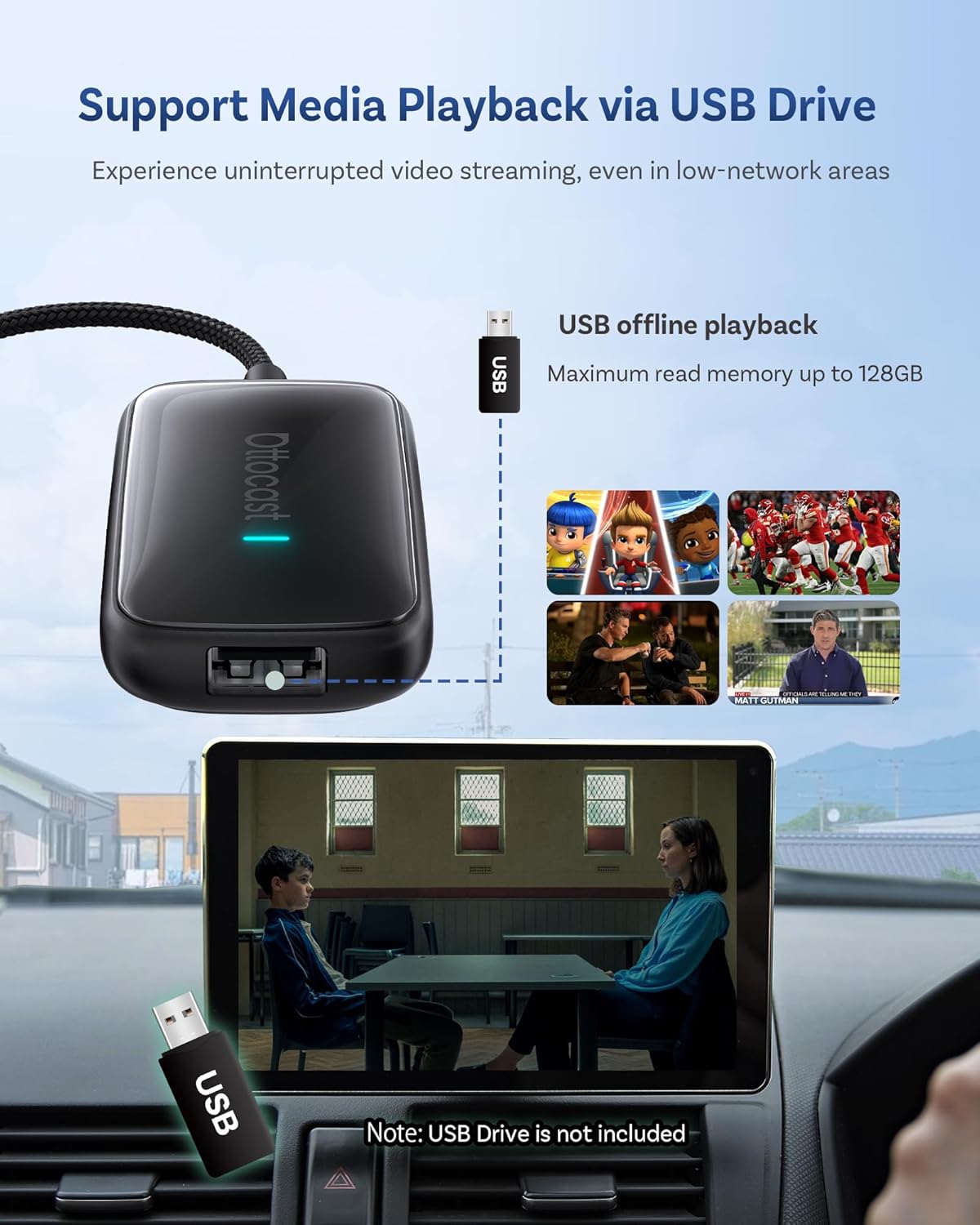
Image: The OTTOCAST device connected to a USB drive, enabling offline media playback on the car's display.
5.4 Mètodes de control
The device supports various control methods, integrating seamlessly with your vehicle's existing systems:
- Assistent de veu: Use your car's voice assistant for commands.
- Control de pantalla tàctil: Directly interact with the car's touch screen.
- Control del volant: Utilize your steering wheel buttons for navigation and media control.
- Control de botó OEM: Compatible with original equipment manufacturer (OEM) control knobs.

Image: Depiction of the multiple control options available, including voice, touch, steering wheel, and OEM knob controls.
6. Característiques
- Connectivitat sense fils: Supports Bluetooth 5.4 and Dual-Band Wi-Fi 6 for fast and stable connections.
- Rendiment potent: Equipped with 4GB RAM and 32GB ROM for smooth operation and app handling.
- Sistema Android 12: Runs on an optimized Android 12 system for a familiar and intuitive user experience.
- Centre d'aplicacions: Access and install additional applications beyond the pre-installed ones.
- Actualitzacions de la FOTA: Firmware Over-The-Air updates ensure your device always has the latest features and improvements.
- Disseny compacte: Small form factor (79 x 39 x 15 mm) for discreet installation.

Image: A comparison highlighting the upgraded features of the Play2Video Ultra (2025 New Ver.) against the Play2Video Pro (2024 Ver.), including Bluetooth version, Wi-Fi standard, RAM & Storage, App Hub availability, surface material, and size.
7. Compatibilitat
7.1 Compatibilitat amb telèfons
- iPhone: iOS 10.0 i posterior.
- Android: Android 11.0 i posterior.
7.2 Compatibilitat del vehicle
The OTTOCAST Play2Video Ultra is compatible with most factory-wired CarPlay vehicles (approximately 98% of models from 2016 onwards). It is no compatible with Tesla or BMW vehicles.
To verify your vehicle's compatibility, please visit the official compatibility checker:
Check Vehicle Compatibility Here
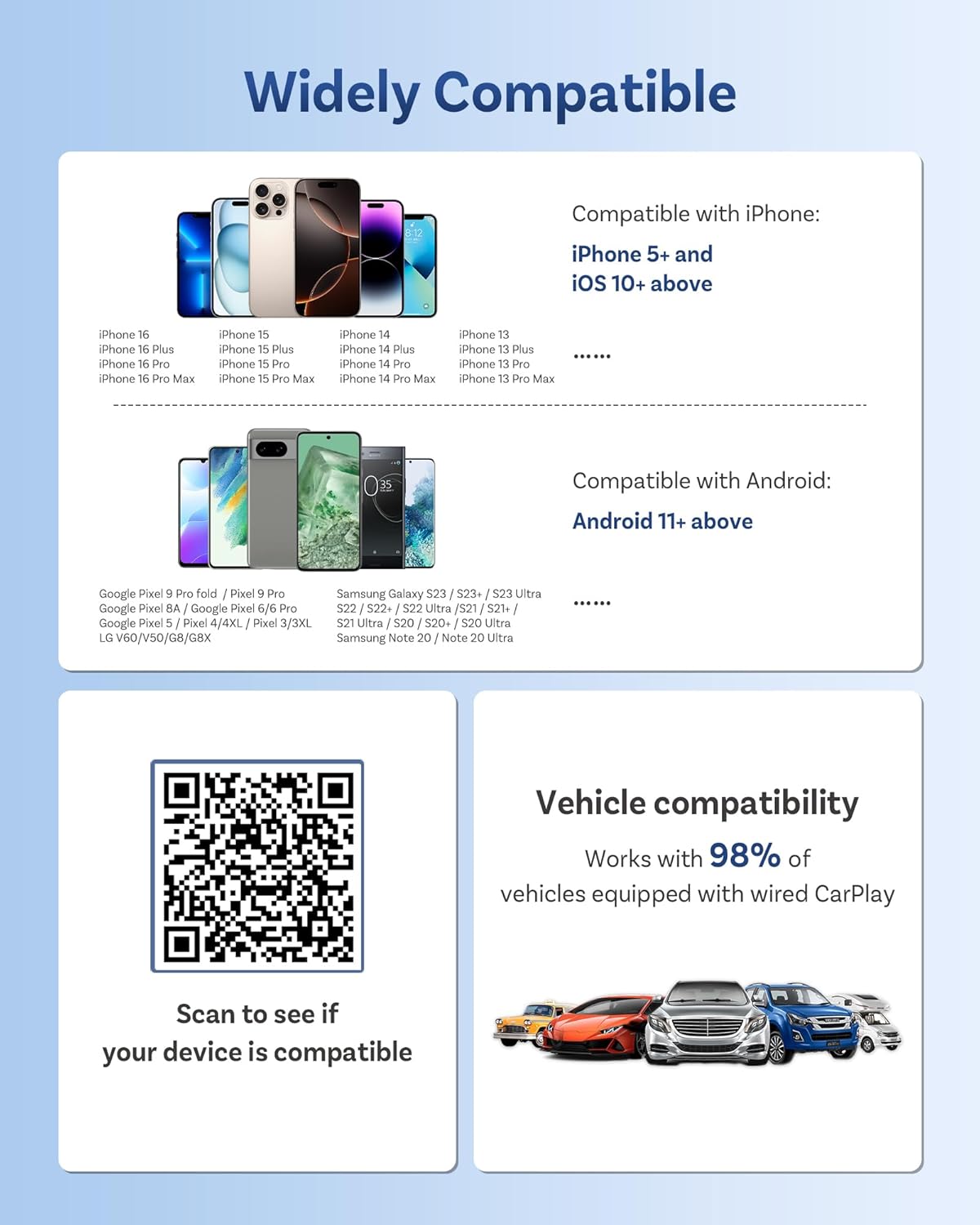
Image: A visual summary of phone and vehicle compatibility, including a QR code to scan for detailed vehicle compatibility.
8. Especificacions
| Característica | Especificació |
|---|---|
| Marca | OTTOCAST |
| Número de model | CA515 |
| Sistema operatiu | Android 12 |
| RAM | 4 GB |
| ROM | 32 GB |
| Versió Bluetooth | 5.4 |
| Wi-Fi estàndard | Wi-Fi de doble banda 6 |
| Serveis d'Internet compatibles | Netflix, YouTube, IPTV, Prime Video, DAZN |
| Resolució | 1080p |
| USB Drive Support | Up to 128GB for offline playback |
| Dimensions del producte | 79 x 39 x 15 mm (3.11 polzades de llargada x 1.53 polzades d'amplada x 0.59 polzades d'alçada) |
| Pes de l'article | 1.34 unces (38 grams) |
| Temperatura de funcionament | -20 °C a 70 °C |
9. Solució De Problemes
If you encounter issues with your OTTOCAST Play2Video Ultra, refer to the following common solutions:
- El dispositiu no s'encén: Ensure the USB cable is securely connected to both the device and a functional USB port in your car. Try a different USB port if available.
- No es mostra a la pantalla del cotxe: Verify your car's infotainment system is set to the CarPlay input. Restart your car and the device.
- El CarPlay/Android Auto sense fil no es connecta:
- Assegureu-vos que el Bluetooth i el Wi-Fi estiguin activats al telèfon.
- Oblida't del dispositiu des de la configuració de Bluetooth del telèfon i torna a emparellar-lo.
- Check that your phone's operating system meets the compatibility requirements (iOS 10+ or Android 11+).
- Streaming Apps Not Working/Buffering:
- Confirm the device is connected to a stable internet source (Wi-Fi or mobile hotspot).
- Check your internet connection speed. For optimal performance, a 5G Wi-Fi connection is recommended.
- Ensure the streaming app is updated to its latest version.
- Lag or Slow Performance: Restart the device. Ensure there are no excessive background applications running.
- Vehicle Compatibility Issues: Double-check your vehicle's compatibility using the provided link in Section 7.2.
10. Manteniment
To ensure the longevity and optimal performance of your OTTOCAST Play2Video Ultra:
- Keep the device clean by wiping it with a soft, dry cloth. Avoid liquid cleaners.
- Guardeu el dispositiu en un lloc fresc i sec quan no l'utilitzeu.
- Regularly check for and install FOTA updates to benefit from performance improvements and new features.
11. Garantia i Suport
The OTTOCAST Play2Video Ultra comes with a 2-year product protection plan. For technical support, warranty claims, or further assistance, please contact OTTOCAST customer service through their official weblloc web o el venedor on es va comprar el producte.


