Introducció
This manual provides detailed instructions for the setup, operation, maintenance, and troubleshooting of your CRUA 28-inch 4K UHD+ IPS 60Hz Monitor. Please read this manual thoroughly before using the product to ensure proper functionality and to prevent damage.
Característiques principals:
- Stunning 4K UHD+ Resolution & 178° Wide Viewangle: The 28-inch PC monitor features a 4K UHD+ 3840×2560 resolution with 178° wide viewing angles, providing ultra-sharp visuals and consistent brightness from any position. The 15:10 aspect ratio offers more screen space for professional design, gaming, and content creation.
- Exceptional Color Accuracy with 10-Bit IPS Panel: Enjoy vivid and accurate colors with 270cd/m² brightness, 1200:1 contrast ratio, and 120% sRGB color gamut. The 10-bit IPS panel ensures 1.07 billion colors, making this monitor suitable for graphic design, photo editing, and video editing.
- Built-in Speakers & Type-C Charging Port: Integrated speakers provide convenient audio output without external devices. The Type-C charging port offers a seamless power supply to compatible devices, reducing cable clutter.
- Versatile Connectivity & Wall Mount Compatibility: Equipped with HDMI 2.0 and DP 1.4 ports for fast, stable connections. The wall-mountable design (75x75mm VESA) saves desk space and provides flexible installation options.
1. Instruccions de configuració
1.1 Desembalatge del monitor
Carefully remove all components from the packaging. Ensure all items listed in the packing list are present and undamaged. Keep the original packaging for future transport or service needs.
1.2 Col·locació del suport
- Col·loqueu el monitor cara avall sobre una superfície suau i neta per evitar ratllades.
- Alineeu la base del suport amb el coll del suport i fixeu-lo amb el cargol proporcionat.
- Fixeu el suport muntat a la part posterior del monitor alineant els punts de muntatge i fixant-lo fermament.

Figure 1: CRUA 28-inch monitor with its stand attached.
1.3 Cables de connexió
Connect the necessary cables to the appropriate ports on the back of the monitor and your computer or other devices.
- Cable de corrent: Connecteu l'adaptador de corrent al port d'entrada de CC del monitor i, a continuació, endolleu el cable d'alimentació a una presa de corrent.
- Entrada de vídeo: Trieu una de les opcions següents:
- HDMI: Connect an HDMI cable from your device to one of the monitor's HDMI 2.0 ports.
- DisplayPort: Connect a DisplayPort cable from your device to the monitor's DP 1.4 port.
- Tipus C: Connect a Type-C cable from a compatible device to the monitor's Type-C port for video, data, and power delivery.
- Sortida d'àudio: If using external speakers or headphones, connect them to the monitor's 3.5mm audio output jack.

Figura 2: posterior view of the monitor displaying various input/output ports and the 75x75mm VESA wall mount bracket area.
1.4 Encès
Premeu el botó d'engegada que es troba al monitor per engegar-lo. L'indicador lluminós d'engegada s'il·luminarà.
2. Instruccions de funcionament
2.1 Menú de visualització en pantalla (OSD)
The OSD menu allows you to adjust various monitor settings. Use the control buttons (usually located on the back or bottom right of the monitor) to navigate and select options.
Configuració comuna de l'OSD:
- Font d'entrada: Select between HDMI 1, HDMI 2, DisplayPort, or Type-C.
- Brillantor/Contrast: Adjust the display's brightness and contrast levels.
- Configuració de color: Fine-tune color temperature, gamma, and other color-related parameters to achieve optimal visual quality. The 10-bit IPS panel provides exceptional color accuracy.
- Àudio: Control the volume of the built-in speakers or select the audio input source.
- Picture Quality Settings: Adjust sharpness, aspect ratio (15:10 native), and other image enhancements.

Figure 3: Visual representation of the monitor's color precision capabilities, including 10-bit color depth and 120% sRGB.

Figure 4: Illustration demonstrating the superior color and viewing angles of IPS technology compared to VA panels.
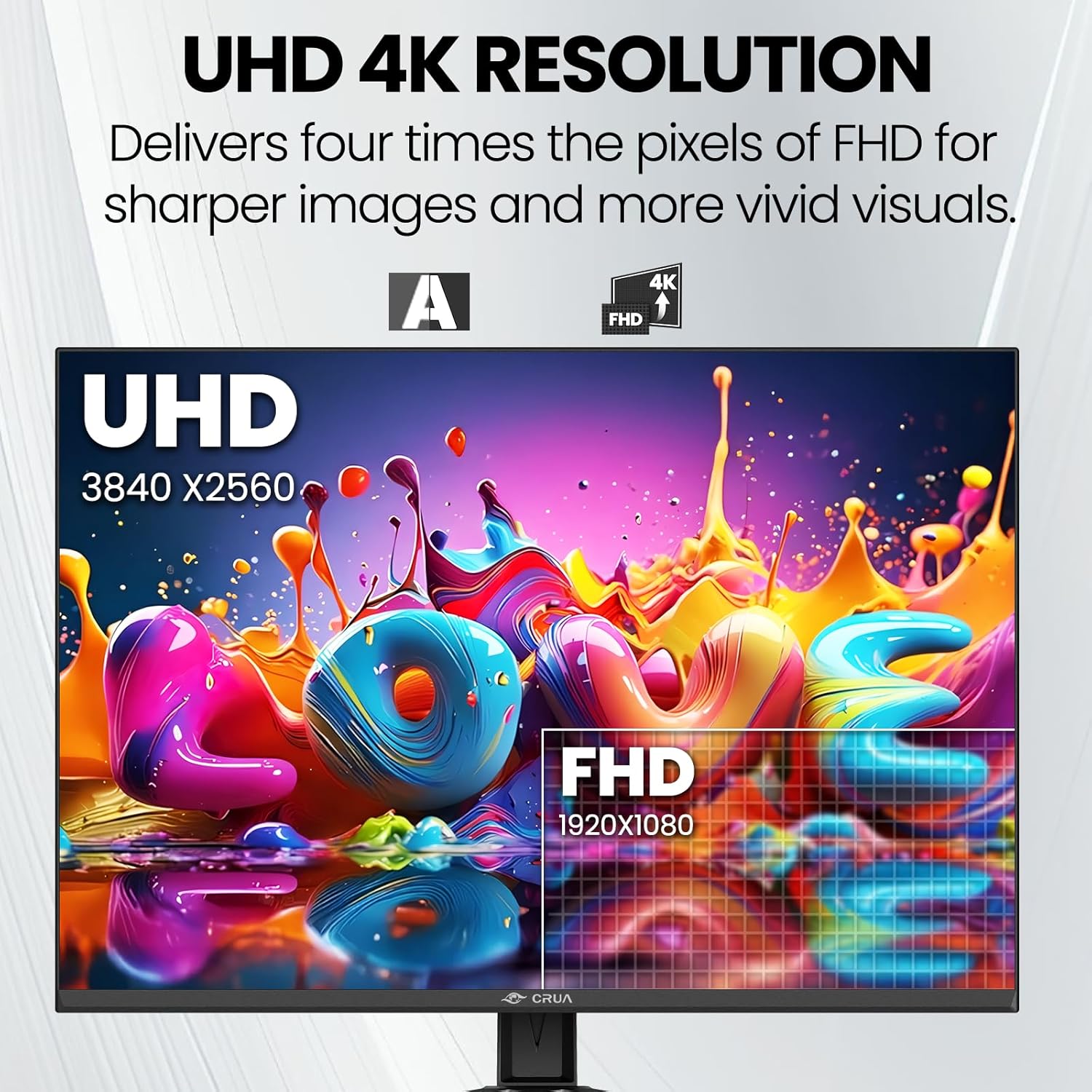
Figure 5: A visual comparison showcasing the clarity and detail of 4K UHD+ resolution (3840x2560) versus Full HD (1920x1080).
2.2 Using Built-in Speakers
The monitor includes built-in speakers for audio output. Adjust the volume through the OSD menu or your connected device's audio settings. For higher quality audio, external speakers or headphones are recommended via the 3.5mm audio jack.
2.3 Type-C Port Functionality
The Type-C port supports video signal transmission, data transfer, and power delivery to compatible devices. This allows for a single-cable solution for many modern laptops and devices.

Figure 6: The monitor seamlessly integrated into an office setup, demonstrating its use with a laptop via the Type-C connection.
3. Manteniment
3.1 Neteja del monitor
- Desendolleu sempre el monitor de la presa de corrent abans de netejar-lo.
- Utilitzeu un drap suau i sense pelusa dampRenteu-ho amb aigua o un netejador de pantalles no abrasiu.
- No utilitzeu alcohol, amoníac ni productes de neteja abrasius, ja que poden danyar la superfície de la pantalla.
- Netegeu la pantalla suaument per eliminar la pols i les taques.
3.2 Atenció general
- Eviteu col·locar objectes pesats sobre el monitor o els seus cables.
- No exposeu el monitor a la llum solar directa, a la calor excessiva o al fred extrem.
- Mantingueu el monitor allunyat de líquids i d'una humitat elevada.
- Assegureu-vos que hi hagi una ventilació adequada al voltant del monitor per evitar el sobreescalfament.
4. Solució De Problemes
If you encounter issues with your monitor, please refer to the following common solutions. If the problem persists, contact customer support.
4.1 Sense pantalla / Pantalla negra
- Assegureu-vos que el cable d'alimentació estigui connectat correctament tant al monitor com a la presa de corrent.
- Verify that the video cable (HDMI, DP, or Type-C) is firmly connected to both the monitor and your source device.
- Comproveu si s'ha seleccionat la font d'entrada correcta al menú OSD del monitor.
- Confirm that your computer or source device is powered on and outputting a video signal.
4.2 No Sound from Built-in Speakers
- Check the volume level in the monitor's OSD menu and on your connected device.
- Ensure the monitor is not muted in the OSD settings.
- Verify that the audio output from your source device is directed to the monitor.
4.3 Image Quality Issues (Blurry, Distorted, Incorrect Colors)
- Ensure your source device's display resolution and refresh rate are set correctly (3840x2560 at 60Hz is recommended).
- Ajusteu la brillantor, el contrast i el color al menú OSD.
- Try a different video cable to rule out cable issues.
5. Especificacions
| Característica | Especificació |
|---|---|
| Número de model | CR280HDU |
| Mida de la pantalla | 28.2 polzades |
| Tipus de panell | IPS |
| Resolució | 4K UHD+ (3840×2560 Pixels) |
| Freqüència d'actualització | 60 Hz |
| Relació d'aspecte | 3:2 |
| Brillantor | 270 cd/m² |
| Relació de contrast | 1200:1 |
| Profunditat de color | 10-Bit (1.07 Billion Colors) |
| Gamma de colors | 120% sRGB |
| Viewangle ing | 178° (Horitzontal/Vertical) |
| Connectivitat | 2x HDMI 2.0, 1x DisplayPort 1.4, 1x Type-C (Video, Data, Power), 1x 3.5mm Audio Out |
| Altaveus | Integrat |
| Muntatge de paret | VESA 75x75mm |
| Dimensions del producte (L x A x A) | 1.8 x 24 x 16 polzades |
| Pes de l'article | 12.62 lliures |
| Superfície de la pantalla | Mat |
6. Informació de la garantia
CRUA provides a standard manufacturer's warranty for this product. For specific details regarding warranty coverage, duration, and terms, please refer to the warranty card included with your purchase or visit the official CRUA weblloc web. Conserveu el comprovant de compra per a reclamacions de garantia.
7. Atenció al client
If you have any questions, require technical assistance, or need to report an issue, please contact CRUA Customer Support. Our team is dedicated to providing high-quality service and support.
- Fabricant: CRUA
- Venedor: CRUA Technology
- Botiga online: Visit the CRUA Store on Amazon
- For further assistance, please refer to the contact information provided in your product packaging or on the official CRUA weblloc.


