Introducció
The WYZE Window Camera provides 1080P HD clarity for day and night surveillance, featuring enhanced full-color night vision. This indoor security camera is designed for easy setup and continuous monitoring of your home.
Què hi ha a la caixa
- Wyze Window Cam
- Extra-long 10 ft micro USB to USB-A cable with cable clips
- Adaptador d'alimentació
- Mounting Sticker (hook-and-loop fastener)
- Cargols i ancoratges de muntatge
- Guia d'inici ràpid
Configuració
1. Instal·lació física
The Wyze Window Cam is designed for tool-free installation. Use the secure hook-and-loop fastener mounting sticker to attach the camera to the inside of your window.
- Clean the window surface where you intend to mount the camera.
- Peel the backing from the hook-and-loop fastener mounting sticker.
- Firmly press the sticker onto the inside of your window. The specialized design helps reduce glare.
- Attach the Wyze Window Cam to the sticker.
- Plug the extra-long 10 ft micro USB to USB-A cable into the camera and a power outlet. Use the included cable clips for tidy cable management.

Image: Wyze Window Camera attaching to the hook-and-loop fastener on a window.
For a visual guide on installation, please refer to the official installation video below.
Video: Official Wyze Window Cam Installation Guide. This video demonstrates the step-by-step process of mounting the camera to a window and connecting it.
2. Configuració i connectivitat de l'aplicació
The Wyze Window Cam features easy setup with Bluetooth, eliminating the need to scan a QR code during the initial process.
- Download the Wyze app from your device's app store (available for iOS and Android).
- Open the Wyze app and create an account or log in.
- Follow the in-app instructions to add your new Wyze Window Cam. The camera will connect via Bluetooth for a hassle-free setup.
- Ensure your phone is near the camera during the connection process.

Image: A smartphone displaying the Wyze app's "Connecting..." screen during camera setup.
For a detailed walkthrough of the unboxing and setup process, watch the official video below.
Video: Official Wyze Window Cam Unboxing. This video provides a comprehensive unboxing experience and guides users through the initial setup steps.
3. Instal·lació de la targeta MicroSD
The camera supports continuous local recording to a microSD card up to 512 GB, with no subscription required for local storage.
- Locate the microSD card slot on your Wyze Window Cam.
- Gently insert a compatible microSD card (up to 512 GB, sold separately) into the slot until it clicks into place.
- Format the microSD card via the Wyze app settings for optimal performance.

Image: A hand inserting a microSD card into the designated slot on the Wyze Window Camera.
Funcionament de la càmera
1. Enhanced Color Night Vision
The Wyze Window Cam features upgraded Color Night Vision, powered by an f1.0 aperture lens and an advanced BSI sensor. This technology delivers day-like clarity even in low-light conditions, such as moonlight or starlight.
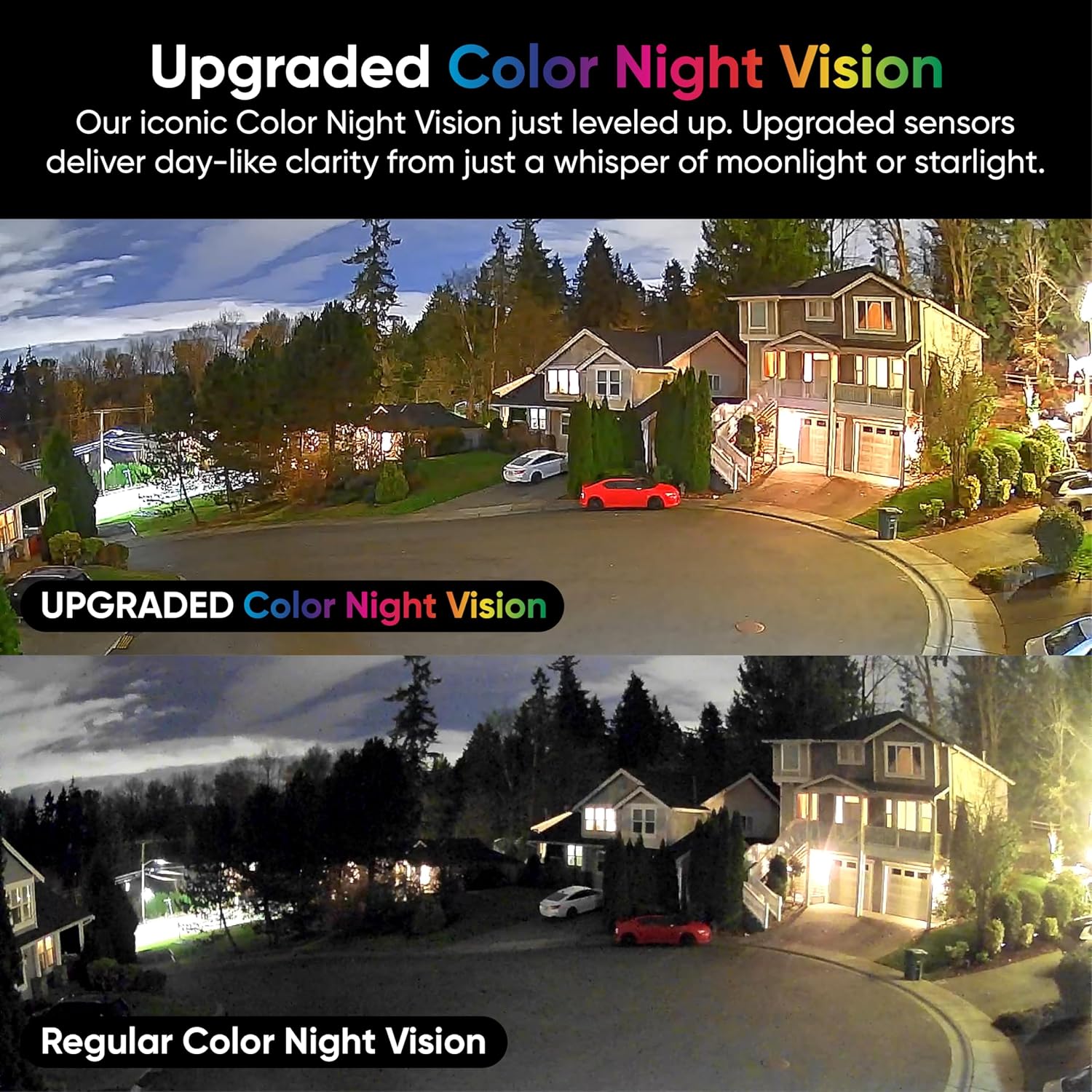
Image: A side-by-side comparison showing the superior clarity and color reproduction of Upgraded Color Night Vision compared to Regular Color Night Vision in a nighttime outdoor scene.
2. AI-Powered Motion Detection
Movement detected by the camera triggers instant alerts sent directly to your Wyze app. For more detailed information, consider upgrading to Cam Unlimited for Descriptive Alerts that specify what the camera sees (e.g., person, vehicle).
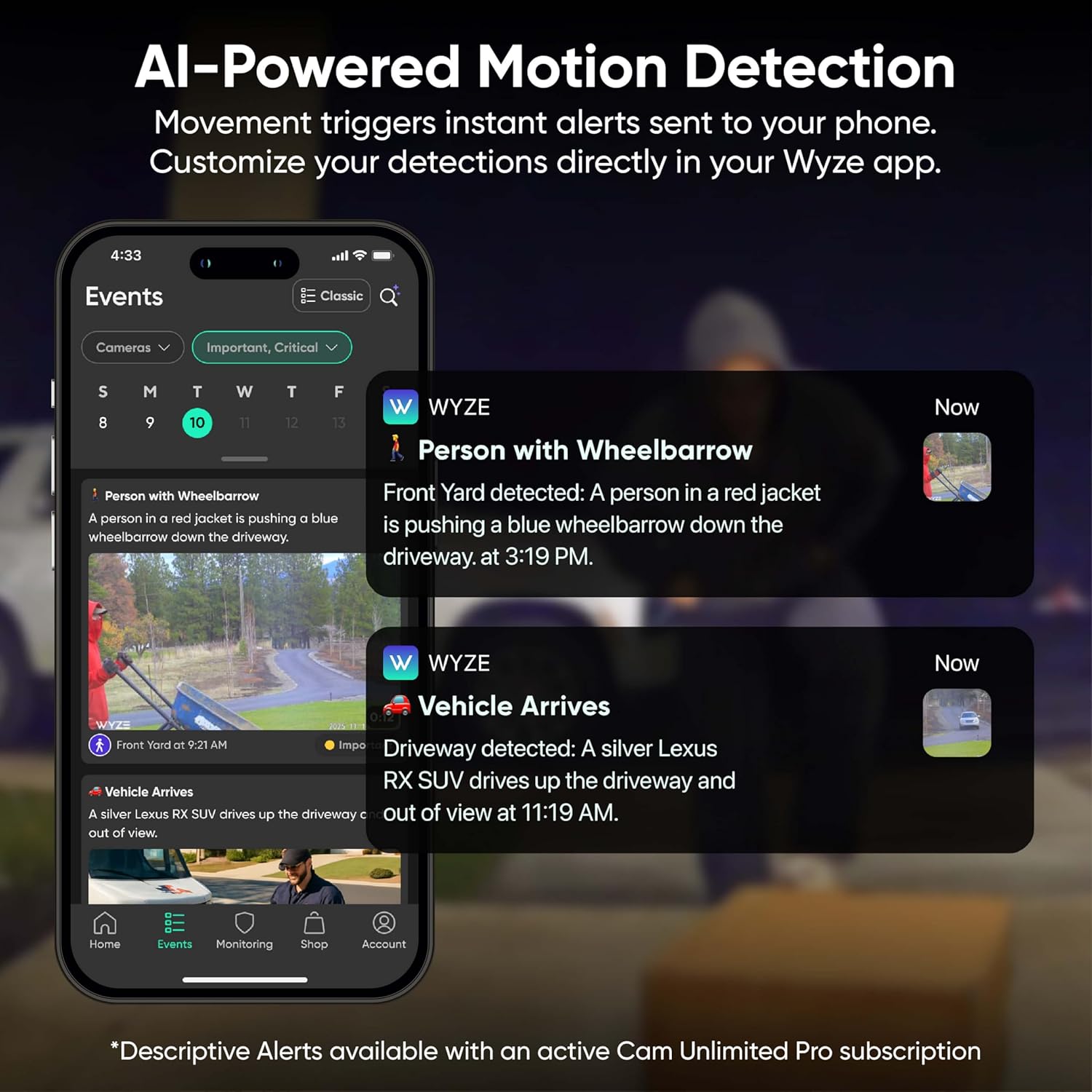
Image: A smartphone displaying the Wyze app with AI-powered motion detection alerts, showing notifications for "Person with Wheelbarrow" and "Vehicle Arrives."
3. Timelapse Video Mode
Utilize the Timelapse feature to condense hours of slow-moving action, such as a sunrise or a construction project, into short, engaging video clips. You can select the recording duration directly within the Wyze app.
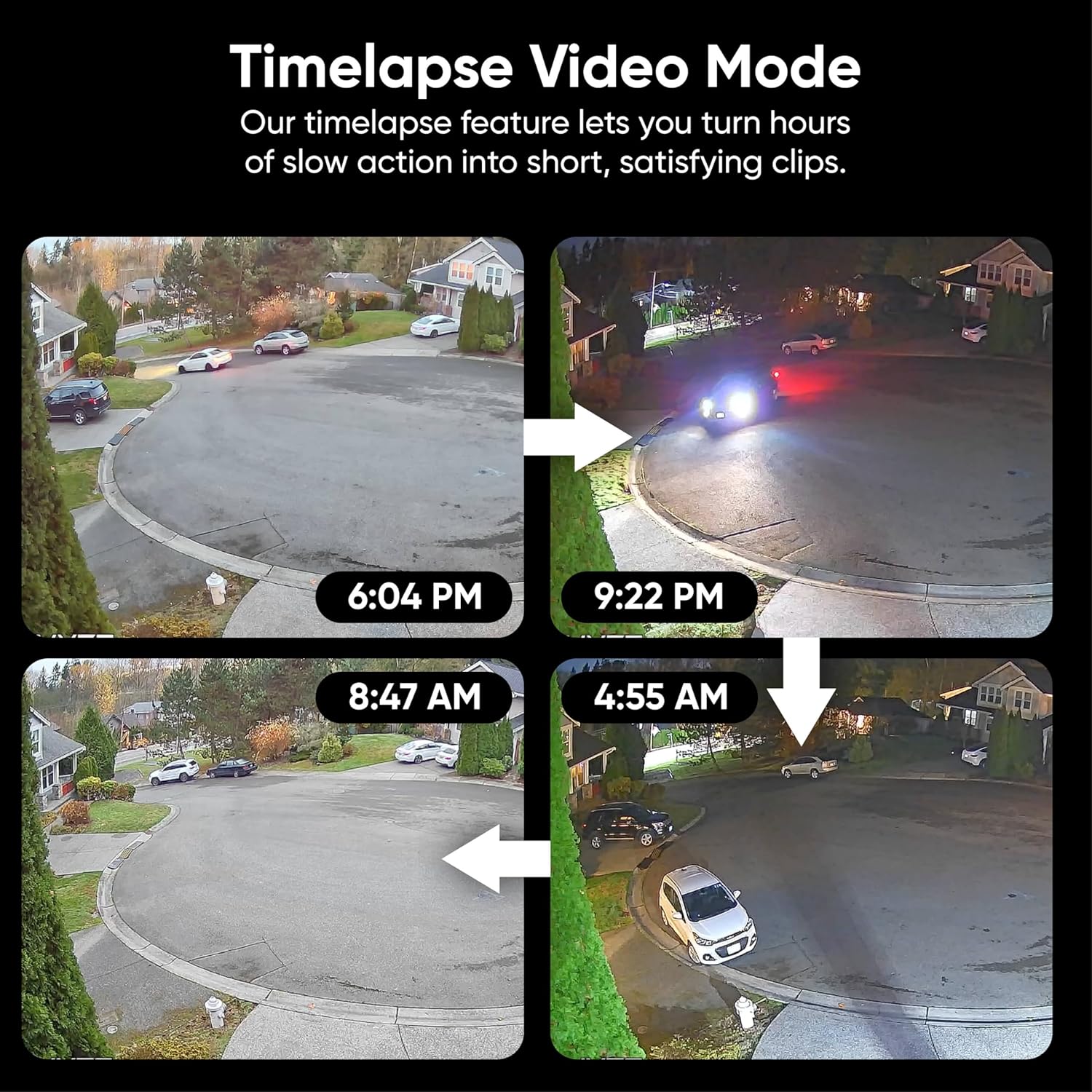
Image: A four-panel image illustrating the progression of a timelapse video, capturing changes in an outdoor scene from 6:04 PM to 4:55 AM.
4. Integració de la llar intel·ligent
The Wyze Window Cam offers seamless integration with popular smart home platforms, providing convenience and customization. It supports:
- Amazon Alexa
- Assistent de Google
- IFTTT (If This Then That)
- Wyze Automations
Control your camera with voice commands or set up automated routines for enhanced security and convenience.

Image: A smart display showing a live feed from the Wyze camera, with speech bubbles indicating voice commands for smart home integration with Alexa and Google Assistant.
5. Easy App Access
Monitor and control your camera from anywhere using the Wyze app. The app provides real-time event monitoring and easy access to your camera's features and recordings.

Image: Multiple smartphone screens displaying the Wyze app interface, showing live camera feeds, event timelines, and device management options.
Manteniment
- Neteja de la lent: Gently wipe the camera lens with a soft, dry cloth to remove dust or smudges. Avoid abrasive materials that could scratch the lens.
- Comprovació de connexions: Periodically ensure the power cable is securely plugged into the camera and the power outlet.
- Actualitzacions de firmware: Keep your camera's firmware updated through the Wyze app to ensure optimal performance and access to the latest features and security enhancements.
- Gestió de targetes MicroSD: If using a microSD card for local storage, regularly check its status in the Wyze app and format it as needed to maintain recording quality.
Resolució de problemes
- Càmera fora de línia: Ensure the camera is powered on and connected to your Wi-Fi network. Check your Wi-Fi signal strength in the Wyze app. If issues persist, try restarting your camera and router.
- Poca qualitat de vídeo: Verify your Wi-Fi connection is stable. Clean the camera lens. Ensure the camera is mounted correctly to minimize glare, especially through windows.
- Problemes de detecció de moviment: Adjust the motion detection sensitivity and detection zones in the Wyze app settings. Ensure there are no obstructions blocking the camera's view.
- Night Vision Clarity: While the camera has upgraded color night vision, extreme darkness or reflections can still impact clarity.
- La targeta MicroSD no grava: Check if the microSD card is properly inserted and formatted via the Wyze app. Ensure the card is not full; new videos will overwrite the oldest ones.
Especificacions
| Característica | Detall |
|---|---|
| Nom del model | Wyze Window Camera |
| Número de model de l'article | WYZEWCWH |
| Marca | WYZE |
| Tecnologia de connectivitat | Wired (Corded Electric) |
| Tecnologia de comunicació sense fils | Wi-Fi |
| Resolució de captura de vídeo | 1080p HD |
| Tecnologia de poca llum | Visió nocturna en color |
| Viewangle ing | 120 graus |
| Mida màxima admesa de la memòria flash | 512 GB (Micro SD) |
| Característica especial | 2-Way Audio, AI-Powered Motion Detection, Anti-Glare Design |
| Dispositius compatibles | Smartphone (Works with Amazon Alexa, Google Assistant, IFTTT) |
| Ús interior/exterior | Indoor (designed for window mounting for outdoor view) |
| Dimensions de l'article L x W x H | 2.05 x 2.05 x 2.05 polzades |
| Pes de l'article | 2.69 unces |
| Material | Plàstic |
Garantia i suport
For warranty information, technical support, and additional resources, please visit the official WYZE website or contact WYZE customer service. Refer to your Quick Start Guide for specific contact details.


