1. Introducció
The TESmart Thunderbolt 4 KVM Switch is designed to streamline your workspace by allowing you to control two computers (one Thunderbolt 4 laptop and one desktop PC) with a single set of keyboard, mouse, and two monitors. It integrates a docking station, providing extensive connectivity options and high-resolution video output for enhanced productivity and gaming experiences.

Image: TESmart Thunderbolt 4 KVM Switch (HDC202-X24-USBK) with various connection cables.
2. Llista d'embalatge
Verify all items are present in the package:
- 1 x TESmart 2x2 Hybrid KVM Switch (HDC202-X24-USBK)
- 1 x KVM Cable (HDMI+USB)
- 1 x cable DisplayPort
- 1 cable Thunderbolt 4
- 1 x Comandament a distància per infrarojos (piles AAA no incloses)
- 1 x adaptador d'alimentació DC 20V
- 1 x Manual d'usuari
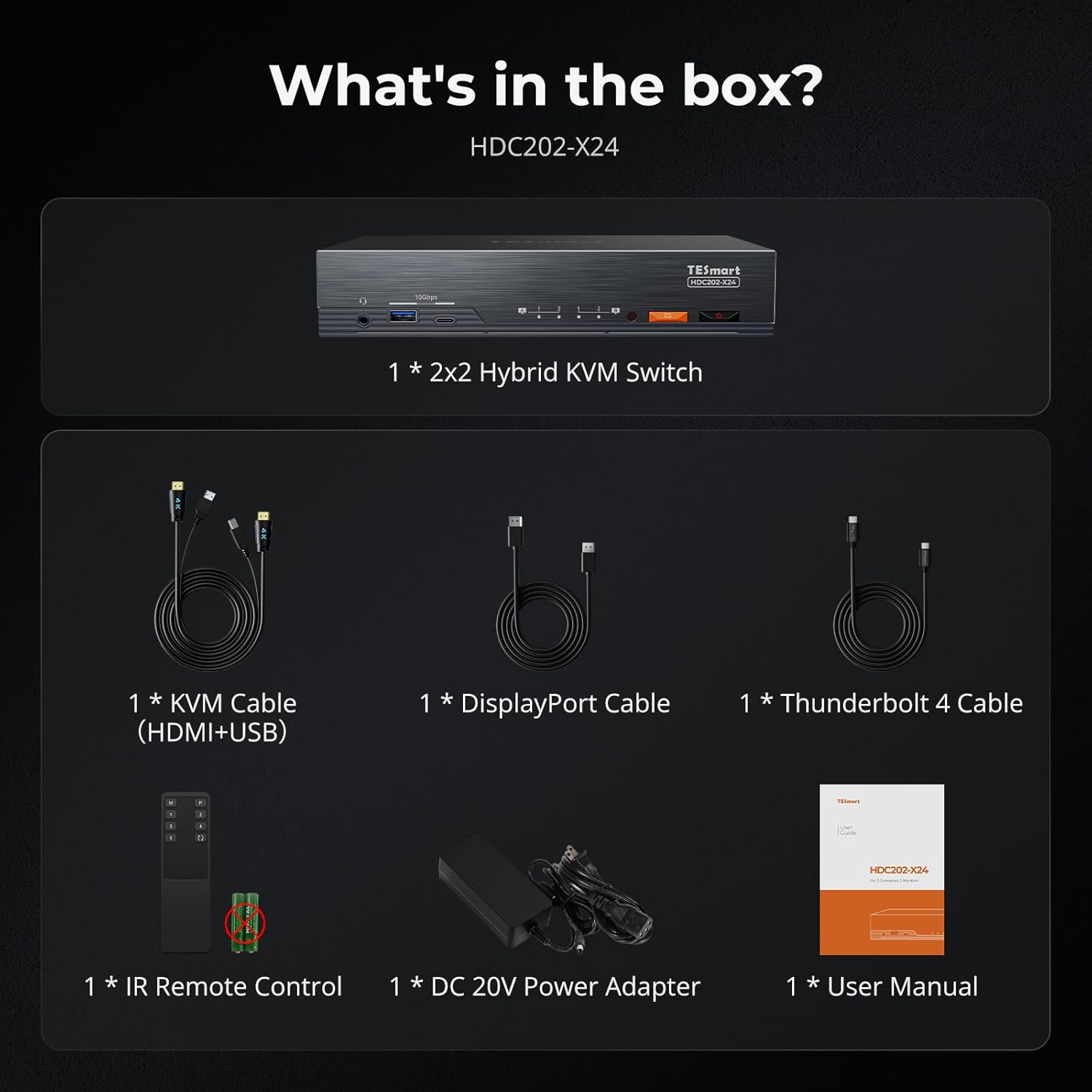
Image: All components included in the TESmart KVM Switch package.
3. Característiques del producte
- Suport de monitor dual: Connects two monitors for extended or mirrored display modes.
- Alta resolució i freqüència d'actualització: Supports HDMI 2.0 with up to 4K@60Hz 4:4:4, and high refresh rates for 1080P@240Hz/165Hz/144Hz/120Hz, and 2560x1440@120Hz.
- Thunderbolt 4 Connectivity: Dedicated Thunderbolt 4 port for laptop connection, offering 40Gbps data transfer and 60W power delivery.
- Integrated Docking Station: Includes 2x USB 3.2 Gen 2 (10Gbps, 7.5W power output), 2x USB 3.2 Gen 1 (5Gbps), 2x USB 1.1 (for keyboard/mouse), 1x LAN (1000 Mbps), and 1x 3.5mm headphone/microphone jack.
- Gigabit Ethernet: Allows both connected PCs to share a single Ethernet cable for network access.
- EDID Emulators: Each input port features an EDID emulator to ensure correct display information and prevent desktop icon rearrangement or screen flicker during switching.
- Múltiples mètodes de commutació: Switch between computers using keyboard hotkeys, front panel button, mouse wheel, or IR remote control.

Image: Visual representation of the KVM Switch's key features and port capabilities.
4. Guia de configuració
Follow these steps to connect your TESmart KVM Switch:
- Connexió d'alimentació: Connect the DC 20V Power Adapter to the KVM Switch and then to a power outlet.
- Connexions del monitor: Connect your two monitors to the KVM Switch's HDMI Output A and HDMI Output B ports using HDMI cables (not included).
- Laptop Connection (PC1):
- Connect your Thunderbolt 4 enabled laptop to the PC1 Thunderbolt 4 port on the KVM Switch using the included Thunderbolt 4 cable. This single cable provides video, data, and 60W power delivery to your laptop.
- Desktop PC Connection (PC2):
- Connect your desktop PC's DisplayPort output to the KVM Switch's PC2 Input A port using the included DisplayPort cable.
- Connect your desktop PC's HDMI output to the KVM Switch's PC2 Input B port using an HDMI cable (not included).
- Connect a USB-A to USB-B cable (included KVM cable) from your desktop PC to the KVM Switch's PC2 USB-B port for keyboard and mouse functionality.
- Teclat i ratolí: Connect your keyboard and mouse to the dedicated USB 1.1 K&M ports on the front or rear of the KVM Switch. For advanced keyboards/mice, use the USB 3.2 Gen 1/Gen 2 ports.
- Altres perifèrics: Connect any other USB devices (e.g., USB drives, webcams) to the available USB 3.2 Gen 1 (5Gbps) or USB 3.2 Gen 2 (10Gbps) ports.
- Àudio: Connect headphones or speakers to the 3.5mm audio jack on the front panel.
- Xarxa: Connect an Ethernet cable from your router to the KVM Switch's LAN port to share network access between connected PCs.

Image: Comprehensive diagram illustrating all necessary connections for the KVM Switch.
Video: A detailed user experience guide for setting up the TB4 KVM Switch with 2 monitors, 1 PC, and 1 laptop.
5. Instruccions de funcionament
The KVM Switch offers multiple methods for switching between connected computers:
- Botó del panell frontal: Press the dedicated button on the front panel to cycle between PC1 and PC2.
- Tecles d'accés ràpid del teclat: Use customizable hotkey combinations on your connected keyboard for quick switching. Refer to the user manual for default hotkeys and customization options.
- Mouse Wheel: Double-click the middle mouse wheel to switch between computers.
- Control remot IR: Use the included IR remote control to select the desired PC input.

Image: Illustration of the four available methods for switching between connected computers.
Modes de visualització
The KVM supports two primary display modes:
- Mode 1: One PC across two monitors (Extend or Mirror).
- Mode 2: Two PCs on two monitors (each PC displays on one monitor).
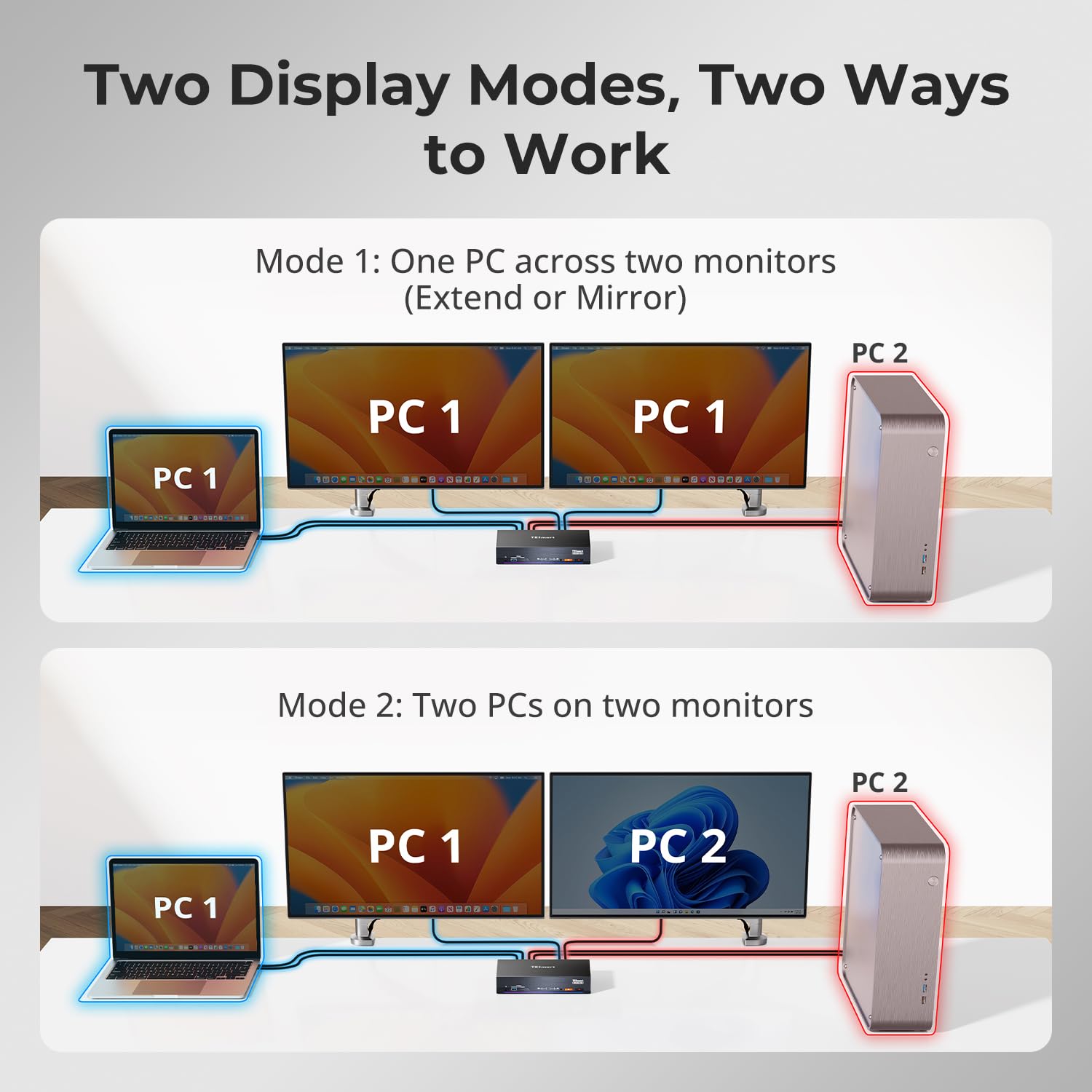
Image: Visual explanation of the two primary display modes supported by the KVM Switch.
Emulació EDID
The built-in EDID emulators ensure that your computers always receive correct display information, preventing issues like desktop icon rearrangement or screen flicker when switching inputs.

Image: Demonstrates the benefit of EDID emulation in maintaining display settings after switching.
6. Especificacions
| Característica | Descripció |
|---|---|
| Número de model | HDC202-X24-USBK |
| Sortida de vídeo | 2 x HDMI 2.0 |
| Resolució màxima | 4K@60Hz (4:4:4) |
| High Refresh Rates | 1080P@240Hz/165Hz/144Hz/120Hz, 2560x1440@120Hz |
| PC1 Input | 1 x Thunderbolt 4 (40Gbps, 60W PD) |
| PC2 Input | 1 x DisplayPort 1.2, 1 x HDMI 2.0, 1 x USB-B |
| Ports USB | 2 x USB 3.2 Gen 2 (10Gbps, 7.5W), 2 x USB 3.2 Gen 1 (5Gbps), 2 x USB 1.1 (K&M) |
| Xarxa | 1 x Gigabit Ethernet (RJ45) |
| Àudio | 1 x 3.5mm Headphone/Microphone Jack |
| Font d'alimentació | DC 20V |
| Dimensions del producte | 10.43 x 8.11 x 4.53 polzades |
| Pes de l'article | 5.07 lliures |
7. Solució De Problemes
- Sense pantalla/parpelleig: Ensure all video cables (HDMI, DisplayPort, Thunderbolt 4) are securely connected. Verify your monitors and graphics cards support the selected resolution and refresh rate. Check EDID emulation settings.
- El teclat/ratolí no respon: Ensure the USB KVM cables are correctly connected to your PCs. Try connecting the keyboard/mouse to different USB 1.1 ports. For specialized devices, try the USB 3.2 ports.
- Sense energia: Verify the DC 20V power adapter is securely connected to the KVM and a working power outlet.
- Problemes de commutació: Ensure the KVM is powered on. Try different switching methods (front panel, hotkeys, mouse, IR remote).
- El portàtil no carrega: Confirm your laptop is connected to the PC1 Thunderbolt 4 port with the included Thunderbolt 4 cable, which supports 60W Power Delivery.
- Problemes de connectivitat de xarxa: Check the Ethernet cable connection to the KVM and your router. Ensure both PCs are configured for network access.
8. Manteniment
- Mantingueu el dispositiu en un lloc fresc i sec, allunyat de la llum solar directa i de fonts de calor.
- Clean the device with a soft, dry cloth. Avoid using liquid cleaners or aerosols.
- Ensure proper ventilation around the KVM Switch to prevent overheating.
- Regularly check cable connections for security.
9. Garantia i Suport
TESmart products typically come with a standard warranty. Please refer to the warranty card included in your package or visit the official TESmart weblloc web per obtenir informació detallada sobre els termes i condicions de la garantia.
For technical support, product inquiries, or assistance with troubleshooting, please contact TESmart customer service through their official support channels. Support information is usually available in the user manual or on the TESmart weblloc.


