1. Introducció
This manual provides detailed instructions for the installation, configuration, and operation of your ASRock X870 Taichi Creator Motherboard. This high-performance ATX motherboard is designed to support AMD Ryzen 9000, 8000, and 7000 Series Processors with an AM5 socket, offering advanced features for creators and enthusiasts.
2. Informació de seguretat
Please read the following safety guidelines carefully before installing or operating your motherboard to prevent damage to the product or injury to yourself.
- Desconnecteu sempre el cable d'alimentació de la presa de corrent abans de tocar qualsevol component.
- Wear an anti-static wrist strap to prevent electrostatic discharge (ESD) when handling components.
- Assegureu-vos de ventilar adequadament la carcassa del vostre PC per evitar que s'escalfi.
- Mantingueu la placa base allunyada de la humitat i de les temperatures extremes.
- Refer to the CPU and other component manuals for specific installation instructions.
3. Contingut del paquet
Verify that all items listed below are present in your motherboard package. If any item is missing or damaged, contact your retailer.
- Placa base ASRock X870 Taichi Creator
- Guia d'instal·lació ràpida
- Avís normatiu
- Cables de dades SATA
- Antena Wi-Fi
- Cargols i separadors M.2
- ASRock Graphics Card Holder
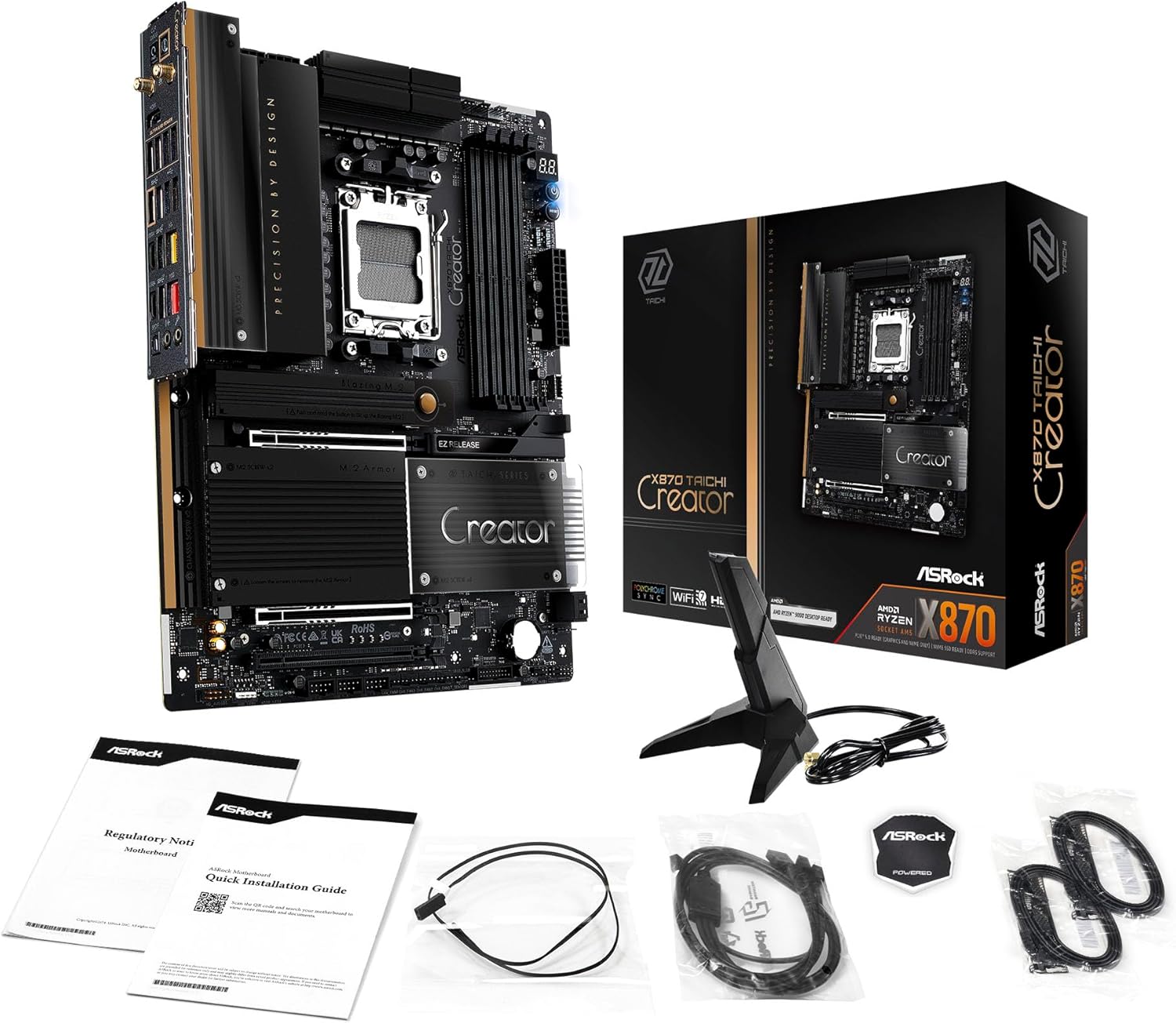
Image: The ASRock X870 Taichi Creator Motherboard shown alongside its retail packaging and various accessories, including cables, documentation, and a graphics card holder.
4. Configuració i instal·lació
Segueix aquests passos per instal·lar correctament la placa base i els seus components.
4.1. CPU Installation (Socket AM5)
- Localitza el sòcol de la CPU AM5 a la placa base.
- Gently lift the CPU retention lever.
- Align the triangular mark on your AMD Ryzen processor with the corresponding mark on the socket.
- Carefully place the CPU into the socket without applying force.
- Lower the retention lever until it clicks into place, securing the CPU.

Imatge: Vista de dalt a baix view of the ASRock X870 Taichi Creator Motherboard, highlighting the central AM5 CPU socket and surrounding components like VRMs and RAM slots.
4.2. Instal·lació de memòria (RAM)
The motherboard supports 4 x DDR5 DIMM slots for dual-channel memory technology.
- Obriu els clips dels dos extrems de la ranura DIMM.
- Alineeu l'osca del mòdul de memòria DDR5 amb la clau de la ranura DIMM.
- Introduïu el mòdul de memòria fermament a la ranura fins que els clips encaixin al seu lloc.
- For dual-channel configuration, refer to your motherboard manual for recommended slot pairing.
4.3. Instal·lació del dispositiu d'emmagatzematge
The motherboard features M.2 slots and SATA3 ports for storage.
4.3.1. Instal·lació d'un SSD M.2
The board includes 1 Ultra M.2 (PCIe Gen3x4), 1 Hyper M.2 (PCIe Gen4x4), and 2 Blazing M.2 (PCIe Gen5x4) slots.
- Locate the desired M.2 slot and remove the M.2 heatsink if present.
- Inseriu l'SSD M.2 a la ranura amb un angle de 30 graus.
- Gently push down the SSD and secure it with the provided M.2 screw or standoff.
- Reattach the M.2 heatsink for optimal thermal performance.
4.3.2. Instal·lació de dispositius SATA
Connect SATA storage devices (HDDs/SSDs) to the 4 SATA3 ports using SATA data cables.
4.4. Instal·lació de la targeta PCIe
The motherboard provides 2 PCIe 5.0 x16 (x8/x8) slots and 1 PCIe 3.0 x16 slot.
- Select an available PCIe slot.
- Traieu la coberta de la ranura d'expansió corresponent de la carcassa del vostre PC.
- Align your PCIe card with the slot and press down firmly until it is seated correctly.
- Fixeu la targeta amb un cargol a la carcassa de l'ordinador.
4.5. Connexions d'alimentació
Connect the 24-pin ATX power connector and the 8-pin (or 4+4-pin) CPU power connector from your power supply unit (PSU) to the corresponding ports on the motherboard.
4.6. Connexions d'E/S del panell frontal i posterior
Connect your PC case's front panel connectors (power button, reset button, USB ports, audio jacks) to the appropriate headers on the motherboard. Connect peripherals to the rear I/O panel.

Imatge: Un primer pla view of the rear I/O panel of the ASRock X870 Taichi Creator Motherboard, showing various ports including USB, HDMI, Ethernet, and audio jacks.
5. Instruccions de funcionament
5.1. Arrencada inicial i configuració de la BIOS/UEFI
- Després de muntar l'ordinador, connecteu un monitor, un teclat i un ratolí.
- Power on your system. During startup, repeatedly press the Del or F2 clau per entrar a la utilitat de configuració de la BIOS/UEFI.
- Configure boot order, enable XMP/EXPO for memory, and adjust other settings as needed.
- Desa els canvis i surt de la BIOS/UEFI. El sistema es reiniciarà.
5.2. Instal·lació del controlador
After installing your operating system, install the necessary drivers for the motherboard components. These can typically be found on the ASRock support website or the included driver CD/USB drive.
- Controladors de xips
- LAN Drivers (10Gbps, 5Gbps)
- Wi-Fi 7 + Bluetooth Drivers
- Audio Drivers (Realtek ALC4082)
- Controladors USB
6. Manteniment
6.1. Neteja
Regularly clean your PC to prevent dust buildup, which can lead to overheating. Use compressed air to remove dust from fans, heatsinks, and other components. Ensure the system is powered off and unplugged before cleaning.
6.2. Actualitzacions de la BIOS
Periodically check the ASRock website for BIOS/UEFI updates. Updates can improve system stability, add support for new CPUs, or fix bugs. Follow the instructions provided by ASRock carefully when performing a BIOS update.
7. Solució De Problemes
Si teniu problemes, consulteu els passos habituals següents per a la resolució de problemes:
- Sense energia: Ensure all power cables (24-pin ATX, 8-pin CPU) are securely connected. Check your PSU and wall outlet.
- Sense pantalla: Verify that your monitor is connected to the correct graphics output (dedicated GPU or integrated graphics). Reseat your graphics card and RAM modules.
- Inestabilitat del sistema: Check CPU and GPU temperatures. Ensure RAM is properly seated and configured (XMP/EXPO settings). Update drivers and BIOS.
- BIOS Flashback: The motherboard features a BIOS Flashback button on the rear I/O panel. This allows you to update the BIOS without a CPU or RAM installed. Refer to the ASRock website for detailed instructions on using this feature.
- Esborra CMOS: If your system fails to boot after changing BIOS settings, you can clear the CMOS to reset BIOS settings to default. Locate the 'CLR CMOS' button or jumper on the motherboard (often near the rear I/O).
8. Especificacions
| Característica | Especificació |
|---|---|
| Marca | ASRock |
| Nom del model | X870 |
| Número de model de l'article | 90-MXBTE0-A0UAYZ |
| Socket de CPU | Presa AM5 |
| Processadors compatibles | AMD Ryzen 9000, AMD Ryzen 8000, AMD Ryzen sèrie 7000 |
| Tipus de xipset | AMD X870 |
| Tecnologia de memòria RAM | DDR5 |
| Ranures de memòria | 4 x DDR5 DIMM Slots (Dual Channel, up to 8000+(OC), 256GB max) |
| Sortida gràfica | 2 x USB4 Type-C (up to 8K 30Hz), 1 x HDMI 2.1 (up to 4K 120Hz) |
| PCIe tragamonedas | 2 x PCIe 5.0 x16 (x8/x8), 1 x PCIe 3.0 x16 |
| Emmagatzematge | 4 x SATA3, 1 x Ultra M.2 (PCIe Gen3x4), 1 x Hyper M.2 (PCIe Gen4x4), 2 x Blazing M.2 (PCIe Gen5x4) |
| LAN | 10Gbps LAN, 5Gbps LAN |
| LAN sense fil | 802.11be Wi-Fi 7 + Bluetooth |
| Àudio | Realtek ALC4082 7.1 CH HD Audio Codec, Nahimic Audio |
| Ports USB (posteriors) | 2 x USB 2.0, 6 x USB 3.2 Gen1, 2 x USB 3.2 Gen2, 2 x USB4 Type-C |
| Ports USB (frontals) | 6 x USB 2.0, 4 x USB 3.2 Gen1, 1 x USB 3.2 Gen2x2 Type-C |
| Factor de forma | ATX |
| Disseny de fase de potència | 18+2+1 Power Phase, 80A SPS |
9. Informació de la garantia
ASRock motherboards typically come with a limited manufacturer's warranty. The duration and terms of the warranty may vary by region and retailer. Please retain your proof of purchase for warranty claims. For detailed warranty information, refer to the official ASRock weblloc web o poseu-vos en contacte amb el vostre punt de venda.
10. Suport tècnic
For technical assistance, driver downloads, BIOS updates, and further product information, please visit the official ASRock support weblloc:
You may also contact ASRock customer service directly through their website for personalized support.


