1. Introducció
Thank you for choosing the Oberon OR-1682 Smart 3-Axis Stabilizer Selfie Stick. This device is designed to enhance your mobile photography and videography experience by providing stable, smooth footage and intelligent features. Please read this manual carefully before use to ensure proper operation and to maximize the product's potential.
2. Contingut del paquet
Verifiqueu que tots els elements que s'enumeren a continuació s'inclouen al vostre paquet:
- Oberon OR-1682 Gimbal Stabilizer
- Mini trípode
- AI Tracking Module
- Integrated Light Module
- Control remot
- Cable de càrrega USB
- Bossa de transport
- Manual d'usuari
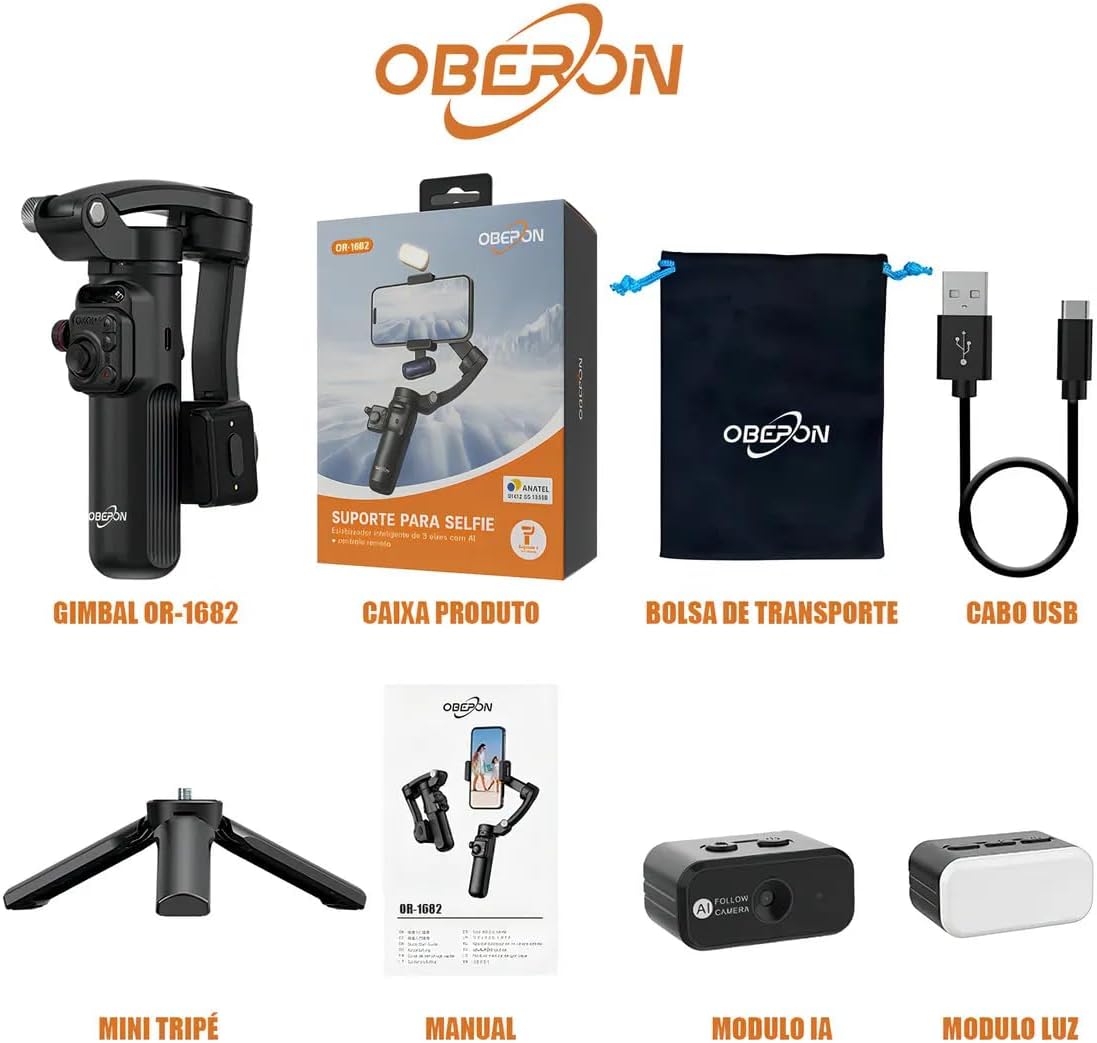
Image: All components of the Oberon OR-1682 package, including the gimbal, mini tripod, AI module, light module, remote control, USB cable, and carrying bag.
3. Producte acabatview
Familiarize yourself with the main components of your Oberon OR-1682 stabilizer.

Image: The Oberon OR-1682 stabilizer with a smartphone mounted, alongside its accessories: AI module, light module, remote control, mini tripod, and USB charging cable.
Components clau:
- Mànec de cardán: Main control unit with buttons and joystick.
- Telèfon Clamp: Subjecta el teu telèfon intel·ligent de manera segura.
- Sistema d'estabilització de 3 eixos: Motors that provide smooth movement.
- AI Tracking Module: Attaches to the phone clamp for automatic subject tracking.
- Mòdul de llum: Provides additional illumination, attaches magnetically.
- Mini trípode: Detachable base for static shots.
- Comandament a distància: For wireless operation of the gimbal and camera functions.
4. Configuració
4.1 Càrrega del dispositiu
Before first use, fully charge the stabilizer and remote control using the provided USB cable. Connect the cable to the charging port on the gimbal and a standard USB power adapter (not included).
4.2 Connectar el telèfon intel·ligent
- Allargar la clavilla del telèfonamp.
- Col·loca amb cura el teu telèfon intel·ligent a la tapa.amp, ensuring it is centered and balanced.
- Ensure the phone is securely held and does not obstruct the gimbal's movement.
4.3 Engegada/apagada
- Per encendre: Press and hold the power button on the gimbal handle for a few seconds until the indicator light illuminates.
- Per apagar: Premeu i manteniu premut el botó d'engegada de nou fins que l'indicador lluminós s'apagui.
4.4 Vinculació Bluetooth
After powering on, the gimbal will automatically enter Bluetooth pairing mode. On your smartphone, enable Bluetooth, search for "Oberon OR-1682" (or similar), and connect. This allows the remote control and gimbal to interact with your phone's camera functions.
5. Instruccions de funcionament
5.1 Funcions de control remot
The multifunctional remote control allows for convenient operation from a distance. It connects magnetically to the gimbal for storage.
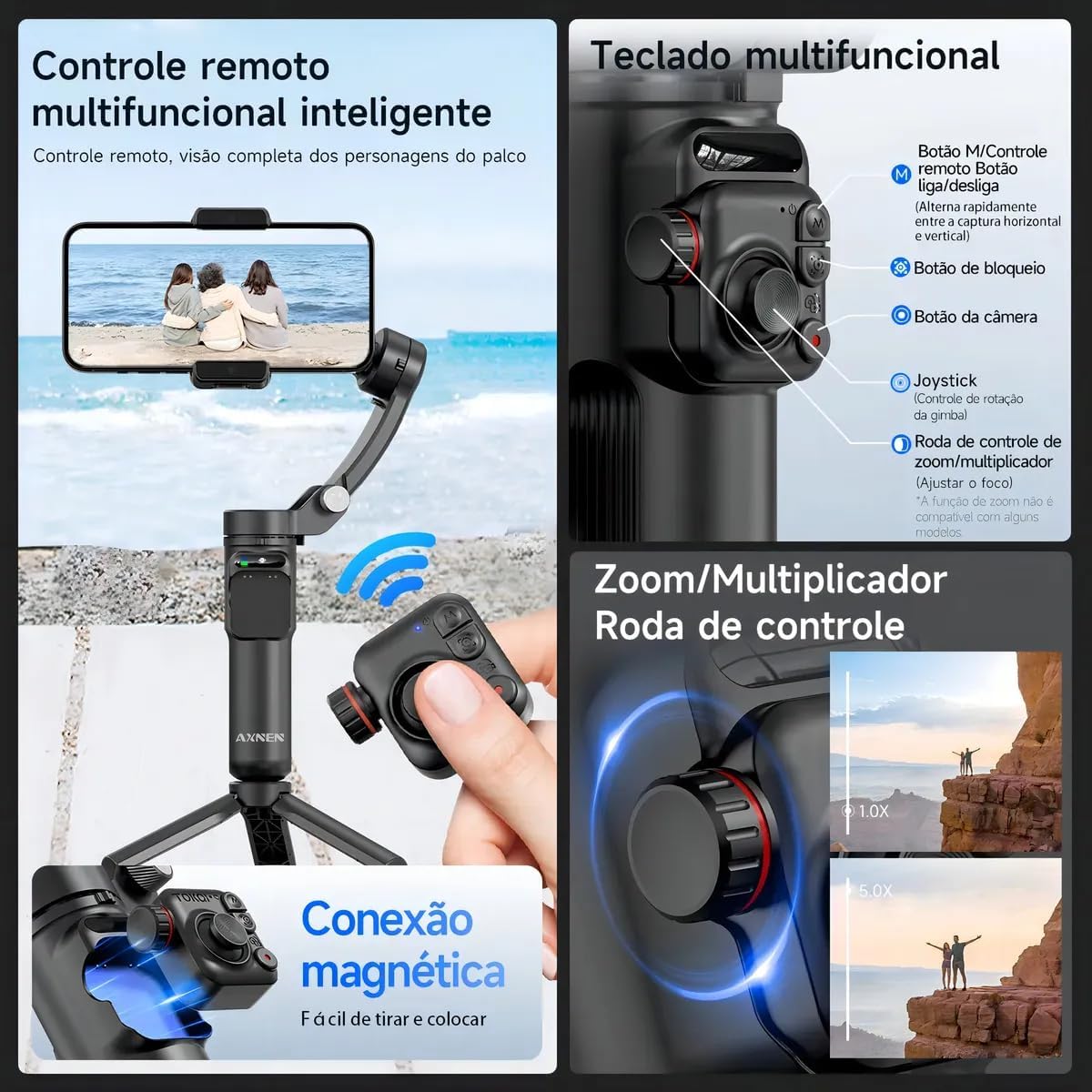
Imatge: Detallada view of the remote control and the gimbal's multifunctional keypad, highlighting buttons for power, mode switching, camera control, joystick, and zoom/multiplier wheel.
- M Button (Remote): Power on/off the remote.
- M Button (Gimbal): Quickly switch between horizontal and vertical shooting modes.
- Botó de bloqueig: Locks the gimbal's current position.
- Botó de la càmera: Triggers photo capture or video recording.
- Palanca de control: Controls the rotation of the gimbal.
- Zoom/Multiplier Control Wheel: Adjusts zoom (functionality may vary with some phone models).
5.2 AI Intelligent Tracking
The AI module enables automatic subject tracking, keeping your subject in frame as they move.

Image: Demonstration of the intelligent tracking feature, showing a person running while the gimbal automatically keeps them centered in the frame. Two methods for activation are shown: long-pressing the release button or long-pressing the lock button.
To activate AI Tracking:
- Mètode 1: Long press the release button on the AI module.
- Mètode dos: Long press the lock button on the gimbal.
5.3 Gesture Control
Control certain functions using hand gestures detected by the AI module.

Image: Visual guide for gesture controls, including 'OK' for center tracking, 'Double L' for fixed position tracking, 'Palm' for pause, and 'Double Thumbs up' for switching between horizontal and vertical modes with a pause.
- "OK" Gesture: Initiates center tracking.
- "Double L" Gesture: Activates fixed position tracking.
- "Palm" Gesture: Pauses tracking.
- "Double Thumbs Up" Gesture: Toggles between horizontal and vertical shooting modes, then pauses.
To deactivate gesture control, press the button on the AI module. The blue light will remain on.
5.4 Tret horitzontal i vertical
Easily switch between horizontal (landscape) and vertical (portrait) orientations without manual adjustment.

Image: A woman filming with the stabilizer, demonstrating the ability to switch between horizontal and vertical shooting modes by double-clicking the 'M' key on the gimbal.
Per canviar de mode: Double-click the 'M' button on the gimbal handle.
5.5 Light Module
The integrated light module provides adjustable illumination for various lighting conditions. Attach it magnetically to the phone clamp.
5.6 Mini Tripod Use
Attach the mini tripod to the bottom of the gimbal handle for stable static shots, time-lapses, or hands-free operation.
6. Manteniment
- Mantingueu el dispositiu net i lliure de pols. Feu servir un drap suau i sec per netejar-lo.
- Avoid exposing the stabilizer to extreme temperatures, moisture, or direct sunlight.
- Store the device in its carrying bag when not in use to prevent damage.
- No intenteu desmuntar o reparar el dispositiu vosaltres mateixos. Contacteu amb l'assistència al client per obtenir assistència.
7. Solució De Problemes
7.1 Gimbal Not Powering On
- Assegureu-vos que la bateria estigui prou carregada. Connecteu-la a una font d'alimentació i torneu-ho a provar.
- Premeu i manteniu premut fermament el botó d'engegada durant uns segons.
7.2 Unstable Footage
- Ensure your smartphone is properly balanced in the clamp.
- Check for any obstructions preventing the gimbal motors from moving freely.
- Recalibrate the gimbal if available through the companion app (if applicable).
7.3 El comandament a distància no respon
- Assegureu-vos que el comandament a distància estigui carregat.
- Verify that Bluetooth is enabled on your smartphone and the remote is paired.
- Restart both the gimbal and the remote control.
7.4 AI Tracking Not Working
- Ensure the AI module is correctly attached and powered on.
- Check for sufficient lighting conditions for the AI to detect subjects.
- Ensure no obstructions are blocking the AI module's sensor.
8. Especificacions
| Característica | Detall |
|---|---|
| Marca | Genérico (Manufacturer: Oberon) |
| Número de model | OR-1682 |
| Color | Negre |
| Dispositius compatibles | iPhone, Android Smartphones, Tablets |
| Font d'alimentació | Bateria recarregable |
| Dimensions del producte | 16 x 8 x 20 cm |
| Pes del producte | 600 g |
| Nombre d'unitats | 8 (referring to components in the kit) |
9. Garantia i Suport
The Oberon OR-1682 Smart 3-Axis Stabilizer Selfie Stick comes with a 6 mesos de garantia des de la data de compra. Aquesta garantia cobreix els defectes de fabricació en condicions d'ús normal.
For technical support, warranty claims, or any questions regarding your product, please contact your retailer or the manufacturer's customer service.


