1. Introducció
Thank you for choosing the LG 34 Inch UltraWide WQHD Curved Monitor. This manual provides essential information for the safe and efficient use of your new monitor. Please read it thoroughly before operating the device and keep it for future reference.
Contingut del paquet
- LG 34 Inch UltraWide Curved Monitor
- Suport de monitor (base i coll)
- Cable d'alimentació
- Cable HDMI
- Cable DisplayPort
- Cable USB-C
- Manual d'usuari i targeta de garantia
2. Característiques clau
- 34-inch WQHD UltraWide Curved Display: Expansive 21:9 screen (3440 x 1440) for enhanced productivity and immersive viewing.
- HDR Display with 99% sRGB: Delivers vibrant, natural colors and distinct image layers, supporting HDR brightness performance.
- Alta freqüència d'actualització de 120 Hz: Ensures fluid scrolling and dynamic content for a comfortable visual experience.
- 5ms (GTG) Response Time: Provides quick pixel response for smooth motion.
- LG Switch for Multitasking & Eye Care: Enables quick split-screen functionality, customizable layouts, and Reader Mode to reduce eye strain.
- Suport ajustable: Supports height, tilt, and swivel adjustments for optimal viewangles d'ajust.
- Altaveus integrats: Àudio integrat per a més comoditat.
- Múltiples opcions de connectivitat: Includes DisplayPort and HDMI inputs.
3. Configuració
3.1 Muntatge del suport
Carefully remove the monitor and stand components from the packaging. Follow the instructions below to attach the stand to the monitor.
- Col·loqueu el monitor cara avall sobre una superfície suau i neta per evitar ratllades.
- Fixeu el coll del suport al panell posterior del monitor. Assegureu-vos que encaixi correctament al seu lloc.
- Attach the stand base to the bottom of the stand neck. Tighten the screw(s) firmly to secure the base.
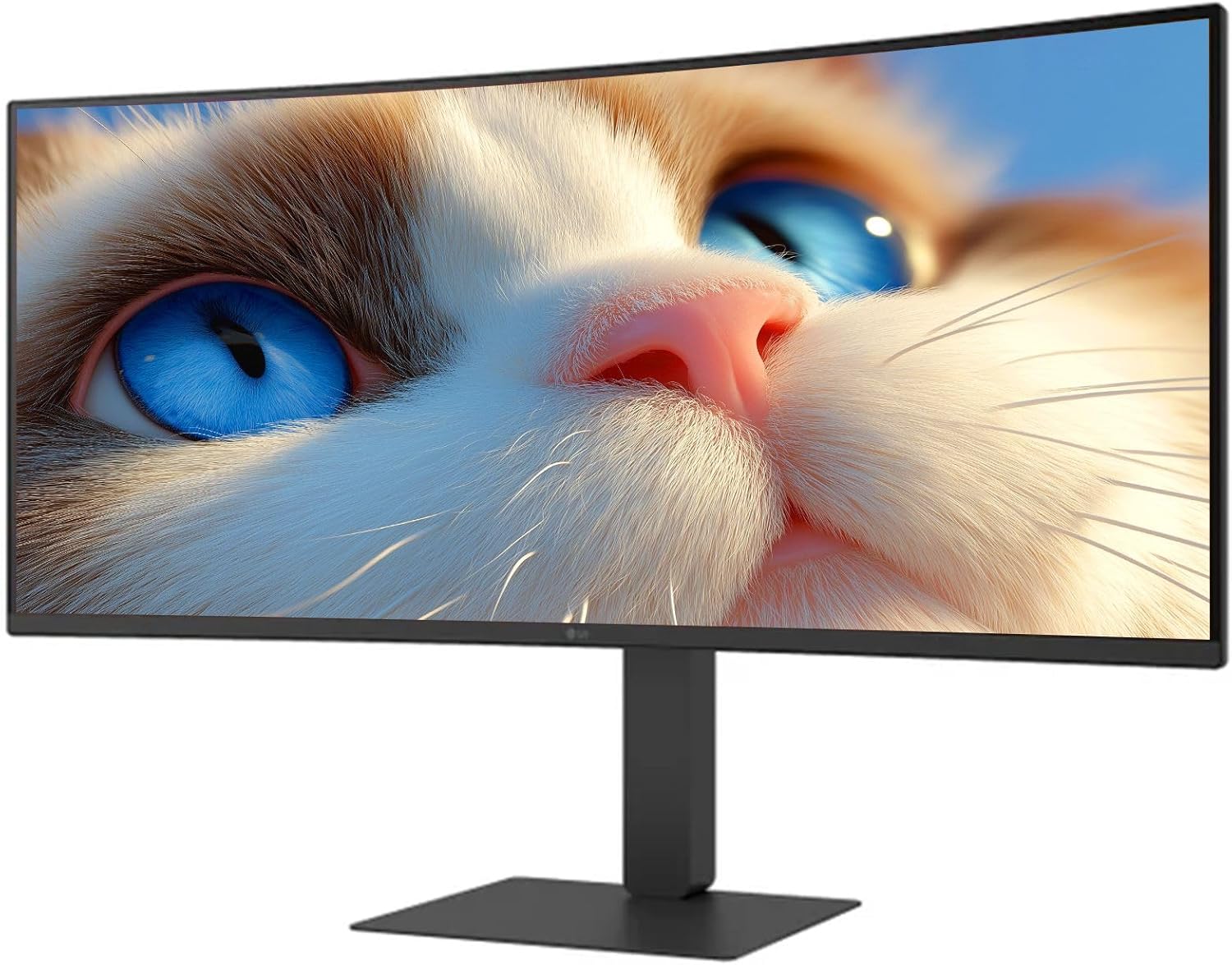
Figura 1: Frontal view of the LG 34 Inch UltraWide Curved Monitor with stand.

Figura 2: lateral view of the LG 34 Inch UltraWide Curved Monitor with stand.
3.2 Connexió del monitor
Connecteu el monitor al vostre ordinador o a altres dispositius mitjançant els cables adequats.
- Connecteu el cable d'alimentació a l'entrada d'alimentació del monitor i després a una presa de corrent.
- For video input, connect either an HDMI cable or a DisplayPort cable from your computer's graphics card to the corresponding port on the monitor.
- If your computer supports USB-C, you can use the provided USB-C cable for video, audio, and data transfer.

Figura 3: posterior view of the monitor showing available ports for connectivity.
4. Funcionament del monitor
4.1 Encès/Apagat
Press the power button, usually located on the bottom center of the monitor, to turn the monitor on or off. The power indicator light will illuminate when the monitor is on.
4.2 Menú de visualització en pantalla (OSD)
El menú OSD us permet ajustar diversos paràmetres del monitor. Feu servir el botó del joystick (normalment situat a la part inferior central) per navegar pel menú.
- Mode d'imatge: Select from various preset modes (e.g., Custom, Reader, HDR Effect) or customize settings like brightness, contrast, and sharpness.
- Entrada: Seleccioneu manualment la font d'entrada (HDMI, DisplayPort, USB-C).
- General: Access settings for language, OSD transparency, and power-saving options.
4.3 Ajust del suport
The monitor stand offers ergonomic adjustments for your comfort:
- Ajust d'alçada: Empenyeu o estireu suaument el monitor amunt o avall fins a l'alçada desitjada.
- Ajust d'inclinació: Hold both sides of the monitor and tilt it forwards or backwards.
- Ajust de gir: Gireu el monitor cap a l'esquerra o la dreta sobre la base.
5. Manteniment
5.1 Neteja del monitor
To ensure the longevity and optimal performance of your monitor, follow these cleaning guidelines:
- Desendolleu sempre el monitor de la presa de corrent abans de netejar-lo.
- Utilitzeu un drap suau i sense pelusa lleugerament dampnetejat amb aigua o amb un netejador de pantalles especialitzat.
- No ruixeu el netejador directament sobre la pantalla.
- Eviteu utilitzar netejadors abrasius, dissolvents o productes a base d'amoníac.
6. Solució De Problemes
Si teniu problemes amb el monitor, consulteu les solucions habituals següents:
- Sense energia: Ensure the power cable is securely connected to both the monitor and the power outlet. Check if the power outlet is functioning.
- Sense senyal: Verify that the video cable (HDMI, DisplayPort, or USB-C) is correctly connected to both the monitor and your computer. Ensure the correct input source is selected in the OSD menu.
- Pantalla parpellejant: Check the video cable connection. Try adjusting the refresh rate in your computer's display settings.
- Distorsió de la imatge: Reset the monitor to factory settings via the OSD menu. Ensure your computer's display resolution matches the monitor's native resolution (3440 x 1440).
- No hi ha so dels altaveus integrats: Check the volume settings on both the monitor and your computer. Ensure the audio output is correctly routed to the monitor.
If the problem persists after trying these steps, please contact LG customer support.
7. Especificacions
| Característica | Especificació |
|---|---|
| Marca | LG |
| Número de model | 195174134092 |
| Mida de la pantalla | 34 polzades |
| Resolució màxima | WQHD (3440 x 1440) |
| Freqüència d'actualització | 120 Hz |
| Temps de resposta | 5ms (GTG) |
| Relació d'aspecte | 21:9 |
| Gamma de colors | sRGB 99% |
| Suport HDR | HDR10 |
| Viewangle ing | 178 degrees (R/L), 178 degrees (U/D) |
| Connectors de visualització | 1 x HDMI, 1 x DisplayPort |
| Eye Relief Features | Low blue light, Flicker-free, Anti-glare, Reader Mode |
| Altaveus incorporats | Sí |
| Dimensions del producte (amb suport) | 8.7 "P x 32.1" W x 19.2" H |
| Pes del producte (amb suport) | 16.8 lliures |
8. Garantia i Suport
Your LG 34 Inch UltraWide Curved Monitor comes with a standard manufacturer's warranty. Please refer to the warranty card included in your package for detailed terms and conditions.
Per a assistència tècnica, servei o més consultes, visiteu el lloc web oficial de LG. website or contact their customer service hotline. Keep your purchase receipt and product serial number (located on the back of the monitor) handy when contacting support.