1. Introducció
Thank you for choosing the JOMAA MS-622 Dual Mode Wireless Vertical Trackball Mouse. This manual provides detailed instructions for setting up, operating, and maintaining your device. Please read this manual carefully before use to ensure optimal performance and longevity of your trackball mouse.
The MS-622 combines dual connectivity options (2.4GHz wireless and Bluetooth), an ergonomic design for comfort, and adjustable precision to enhance your computing experience.
2. Producte acabatview
The JOMAA MS-622 trackball mouse is designed for comfort and efficiency. Familiarize yourself with its components:
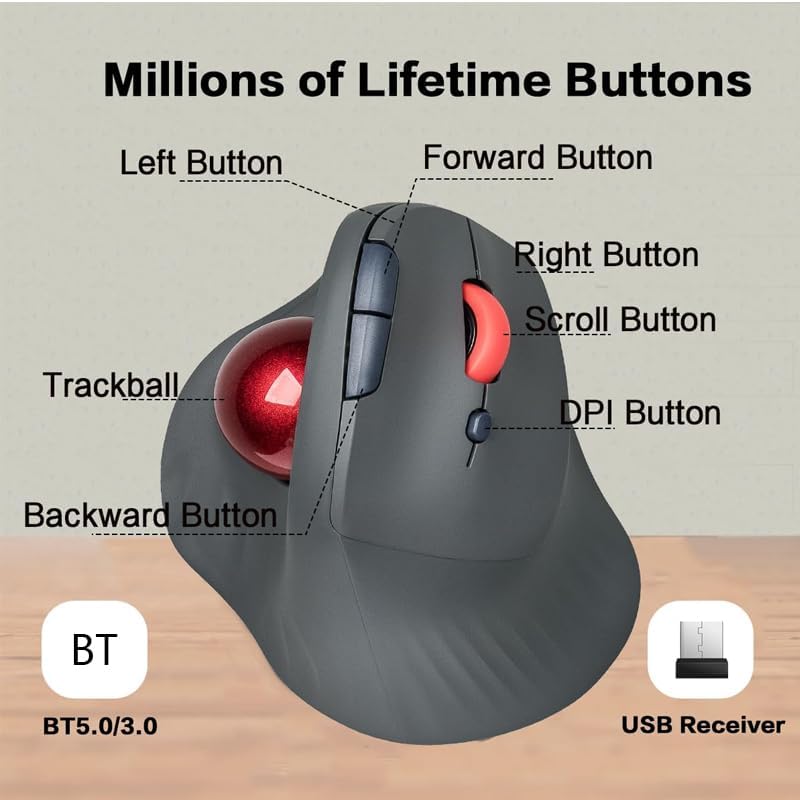
Imatge 2.1: Component Layout. This image illustrates the various buttons and features of the MS-622 mouse, including the Left Button, Forward Button, Right Button, Scroll Button, DPI Button, Trackball, and Backward Button. It also indicates Bluetooth 5.0/3.0 and the USB Receiver.
- Botó esquerre: Funció estàndard del clic esquerre.
- Botó dret: Funció estàndard del clic dret.
- Scroll Wheel/Button: For scrolling content vertically and as a middle-click button.
- Botó Endavant: Navega cap endavant web navegadors o file exploradors.
- Botó enrere: Navega cap enrere web navegadors o file exploradors.
- Botó DPI: Adjusts cursor sensitivity (CPI).
- Trackball: Controls cursor movement.
- Interruptor de mode: Located on the bottom, for switching between 2.4GHz and Bluetooth modes.
- Port de càrrega USB-C: Per recarregar la bateria interna.
The ergonomic design of the MS-622 promotes a natural hand and wrist posture, reducing strain during extended use.

Imatge 2.2: Ergonomic Design. This image highlights the 60-degree tilt of the mouse, designed to support natural hand placement and provide comfort for all-day use.

Imatge 2.3: Wrist Posture Comparison. This image visually compares the wrist position when using a traditional mouse (twisted wrist) versus the JOMAA MS-622 trackball mouse (normal wrist), illustrating the ergonomic benefits.
3. Instruccions de configuració
The MS-622 offers two connectivity options: 2.4GHz wireless via a USB receiver and Bluetooth. You can switch between these modes using the switch on the bottom of the mouse.
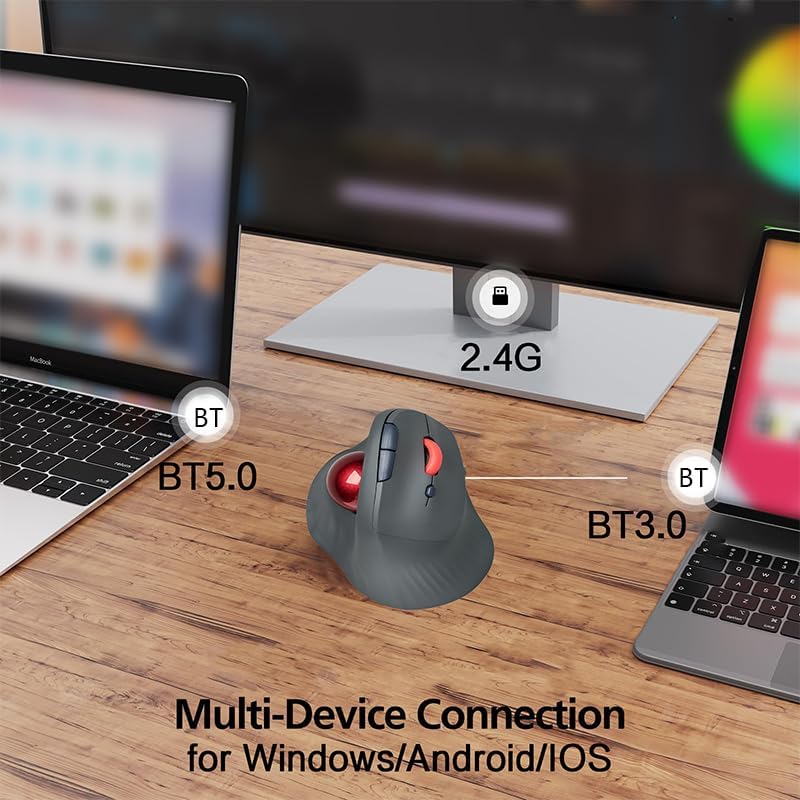
Imatge 3.1: Multi-Device Connection. This image demonstrates the mouse connecting to different devices (laptops, monitor) using both 2.4GHz wireless (via a USB dongle) and Bluetooth 5.0/3.0.
3.1. Connexió sense fil de 2.4 GHz
- Locate the USB wireless receiver, typically stored in a compartment on the bottom of the mouse.
- Connecteu el receptor USB a un port USB disponible de l'ordinador.
- Canvieu el selector de mode a la part inferior del ratolí a la posició "2.4G".
- The mouse should automatically connect. If not, try turning the mouse off and on again.
3.2. Connexió Bluetooth
- Switch the mode selector on the bottom of the mouse to the 'BT' position.
- A l'ordinador o dispositiu, obriu la configuració de Bluetooth.
- The mouse should appear as 'MS-622' or similar in the list of discoverable devices. Select it to pair.
- Seguiu les indicacions de la pantalla per completar el procés de vinculació.
- The mouse supports Bluetooth 5.0 and 3.0, allowing connection to a wide range of devices.
4. Instruccions de funcionament
4.1. CPI Adjustment
The MS-622 features adjustable CPI (Counts Per Inch) settings, allowing you to change the cursor sensitivity to suit your task. Press the DPI button (refer to Image 2.1) to cycle through the available CPI levels:
- 800 CPI: For precise, detailed work.
- 1200 CPI: Configuració estàndard per a ús general.
- 1600 CPI: For faster cursor movement across larger screens.

Imatge 4.1: CPI Adjustment. This image illustrates the three adjustable CPI levels (800, 1200, 1600) and points to the dedicated CPI button on the mouse.
4.2. Funcions del botó
The 5 buttons and scroll wheel are pre-programmed for common functions:
- Clic esquerre: Primary selection.
- Clic dret: Menú contextual.
- Roda de desplaçament: Scroll up/down. Press for middle-click.
- Botons Endavant/Enrere: Navega web pàgines o carpetes.
- Botó DPI: Cycle CPI settings.
5. Manteniment
5.1. Carregant la bateria
The MS-622 features a built-in 500mAh rechargeable lithium battery. When the battery is low, the indicator light may flash, or performance may degrade.
- Connect the included USB charging cable to the USB-C port on the front of the mouse.
- Connecteu l'altre extrem del cable a una font d'alimentació USB (per exemple, un port USB de l'ordinador, un adaptador de paret USB).
- El llum indicador mostrarà l'estat de càrrega (per exemple, vermell fix mentre es carrega, apagat quan estigui completament carregat).
- A full charge typically takes a few hours and provides extended use.
5.2. Neteja del trackball
Amb el temps, la pols i les deixalles es poden acumular al voltant del trackball, cosa que afecta el seu bon funcionament. Es recomana una neteja regular.
- Apagueu el ratolí.
- Gently push the trackball out from the bottom of the mouse (there might be a small opening or button to release it).
- Use a clean, lint-free cloth or cotton swab to wipe the trackball clean.
- Clean the inside cavity of the trackball housing, paying attention to the small sensors.
- Reinsert the trackball, ensuring it clicks securely into place.
5.3. Neteja general
Wipe the exterior of the mouse with a soft, damp tela. Eviteu utilitzar productes químics aggressivs o netejadors abrasius.
6. Solució De Problemes
- El ratolí no respon:
- Ensure the mouse is turned on and the battery is charged.
- Check the connection mode (2.4GHz or Bluetooth) and ensure it matches your device's connection.
- Per a 2.4 GHz, assegureu-vos que el receptor USB estigui ben connectat. Proveu un altre port USB.
- For Bluetooth, ensure Bluetooth is enabled on your device and the mouse is properly paired. Try re-pairing.
- Cursor movement is erratic or sticky:
- Clean the trackball and its housing as described in Section 5.2.
- Ensure the surface beneath the mouse is clean and free of obstructions (though less critical for a trackball mouse).
- El ratolí no carrega:
- Ensure the USB charging cable is securely connected to both the mouse and the power source.
- Prova un altre port USB o adaptador de càrrega.
- Verifiqueu que el cable de càrrega no estigui danyat.
- La connexió cau amb freqüència:
- Ensure the mouse is within the 10-meter wireless range of your device.
- Minimitzar les interferències d'altres dispositius sense fil (per exemple, encaminadors Wi-Fi, altres dispositius Bluetooth).
- Assegureu-vos que la bateria estigui prou carregada.
7. Especificacions
| Característica | Detall |
|---|---|
| Número de model | MS-622 |
| Connectivitat | Sense fil de 2.4 GHz, Bluetooth 5.0, Bluetooth 3.0 |
| abast sense fils | Fins a 10 metres (33 peus) |
| Botons | 5 buttons + Scroll Wheel |
| Configuració de l'IPC | 800 / 1200 / 1600 (Ajustable) |
| Bateria | Bateria de liti recarregable integrada de 500 mAh |
| Port de càrrega | USB-C |
| Dimensions del producte | 11.5 x 9.2 x 7.1 cm (4.53" x 3.62" x 2.80") |
| Pes de l'article | 7.4 unces |
| Compatibilitat | Windows, macOS, Linux, Android, iOS (Bluetooth dependent) |
| Tecnologia de detecció de moviment | Trackball |
8. Informació de la garantia
The JOMAA MS-622 Dual Mode Wireless Vertical Trackball Mouse is covered by a standard manufacturer's warranty. Please refer to the warranty card included in your product packaging or contact JOMAA customer support for specific terms and conditions regarding warranty coverage and duration.
9. Atenció al client
For any questions, technical assistance, or support inquiries regarding your JOMAA MS-622 trackball mouse, please contact JOMAA customer support through the retailer where you purchased the product or visit the official JOMAA weblloc per obtenir informació de contacte.


